
Modify scheduled operation properties
You can modify the operation properties for a scheduled asset. If you cannot modify the operation properties, there may be a problem with the activation for the device.
Prerequisites
- To edit schedules, you must haveEdit a schedulepermission.
To modify scheduled asset settings
- SelectView > Schedules, or click theSchedulesbutton.
- Select the schedule containing the assets with operation properties you want to modify.TIP:For all of a device's schedule properties to be available for modification, make sure each device in the schedule has its configuration data (file or binder) defined in the device's properties. In a new schedule, the master file or binder defaults to the latest version of the device's configuration file or binder. Once the configuration data is set, you can select a specific version (labeled, pinned, or a specifically numbered version) of the master through the asset's scheduled operation properties. If you change the device's configuration data, the latest version of the new configuration data will be used the next time the schedule runs. Already running schedules will use the existing rather than new configuration data. If the existing configuration data is deleted when the schedule runs, the operation will fail.
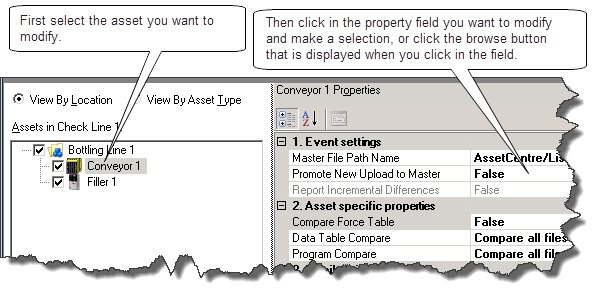
- In the lower left portion of theSchedulestab, select the scheduled asset containing the operation properties you want to modify.
- The operation properties for the selected asset appear in the lower right portion of theSchedulestab. Modify the operation properties as desired. Different asset types have their own specific operation properties.
- To restore the asset's operation properties to their previous values, clickUndo.
- To save the modified operation properties, clickSave.If you select another schedule or an asset in the asset tree, you will be prompted to save the changes, if you have not done so. An asterisk (*) appears on theSchedulestab when any operation properties are modified for a schedule before the schedule is saved. If you close theSchedulestab without saving a modified schedule, you will be prompted to save any unsaved FactoryTalk AssetCentre data (including unsaved schedules and searches).
Provide Feedback