
Asset View in Design mode
The following image shows each part of the view and the operations you can perform when the Asset View is in Design mode.
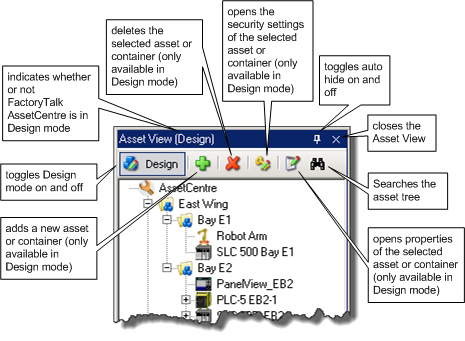
Minimize the Asset View (Auto Hide)
 The
The Auto Hide
button minimizes the Asset View to a tab along the left edge of the FactoryTalk AssetCentre window. When you hold the pointer over the Asset View
tab, it expands. When you hold the pointer over the Workspace Pane, the Asset View minimizes again. Once you click within the Asset View, you have to click within the Workspace Pane for the Asset View to automatically collapse again. To turn off Auto Hide, click the Auto Hide
button again.Close the Asset View
 Closes the Asset View. To open the Asset View again, click the
 Assets
button on the main toolbar.Provide Feedback