
Sort and arrange schedules
You can change the sort order and arrangement of shown schedules. This makes it easier to view the schedules that you want to modify or run.
Sort schedules
Toggle a column's sort order between ascending and descending order by clicking a column heading. An arrow appears on the heading of the sorted column to indicate whether the sort column appears in descending  or ascending order
  .
.
or ascending order .You can also right-click any schedule row, select
Arrange By
, and then select the desired column on which you want to sort the schedules.Arrange schedule columns
- ShowTo show the desired columns for the shown schedules, right-click any schedule row, selectColumns, and then select (or deselect) the columns to show. A check mark appears next to the columns to be shown.
- MoveTo change the order of columns on theSchedulestab, drag the column heading to a new location. When you do, arrows appear indicating where the column would be placed if you were to stop dragging the mouse at that point:
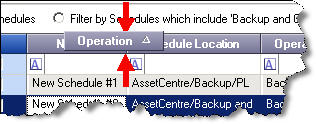
- ResizeTo change the width of a column, position the pointer on a column divider and drag the cross-bar shape to make the column wider or narrower. To automatically adjust a column's width to be as wide as the longest entry in that column, double-click the divider to the right of the column heading.
Provide Feedback