
Open files or binders
When you open a file or binder that you have checked out, the software program associated with that file type opens the file (or key file for a binder). If you do not have the file or binder checked out, you can get a read-only version or check out and open the file or binder. To get or check out a file or binder, you must have a working folder set.
File associations (associating a file type with a program) must also be set. FactoryTalk AssetCentre uses Windows file associations, provides some file associations itself, and provides means for you to set your own file associations.
Prerequisites
- In the process of opening the file or binder, you will need to get it or check it out (if not checked out). While you do not need any specific permissions to open the file or binder, you do need permission to get it or check it out.To check out a file or binder, you must haveCheckOut - CheckInpermission for the asset. To get a read-only version, you must haveGetpermission for the asset.
To open a file or binder
- In the asset tree, right-click the file or binder and selectOpen.The following are alternate methods from within the Archive tab:
- SelectView > Archive, or click theArchivebutton. Select the file in the asset tree and at the top of theArchivetab, click the filename link:
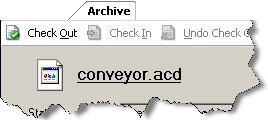
- In the asset tree, select an asset that contains the file you want to open. On theArchivetab double-click the file or right-click the file and selectOpen.
- If the file or binder is checked out, the file's associated software program launches and opens the file (or key file for a binder). For Siemens S5 and S7 projects a list of editors is shown for you to choose from and then the editor is launched.
- If the file or binder is not checked out, complete theAsset Retrieval Optionsdialog box to place the file or binder in your working folder and open it.
- If you do not have a working folder set for the file or binder's asset, the messageUnable to Launch Fileis shown instead of theAsset Retrieval Optionsdialog box.TIP:You can create a shortcut on the desktop for individual files or binders. Then you can simply double-click the shortcut to open the file or binder. You can open files and binders from desktop shortcuts even when the FactoryTalk AssetCentre desktop client is not running.
Provide Feedback