
Results of comparing two folders
When you compare two folders (in Windows, in FactoryTalk AssetCentre, or both), the results are provided by the Rockwell Automation Compare tool. This topic explains the shown results.
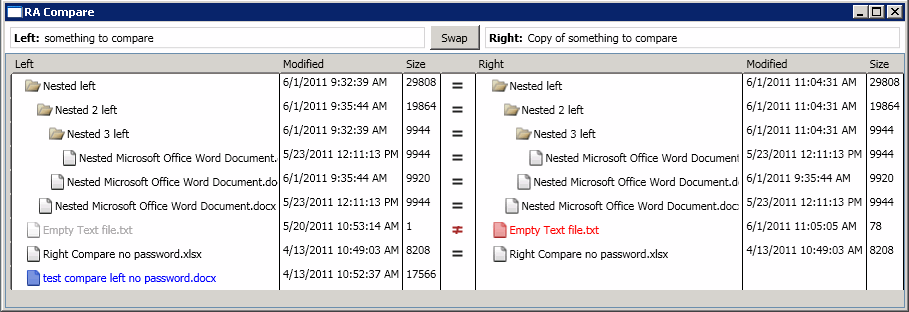
The following is an example of results:
About the items on the dialog box
The left side of the dialog box lists the contents of the first folder you selected and the right side lists the contents of the second.
 in the middle column means the item is the same in both versions.
 in the middle column means the item has differences. The filename shown in grayis the older file and the one shown inredis the more recent file.
- Nothing in the middle column means the item has been added or deleted in one version. The filename is shown inblueto indicate its presence in one folder, andblank(no filename) to indicate its absence in the other folder.
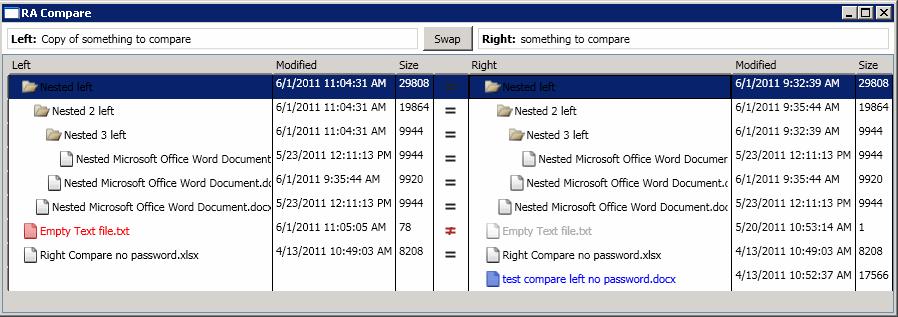
 switches the left and right folders.
The following is an example of swapped results:
You can use the dialog box to:
- See more details on differences:
- Double-click a file with differences. The comparison tool you have set for that type of file runs a comparison and shows results.
- Expand or collapse a folder:
- Double-click the folder.
- Compare two items within the results:
- Right-click one and clickSelect Left item for RA Compare(where item is File or Folder depending on what you have selected), then right-click the other and selectRA Compare To: first selection.You can also compare an item within the results to an item in Windows in the same manner.
Provide Feedback