
Add Site Node
Offers detailed energy consumption and efficiency metrics for individual sites. This level helps site managers monitor and optimize energy usage, identify inefficiencies, and implement site-specific energy-saving measures.
NOTE:
The following points are required to view data on
Site level dashboard
:- Data from different meters which are directly connected to a Site node will be considered for the data aggregation.
- For consumption and demand charts, the respective resource meter has to be configured with the proper tag mapping.
- For Cost charts, the respective rate schedule should be configured at the Site level.
- For Emission, the respective emission factor should be configured at the Site level.
- For Production and energy intensity charts should have correct tag mapping for production count measurement.
- Harmonized units are defined at the Enterprise level and will be used to display harmonized consumption, intensity, or emissions data.
Perform the following steps to add a Site under Region:
- Select theRegionfrom the hierarchy list.
- Click the [
 ] icon and click Add.Region - Add
 TheAdd Componentdialog is displayed.Add Component
 User can also add the site from the Region Configuration page.Add Site from Region Configuration Page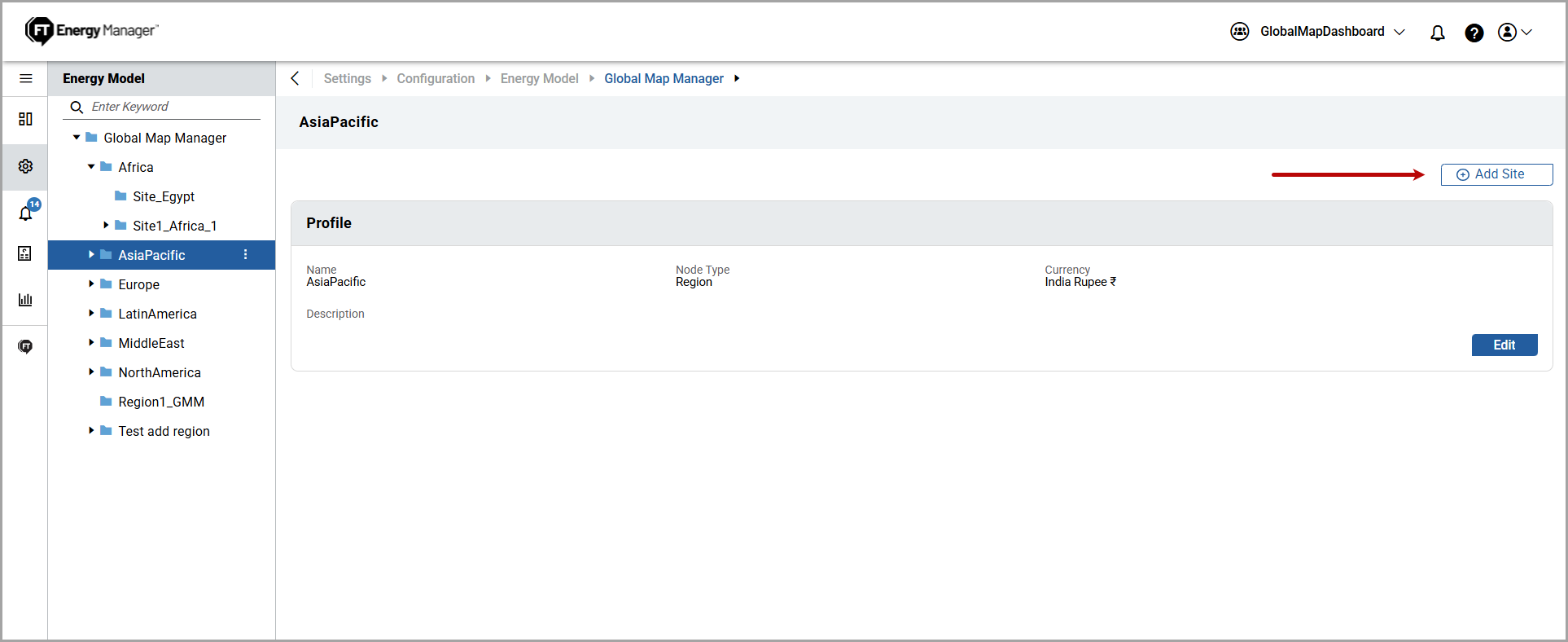
- UnderNode, clickSite.
- Provide the following details:
- Name: Provide a Site name.
- Currency: Select a currency from the dropdown list.
- Time zone: Select a time zone from the dropdown list.
- Latitude and Longitude: Provide the latitude and longitude details of the Site.User can also locate the site from the Map.
- ClickFind on Maps.
- TheCoordinates from Mapswindow is displayed. Navigate to the site or use the search option to find the right site.
- Right-click on the site. The coordinates display in a pop-up message. ClickCopy.Coordinates
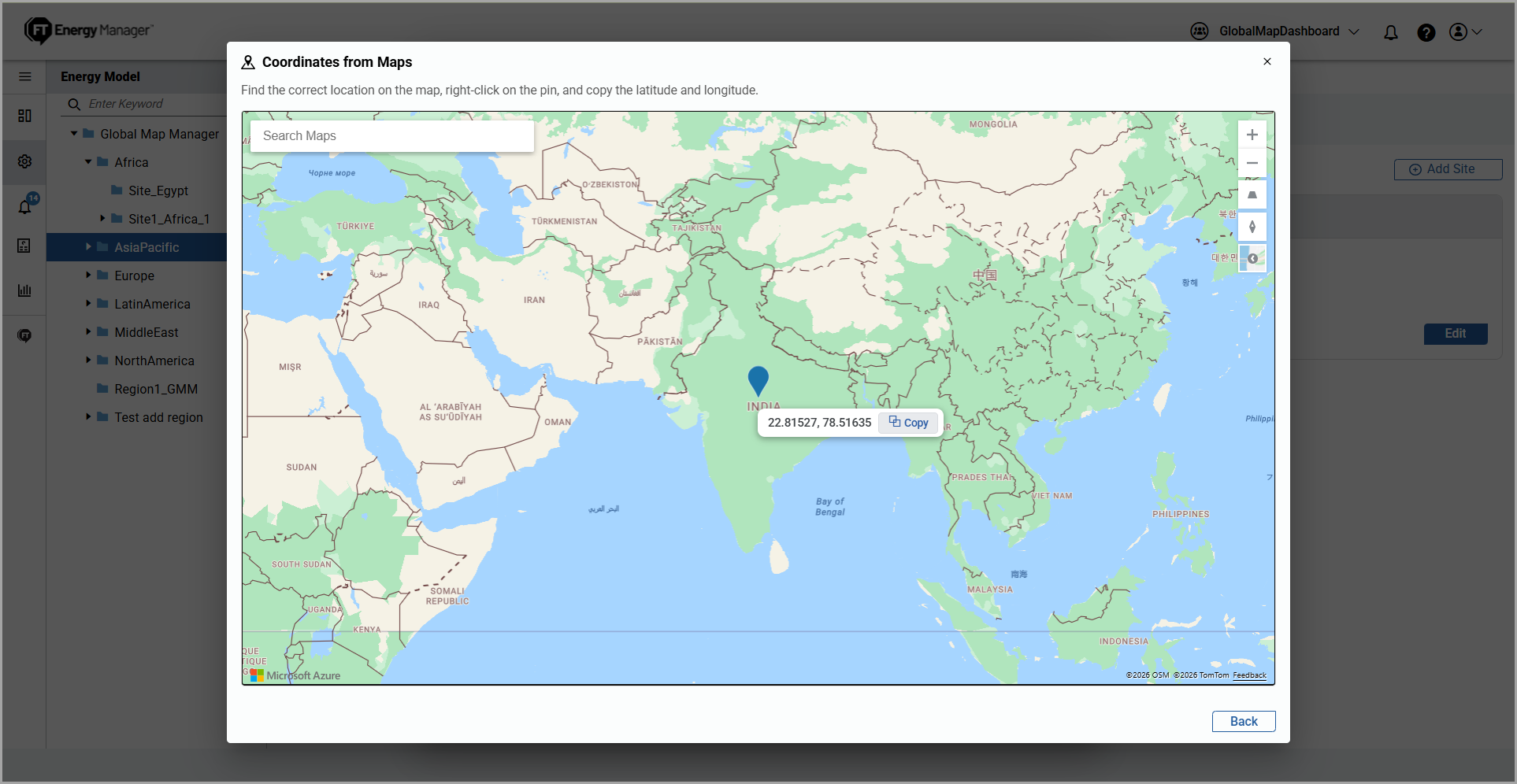
- ClickBackto close the window.
- Paste the coordinates.
- Description: (Optional) Provide a description of the Site.
NOTE:In the Site component, the user can configure base details (geolocation, currency, time zone) and Configure Resource Types, Configure Emissions Factors, Configure Measurands, Configure Calorific Values, and Configure Rate Schedules.Add Component -Site Dialog
- ClickAdd.The "Added successfully" message is displayed.Site Configuration
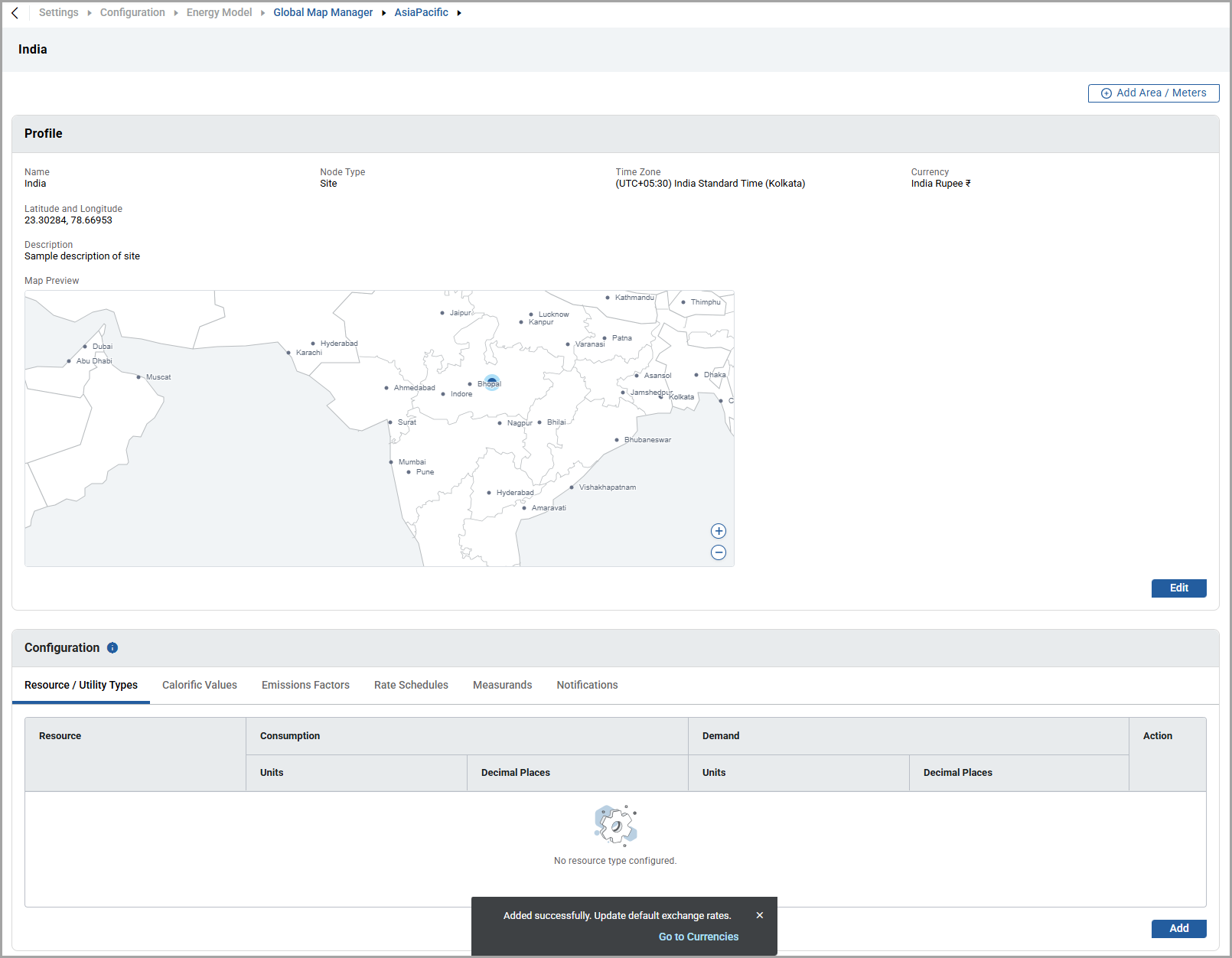 NOTE:User can clickGo to Currenciesto update the exchange rates. Refer to the Currency section.
 - To edit the details, refer to the Edit Component section.
Provide Feedback