
Configure Rate Schedules
This feature allows users to manage and adjust the cost associated with different resources over specific timeframes. This feature enables the systematic setup and modification, which can be based on time periods and resource types.
Add Rate Schedules
Perform the following steps to add a rate schedule:
- Under theRate Schedulestab, clickAdd.
- In theAdd Rate Scheduledialog box, set these parameters:
- Resource/Utility Type: Select a resource/utility type from the dropdown list.
- Valid From: Click the [
 ] icon and select the date.
 - Vendor Name: (Optional) Provide a name.
- Time: Select a rate schedule period by using the angular-slider.
- Resource Rate: Provide a resource rate value.
- ClickAdd.Add Rate Schedule
 The "Added successfully” message is displayed. User can add multiple Rate Schedules and they are displayed under each resource/utility type dropdown.
Edit Rate Schedule
Perform the following steps to edit the rate schedule:
- Under theRate Schedulestab, the user can view the list of all available resource/utility types.
- On the required resource type, click the [
 ] icon.Rate Schedules
 User can hover over a rate schedule to view the details, as shown below:Rate Schedule Details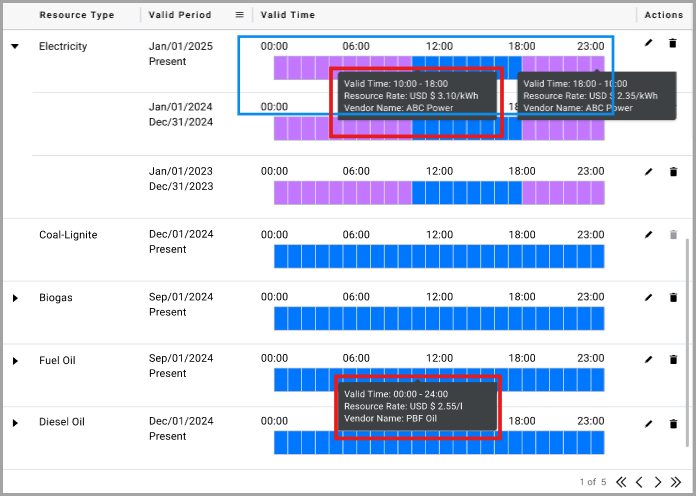
- In theEdit Rate Scheduledialog box, edit the fields and clickSave.Edit Rate Schedule
 The "Updated successfully” message is displayed.
Delete Rate Schedules
NOTE:
A user can delete a Rate Schedules only when multiple Rate Schedules are available for the selected resource/utility type.
Perform the following steps to delete the rate schedule:
- On the required resource/utility type, click the [
 ] icon.
 - In theDelete Rate Scheduledialog box, clickDelete.Delete Rate Schedule
 The “Deleted successfully” message is displayed.
NOTE:
If there is an overlap in the rate schedule time period, no notification is shown; however, the time periods will align automatically upon saving.
Provide Feedback