
Security policy model canvas
Use canvas to manage zones, conduits, and devices with an interactive diagram and a tree visualization of the policy model.
TIP:
Canvas displays the same information as tables. See Security policy model tables.
Overview
Canvas interface
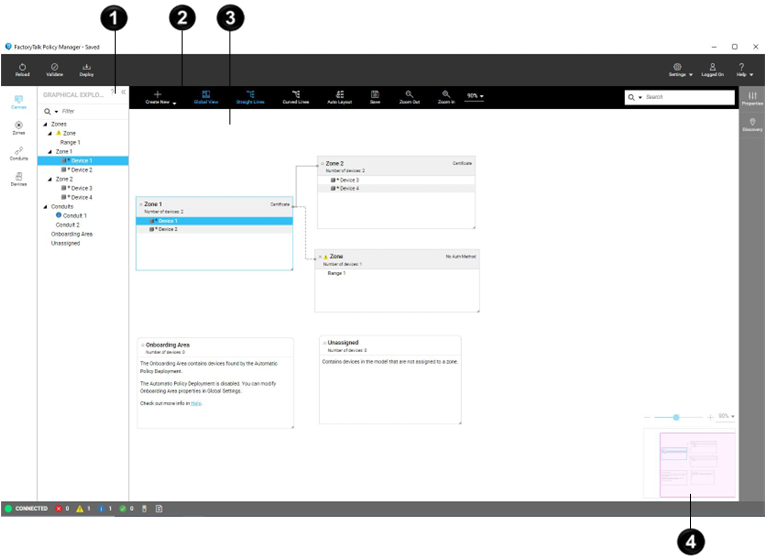
Item | Name | Description |
|---|---|---|
 | Mini map | Helps navigate complex policy models. |


Toolbar
Use the toolbar to interact with canvas.
TIP:
If the  .
.
FactoryTalk Policy Manager
window is not wide enough to fit all actions, you can view the
hidden actions by selecting
More Actions
Item | Description |
|---|---|
Create New | Adds a zone, conduit, device, or range to the selected zone or
Unassigned . |
Global View | Shows or hides a mini map of the policy model visualization in the bottom-right
corner of the model. Use to navigate complex policy models and adjust the zoom level of the policy
model. |
Straight Lines | Shows conduits as straight lines. Dotted conduits represent trusted unsecure connections. Solid conduits represent secure connections. |
Curved Lines | Shows conduits as curved lines. Dotted conduits represent trusted unsecure connections. Solid conduits represent secure connections. |
Auto Layout | Automatically lays out the policy model visualization. |
Save | Saves the policy model visualization to a graphic file. |
Zoom Out | Zooms out the policy model visualization. |
Zoom In | Zooms in the policy model visualization. |
Zoom | Displays the current zoom level of the policy model visualization. Enables you
to select or enter a custom zoom level value. You can also zoom in and zoom out the policy model visualization by using the
mouse wheel. |
Search | Highlights policy model components based on the specified criteria. See Search Canvas. |
Components
Canvas visualizes these policy model components.
TIP:
You can move, resize, collapse, and expand containers in the policy model visualization. Use
Properties
to configure the policy model components.Item | Description |
|---|---|
Zone | Contains devices added to the policy model. |
Conduit | Communication pathway, connecting pairs of policy model components. Dotted conduits represent trusted unsecure connections. Solid conduits represent secure connections. |
Onboarding Area | Contains devices found by Automatic Policy Deployment that can be added to the policy model. |
Unassigned | Contains devices added to the policy model but not added to any zone in the policy model. |
Device | Represents a device added to a zone, discovered by Automatic Policy Deployment, or an unassigned device. You can drag devices and ranges between containers. If you move a device from
the Onboarding Area to a Zone or
to the Unassigned container, the device cannot be moved
to the Onboarding Area container again. |
Provide Feedback