
Archive Check-out Integration with ThinManager Client
After configuring ThinManager Client, you can use FactoryTalk AssetCentre’s Archive check-out capability through ThinManager Client. The file
DataTypes.ACD
will be taken as an example to show how to configure ThinManager Client.To Configure ThinManager Client
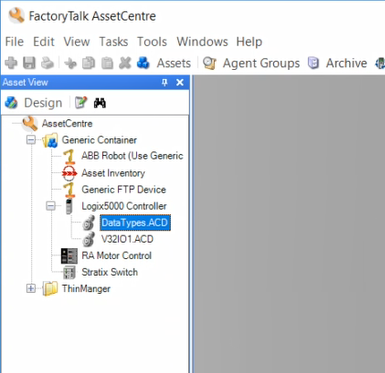
- In asset tree of the FactoryTalk AssetCentre desktop client, select the fileDataTypes.ACDand then create a shortcut.
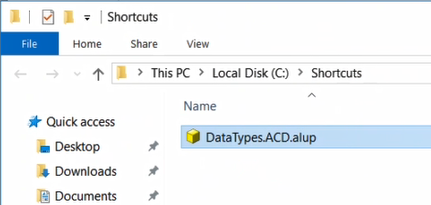
- Copy the shortcut to a specific folder. (For example:C:\Shortcuts)
- In ThinManager Server, expand theDisplay Clientstree and create a display clientAssetCentre_datatypes_acd.
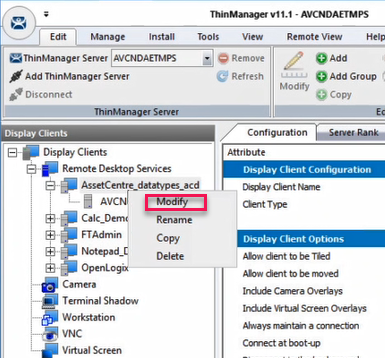
- Right-click the new display client and selectModifyto open theDisplay Client Wizardwindow.
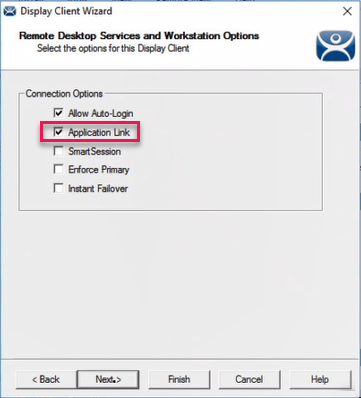
- SelectNextto go to theConnection Optionsbox, and then select theApplication Linkcheck box.
- SelectNextto go to theAppLink Pathbox.Program Path and FilenameEnter or browse the path of AppLauncher. (The default path isC:\Program Files (x86)\Rockwell Software\AssetCentre Client\AppLauncher.exe.)Command Line OptionsEnter the command line and the path of the shortcut file. (For example:/configfile=“C\Shortcuts\datatypes.acd.alup”)
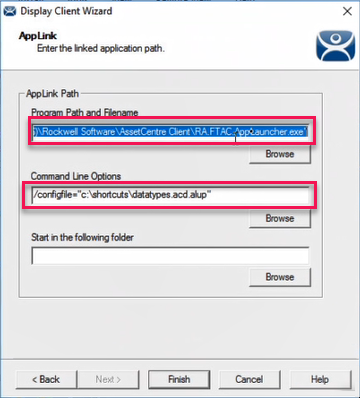
- SelectFinishto save the changes.Then you can use ThinManager Client to perform FactoryTalk AssetCentre’s Archive check-out capability.
Provide Feedback