
The interface
The
Library Object Manager
interface is organized into a three-pane display composed of two panels with object trees and a third panel that contains object properties.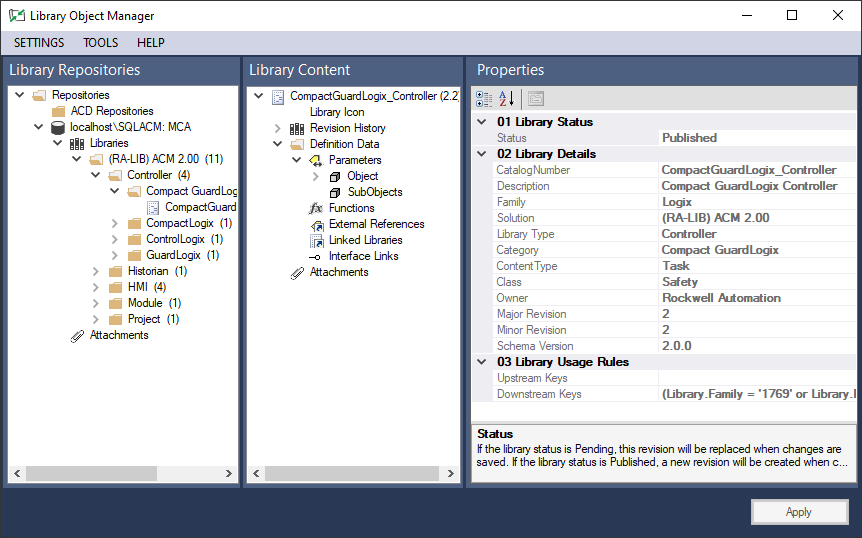
This table describes the regions and controls on the
Library Object Manager
interface.Interface element | Description |
|---|---|
Menu bar | Use to configure settings for library attributes and view log information. |
Library Repositories column | The Library Repositories column displays collections of library objects (repositories). There are three kinds of repositories that can be added to the display:
When a library object is copied into a Folder or the ACM Database, Library Object Manager generates an HLS4 file for the library object. Library objects may be copied multiple times. Each time a library object is copied, a distinct version of the library object is created and a distinct HLS4 file is generated.Click the + icon to the left of an item in the tree to display the elements that are contained within it. Click the - icon to collapse the element display. |
Library Content column | The Library Content column displays a tree view of the content of a library object that has been selected in the Library Repositories column. The Library Content column becomes active when a library object that has been copied to a folder or to the ACM database is selected.By default, the column displays library object content as a read-only display in the Properties panel under these headings:
Use the Library Content column to add these features to a selected library object:
These features can only be added after a library object has been copied to a Folder or the ACM Database. They are included in the individual HSL4 library object file, but are not added to the original ACD file. |
Properties panel | The Properties panel displays the Revision History , Decoration , and Logix code of the selected library object. It also displays the property settings available for editing.When an editable property is selected, click in the Properties panel to modify the setting. The property value column will show a cursor to indicate that the setting can be directly entered or a dropdown arrow to select a value from a list. Properties that can accept calculated values also show the ellipsis (...) button. Clicking this button opens the Expression Builder or the Tag Browser .Click the Apply button to accept any changes made to the properties settings. |
Provide Feedback