
Use Data Source Configuration Wizard to change SQL Server user account
If the AssetCentre database has been moved or restored on a Microsoft SQL Server, it is important to reconnect the
FactoryTalk AssetCentre
server to this new database. The following steps will walk through the FactoryTalk AssetCentre
Data Source Configuration Wizard, installed by default along with the FactoryTalk AssetCentre
server.
IMPORTANT:
The
FactoryTalk AssetCentre
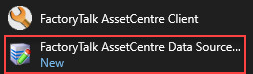
server and World Wide Web Publishing services should still be stopped at this point, following the restoration of the database. If this is not so, stop them now.- From theFactoryTalk AssetCentreserver computer, go to theStartmenu and selectFactoryTalk AssetCentre Data Source Configuration.
- ClickNexton the first screen.
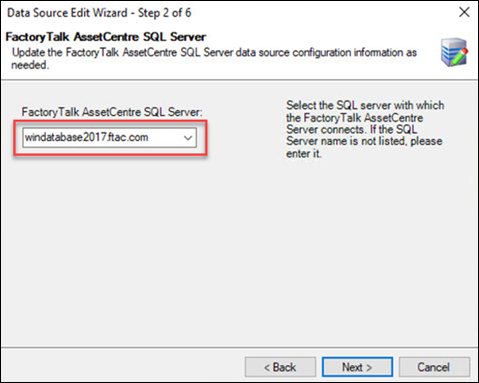
- Enter the name of the Microsoft SQL Server in theFactoryTalk AssetCentre SQL Serverdropdown menu, and then clickNext.
 IMPORTANT:
- If you want to turn on the TLS for the database, the fully qualified domain name (FQDN) computer name is required when you specify theFactoryTalk AssetCentreSQL server.
- The default port used for SQL Server communication is 1433. If you want to change the SQL Server port, you must add the port number after the FQDN SQL Server name. For example,mySQLServer.myDomain.com,1526. The comma (,) is required. You must ensure that the port is not in use by any other application, service, or process in your system.
- Configure theAccount nameand communication security options as needed, and then clickNext.
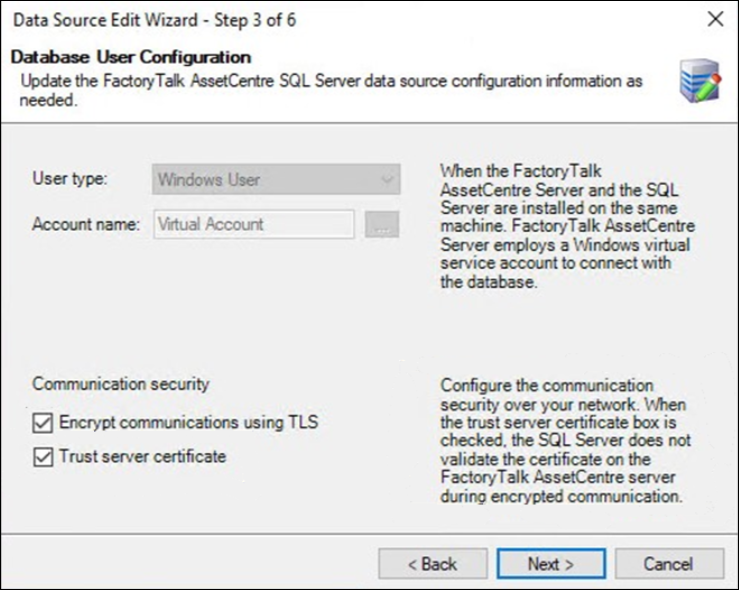 TIP:Microsoft SQL Server 2022, and later, support encrypted communication by enablingForce EncryptionorForce Strict Encryption. When enabled, Microsoft SQL Server uses TLS (Transport Layer Security) to encrypt data transmitted between Microsoft SQL Server and clients, like the FactoryTalk AssetCentre server. TheForce Strict Encryptionoption is not supported by FactoryTalk AssetCentre. The communications between FactoryTalk AssetCentre and Microsoft SQL Server can be encrypted by selecting theEncryption communication using TLScheckbox in this tool or enabling the Microsoft SQL ServerForce Encryptionoption.
 - Configure theFactoryTalk AssetCentreSQL Server Mirror properties if applicable, and then clickNext.
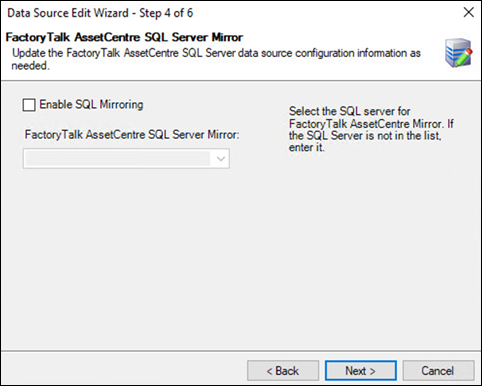 IMPORTANT:If theEnable SQL Mirroringcheckbox is selected, in theFactoryTalk AssetCentre SQL Server Mirrorbox, you can enter a name of Mirror Database Server or SQL Server Mirror that hosts the mirroredFactoryTalk AssetCentreDatabase.
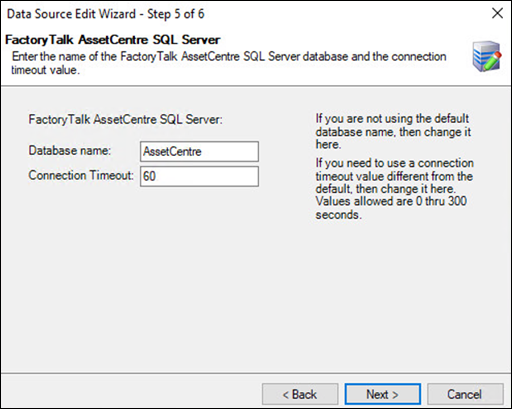
 - Confirm theDatabase nameandConnection Timeoutvalues in theFactoryTalk AssetCentreSQL Server window, and then clickNext.
- ClickFinish, and a data source test window will appear.IMPORTANT:If the encryption key in FactoryTalk AssetCentre server does not match the one in the specified database, a dialog appears. Use theFactoryTalk AssetCentre Database Installer Utilityto recover the encryption key and then apply your desired database changes. For more information, seeIf you receive an unmatched key error in FactoryTalk AssetCentre Data Source Configuration Wizardin theFactoryTalk AssetCentre Getting Results Guide.
- PressTest Data Sourceto test the connection that you’ve configured and verify that the test completes successfully.
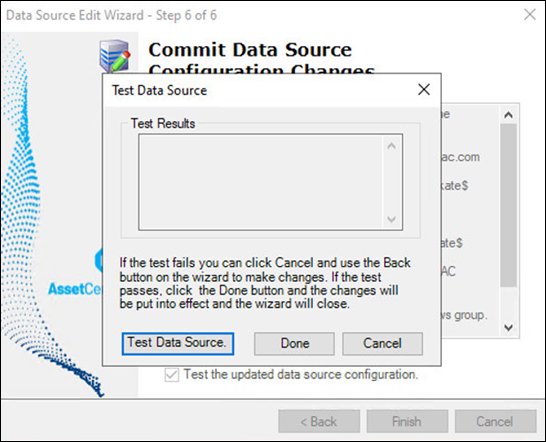
- ClickDoneto close the wizard.
- Finally, start theFactoryTalk AssetCentreand World Wide Web Publishing services. From theStartmenu, open theServicesprogram. Start the World Wide Web Publishing service first Right-click on the World Wide Web Publishing listing and selectStart.
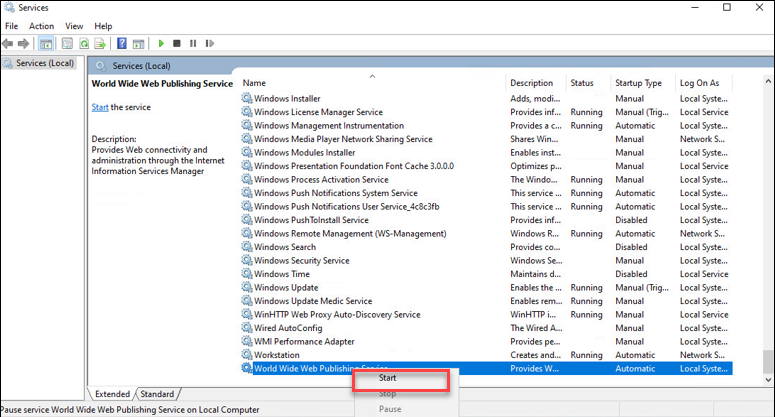
- Start theFactoryTalk AssetCentreServer service in the same way.TheFactoryTalk AssetCentreServer is now connected to the newly restored database.
Provide Feedback