
Use inclusions
Use inclusion commands to add fully functional objects or specific object elements to a library object.
The
INCLUSIONS
menu on the Selected Objects
toolbar contains menu commands that determine which elements are included when an item is added to a library object and which library objects that the item may be added to. All commands toggle on and off. Select the menu command once to activate it, and select it again to deactivate it.All commands affect future selections, and have no effect on selections and inclusions that have already been made to existing library objects. Choices remain active until they are changed, and remain in effect when the
Library Designer
is closed and reopened. The menu must be reopened after each selection.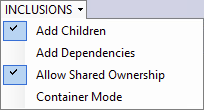
This table describes each
INCLUSIONS
menu selection.Selection | Description |
|---|---|
Add Children | When this command is active, all elements contained within the selected item in the Selected Objects tree view will be included when it is added to a library object. |
Add Dependencies | When this command is active, all elements referenced by the selected item in the Selected Objects tree view will be included when it is added to a library object. |
Allow Shared Ownership | Determines whether an item in the project hierarchy is associated with multiple library objects or restricted to a single library object. The default is shared ownership, which allows for multiple associations. The setting for this command affects all associations made until it is changed.
|
Container Mode | Container mode allows for objects to be grouped within a container so that any
changes such as additions or deletions made within Studio 5000® to an object that forms part of a library would automatically be included to be
part of the library. Container mode can be set for task, program and routine
objects residing within a library. When this command is active, all program tags
and routines are added to the library object automatically. If it is inactive, the
user must manually add the content to the library object. |
Example
When a two-state valve object (program) is added to a library object using different inclusion selections:
- WithAdd ChildrenandAdd Dependenciesdeactivated, valve program is the only element that is added to the library object.
- WithAdd Childrenactivated, the local tags and routines contained within the valve program are also added to the library object.
- WithAdd ChildrenandAdd Dependenciesboth activated, controller tags, Add-On Instructions, and data types that are referenced by the valve program are also added to the library object.
Provide Feedback