
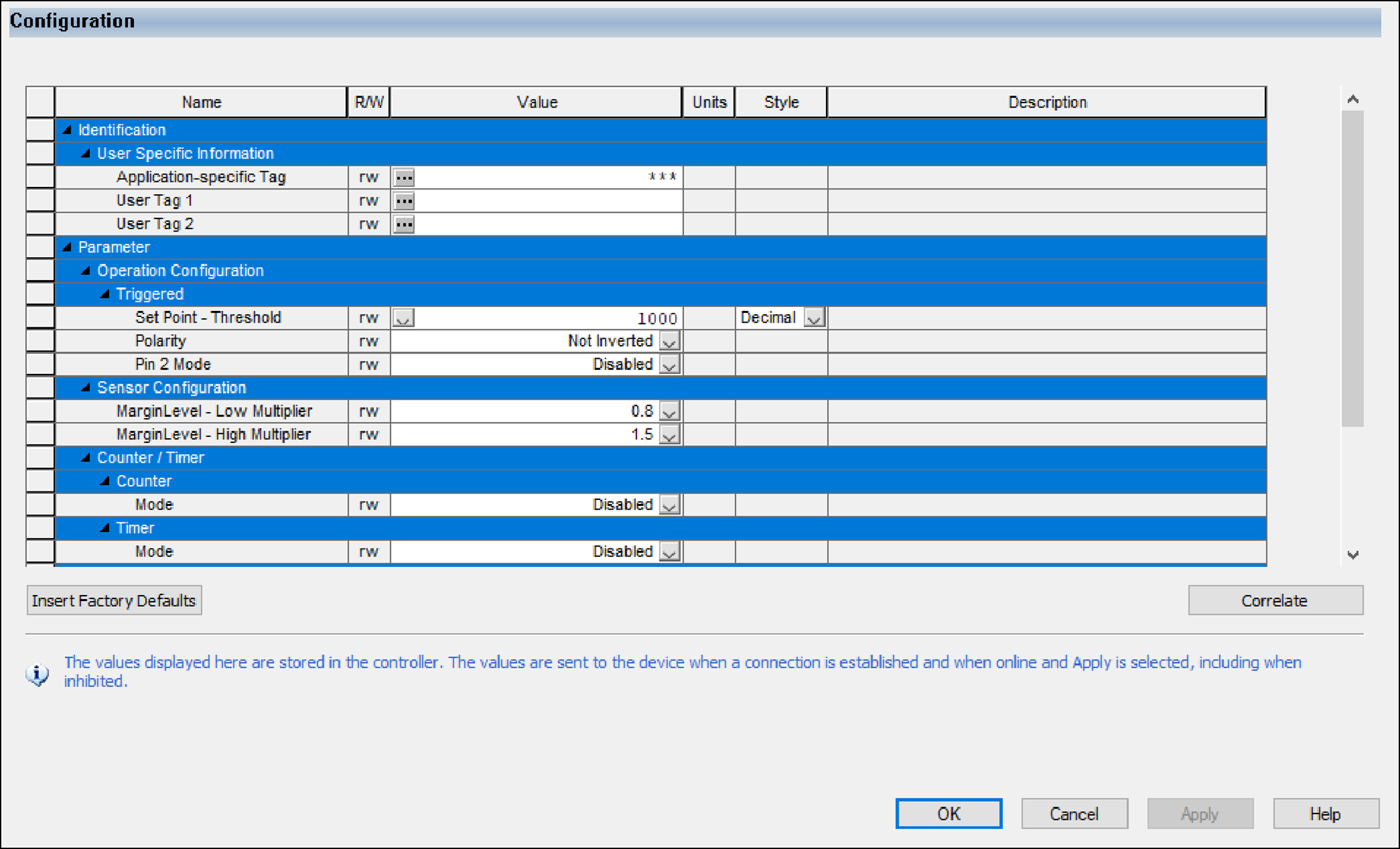
Configuration View
The Configuration view displays only the configuration parameters and their project
values. For more information, see IO-Link Device Parameters Classification.
This view is not available for the generic IO-Link device profile.
Use the Configuration view to view the project values of the device configuration and
change the device configuration.
Use Insert Factory Default to revert project values of all configuration parameters to
the default values that are defined in the IODD. In offline mode, the values are only
saved to the project when you select Apply or OK. In online mode, the values are saved
to the project and applied to the device when you select Apply or OK, regardless of
whether the device is inhibited or uninhibited.
If ADC is disabled, you can only use this view after a successful Device Correlation
Check is performed and the project values and device values are synchronized.
You should verify all device configurations before applying the configurations to the
device.
WARNING:
After changing a measurement unit, you must
verify that all configuration parameters that use this measurement unit have
appropriate values before applying the configuration to the device.
IMPORTANT:
After applying the configuration, we
strongly recommend using Device Correlation Check to verify that the values in the
device match the configured values. If there are any differences, see Troubleshoot Your IO-Link Device.
WARNING:
If
StdDirectVariableRef
or
DirectParameterOverly
is present in the device IODD, the device might not
return an error if the device is not able to Get/Set a parameter. Use Device
Correlation Check or the Parameters view to verify that the values in the device
match the configured values.Device Correlation Check
Device Correlation Check triggers when you select Correlation or when the
Configuration view is selected while ADC is disabled. If a difference is detected,
the following message prompt appears.
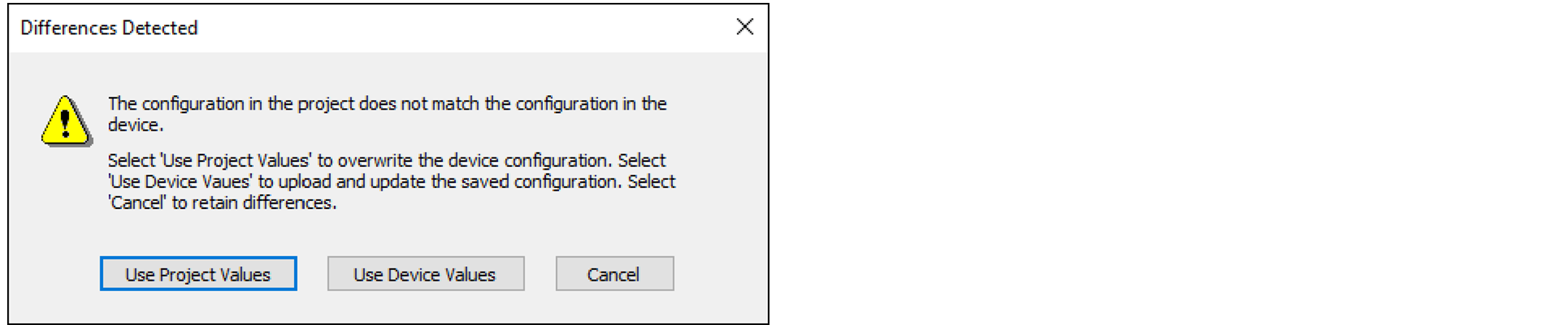
You can decide which values (device or project) to use and apply the selected values
to resolve conflicts.
- If you select “Use Project Values”, the current project values are saved to the project and immediately applied to the device, regardless of whether the device is inhibited or uninhibited.
- If you select “Use Device Values”, the values of the configuration parameters replace the project values. Select Apply to save the values to the project or Cancel to revert to the original project values.
IMPORTANT:
After you select “Use Device Values”,
you must select Apply to save the new values into the project.
Provide Feedback