
S - W
- S -
Schedule reports
You can send two different types of schedule reports to specified recipients when a schedule completes. You can send an
End of Schedule report
that summarizes the operations completed during the schedule. You can also send a more detailed operation report (such as a Backup report
or a Backup and Compare report
) through an asset's scheduled operation properties.Scheduled search
A scheduled search is a search that is executed on a recurring basis. This kind of search works well for detecting specific instances of conditions and user behaviors in log data. For instance, you can create a scheduled search to detect unsafe programming practices among your maintenance staff by searching the Audit Log for empty branches or forces made at the end of each shift.
System working folder
The working folder where you can check out an editable version of a file or binder or get a read-only version of a file or binder. Each asset can only have one system working folder, the path of which is created on the computer of each user who gets or checks out the asset without setting a personal working folder.
- T -
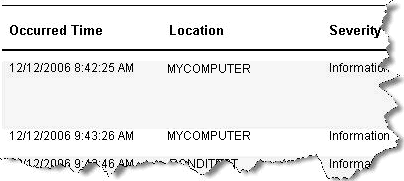
Tabular style
- U -
Unscheduled search
An unscheduled search is a search that is run manually and does not have a recurring schedule. An unscheduled search may be used to find Audit Log records that would determine if anyone has made a change in a control system that was working fine previously but now is down and preventing production.
- V -
Version control
The process of maintaining a database of all file versions to control access to files, prevent multiple users from editing a file simultaneously, and track changes made to a project's files.
- W -
Working folder
The location on your hard drive where you place an editable or read-only version of a file. Without a working folder you cannot edit or view files in the Archive database. Archive offers two different working folders: a system working folder that applies to all users and a personal working folder than can override the system working folder.
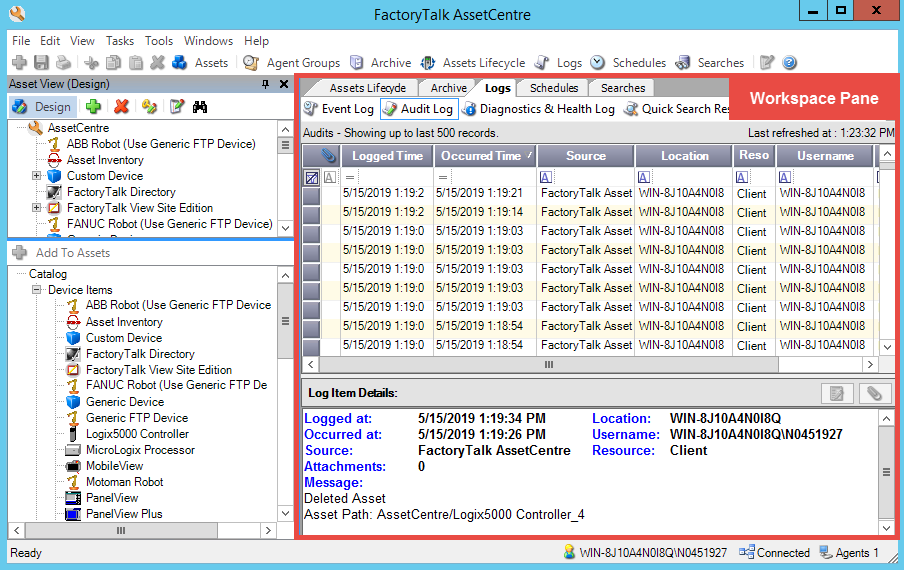
Workspace Pane
The Workspace Pane is located on the right-hand side of the window unless you have moved the Asset View to that location. The Workspace Pane shows selected tools (Archive, Schedules, Logs, Search).
Provide Feedback