
Search the result in the Asset Inventory window
Use the search function to search the scanning result in the
Asset Inventory
window.To search the result
- In theAsset Inventorywindow, click
 . The Search for Asset Inventorydialog box opens.
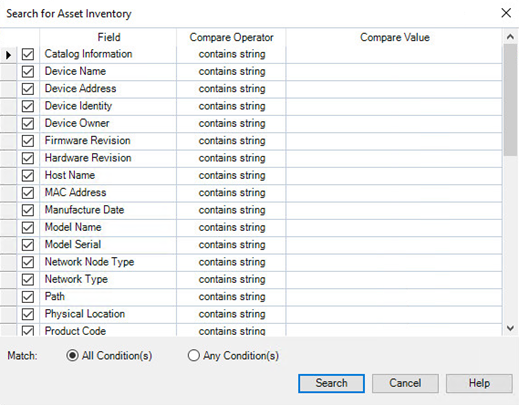
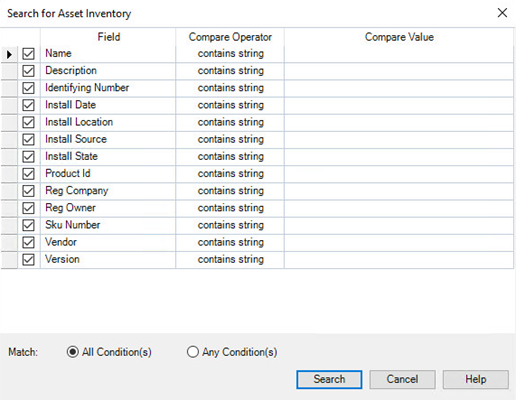
 - In theSearch for Asset Inventorydialog box, configure the search conditions. Select the condition item and type the value in theCompare Valuefield. The search conditions are different depending on the tab you are on.
- On theDevicestab:
- On theSoftwaretab:
- Specify theMatchtype.
- All Condition(s): Find records that match every specified condition.
- Any Conditions(s): Find records that match any of the specified conditions.
- Click theSearchbutton.
- On theDevicestab:Devices that don't meet the search conditions are not shown. If the parent device item doesn't meet the conditions, while its child item or items do, the parent item appears dimmed.
- On theSoftwaretab:Software items that don't meet the search conditions are not shown. The item of the machine name appears dimmed.TIP:If theAsset Inventorywindow is closed, the search criteria cannot be saved. That is, if you reopen theAsset Inventorywindow, the search criteria you specified earlier is gone.
Provide Feedback