
Initiate a MoC workflow for check-out operation
You can use Management of Change to supervise the check-out and check-in operations.
Prerequisites
- You must haveCheckOut - CheckInpermission for the asset.
- CheckOut does not require MoC workflowpermission is denied.
- Administrator has configured electronic workflow rules for the application. For more information, seeFactoryTalk AssetCentre Help.
To initiate a MoC workflow for check-out operation
- OnAssets, expand the asset tree, and then select a file, a binder, or an asset containing the files to check out.If you check out an asset or binder, all files within the asset or binder will be checked out automatically.
- Select theCheck outbutton.
- In theCheck Out Requestdialog, enter the reason for check-out.
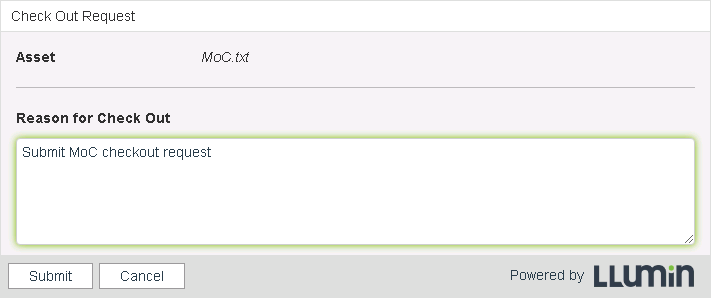
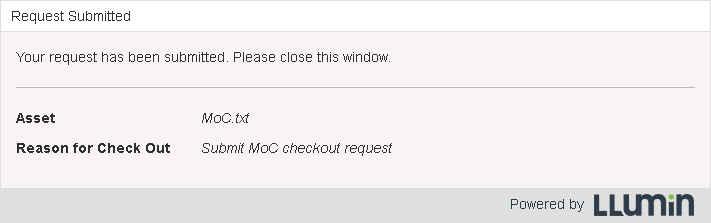
- SelectSubmit.
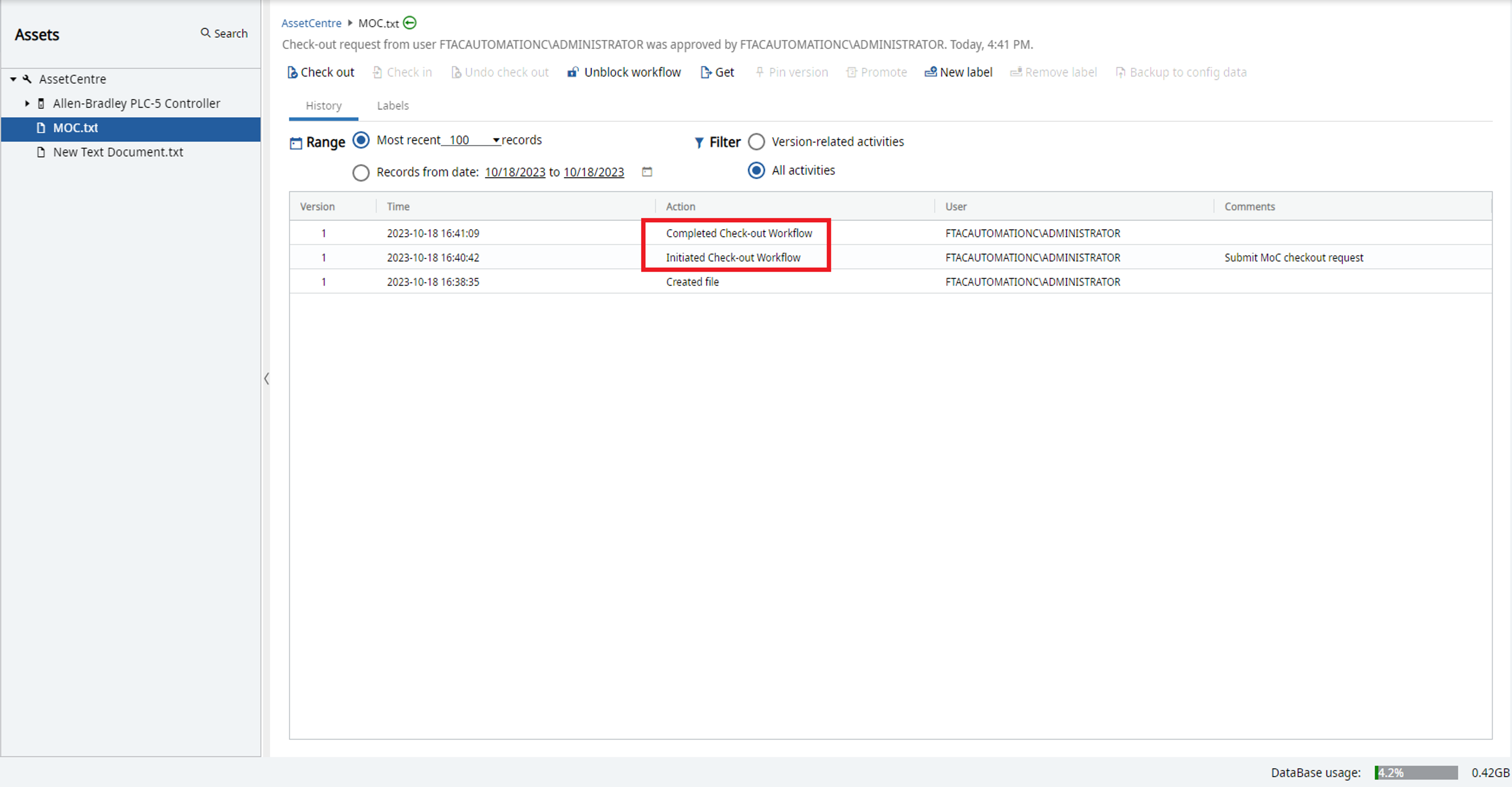
- (optional) To reset the file's and binder's status, selectUnblock Workflow.You must have theUnblock MoC workflowpermission.
 TIP:
TIP:- Other users cannot perform check-out until the submitted request is approved or rejected, orUnblock Workflowis used.
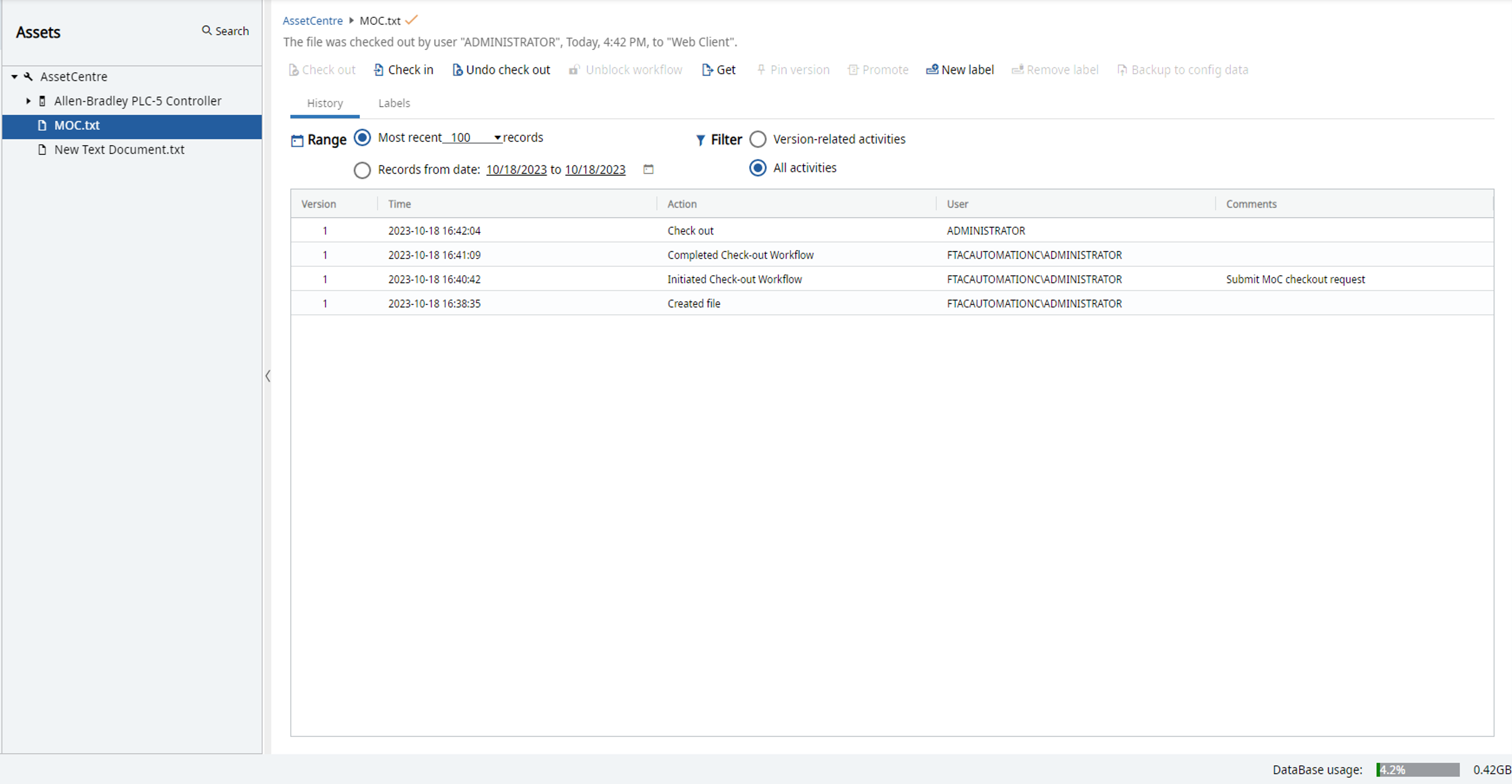
- After the request is approved by Management of Change administrators, you can do the following steps.
- Select theCheck Outbutton.
- Complete theCheck outdialog.
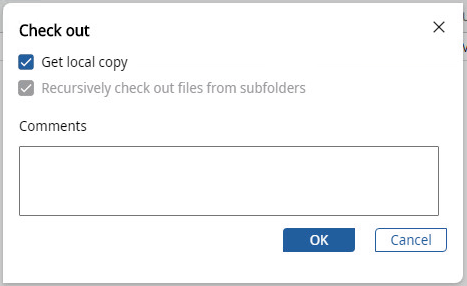
- ClickOK.A checkmark next to the file or binder in the archive workspace indicates that the item is checked out.IMPORTANT:Since the check-out process differs between the FactoryTalk AssetCentre desktop client and web client, if you check out a file or binder using FactoryTalk AssetCentre Web Client, you must use FactoryTalk AssetCentre Web Client to check it in.
Provide Feedback