Downloads

Send Email Notifications with FT Optix


What does this application do?
The application was developed using FactoryTalk Optix software. The application's main objective is to send notifications via email, to indicate the status of a system, facilitating the flow of information and decision making according to the information sent. This solution uses the advanced features that FactoryTalk Optix can deliver from visualization, data management and programming structures using C#, the platform allows us to have our operations at the forefront with technological solutions that help us facilitate the challenges in today's industry.
General Characteristics
FactoryTalk Optix can help improve your processes, efficiency and deliverables - all with one easy-to-access tool. Leveraging levels of collaboration, scalability and interoperability to achieve your digital transformation vision.
FT Optix stands out for its ability to connect to a wide variety of industrial devices and protocols such as OPC UA, Ethernet/IP, Profinet, Modbus, HTTPS, MQTT among many others, allowing with this capability the integration and real-time monitoring of equipment from different manufacturers from a single IoT platform. In addition, FactoryTalk Optix can create data logs and store this information in SQL database. This allows you to present historical alarm trends and create PDF reports as needed.
Sending emails is a necessity that many users seek to notify events or statuses from the shop floor for decision making and to have an optimized flow of information. In this case we will use SMTP as the protocol for sending emails and a commercial email server.
Advantages
- Use of structured code
- Flexibility in connectivity
- Impact on development time
- Notifications according to operational model
- Sending e-mails from a shop floor platform
- High reliability
- Compatible with implementation in your applications
- Flexibility and scalability
- Improved information flow
- Data optimization
- Real-time monitoring
- Data analysis

Please note: You will need to agree to the Terms & Conditions for each download.

Need Help?
If you need help with an application or have feedback from the Innovation Center, please contact us.
Is this application relevant to me?
Having agile notifications with a flow of information associated with the requirements of sending emails directly from our application has a lot of possibilities.
This application can complement your projects to be able to send notifications or information via email to the users required in your operation.
It applies to any industry or industrial sector where you want to send information via email.
This functionality can be replicated as many times as necessary in your projects, increasing the value of your products, optimizing implementation costs and exploiting the information in continuous flow from the shop floor to where it is connected to your email.
How can I make it work?
Requirements: products, tools, prior knowledge.
Hardware
- Controllers compatible with FT Optix connectivity
Software
- FactoryTalk Optix (V1.5.6.0)
Prior Knowledge
- Basic knowledge in FactoryTalk Optix and C#.

Implementation Guide
- Step 1
- Step 2.1
- Step 2.2
- Step 3.1
- Step 3.2
- Step 3.3
- Step 3.4
- Step 3.5
- Step 4
- Step 5
- Step 6.1
- Step 6.2
Step 1
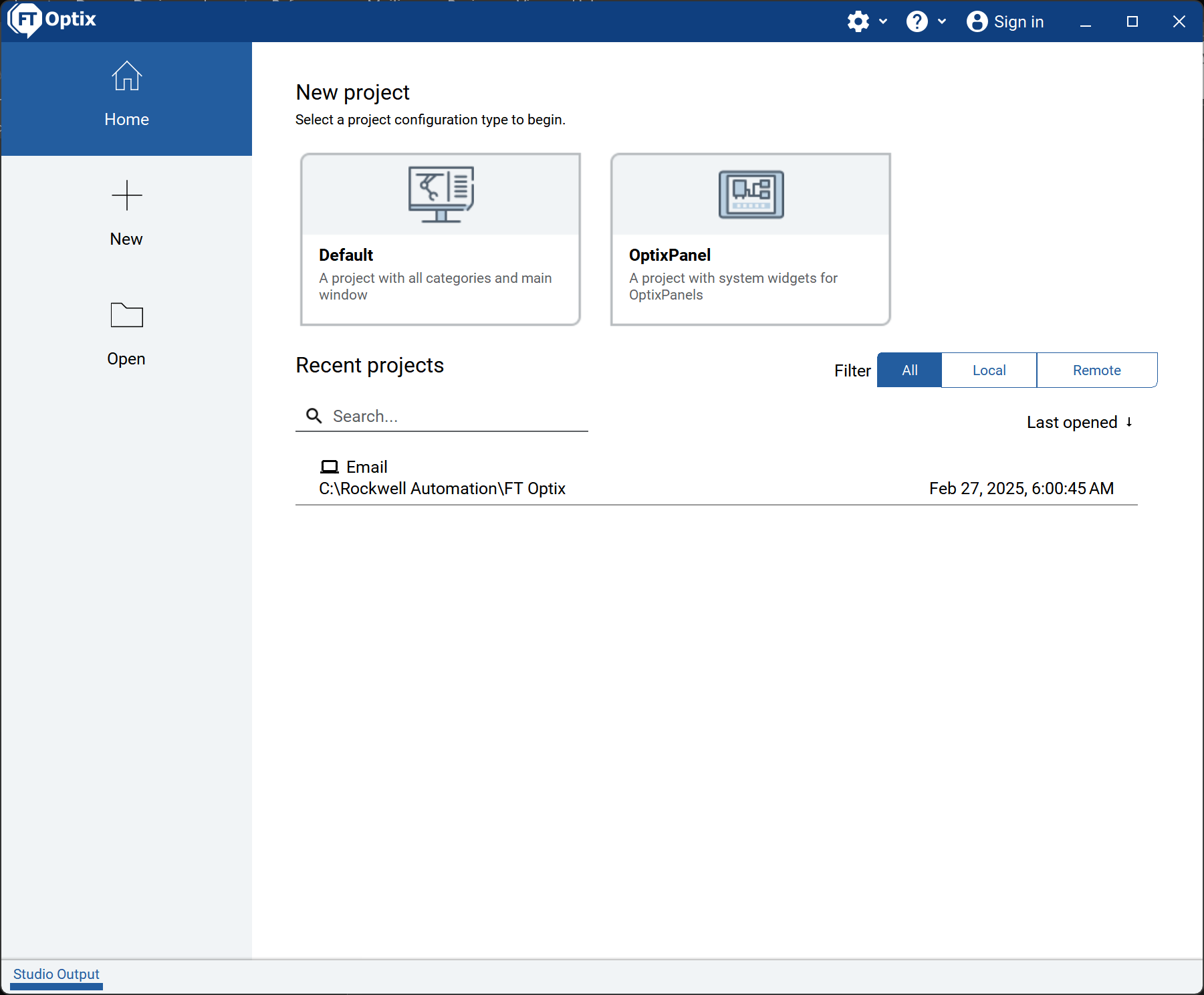
Identify the application to use: FactoryTalk Optix.
Open the file Email, in the location where you have downloaded it.
Make sure you have .NET SDK x64 installed.
send-email-notifications-with-ft-optix_Step 1
Step 2.1
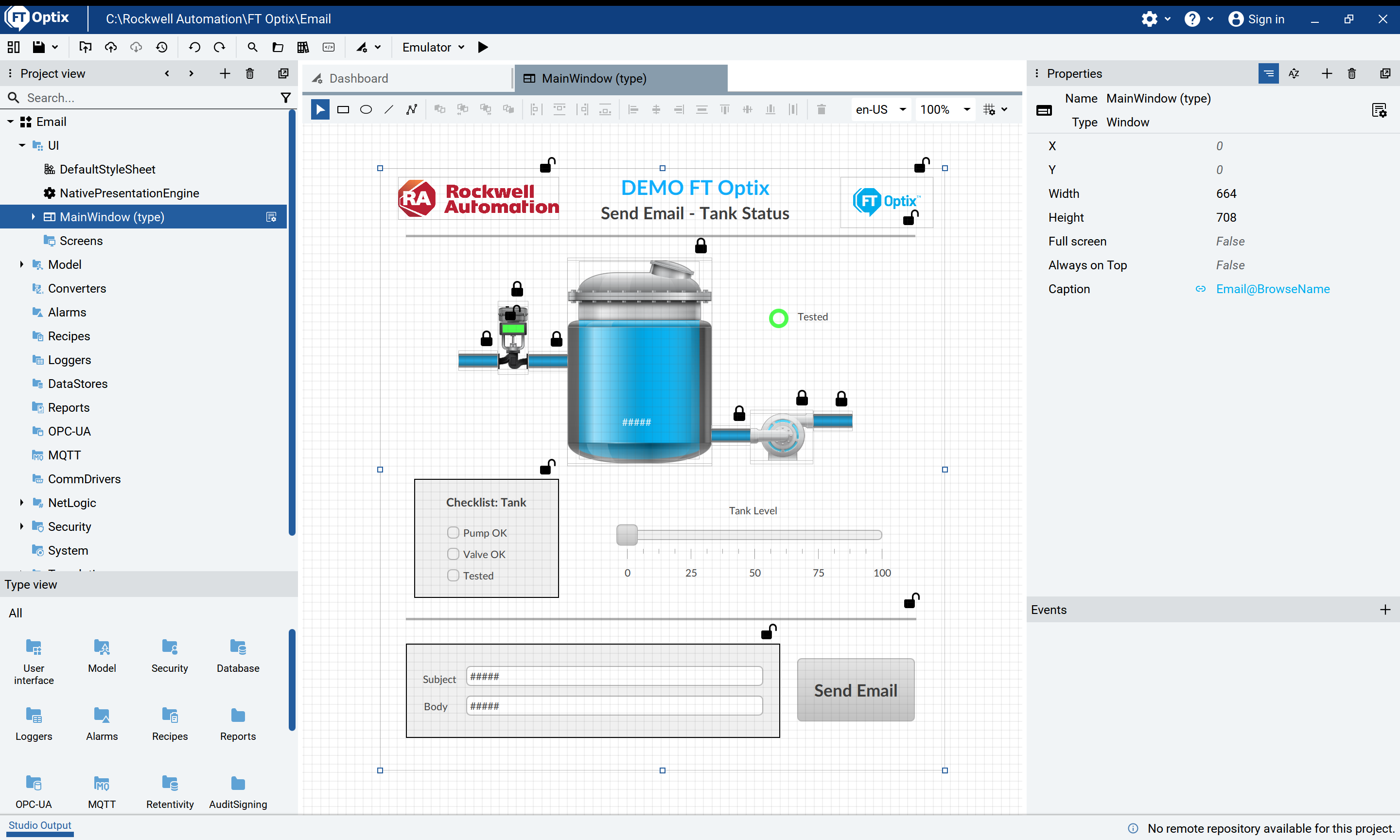
Navigate the application, open the Main Window, where you can see the elements that make up this demo.
send-email-notifications-with-ft-optix_Step 2_1
Step 2.2
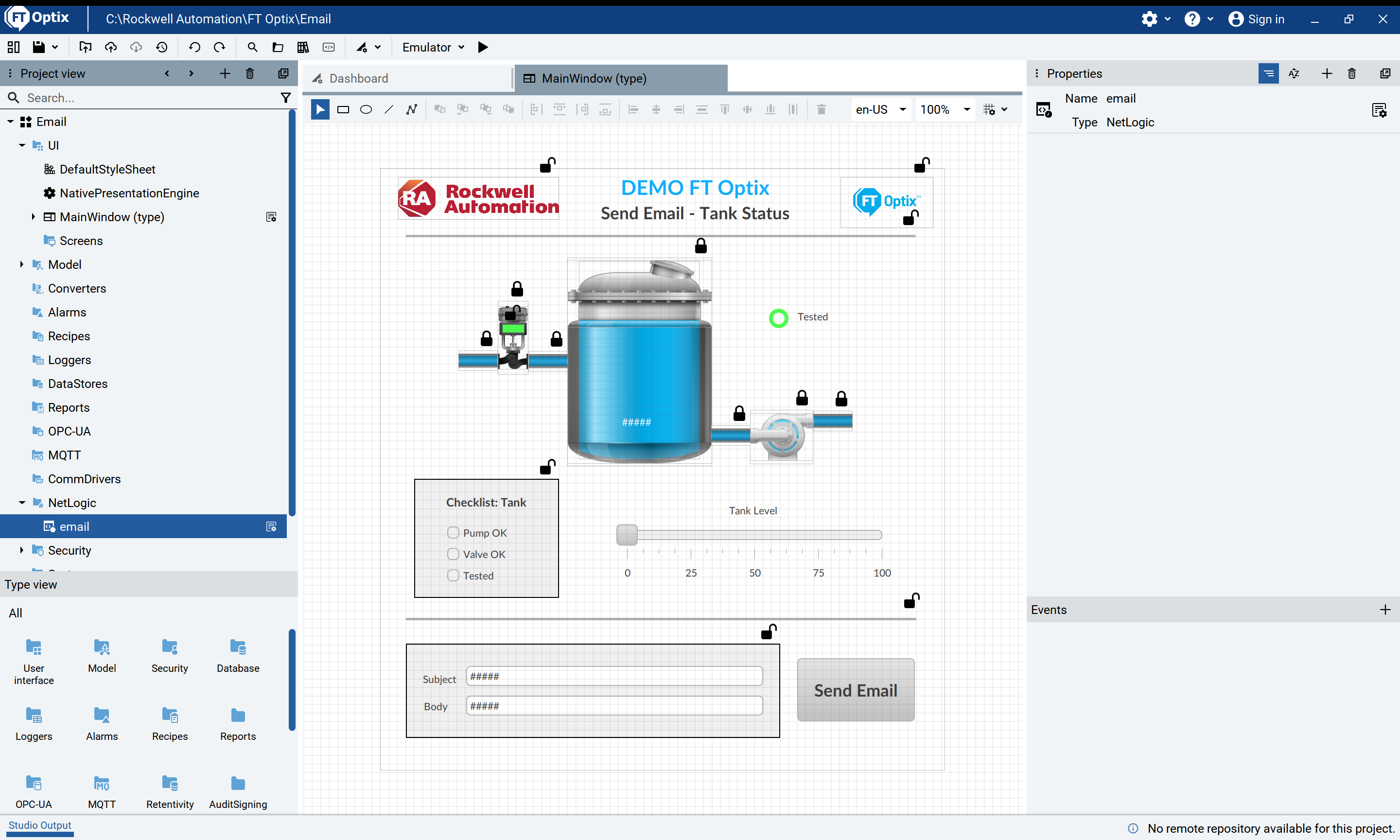
In the project view locate the NetLogic, where the code for sending e-mails is located.
send-email-notifications-with-ft-optix_Step 2_2
Step 3.1
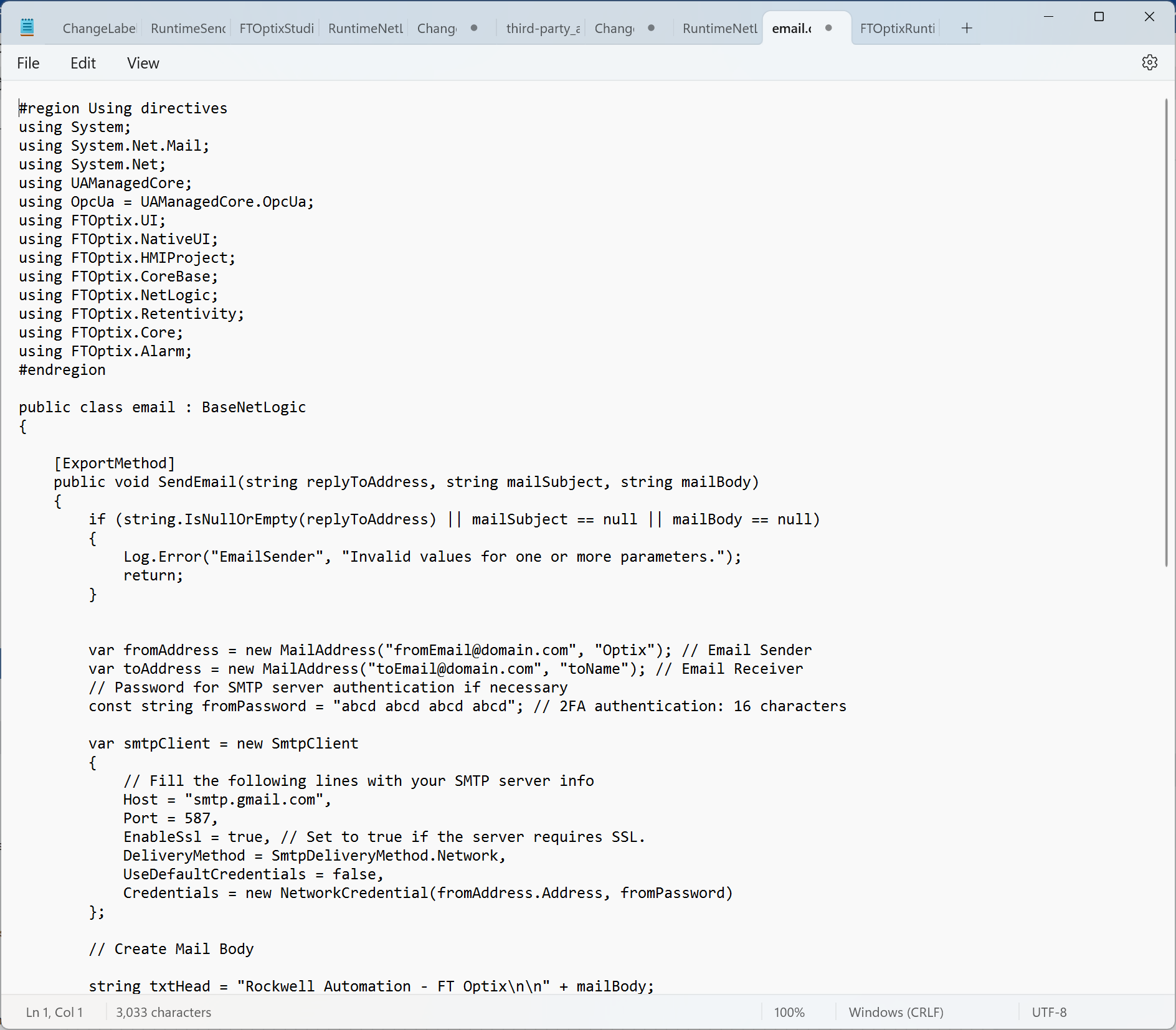
Open C# code to send e-mails
Email > NetLogic > email
send-email-notifications-with-ft-optix_Step 3_1
Step 3.2
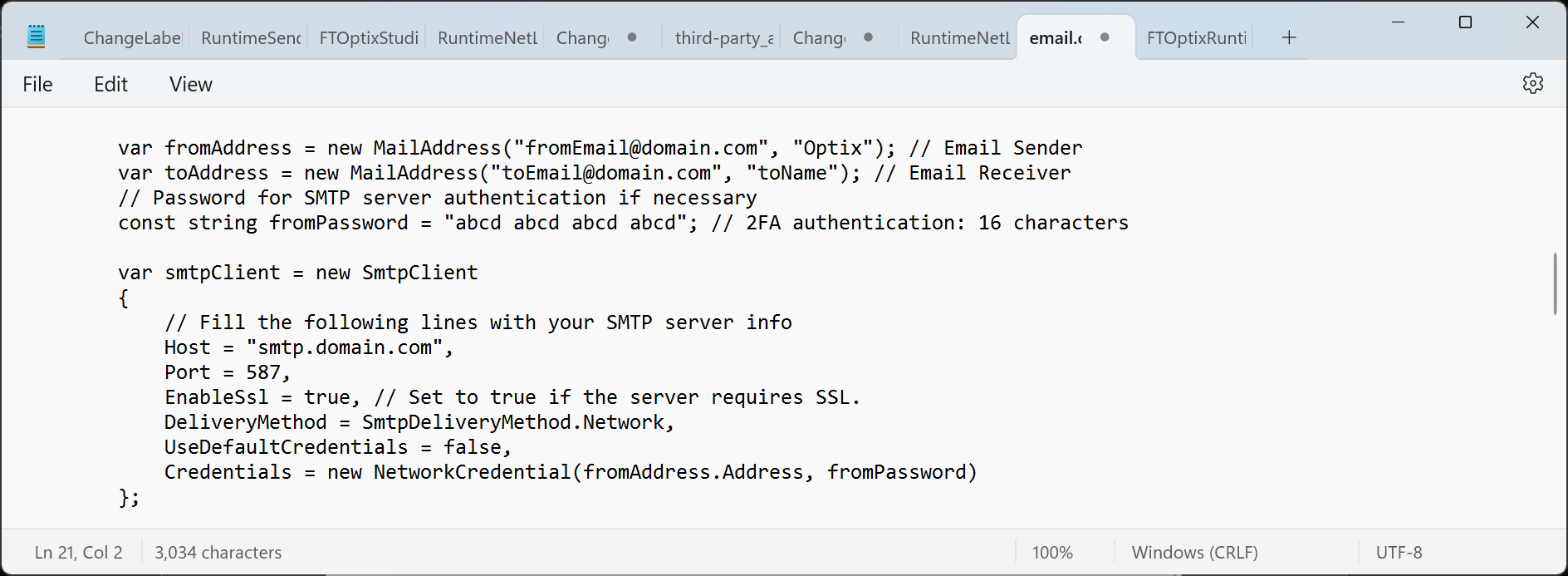
- Set up the sending email address: var fromAddress = new MailAddress("fromEmail@domain.com", "Optix"); For example: var fromAddress = new MailAddress("mail_application@gmail.com", "Optix");
- Set up the receiving email address: var toAddress = new MailAddress("toEmail@domain.com", "toName"); For example: var toAddress = new MailAddress("mail_user@gmail.com", "Usuario");
- Confirm the host to use: Host = "smtp.domain.com", For example: Host = "smtp.gmail.com",
- Enter the application password of your email, usually 16 characters long: const string fromPassword = "abcd abcd abcd abcd";
If necessary, a brief explanation of how to generate the application password is given in Step 4.
However, it will depend on the email service you will use to send the emails.
send-email-notifications-with-ft-optix_Step 3_2
Step 3.3
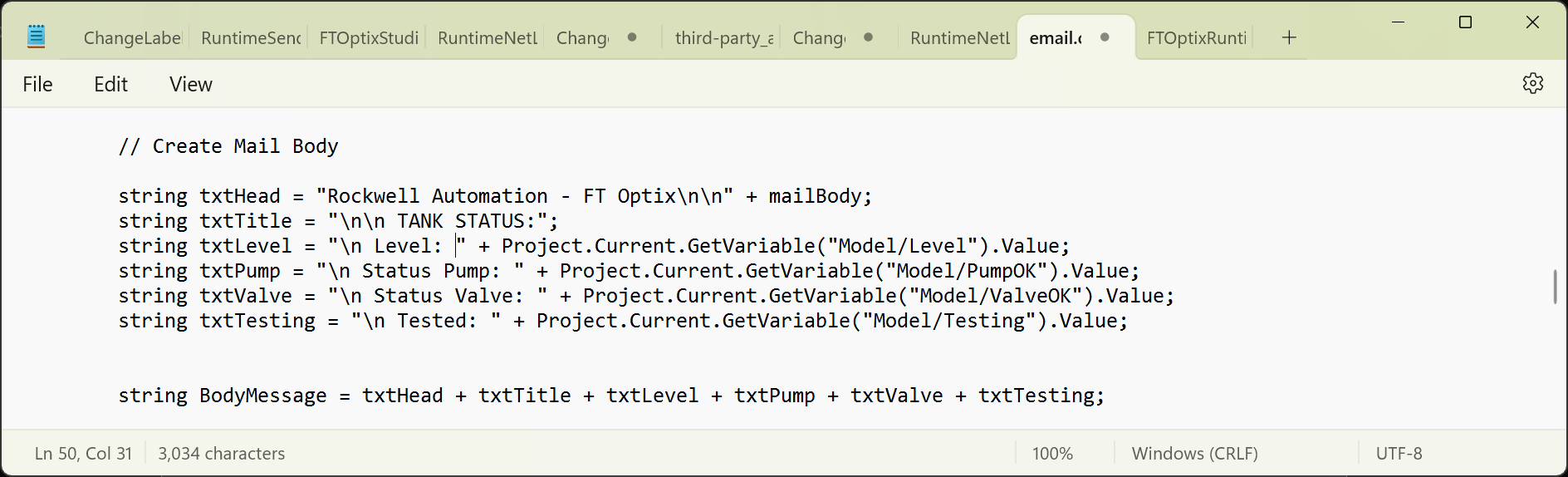
You can customize the body of the email according to the information you want to include in the email.
send-email-notifications-with-ft-optix_Step 3_3
This sentence allows to obtain the value of a variable of our current project, you only have to substitute the name of the var variable to be used.
Project.Current.GetVariable(“Model/var”).Value:
Step 3.4
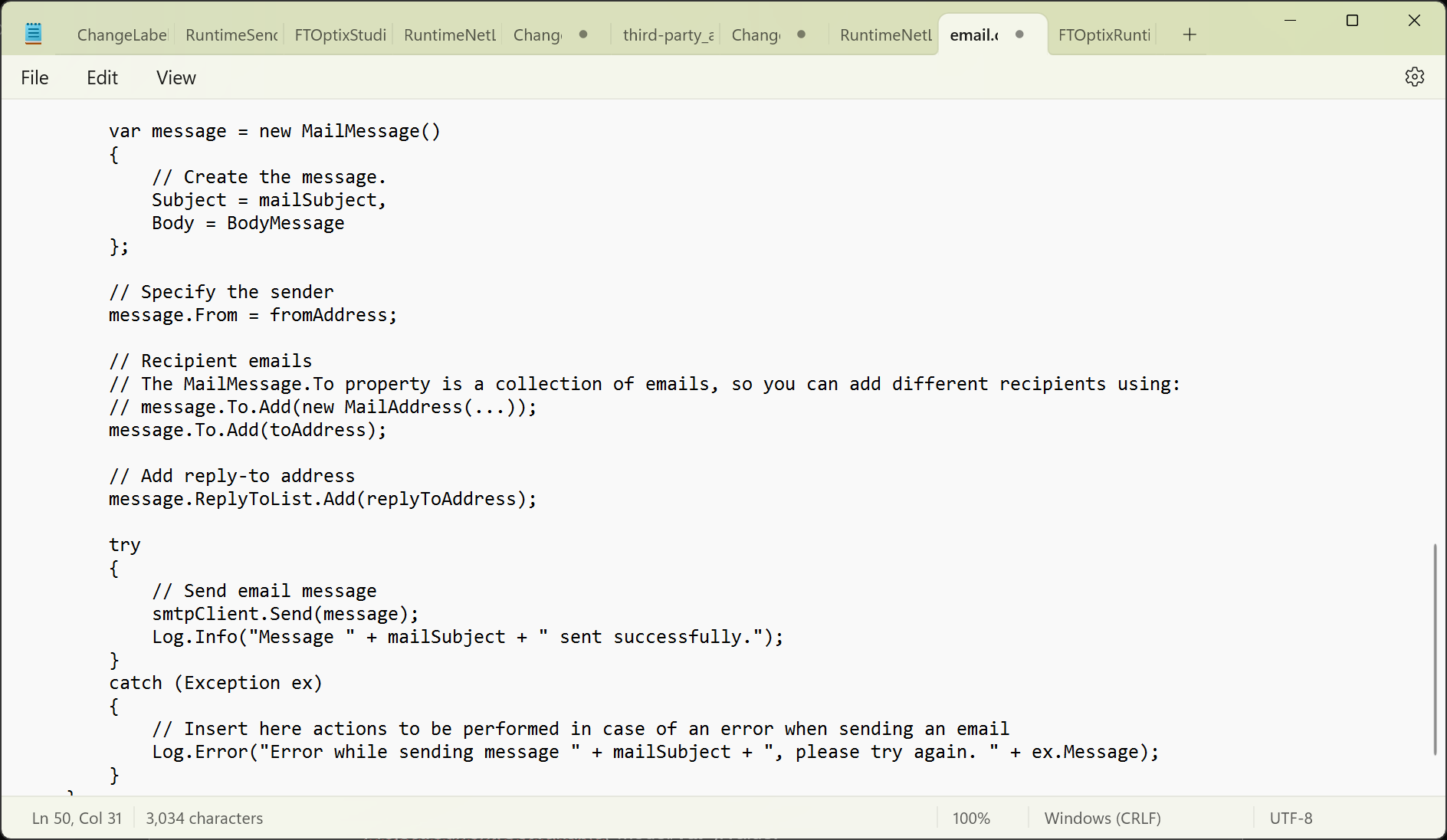
The following lines of code are used to send e-mails.
send-email-notifications-with-ft-optix_Step 3_4
Step 3.5
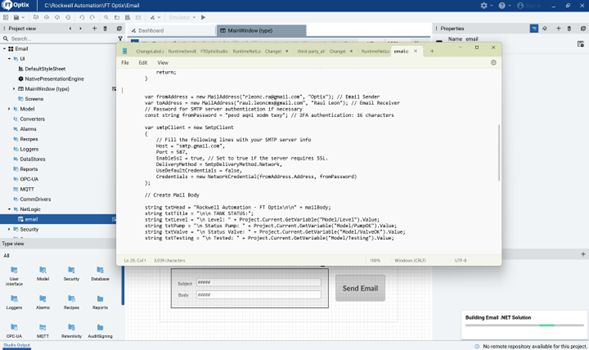
Save the code.
send-email-notifications-with-ft-optix_Step 3_5
The Email .NET solution code should be built. Close the code.
Step 4
SMTP is a protocol for e-mail transmission. It provides the necessary instructions for mail servers to communicate with each other, ensuring effective and reliable delivery of emails.
Generate the 16-character application password in your email account.
- Go to your account settings.
- Select «Security» in the left sidebar.
- Under «Login», find «Application Passwords» and click on it.
- You may need to log in again.
- At the bottom, select the application and device you are using.
- Click «Generate» and follow the instructions to obtain the application password.
A 16-character 2FA password is generated: “abcd abcd abcd abcd abcd abcd” which will be used as the password in Step 3.2.
Step 5
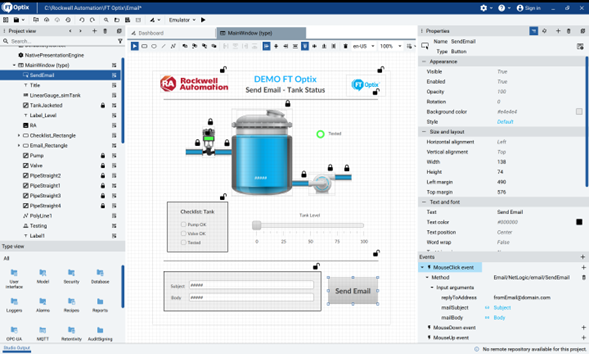
In the Send Email button set the MouseClick event with Email/NetLogic/email/SendEmail method and confirm the input arguments.
send-email-notifications-with-ft-optix_Step 5
Run the application to see how it works.
Step 6.1
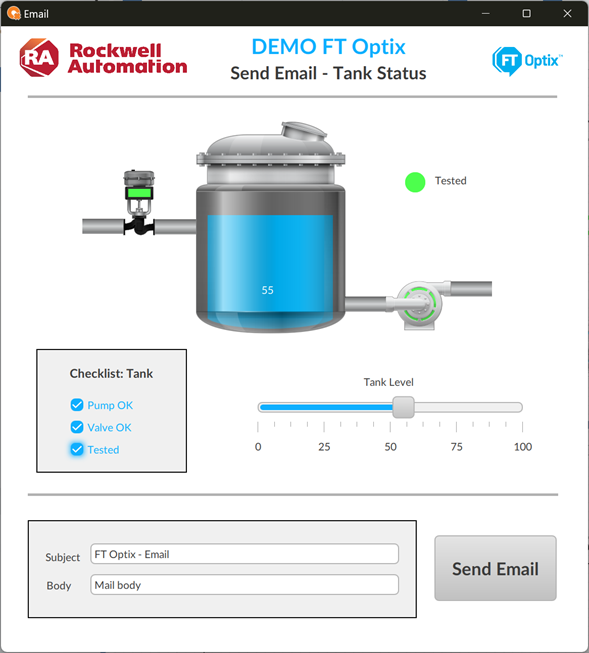
You will be able to see the tank level.
Check the tank checklist.
In the Subject field you can modify the subject (title) of the email.
In the Body field you can add a message in the body of the email.
Send Email button will send the email with the current data.
send-email-notifications-with-ft-optix_Step 6_1
Step 6.2
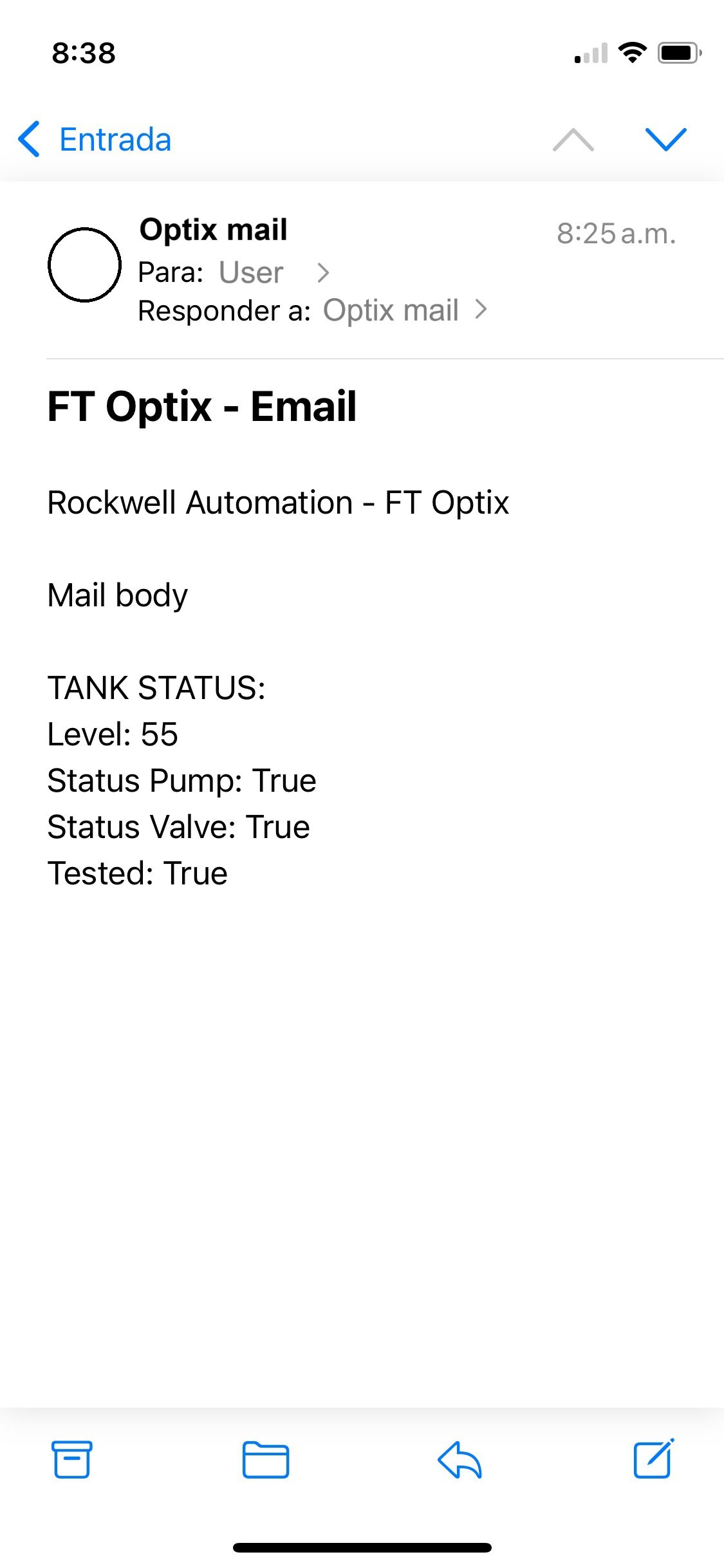
Verify the email address to which the information was sent.
send-email-notifications-with-ft-optix_Step 6_2
Send Email Notifications with FT Optix
Version 2.0 - September 2026
