
Add Unassigned Devices to Project
You can add devices to the
Unassigned
folder and
then assign devices to a controller or Ethernet bus as the project develops. You can also use
the Unassigned folder to move devices between controllers. In this example, we will add
unassigned devices to the project and then assign them to a controller and Ethernet bus.
- InDevicesexplorer, right-click theUnassignedfolder and selectNew device...
- In theAdd devices todialog, select the devices you want to add.
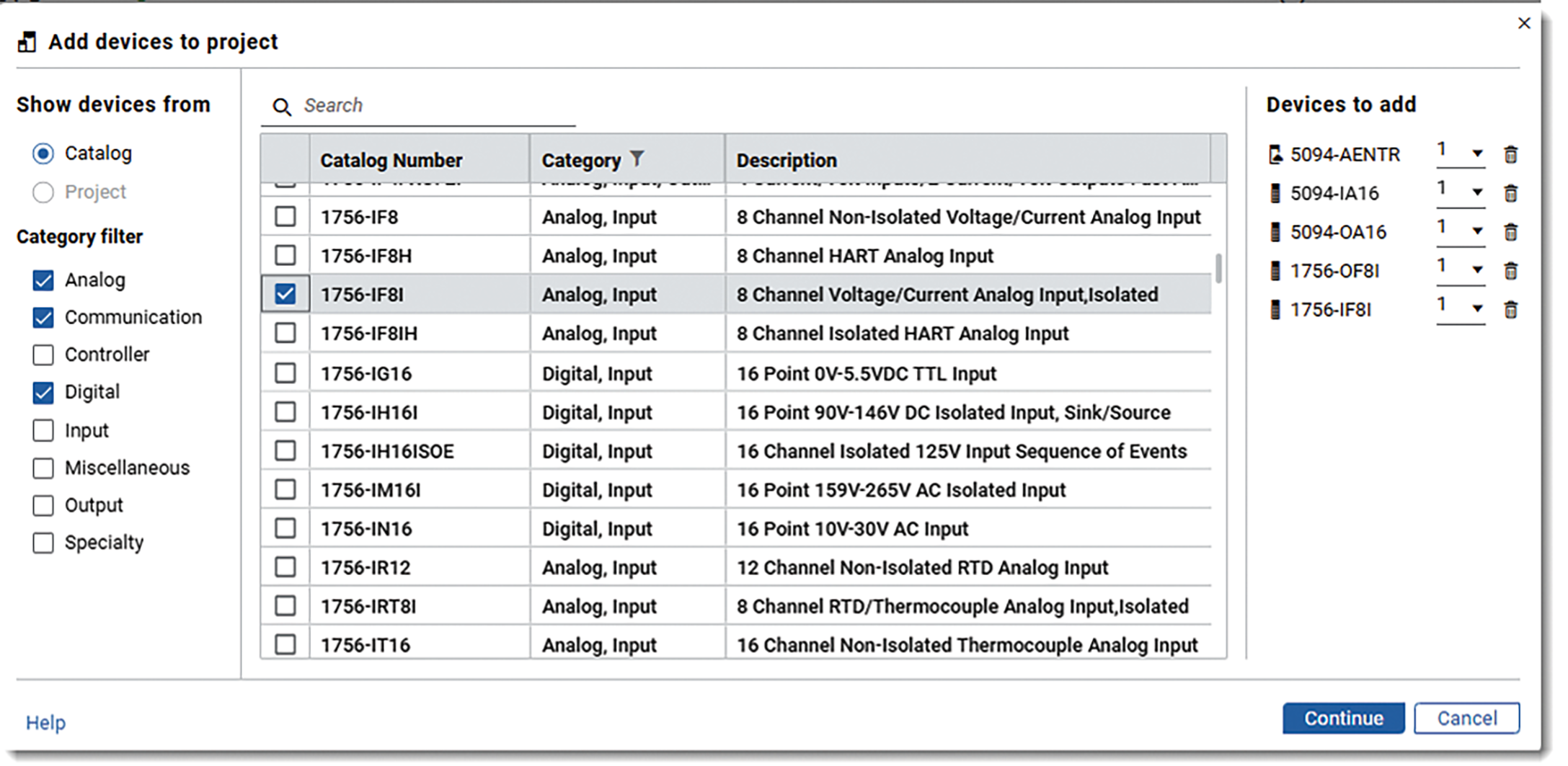
- SelectContinue.
- UnderPending to configure, enter the device name, slot number, and IP address (if required).TIP: If you do not know what the slot number is at the start, you can always assign the slot number later using the module properties dialog.
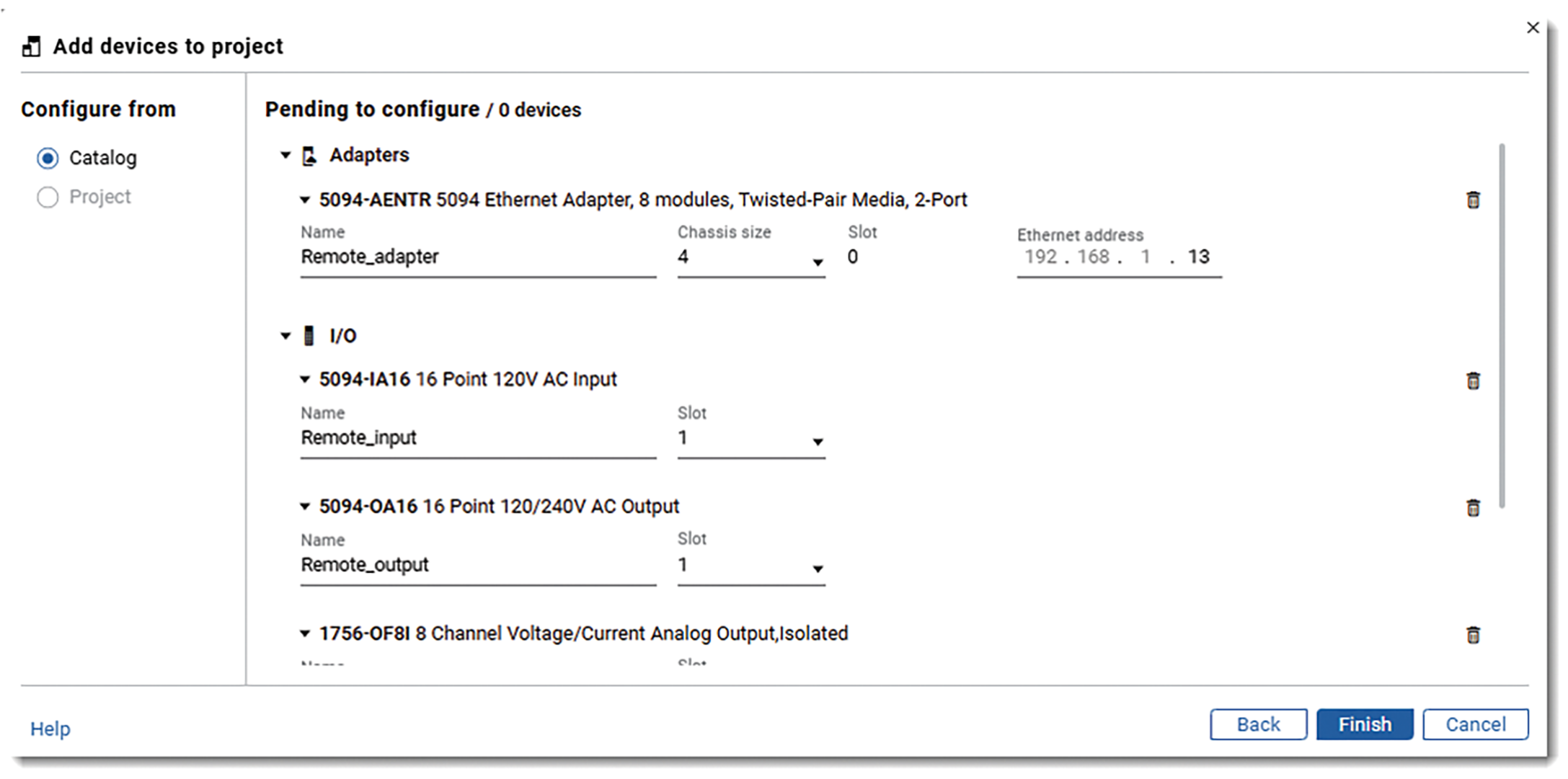
- SelectFinishto add the devices.The devices appear in theUnassignedfolder.
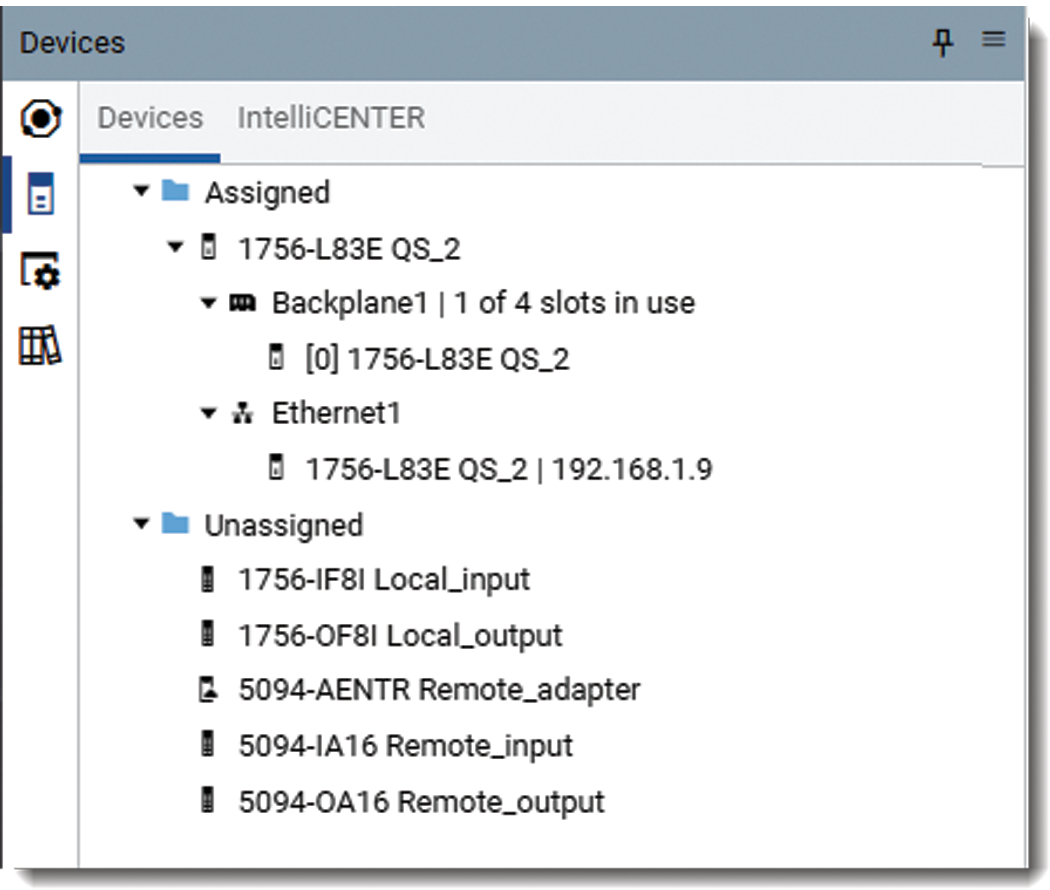
- Assign local I/O to the controller:
- Right-click the controller backplane and selectAdd device...
- In theAssign devices todialog, selectProject
- Select the local I/O modules and selectContinue.
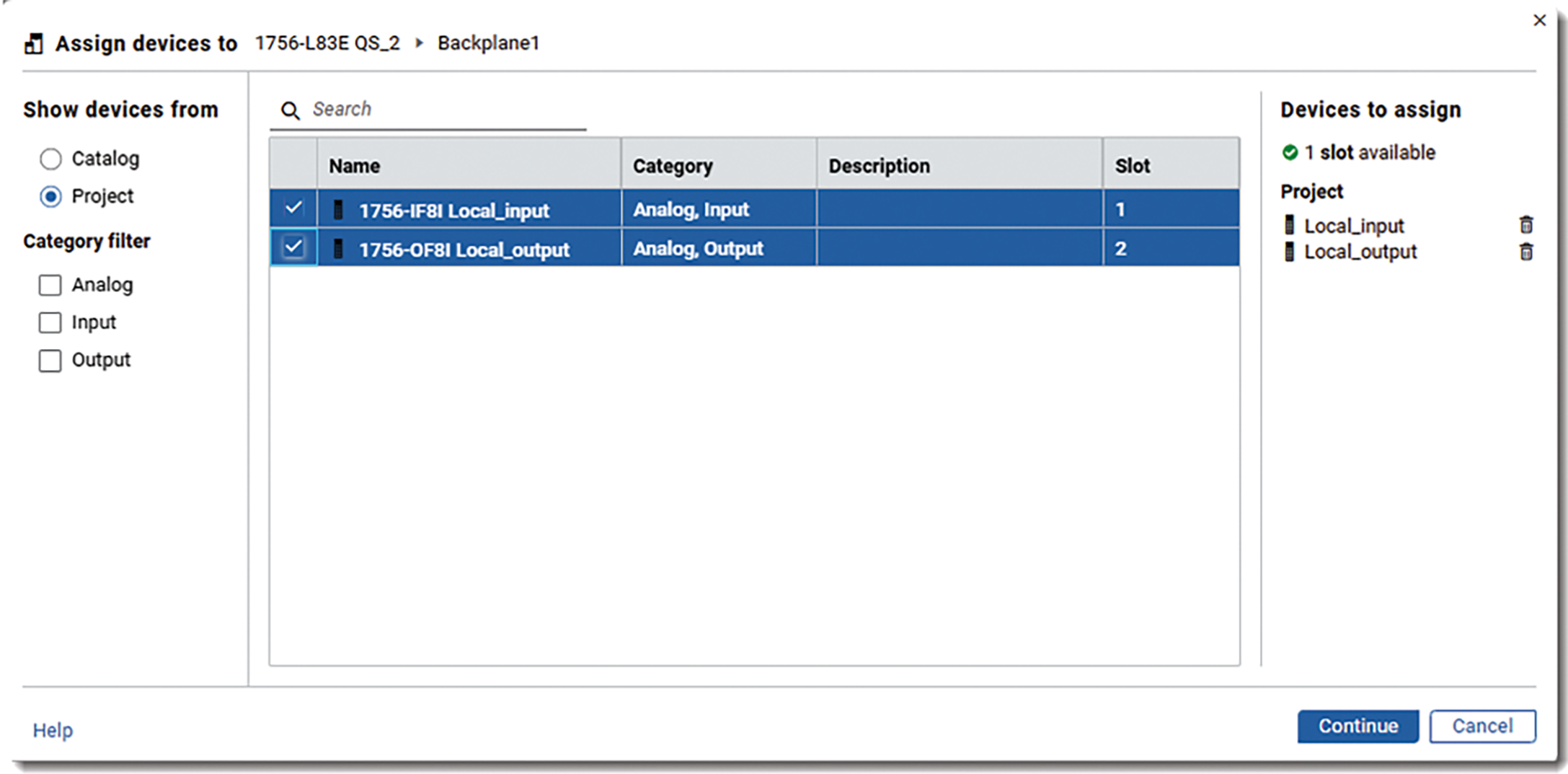
- On the second page, selectFinishto add the devices.
- Assign remote adapter and I/O:
- Right-click the controller backplane and selectAdd device...
- In theAssign devices todialog, selectProject
- Select the Ethernet adapter and selectContinue.
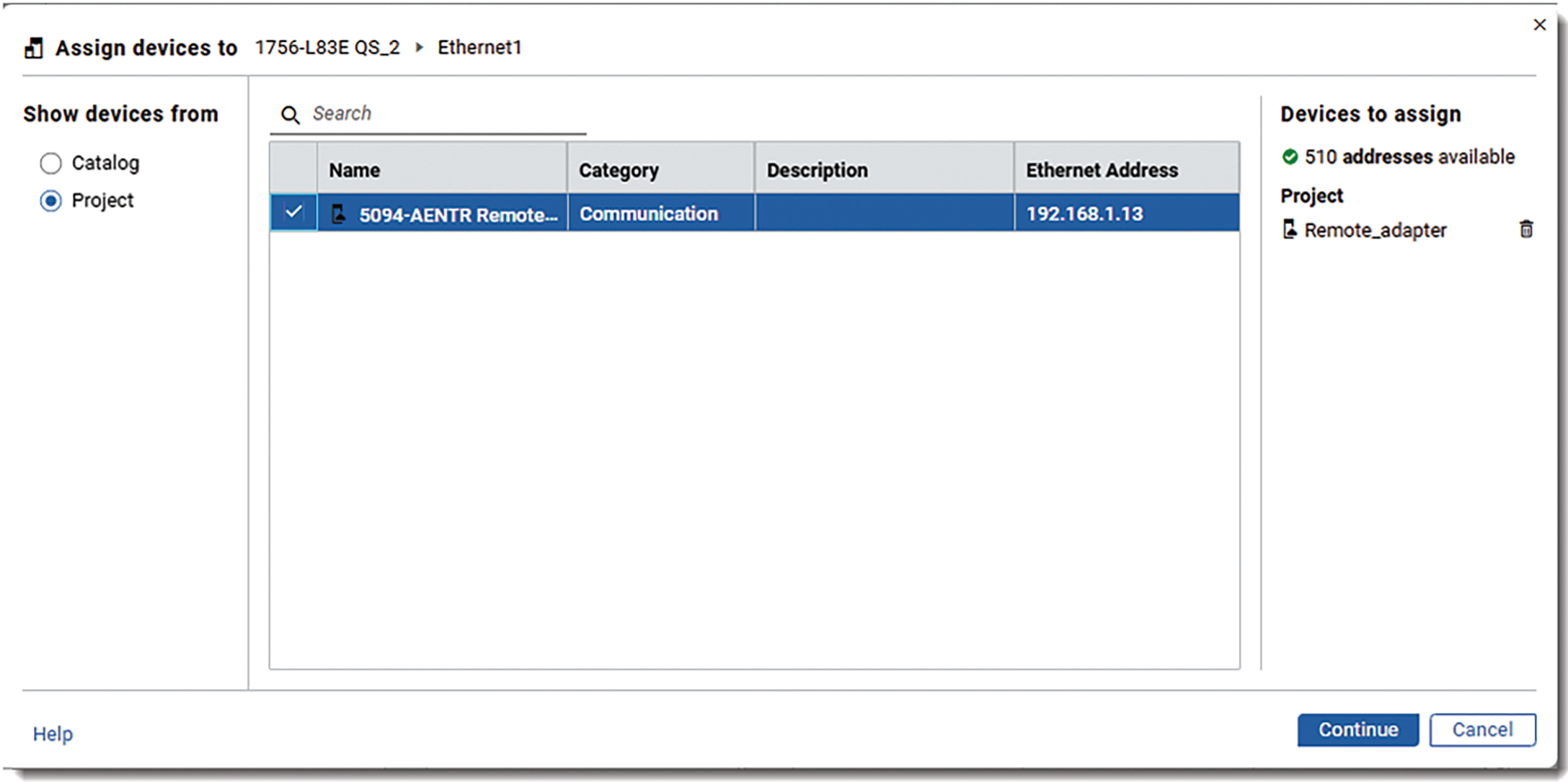
- On the second page, selectFinishto add the device.
- Under the remote adapter, right-click onBackplane2and selectAdd device...
- Select the remote I/O modules and selectContinue.
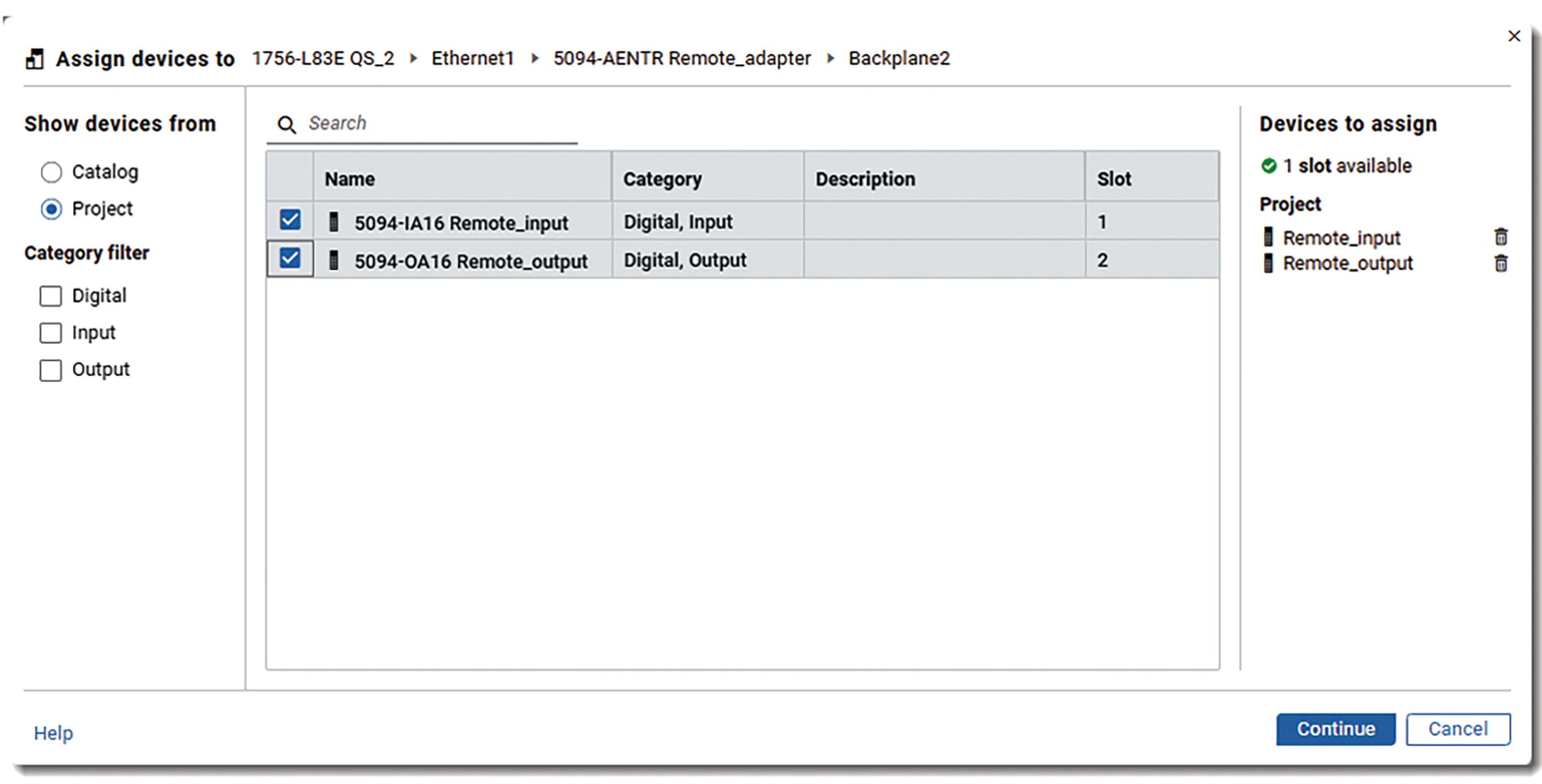
- On the second page, selectFinishto add the devices.
The devices appear in the 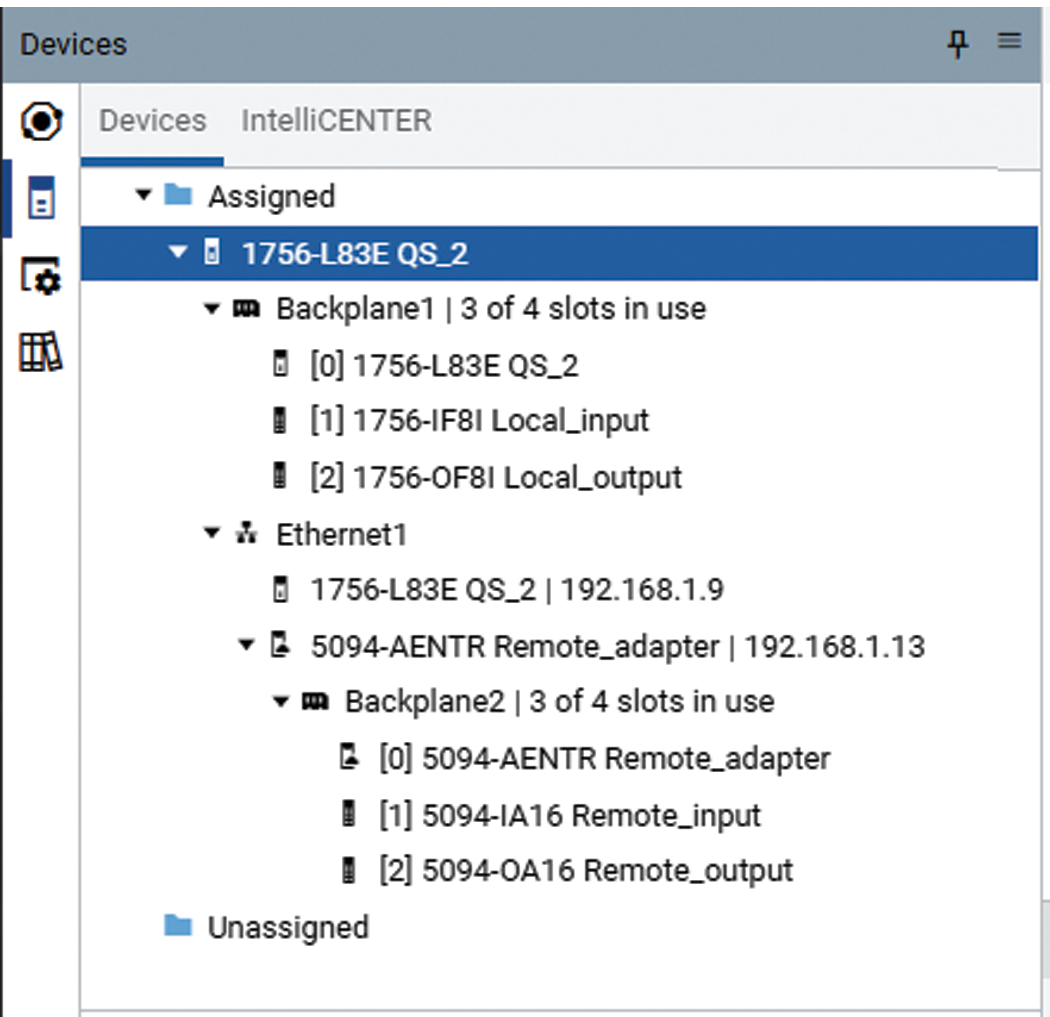
Devices
explorer.Provide Feedback