
Editor pane
This table describes the functions of the editor pane.
Item | Description |
|---|---|
Language keyword highlighting | The editor pane supports language text highlighting for the documentation generation language. Document generation instructions are always highlighted in blue:  . .Library items in orange:  . .Comments will be printed in green:  . . |
Code completion | The editor pane provides code completion functionality where a list of keywords is supplied after a matching text sequence has been typed. This allows the engineer to add an instruction without having to type out the complete text sequence. Here is a graphic example of code completion options available through a sequence of typed characters: 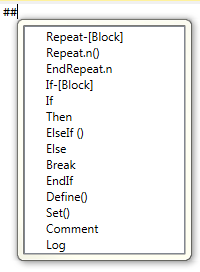 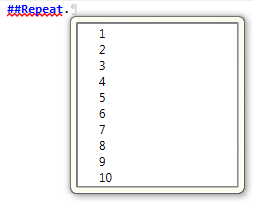 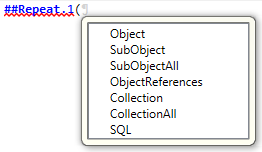 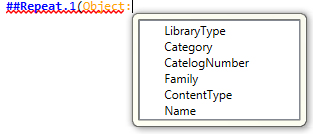 With the completed line looking as follows:  |
Text folding | Text folding consists of grouping a section of code so that it can be collapsed as a complete section to make other areas of the document easier to read. In the previous example, we are creating folding sections around each repeat block, identified by the repeat number. The Repeat.2 block is encased within the Repeat.1 block and is shown as collapsed within the Repeat.1 block. The Repeat.1 block can also be collapsed. |
Working with custom snippets | Right-click the selected code, and then click Snippets > Add Code To Custom Snippet will invoke the Snippet Editor to create a custom snippet.Right-click the selected code, and then click Snippets > Insert Snippet will display a list of base and custom snippets that can be selected for inclusion in the active template document.Tip : Some sample snippets are provided. In the Code Snippets pane, right-click Custom Snippets and select Import .From the Open dialog, navigate to the default file location: C:\Users\Public\Documents\Studio 5000\Samples\Application Code Manager\Snippets. Select the sample snippet to import, repeat if necessary. |
Executing a code fragment | Right-click in the editor pane and select Execute Selected Fragment to
execute a code fragment or highlight a section of code. The Execute Selected
Fragment menu option is only be enabled if text has been selected in the
editor.Important : Select and execute a fragment could result in syntax errors being generated as it’s possible to select any combination of lines for execution that could result in required block termination instructions being excluded when document generation processing takes place.In the previous example, the ##Repeat.1 block instruction has been selected and if executed will result in a syntax error as the fragment does not include an ##EndRepeat.1 instruction. |
Provide Feedback