
Components on the wizard
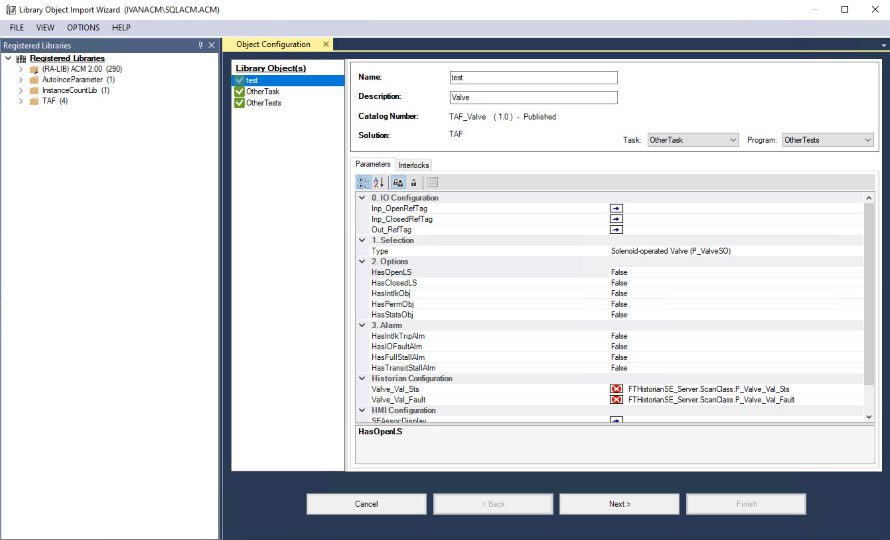
This table describes each section of the Library Object Import Wizard.
Item | Description |
|---|---|
Menu bar | |
FILE |
|
VIEW |
|
OPTIONS |
|
Pane | |
Registered Libraries | Displays all libraries (classes) in the connected ACM database in a tree view. Select library objects to add them to the ACD file. Right-click any branch in the Registered Libraries tree view to view the following commands:
|
Object Configuration | Displays the properties and parameters of the selected objects. Edit the properties and parameters of the objects and link the objects to other objects or the ACD file. This pane includes:
|
Object Configuration > Unresolved parameters | Displays parameters, which might substitute predefined or base library parameters. Assign new values to these parameters and click Next . |
Object Configuration > Merge Actions (Multiple objects only) | Displays merge actions of all parameters. Use this pane to add dependencies, overwrite dependencies, or merge existing Tasks, Programs, and Routines. Merge actions include:
|
Object Configuration > Content Preview | Displays a preview of the content, which will be inserted to the ACD. |
Provide Feedback