
VNC connection to subdevices
The VNC connection provides remote desktop access to subdevices equipped with VNC
servers, directly through the platform, eliminating the
need for external tools or manual configuration.
FactoryTalk®
Remote Access™
ManagerYou can connect to the subdevice VNC server through the VNC client integrated in the
Tools.
FactoryTalk®
Remote Access™
ManagerBefore establishing a connection, you will need two requirements:
To establish this
connection, your computer must be provided with a Pro entitlement.
- You have the Tools installed on your computer.
- Your device contains anRuntime with a PRO entitlement: This Runtime is going to be the access point of your connection.FactoryTalk® Remote Access™Manager
NOTE:
noVNC does not work with the RealVNC server.
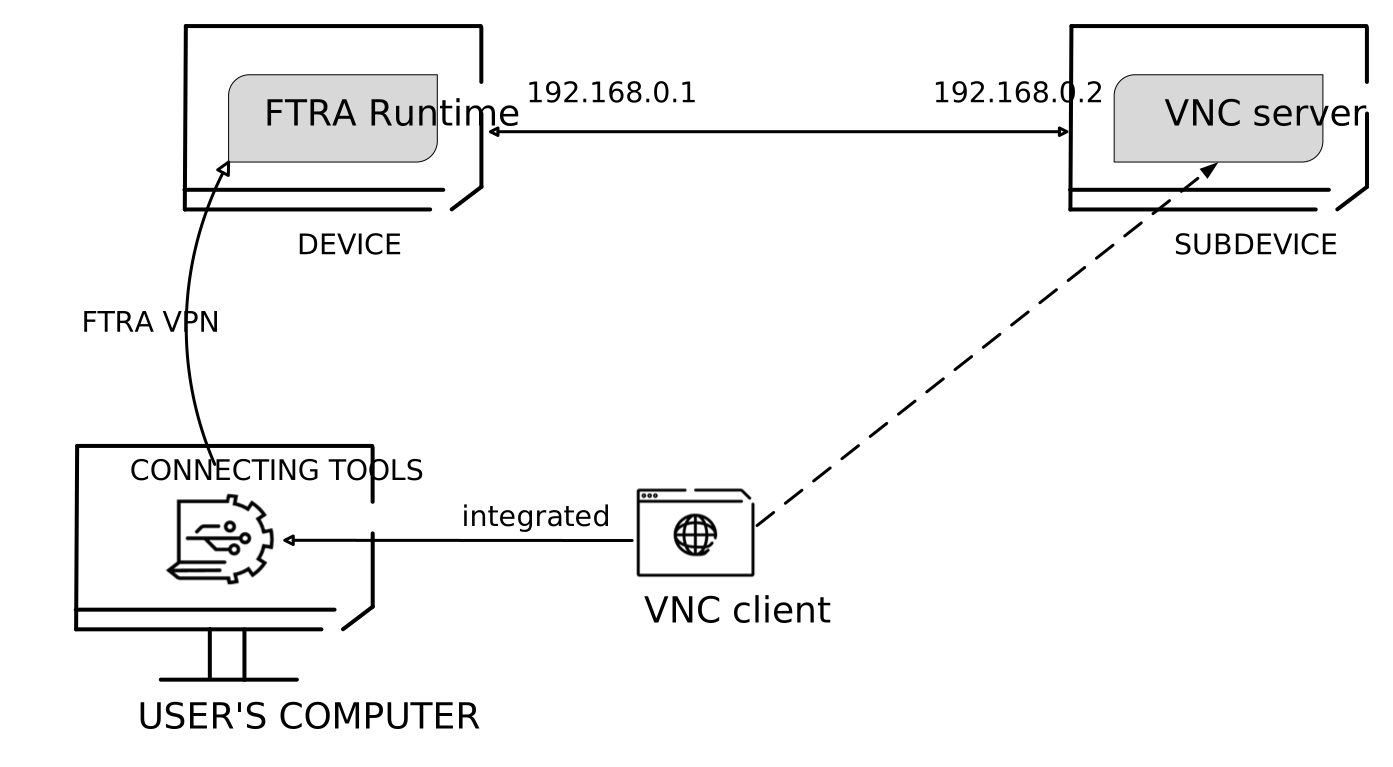
- Register a subdevice to your domain.
- InDomain view, select the subdevice from your folders tree.
- On theServicespanel on the right, click thecircled plusicon next toServices.
- From the dropdown menu, selectAdd a service.
- In theCreate servicewindow:
- Enter a serviceName.
- OpenService Typeand selectVNC.
- Specify a port.
- SelectSave.
- Once you created a service, select it, then clickLaunch.
- Wait for the VPN to establish a connection with the remote subdevice.A windows opens showing the remote desktop of the subdevice. You can adjust its size.NOTE: When connecting to UltraVNC, the mouse cursor does not display its standard shape but a simple dot.
On the left of the remote desktop window, you can find a widget that allows you to
configure
Settings
. If you do not want to interact with the
desktop, you can enable the toggle switch to View only
.The remote desktop window also features a
Clipboard
to copy text
and you some buttons that simulate remote shortcut keys.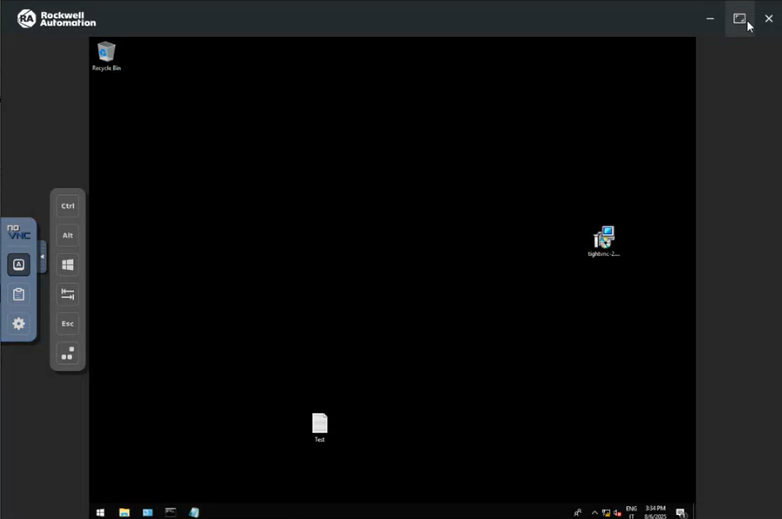
Provide Feedback