
Add Region Node
Focuses on energy usage and efficiency within a specific geographical region. It consolidates data from multiple sites within the region, allowing for regional comparisons and targeted energy management strategies.
NOTE:
To view data on the region-level dashboard, ensure the following:
- For cost charts, configure the appropriate rate schedule at the site level.
- For emission charts, configure the appropriate emission factor at the site level.
- For production, ensure that energy-intensity charts have correct tag mappings for production count measurements.
- If more than one resource meter is configured, the harmonized unit defined at the region level is used to display consumption, intensity, and emission data.
NOTE:
The user can also export the data file to local. For more details, see Export Data File.
Perform the following steps to add a Region under Enterprise:
- SelectEnterprisefrom the hierarchy list.
- Click the [
 ] icon and click Add.Enterprise - Add
 TheAdd Componentdialog box is displayed.Add Component
 User can also add region from the Enterprise Configuration page.Add Region from Enterprise Configuration Page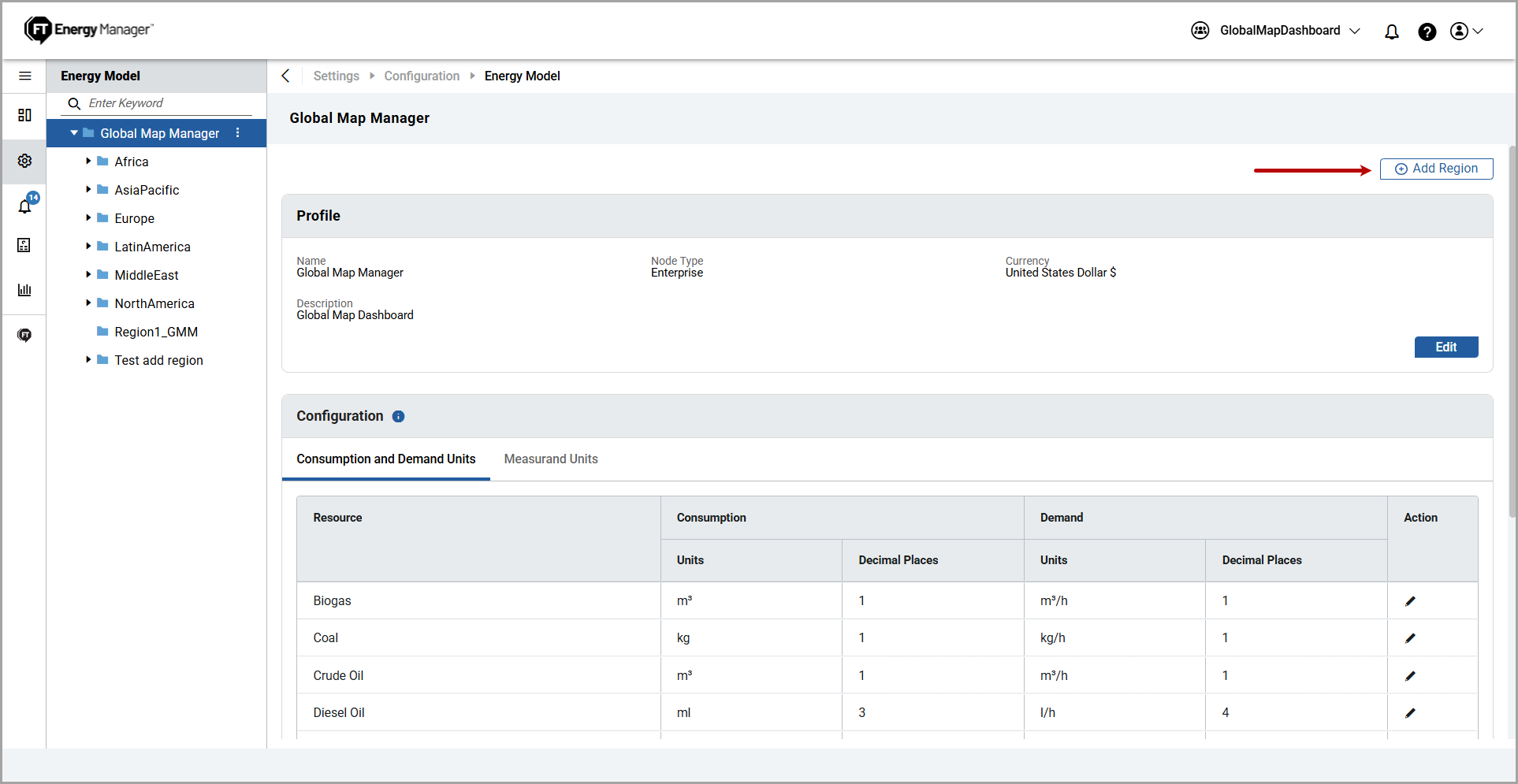
- UnderNode, clickRegionand provide the following details:
- Name: Provide a Country or Region name.
- Currency: Select a currency from the dropdown list.
- Description: (Optional) Provide a description of the Region.
Add Component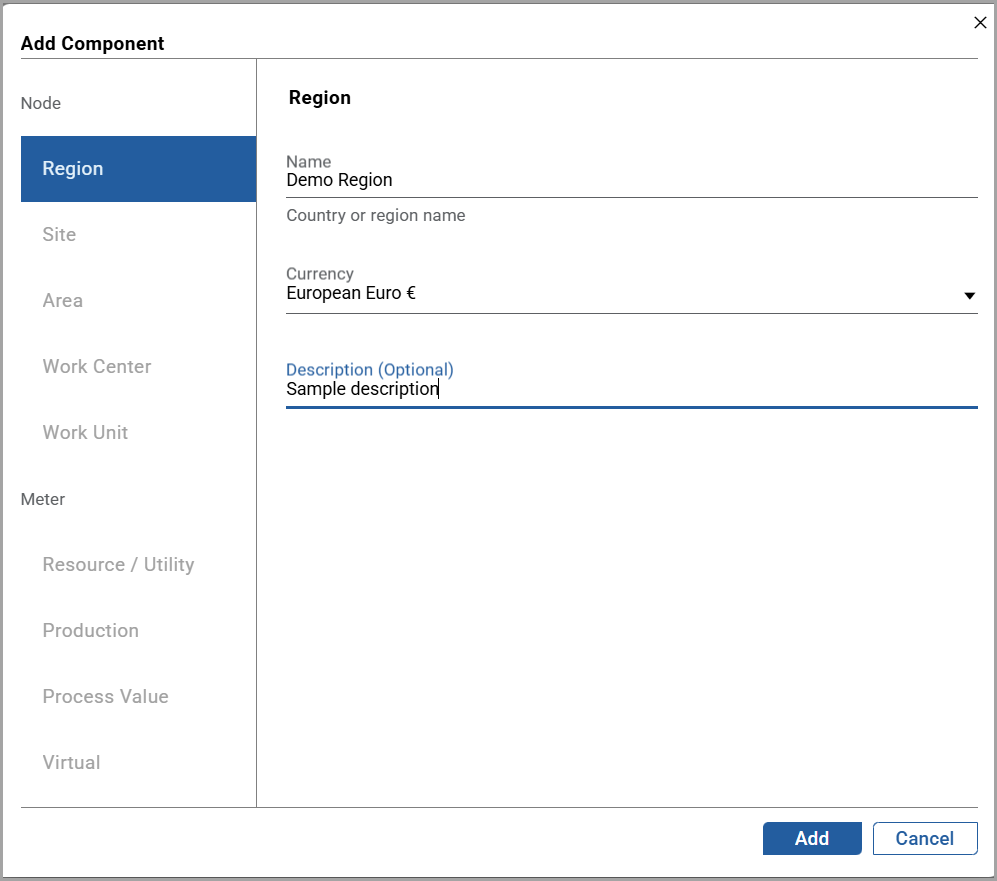
- ClickAdd.The "Added successfully" message is displayed.
- The Configuration page displays. To edit the details, refer to the Edit Component section.
Related Information
:Provide Feedback