
Time Zone Configuration
Time Zone configuration ensures that all meter data, calculations, dashboards, and reports are aligned with the correct local time. By default, FactoryTalk Energy Manager displays data using the local time settings of the user’s web browser.
Key Benefits
- Localized Insights: View data in the time zone most relevant to your operations, improving the accuracy of time-based analysis.
- Cross-Region Comparisons: Compare datasets across different geographical regions with consistent time alignment.
- Accurate Reporting: Ensures dashboards, reports, and analytics reflect the correct local operating times for reliable decision-making.
NOTE:
If users change the time zone on their personal computer, the browser time zone automatically updates within the application to ensure that the system time, browser time, and application time remain perfectly aligned.
IMPORTANT:
Daylight Saving Time (DST) and Time Zone Handling:
When Daylight Saving Time (DST) starts, the charts display a one-hour gap in consumption and demand charts, and when Daylight Saving Time (DST) ends, the duplicate timestamps are aggregated for the consumption chart, and the peak or mean values are displayed for the demand chart. Change Time Zone
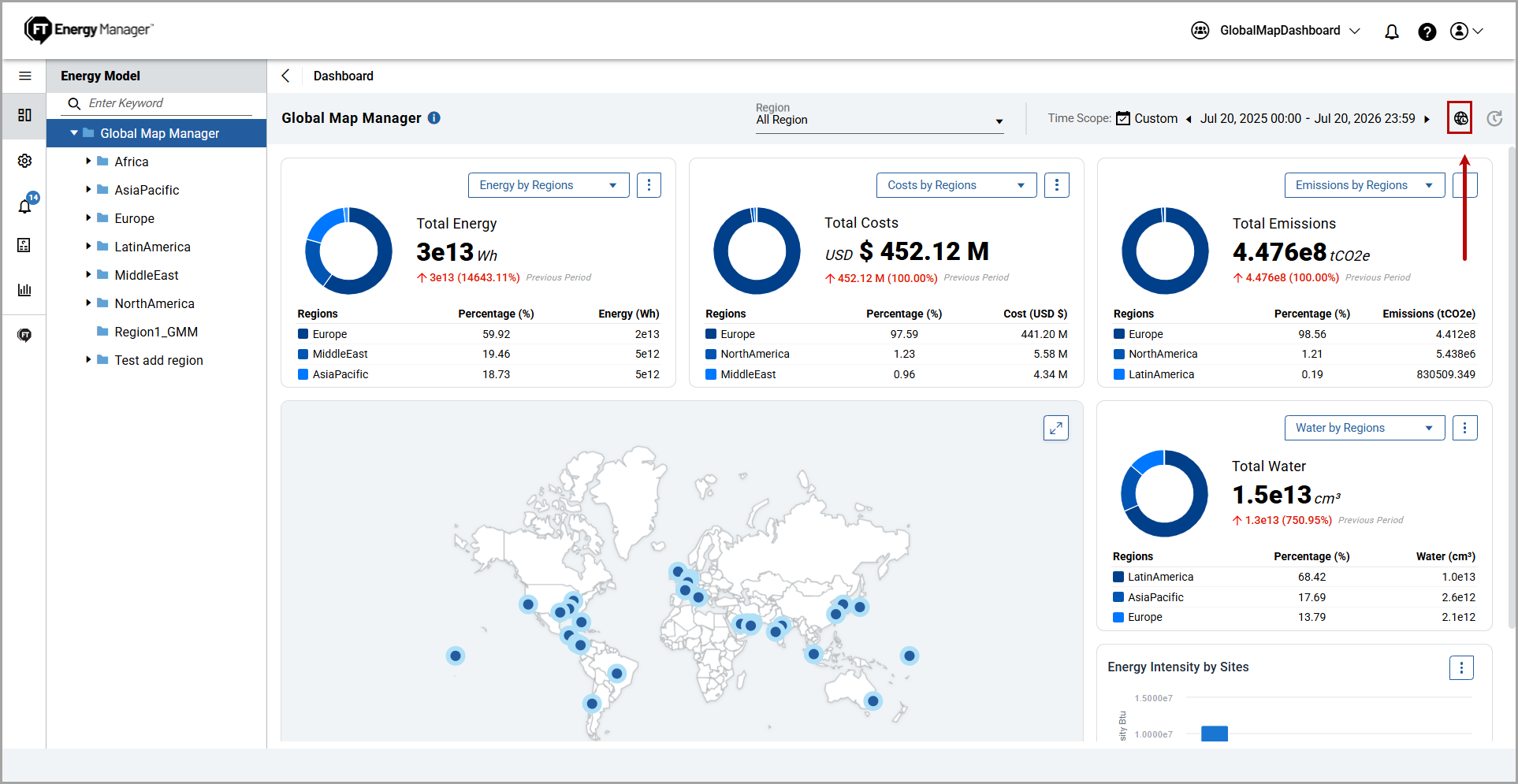
Perform the following steps to change the time zone:
- On the dashboard, click the [
 ] icon.Dashboard - Time Zone Configuration
 TheTime Zonedropdown displays all available global time zones. The application shows your local browser time zone at the top of the list by default.Time Zones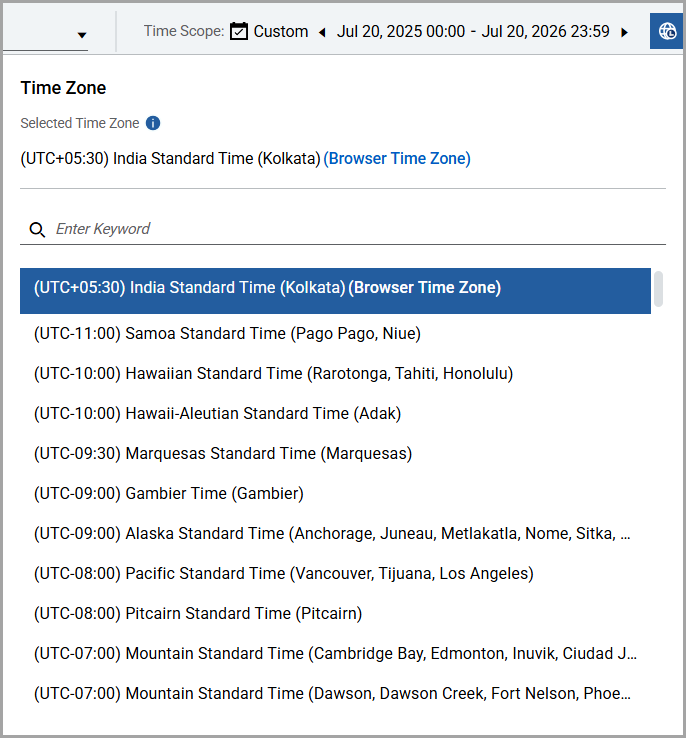
- Scroll through the list and select a new time zone.OrUse the search bar to type a keyword and select the time zone.Search
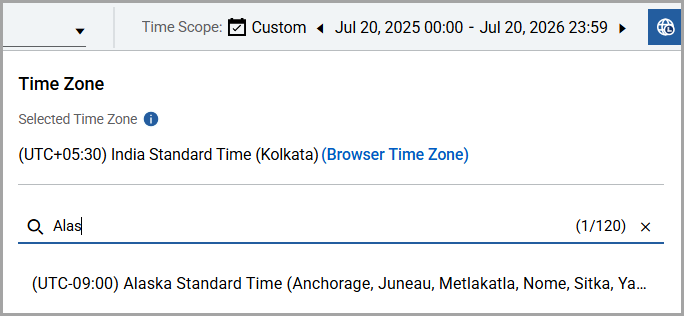 The ‘Updated successfully’ message is displayed. The application automatically refreshes the dashboard and displays the updated data and charts based on the new time zone.
Provide Feedback