
Complete a report verification
Single signature required
When a report verification is pending, the current instruction notifies you, as shown here:
e
Procedure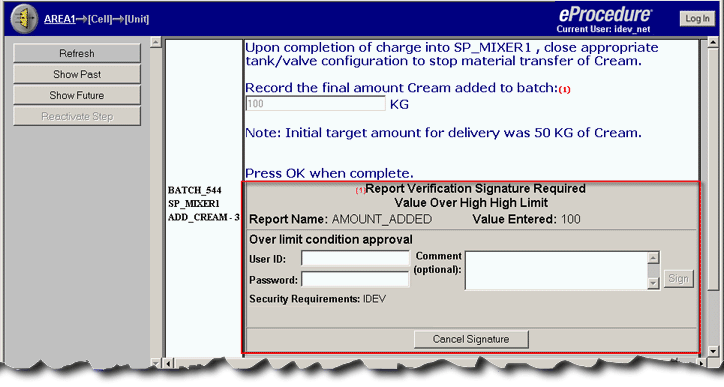
- From theInstructions view, click theeProcedureUser Namebox in the Report Verification instruction, and type the appropriate user name.
- In thePasswordbox, type a valid password.TIP: If verification fails because the operator is not in the required security group or used an incorrect password, an error message displays and "Incorrect Signature" is logged.
- If a comment is required, type it in theCommentbox.If a comment was required but not entered,will prompt you to enter a comment when you clickeProcedureOK.
- ClickOKto complete the sign-off. The data (full name, signature meaning, time, date, and comment) is saved in the event log and the completed signature displays in thestep.eProcedureTIP: If the signature you are trying to signoff on was already completed on a different workstation, an error message is displayed, the attempt is logged, and the completed signature is displayed for the step.
Canceling a Signature
If you cancel the signature, marks the signature as canceled, but leaves the signature information to indicate that the signature was requested. The cancelation is journaled and the data entry area is reactivated. The previously entered value displays, with a red line through it, next to the data entry field.
e
ProcedureIf the signature was accessed from a different workstation, the completed signature and any cancelations are displayed. The step looks exactly the same on both workstations.
Dual signatures required
Report verifications requiring two signatures are completed in much the same way as those requiring only one signature. The exception being when a user tries to complete signature two before signature one is complete. When that occurs, prevents signature two data from being entered.
e
Procedure
TIP:
Signature 1 and Signature 2 can be completed from
different Clients (workstations). The sign-offs work the same as
they would from one workstation. The completed signature and any cancelations are displayed
and the step looks exactly the same on both workstations.
e
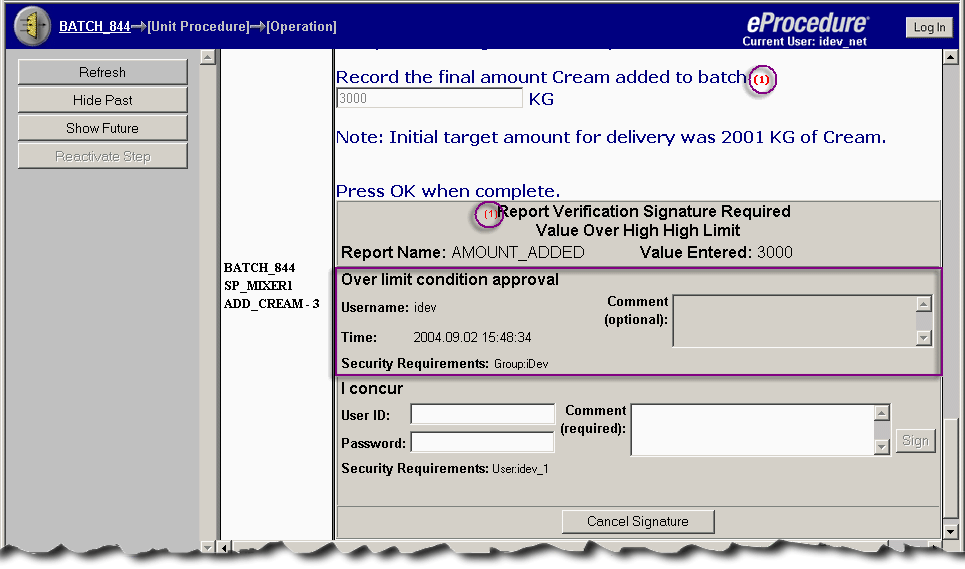
ProcedureThe following example shows a report verification requiring two signatures with Signature 1 being complete.
Provide Feedback