
Configure a Push Button
Follow these steps to configure a push button.
- In an existing controller project, make sure that the gateway is already added to the controllerEtherNet/IP™interface.
- Select the gateway, select New Module, then add the 800F push button in the Select Module Type window that follows.Add a Push Button
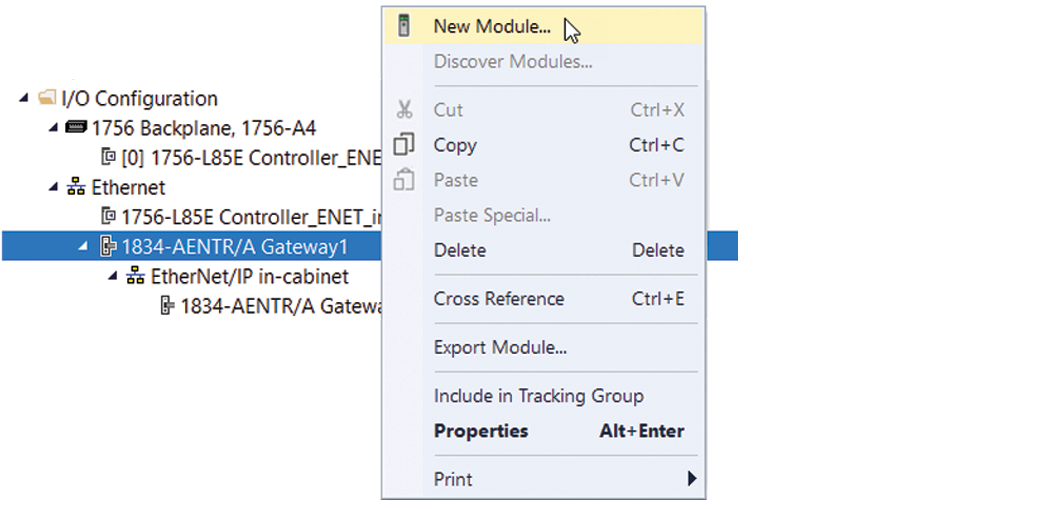 Example: Select a Push Button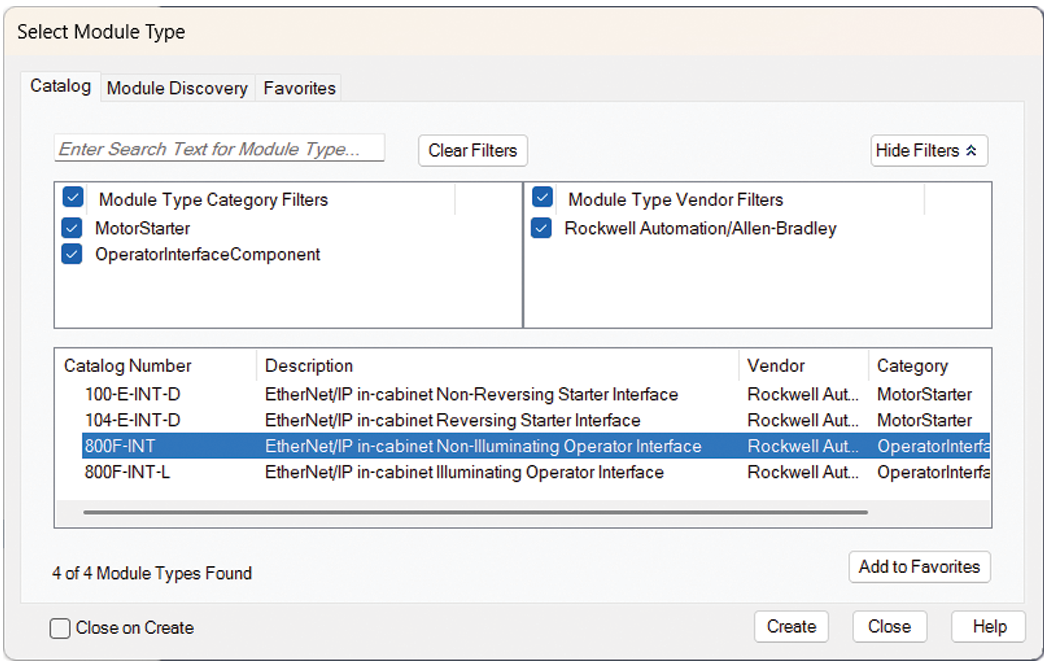
The New Module dialog contains Information views and Configuration views. The Overview view is where you enter the device definition parameters. For a new device, enter the Device Definition parameters.
Push Button Device Definition
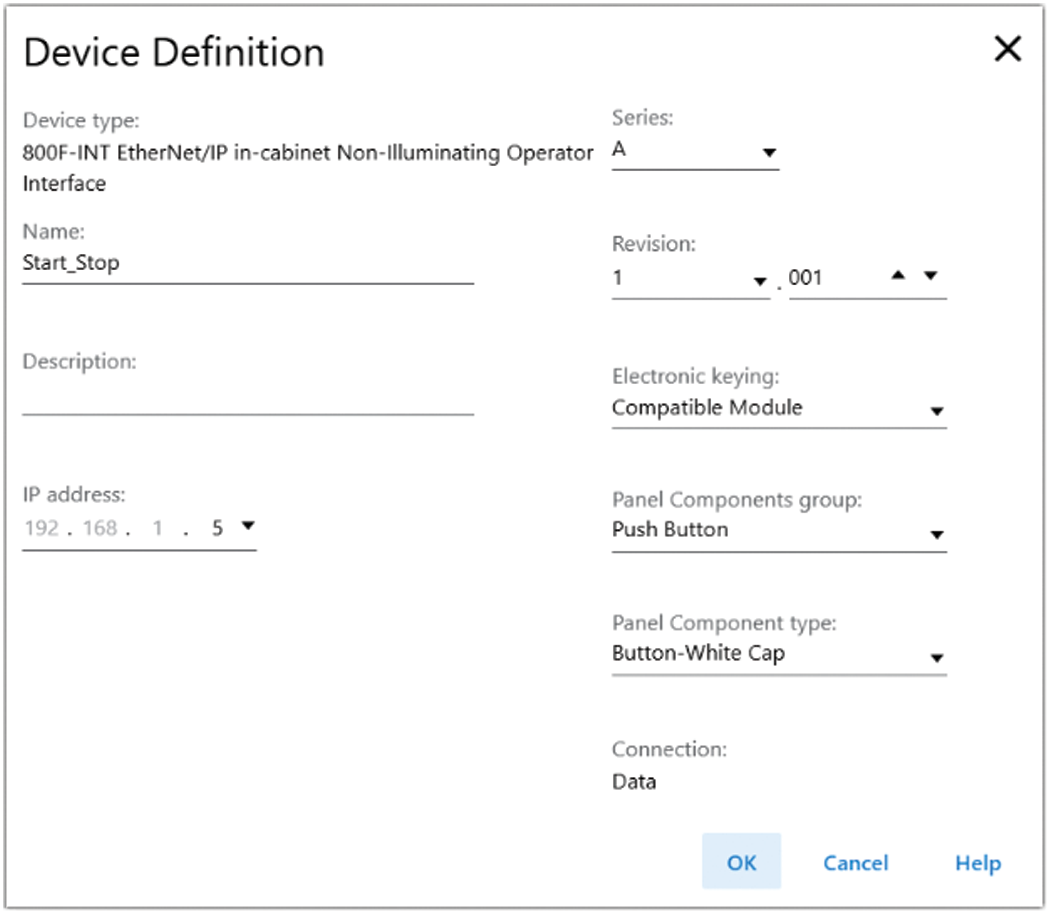
Field | Non-Illuminated Description | Illuminated Description |
|---|---|---|
Device Type | Static field that displays the connected device type. | |
Name | Enter a name for the device. | |
Description | Enter a description for the device. | |
IP address: | Select the final digits of the IP address for the device. The first 3 sets of the
IP address are pre-defined. | |
Panel Components group | Select the panel components group. Values for push buttons are:
| Select the panel components group. Values for push buttons are:
|
Panel Components type | Select the panel components type based on the panel components group
selection. Values available for Push Button:
Value available for Multi operator:
Values available 2-Position Selector and 3-Position Selector:
| Select the panel components type based on the panel components group
selection. Values available for Push Button:
Value available for Multi operator:
Values for 2-Position Selector and 3-Position Selector:
Values for Pilot Light:
|
Controlled by | Select whether the device is controlled by:
| |
Connection | Displays the connection type for the device.
| |
Provide Feedback