
Record
The FactoryTalk Analytics GuardianAI allows the user to record the raw data for a specified duration and download it to analyze the data of the particular state of the component. Users can record the data for a maximum of 60 minutes.
Follow the below steps to record and download the training data:
- On the training page, clickRecord.NOTE: The record option is available when the component is in a training or monitoring state.Record
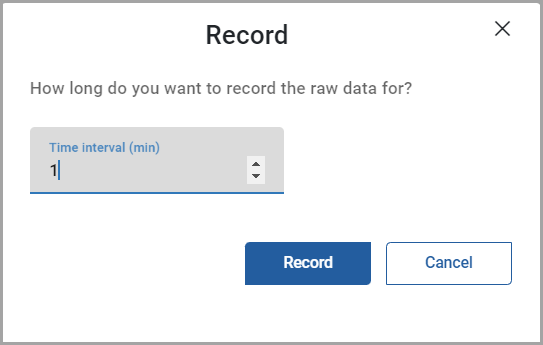
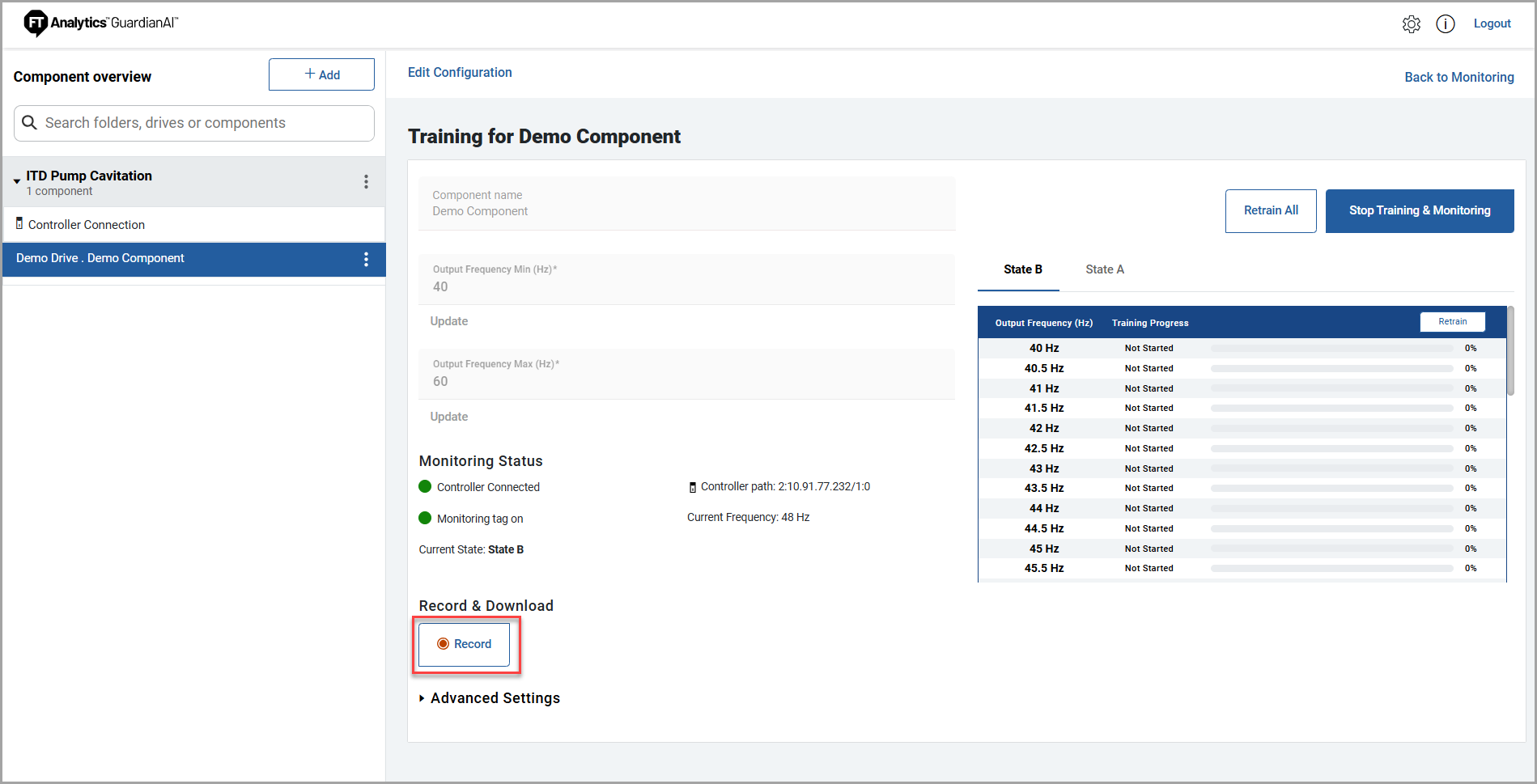 The record pop-up window is displayed.
 - Provide the duration you want to record. The minimum allowed value is 1 minute, and the maximum allowed value is 60 minutes. clickRecord.Record Time
 The record progress bar with a countdown timer is displayed.Record in Progress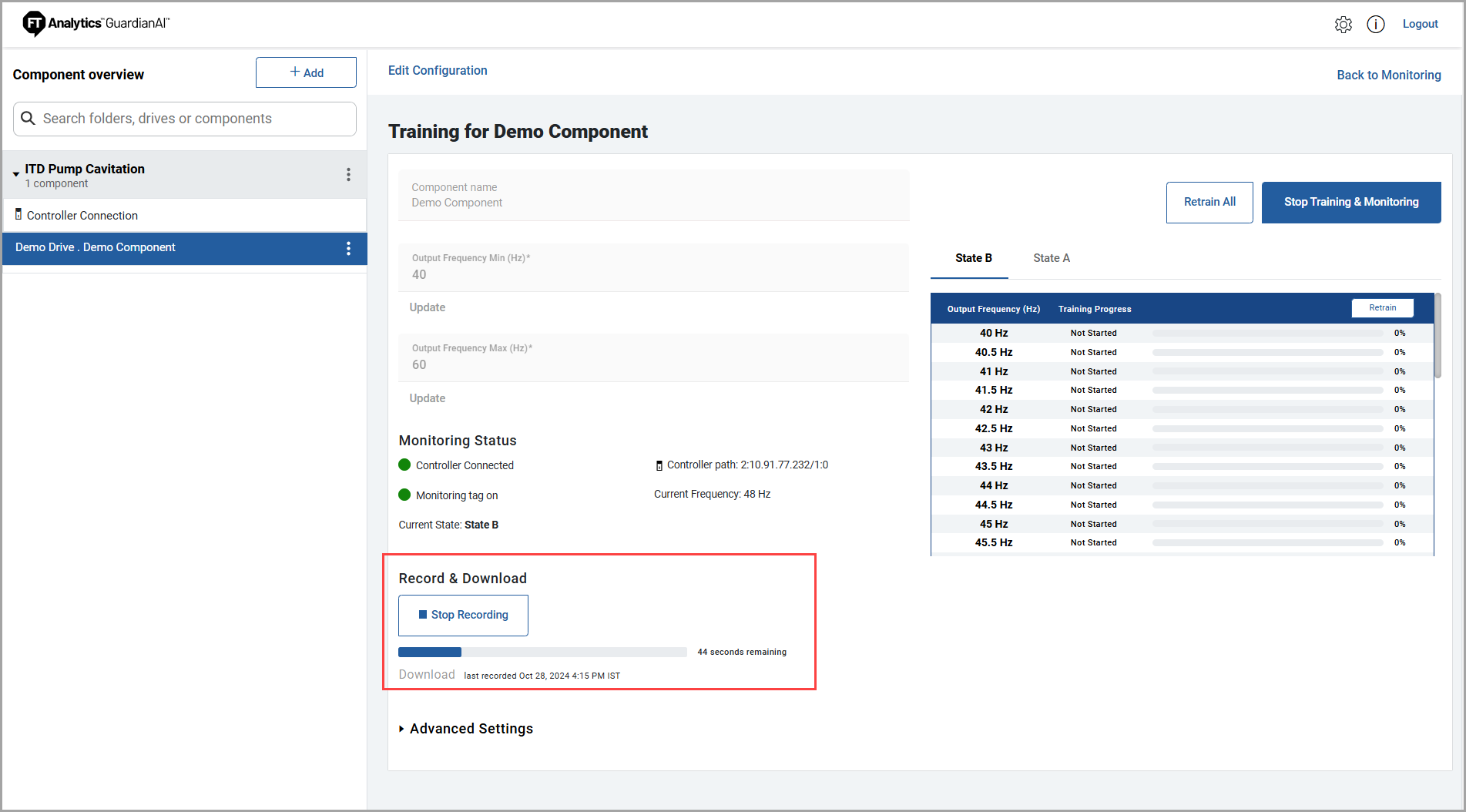
- After the recording is completed, clickDownloadto download the training data.NOTE: The download option is available only after the recording is completed or when the recording is stopped before completion.Download
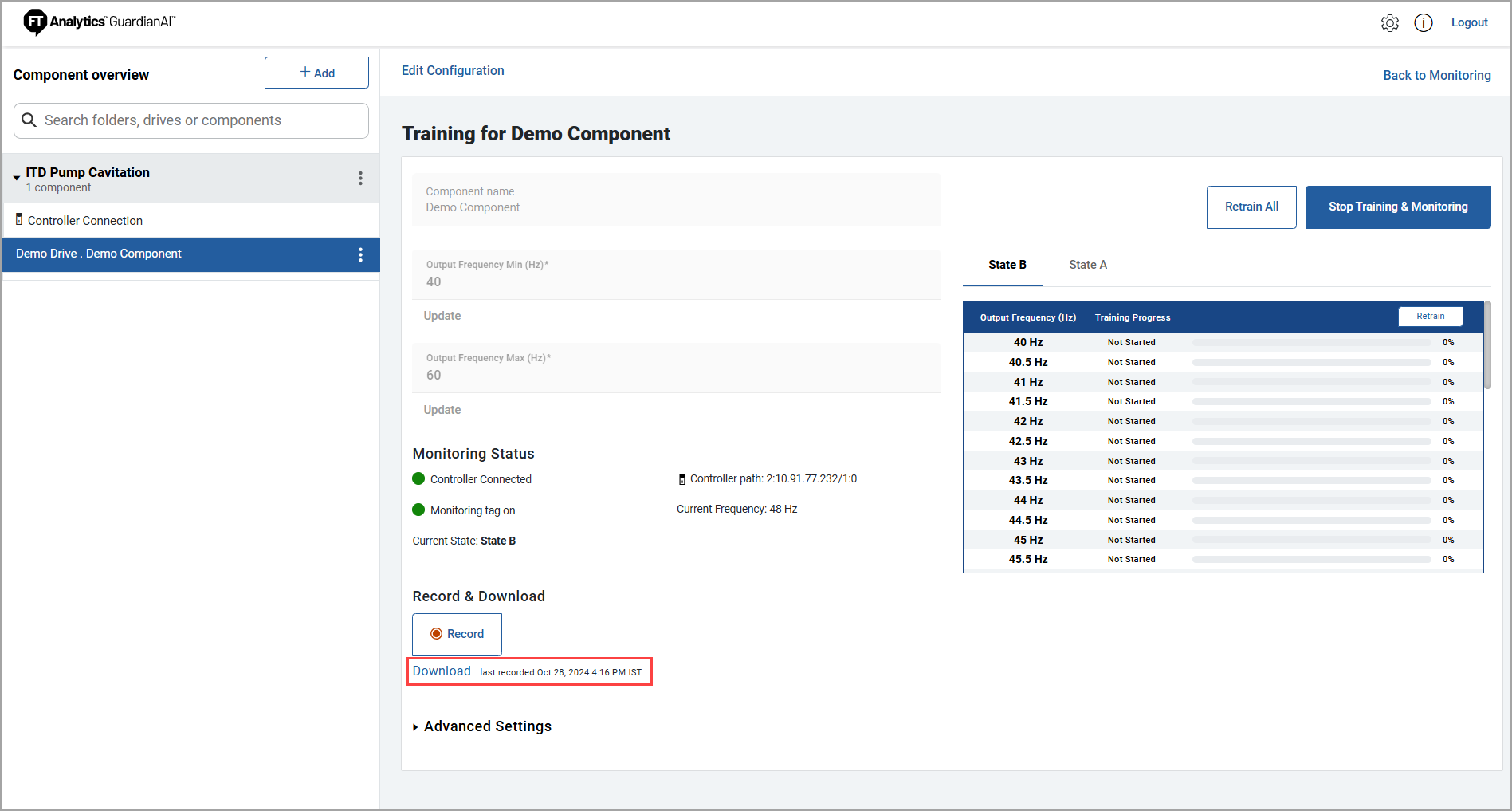 A zip file will be downloaded. Following is the naming convention for the downloaded zip file.<Drive Name>_RecordedData_<Time stamp>.zip
- Drive Name: Name of the drive given during configuration.
Extract the zip file to view the training data in CSV format namedRecordedData.csv. - While recording is in progress, the user can clickStop Recordingto stop the process. Partially recorded data can be downloaded using theDownloadoption.
- If any existing recording is available when a user clicks onRecord, it will be replaced with the newer one.
Provide Feedback