
Configure Drive
Perform the following steps to configure a new drive:
- On theComponent Overviewsection, clickConfiguration.
- Select the desired folder, clickAdd>New Drive.
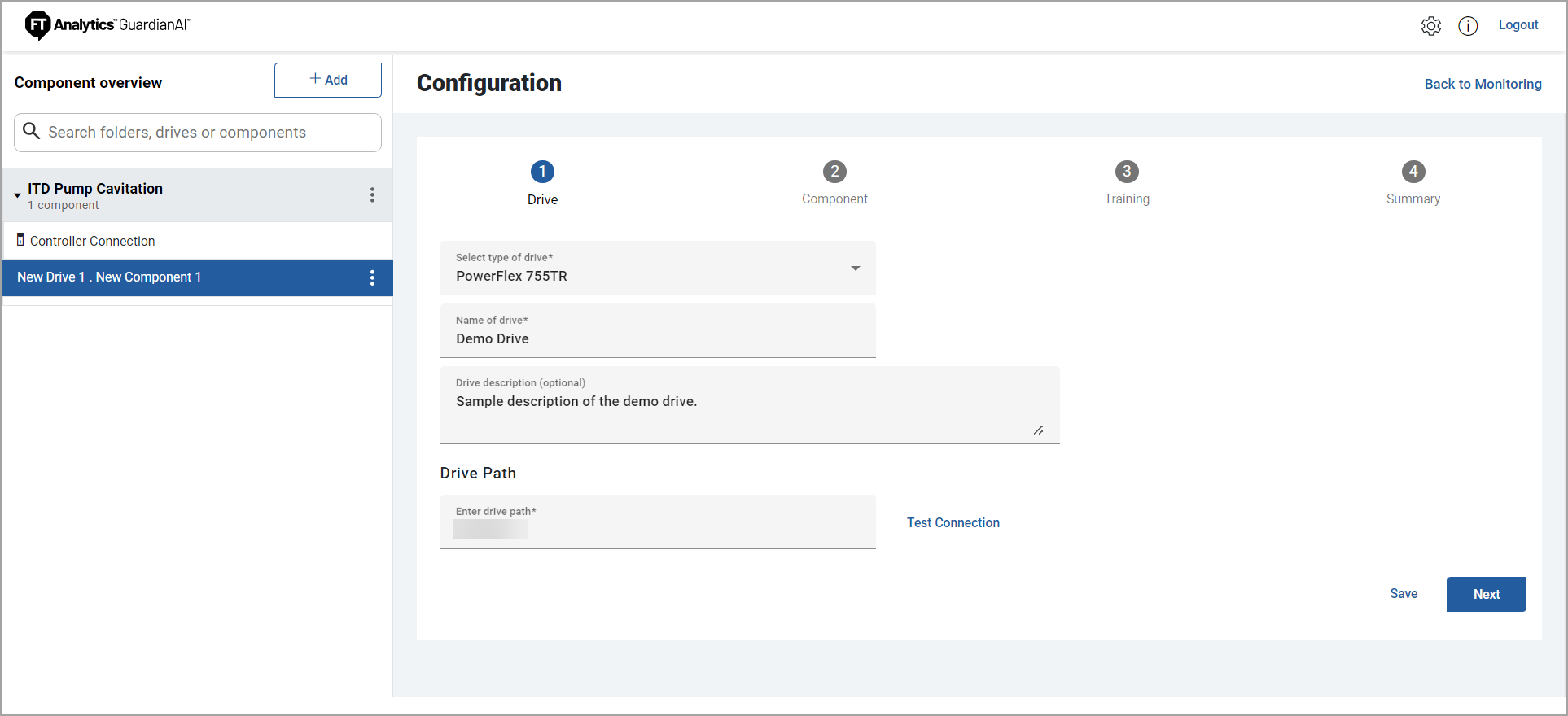
- Provide the following details inDrivesection ofConfiguration:
- Select type of drive: Select the required type of drive. One of PowerFlex 755, 755HiHP, 755TM, 755TR, 755TL, 755TS, 6000T.
- Name of drive: Provide a unique name for the drive.
- Drive description: Provide a detailed description of the drive. This is optional.
- Drive Path: Provide the drive path.Configure Variable Frequency Drive Parameters
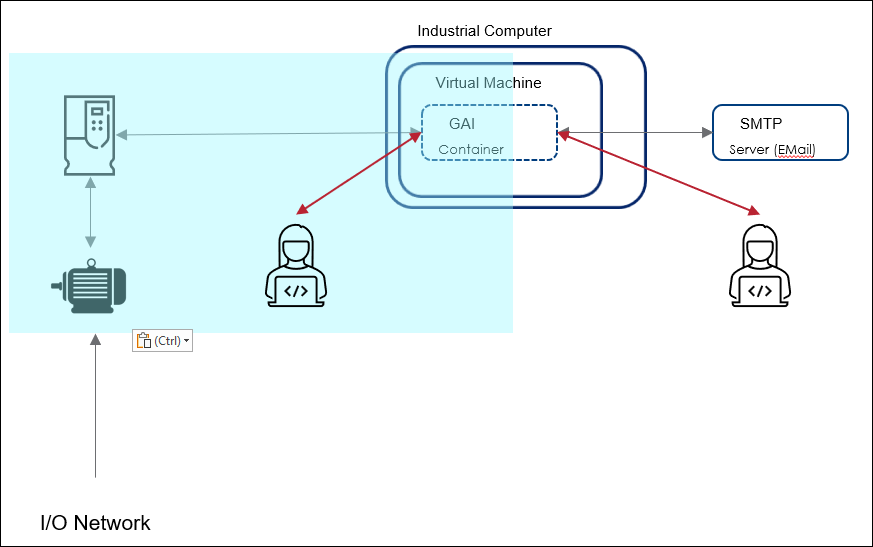
 The drive path depends on the network configuration of the drive and the instance hosting FactoryTalk Analytics GuardianAI. If both are on the same network, the drive can be accessible directly via an IP Address. In this scenario, the user can input the drive's IP address.IP Address example format: 192.168.1.10The following illustration depicts the instance that hosts FactoryTalk Analytics GuardianAI and the drive on the same network location.Network Illustration of Edge PC and Drive on the Same Network
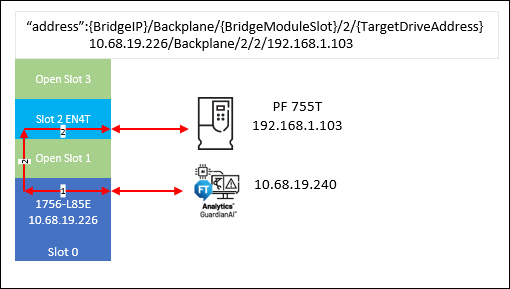
 The more likely scenario is the instance that hosts the FactoryTalk Analytics GuardianAI is not on the same network layer as the controller. In this case, the user must input the full CIP path mapping from the controller to the drive.CIP Path format: {BridgeIP}/Backplane/{BridgeModuleSlot}/2/{TargetDriveAddress}CIP Path Example: 11.70.20.214/Backplane/2/2/192.168.1.103CIP Path Routing Illustration
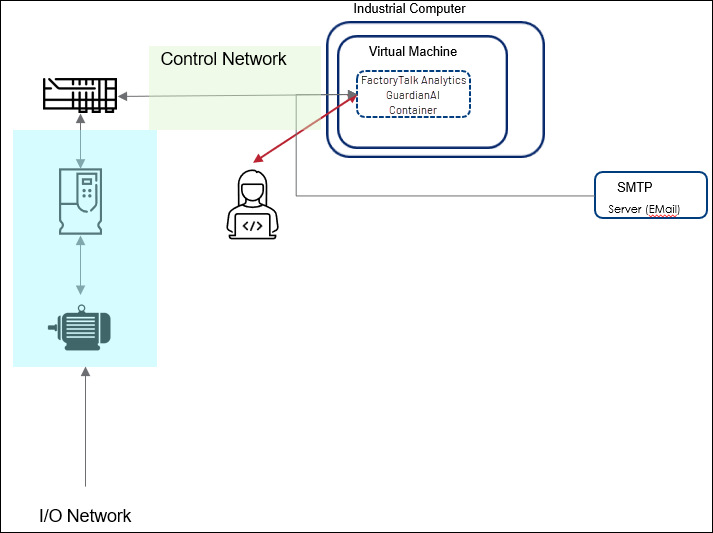
 The following illustration depicts the instance hosting FactoryTalk Analytics GuardianAI on the control network and the variable frequency drive (VFD) on a subnet.Network Illustration of Edge PC on the Control Network and Drive on a Subnet
 If there are multiple controller networks to connect to a drive, the user must input the full CIP path mapping from the controller to the drive as shown below:CIP Path format for 3 networks: {BridgeIP}/Backplane/{BridgeModuleSlot}/2/{BridgeIP}/Backplane/{BridgeModuleSlot}/2/{TargetDriveAddress}CIP Path Example: 10.91.21.168/Backplane/5/2/10.91.20.4/Backplane/2/2/192.168.1.101CIP for 3 Networks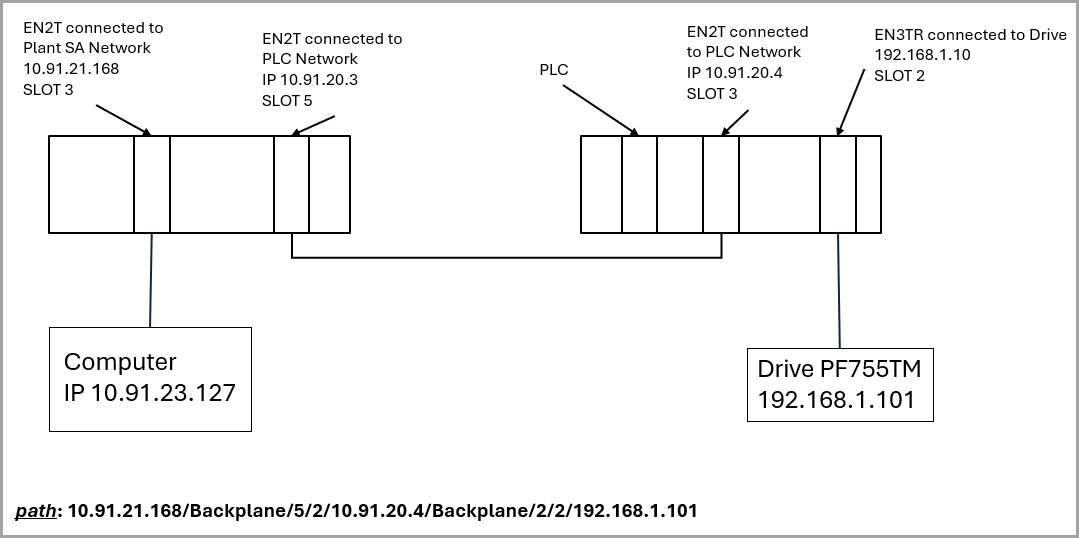
- ClickTest Connectionto verify that the drive is connected and FactoryTalk Analytics GuardianAI can successfully establish and validate the connection.
- ClickSave. TheDrive Details Updated Successfullymessage displays.
- ClickNextto add the component details.
Provide Feedback