Loading
Innovation Center LOGO
Recent ActivityRecent Activity

Connected Plant Monitor

Connected Plant Monitor connects industrial plant data through FTOptix and MQTT, enabling real-time operational monitoring across machines and sites. - [Implementation Time: 120 Minutes]
Innovation Center Home Page
connected-plant-monitor_Connected Plant Monitor.jpg
Innovation Center LOGO
  • Overview
  • Implementation Guide
  • Download
  • Contact us
  • Subscribe
Innovation Center Home Page
 

What does this application do?

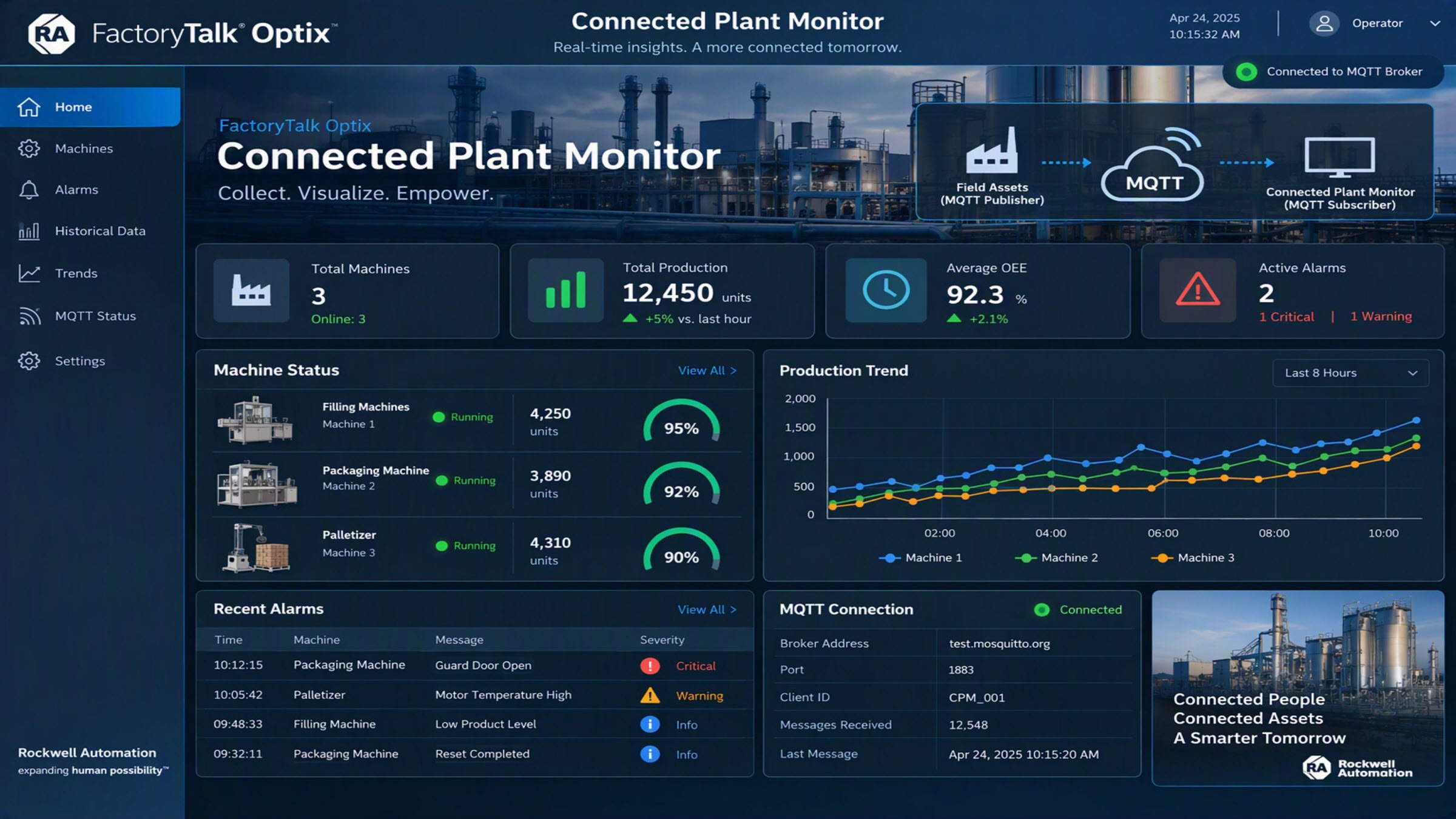
The Connected Plant Monitor application is a demonstration project built in FactoryTalk Optix that shows how industrial data can be collected and visualized using the MQTT communication protocol. The Connected Plant Monitor application is used to collect, consolidate, and visualize real-time and historical industrial data transmitted via MQTT from one or more field applications, providing a centralized dashboard for monitoring plant or machine information.


  1. General Features
  2. Advantages
  3. Limitations/Disadvantages
Open All Close All
General Features


The main features to the Connected Plant Monitor application are:

  • MQTT-based communication between industrial applications using a Publisher/Subscriber architecture.
  • Collection of real-time (live) data from field devices or machine applications.
  • Collection of historical data from dataloggers and event logs.
  • Dashboard visualization of received operational data.
  • MQTT Subscriber functionality to receive information published by the MQTT_Field application.
  • Support for custom MQTT messages through configurable payload topics.
  • Monitoring of connection status through indicators such as connection state and Live Data LED.
  • Reception of alarm and event information in addition to process values.
  • Store-and-forward capabilities for transferring historical records through MQTT topics.
  • Support for multiple machines or production sites through configurable table prefixes, allowing data source identification.
  • Built with FactoryTalk Optix using Runtime NetLogic components for MQTT data exchange.


Advantages


The Connected Plant Monitor application provides several advantages for industrial monitoring and IIoT implementations:

  • Centralized data visualization through a single dashboard that consolidates information from machines and production systems.
  • Real-time monitoring by receiving live MQTT data with minimal latency.
  • Scalability, as multiple machines or production sites can publish data to the same MQTT infrastructure.


Limitations/Disadvantages


  • Demonstration MQTT broker. The example uses the public broker test.mosquitto.org, which is intended only for demonstration purposes and does not guarantee availability, security, or performance.
  • No built-in enterprise historian. The example demonstrates MQTT data forwarding and visualization but does not provide the advanced capabilities of dedicated industrial historians such as long-term archiving, compression, redundancy, or enterprise analytics.
  • Dependent on MQTT infrastructure. Communication reliability depends on broker availability, network connectivity, topic configuration, and QoS settings.


AHIC Download ICON VF.png

Downloads

Please note: You will need to agree to the Terms & Conditions for each download.

Downloadable file ›
Legal Disclaimer Acceptance. ROCKWELL AUTOMATION WILL PROVIDE ACCESS TO ROCKWELL PRODUCTS (BEST PRACTICES, APPLICATIONS AND KNOWLEDGE) ON THE CONDITION THAT YOU ACCEPT AND COMPLY WITH THE FOLLOWING TERMS AND CONDITIONS. YOU ACCEPT AND AGREE TO BE BOUND BY THE TERMS OF THIS AGREEMENT BY DOWNLOADING, INSTALLING, COPYING, OR OTHERWISE USING PRODUCTS. IF YOU ARE ACCEPTING THESE TERMS ON BEHALF OF ANOTHER PERSON, COMPANY, OR OTHER LEGAL ENTITY, YOU REPRESENT AND WARRANT THAT YOU HAVE FULL AUTHORITY TO BIND THAT PERSON, COMPANY, OR LEGAL ENTITY TO THESE TERMS. IF YOU DO NOT AGREE TO THESE TERMS, DO NOT DOWNLOAD, INSTALL, COPY, ACCESS, OR USE THE PRODUCTS, SOFTWARE AND/OR CLOUD SERVICES. 1. Rockwell Automation retains full ownership and title to all Products and related documentation. No rights or licenses are granted other than those set forth in this Agreement. Company grants to Rockwell Automation a non-exclusive, worldwide, royalty-free, perpetual, non-revocable license to use any feedback Company provides regarding the Products, even if Company has designated the feedback as confidential. Rockwell Automation will be entitled to use the feedback without restriction or compensation to Company. 2. Company may not lease sub-lease, assign, license, sub-license or otherwise transfer any of the Products without the prior written consent of Rockwell Automation. Company may not assign or otherwise transfer access rights to the Products without the prior written consent of Rockwell Automation. Any reverse assembly, reverse engineering, decompilation, and creation of derivative works based on the Products by Company is prohibited. 3. Company acknowledges that Products provided under this Agreement are Rockwell Automation’s Confidential Information and are covered by effective or pending copyrights, patents, trademarks and/or trade secrets of Rockwell Automation, and Company agrees to maintain confidentiality by not disclosing Products or documentation to any third party without the prior written consent of Rockwell Automation and to protect the confidentiality of the Products as it would Company’s own confidential information. Company agrees that its obligation of confidentiality under this paragraph shall survive expiration or termination of this Agreement. 4. Company agrees that Products provided under this Agreement are prototypes and examples and its application and results may vary depending on each customer and project conditions. Rockwell Automation do not warranty the same results. This Agreement shall in no way be construed as a commitment by Rockwell Automation at any time to manufacture and/or offer Products for sale. There is no explicit or implicit service level agreement associated with using the Products. Rockwell Automation does not warrant that the functions contained in the Products will meet Company’s requirements. Company agrees to use all Products only in accordance with the instructions and only for the intended usages identified in the documentation. 5. EXCLUSION OF WARRANTIES AND LIMITATION OF LIABILITY. THE PRODUCTS ARE PROVIDED "AS IS". ROCKWELL AUTOMATION DISCLAIMS ANY AND ALL WARRANTIES, EXPRESS, IMPLIED OR STATUTORY, INCLUDING WITHOUT LIMITATION ANY WARRANTIES OF MERCHANTABILITY OR FITNESS FOR A PARTICULAR PURPOSE. ROCKWELL AUTOMATION EXPLICITLY DISCLAIMS ALL WARRANTIES OF NON- INFRINGEMENT AND EXPRESSLY DOES NOT WARRANT THAT THE PRODUCTS, IN WHOLE OR IN PART, WILL BE ERROR FREE OR FREE FROM SECURITY VULNERABILITIES. IN NO EVENT SHALL ROCKWELL AUTOMATION BE LIABLE FOR (i) LOST PROFITS, LOST SAVINGS, DOWNTIME, SPECIAL, INDIRECT OR CONSEQUENTIAL DAMAGES OF ANY KIND, OR (ii) ANY PERSONAL INJURY, PROPERTY DAMAGE OR ENVIRONMENTAL DAMAGE ARISING OUT OF OR IN CONNECTION WITH THIS AGREEMENT, WHETHER IN AN ACTION IN CONTRACT, STRICT LIABILITY OR IN TORT INCLUDING NEGLIGENCE. 6. COMPANY AGREES TO INDEMNIFY AND HOLD ROCKWELL AUTOMATION HARMLESS FROM ALL COSTS, AWARDS, DAMAGES, EXPENSES AND FEES (INCLUDING ATTORNEYS FEES) RESULTING FROM OR RELATED TO ANY THIRD-PARTY CLAIMS (INCLUDING EMPLOYEES AND AGENTS OF COMPANY) AGAINST ROCKWELL AUTOMATION, ITS DISTRIBUTORS, AGENTS, OFFICERS, DIRECTORS OR EMPLOYEES FOR PERSONAL INJURY (INCLUDING DEATH), PROPERTY DAMAGE OR ENVIRONMENTAL DAMAGE RELATED TO OR RESULTING FROM THE USE OF THE PRODUCTS. 7. In the event a Product is exported, Company agrees to comply with all applicable United States Export Control Law and Regulations, and the applicable export control laws of other countries. This Agreement shall be governed by the laws of the state of Wisconsin. This Agreement is the complete and exclusive Agreement between Rockwell Automation and the Company, and supersedes all prior agreements, whether written or oral, relating to the Products.
AHIC NEED HELP ICON VF.png


Need Help?

If you need help with an application or have feedback from the Innovation Center, please contact us.


Is this application relevant to me?

Primarily as a demonstration and prototyping tool rather than as a production solution.
  • Integrate multiple machines or sites into a centralized dashboard using MQTT topics.
  • Build proof-of-value (POV) projects showing real-time and historical data aggregation from machines or production lines.
  • Demonstrate MQTT communications between industrial assets and supervisory applications.


Application areas:

  • Food & Beverage, Discrete Manufacturing, OEMs (Machine Builders)
  • IIoT and Digital Transformation Projects
  • Multi-Machine and Multi-Site Monitoring
  • Remote Equipment Monitoring
 

How can I make it work?

Requirements: products, tools, prior knowledge.

Hardware

  • 2800E-AND-S (OptixEdge 2800,Standard (ARM),None,FT Optix L (15 tokens),Standard AB,No Conformal Coat)

Software

  • FactoryTalk Optix Studio Version 1.7.5.13
  • FactoryTalk Optix Runtime Version 1.7.5.1


Previous Knowledge Required

Basic knowledge of installation, configuration and integration in:

  • FactoryTalk Optix
  • MQTT Protocol
  • Industrial Networking
  • Cybersecurity Fundamentals


AHIC STEP ICON.png

Implementation Guide


This application works paired with the MQTT_Asset, showing data received via MQTT protocol in form of a control dashboard.

  1. Step 1
  2. Step 2
  3. Step 3
  4. Step 4
Open All Close All
Step 1
 

Download the Connected_Plant_Monitor.zip folder and extract its contents.

Install FactoryTalk Optix Studio and FactoryTalk Optix Runtime from FactoryTalk Hub.

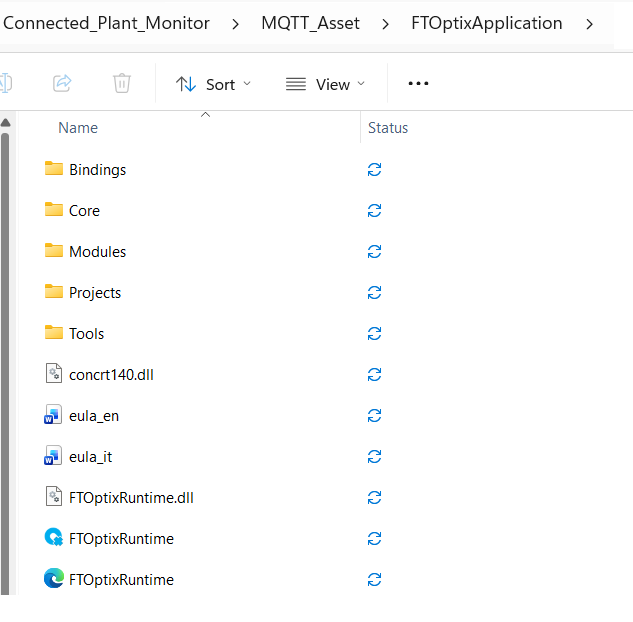
Start the MQTT_Asset


connected-plant-monitor_MQTT_Asset folder_1.png

connected-plant-monitor_MQTT_Asset folder_1.png

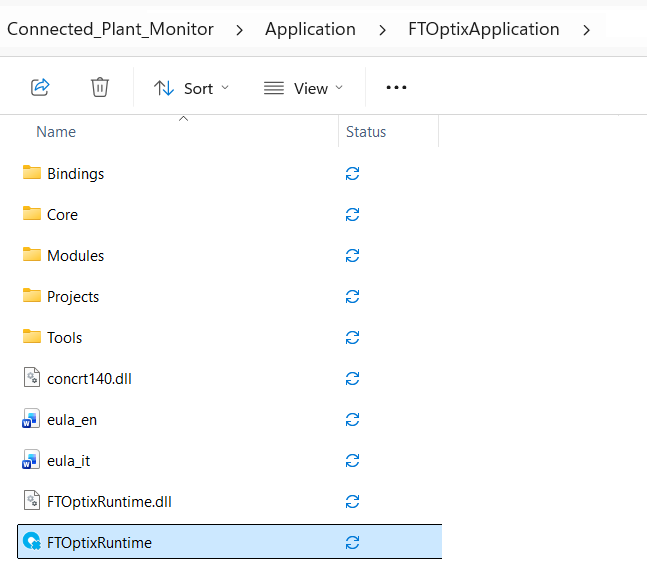
Start the Connected Plant Monitor.


connected-plant-monitor_Connected Plant Monitor folder_2.png

connected-plant-monitor_Connected Plant Monitor folder_2.png

Note: This quick start guide was developed and tested on an Windows machine.


Start the Field Application.

Step 2
 

After that, open this project on another FT Optix window and run the application with FT Optix Emulator.


connected-plant-monitor_FactoryTalk Emulator_3.png

connected-plant-monitor_FactoryTalk Emulator_3.png


If the connection with the MQTT_Asset is working, the “Live Data” LED will be green.


connected-plant-monitor_LiveData_4.png

connected-plant-monitor_LiveData_4.png


The data exchange is based on a Runtime Netlogic which can be found in the Netlogic folder. The Netlogic MQTTBrokerLogic is present on both applications but is configured differently.


Step 3
 

The data exchange is based on a Runtime Netlogic which can be found in the Netlogic folder. The Netlogic MQTTBrokerLogic is present on both applications but is configured differently.


connected-plant-monitor_MQTTBrokerLogic MQTT_Asset_5.png

connected-plant-monitor_MQTTBrokerLogic MQTT_Asset_5.png

connected-plant-monitor_MQTTBrokerLogic Connected Plant Monitor_6.png

connected-plant-monitor_MQTTBrokerLogic Connected Plant Monitor_6.png


Here the Runtime Netlogic works as Subscriber: subscribing to the topics on which the Field Application publishes, it shows all data in the form of a dashboard.


Step 4
 
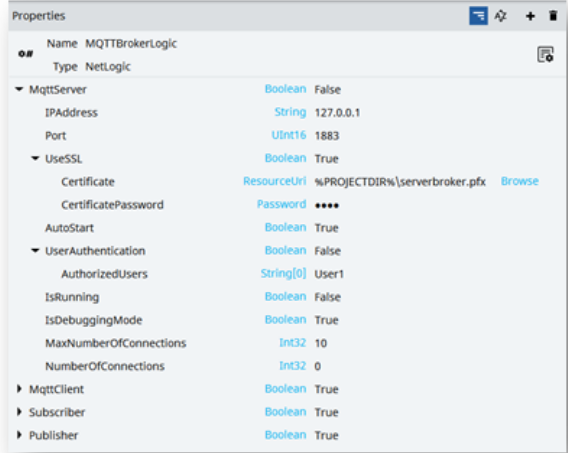
  • MQTT Server


    It should be activated (TRUE) only if you want to use your Uniqo application as a Broker (hence not using an existing MQTT broker, in this example test.mosquitto.org).

    connected-plant-monitor_MQTT_Server_7.png

    connected-plant-monitor_MQTT_Server_7.png

    Parameters:

    • IPAddress: IP address where the Broker will be instantiated
    • Port: number of the port on which the broker is listening
    • UseSSL: enables the use of certificates
    • Certificate
    • CertificatePassword
    • AutoStart LEAVE TRUE
    • UserAuthentication: if true only the specified users can access
    • AuthorizedUsers
    • IsRunning: Server status
    • IsDebuggingMode NOT USED
    • MaxNumberOfConnections: maximum number of clients that can connect to the Broker
    • NumberOfConnections: number of active connections


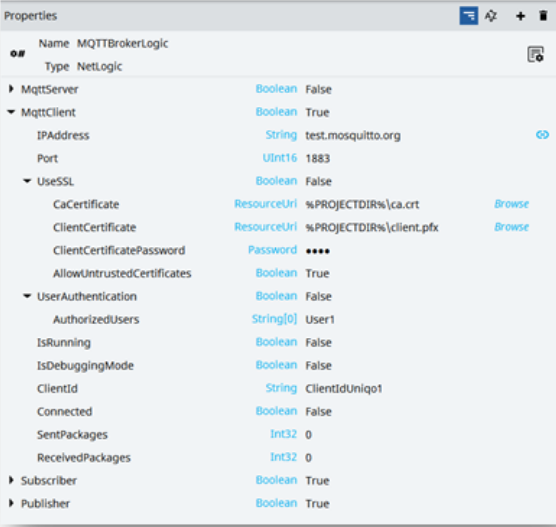
  • MQTT Client


    It must always be active (TRUE) because it is the connection with the Broker to which you publish or to which you subscribe. If you want to connect two applications, you need to set the same broker and the same port on both projects. Instead, the ClientID parameter must be different (unique) on each application.

    connected-plant-monitor_MQTT Client_8.png

    connected-plant-monitor_MQTT Client_8.png


    Parameters:

    • IPAddress: broker address (test.mosquitto.org) could be external like in this case, or internal if the application work as a broker (e.g., MQTTBrokerLogic.MQTTServer.IPAddress)
    • Port: broker port (1883 for test.mosquitto.org)
    • UseSSL: Switch to TRUE if the broker requires certificates
      • CaCertificate
      • ClientCertificate
      • ClientCertificatePassword
      • AllowUntrustedCertificates
    • UserAuthentication: Switch to TRUE if the broker requires authorized users.
      • AuthorizedUsers: String array which contains Uniqo users (User1; User2; User […]);
    • IsRunning NOT USED
    • IsDebuggingMode NOT USED
    • ClientId: this is the unique Id, different for each application that wants to participate in the data sharing/exchange
    • Connected: connection status to the broker
    • SentPackages STATS
    • ReceivedPackages STATS


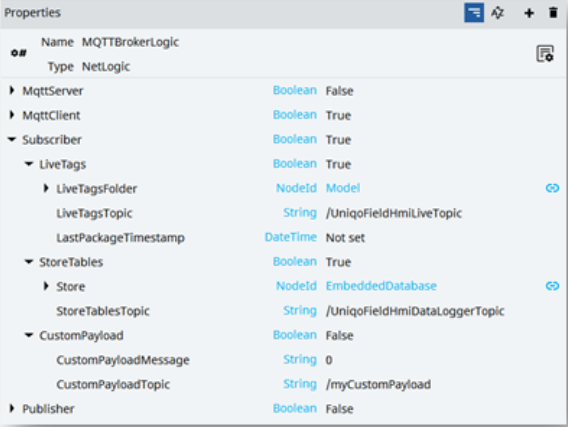
  • Subscriber


    It must be active (TRUE) if your application needs to receive data published on the broker.
     

    connected-plant-monitor_Subscriber_9.png

    connected-plant-monitor_Subscriber_9.png


    Parameters:

    • LiveTags: TRUE = receive LIVE DATA
      • LiveTagsFolder: this folder/Node contains a copy of the Publisher LiveTagsFolder parameter, on which the Netlogic will copy the values read from the broker.
      • LiveTagsTopic: on this parameter needs to be specified the topic on which you are subscribed, and you want to receive live variables/tags values.
      • LastPackageTimestamp: Timestamp of the last published packet
    • StoreTables: TRUE = receive HISTORICAL DATA
      • Store: DataStore on which we are saving received data. The store’s tables must be renamed with the “TablesPrefix” parameter, plus the name of the publisher application tables. Below is an example:
        • Publisher application DataStore table names: Datalogger, AlarmsEventLogger
        • Publisher “TablesPrefix” parameter: Station1
        • Subscriber application DataStore table names: Station1_DataLogger, Station1_EventLogger Verify to have the same columns you have on the Publisher application
      • StoreTablesTopic: on this parameter needs to be specified the topic on which you are subscribed, and you want to receive historical variables/tags values.
    • CustomPayload: Custom message without pre-defined format
      • CustomPayloadMessage: Custom text message from the CustomPayloadTopic
      • CustomPayloadTopic: On this parameter needs to be specified the topic on which you are subscribed, and you want to receive custom messages.
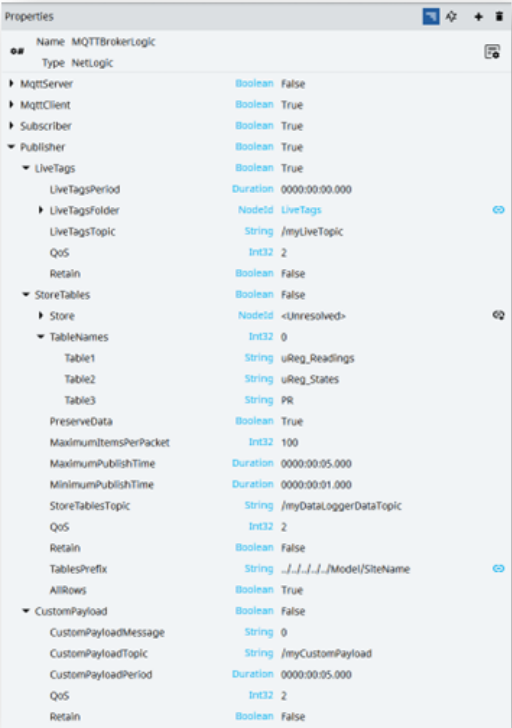
  • Publisher

    It must be active (TRUE) if your application needs to publish data to the broker.


    connected-plant-monitor_Publisher_10.png

    connected-plant-monitor_Publisher_10.png


    Parameters:

    • LiveTags: TRUE = publish LIVE DATA
      • LiveTagsPeriod: Sending frequency (if 0000:00:00.000 send data on value change).
      • LiveTagsFolder: folder (or node) that contains data to be sended
      • LiveTagsTopic: /UniqoFieldHmiLiveTopic is the topic on which we are sending/publishing data
      • QoS: MQTT Quality of Service (0,1,2)
      • Retain: Retain message on the topic even after read
    • StoreTables: TRUE = publish HISTORICAL DATA
      • Store: DataStore on which we are saving our data
      • TableNames: Store tables to be sended
      • Table1: Datalogger
      • Table2: AlarmsEventLogger
      • Table (…) could be added or removed
      • PreserveData NOT USED
      • MaximumItemsPerPacket: define how many rows per packet to send
      • MaximumPublishTime: Maximum waiting time before publishing data even if not reached the MaximumItemsPerPacket value.
      • MinimumPublishTime: Minimum waiting time before publishing data when the MaximumItemsPerPacket value is reached.
      • StoreTablesTopic : /UniqoFieldHmiDataLoggerTopic is the topic on which we are sending/publishing data
      • QoS: MQTT Quality of Service (0,1,2)
      • Retain: Retain message on the topic even after read
      • TablesPrefix: A model variable containing the hypothetical name of different production sites, in this case, will be “Station1”. Into the sent packet will appear the table sent with the unique prefix corresponding to the right machine/site from which the packet arrives (Station1_AlarmsEventLogger). This is useful when we have more than one of the same machine model/more than one of the same plant configurations and we need to distinguish from which machine/plant data arrives.
    • AllRows: When is TRUE, publish all the data already present in the Store Tables. Set on FALSE to publish only the data stored after the implementation of the MQTTBrokerLogic.
    • CustomPayload: Custom message without pre-defined format
      • CustomPayloadMessage: Custom text message published to the CustomPayloadTopic
      • CustomPayloadTopic: The topic on which the message will be published
      • CustomPayloadPeriod: Sending frequency of the custom message (if 0000:00:00.000 send data on value change)
      • QoS: MQTT Quality of Service (0,1,2)
      • Retain: Retain message on the topic even after read
 
connected-plant-monitor_MQTT_Asset folder_1.png

connected-plant-monitor_MQTT_Asset folder_1.png

connected-plant-monitor_Connected Plant Monitor folder_2.png

connected-plant-monitor_Connected Plant Monitor folder_2.png

connected-plant-monitor_FactoryTalk Emulator_3.png

connected-plant-monitor_FactoryTalk Emulator_3.png

connected-plant-monitor_LiveData_4.png

connected-plant-monitor_LiveData_4.png

connected-plant-monitor_MQTTBrokerLogic MQTT_Asset_5.png

connected-plant-monitor_MQTTBrokerLogic MQTT_Asset_5.png

connected-plant-monitor_MQTTBrokerLogic Connected Plant Monitor_6.png

connected-plant-monitor_MQTTBrokerLogic Connected Plant Monitor_6.png

connected-plant-monitor_MQTT_Server_7.png

connected-plant-monitor_MQTT_Server_7.png

connected-plant-monitor_MQTT Client_8.png

connected-plant-monitor_MQTT Client_8.png

connected-plant-monitor_Subscriber_9.png

connected-plant-monitor_Subscriber_9.png

connected-plant-monitor_Publisher_10.png

connected-plant-monitor_Publisher_10.png


Connected Plant Monitor 

Version 1.0 - October 2026

 
AHIC White Logo

Receive new applications and Innovation Center updates directly in your inbox.

Subscribe!
  1. Chevron LeftChevron Left Rockwell Automation Home
  2. Chevron LeftChevron Left Sup...
  3. Chevron LeftChevron Left Pro...
  4. Chevron LeftChevron Left Downloads
  5. Chevron LeftChevron Left Innovation Center
  6. Chevron LeftChevron Left Connected Plant Monitor
Please update your cookie preferences to continue.
This feature requires cookies to enhance your experience. Please update your preferences to allow for these cookies:
  • Social Media Cookies
  • Functional Cookies
  • Performance Cookies
  • Marketing Cookies
  • All Cookies
You can update your preferences at any time. For more information please see our {0} Privacy Policy
CloseClose