
(Interactive Access) Explorer
This section allows you to transfer files between local and remote devices. In
Explorer
you can carry out remote file operations, such as download,
upload, rename, and delete files. You can click the play symbol
next to an executable
file installed in the remote device to start it.You can monitor file transferring processes through a practical two-panes view, showing both
the root and the receiving folder paths.
This section is split in two panes: The left panel displays the files the local device
running the , while the right pane shows the files
the remote device.
FactoryTalk®
Remote Access™
ManagerIn
Explorer
, you can manage files uploaded via an SD card or an USB
memory stick connected to your device. Your device System Manager automatically applies
predefined mounting options, allowing the contents of the SD card or USB memory stick to
appear in the Explorer
section. From there, you can read, write, and
exchange data directly with your device.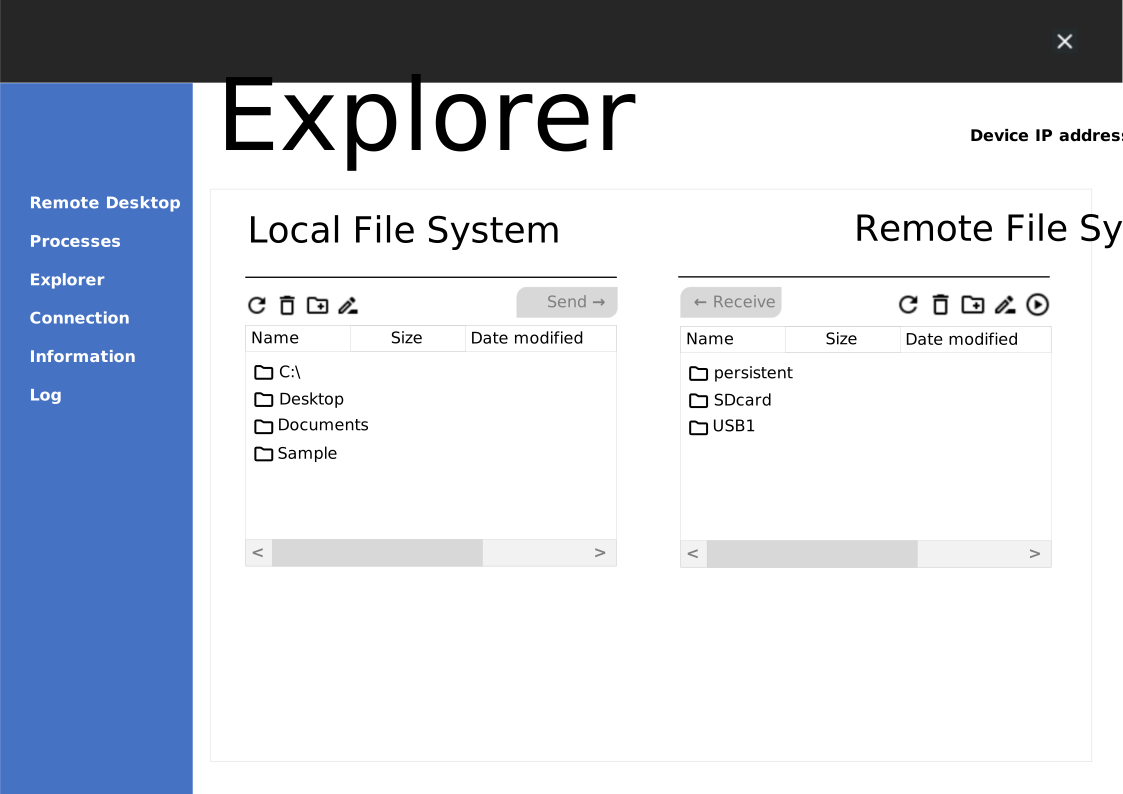
To access the
Explorer
pane, proceed as follows:- Make sure that theis connected to the remote device.FactoryTalk® Remote Access™Manager
- Access the section.
- Click theInteractive AccessTool button, then selectExplorer.NOTE: See Interactive Access for further information on this Tool.
NOTE:
File transferring operates with local system privileges. This means that the admin can enable or disable specific
operations for remote users.
FactoryTalk®
Remote Access™
ManagerOnce you have selected the files that you want to transfer, click
Send
or Receive
, as needed.
NOTE:
In case the file transferring is interrupted for any reason, it can be resumed or
restarted by clicking
Resume
or Resume
all
.To rename a file or folder, right-click it and select
Rename
in the
context menu.Provide Feedback