
Run the Fiix Extractor
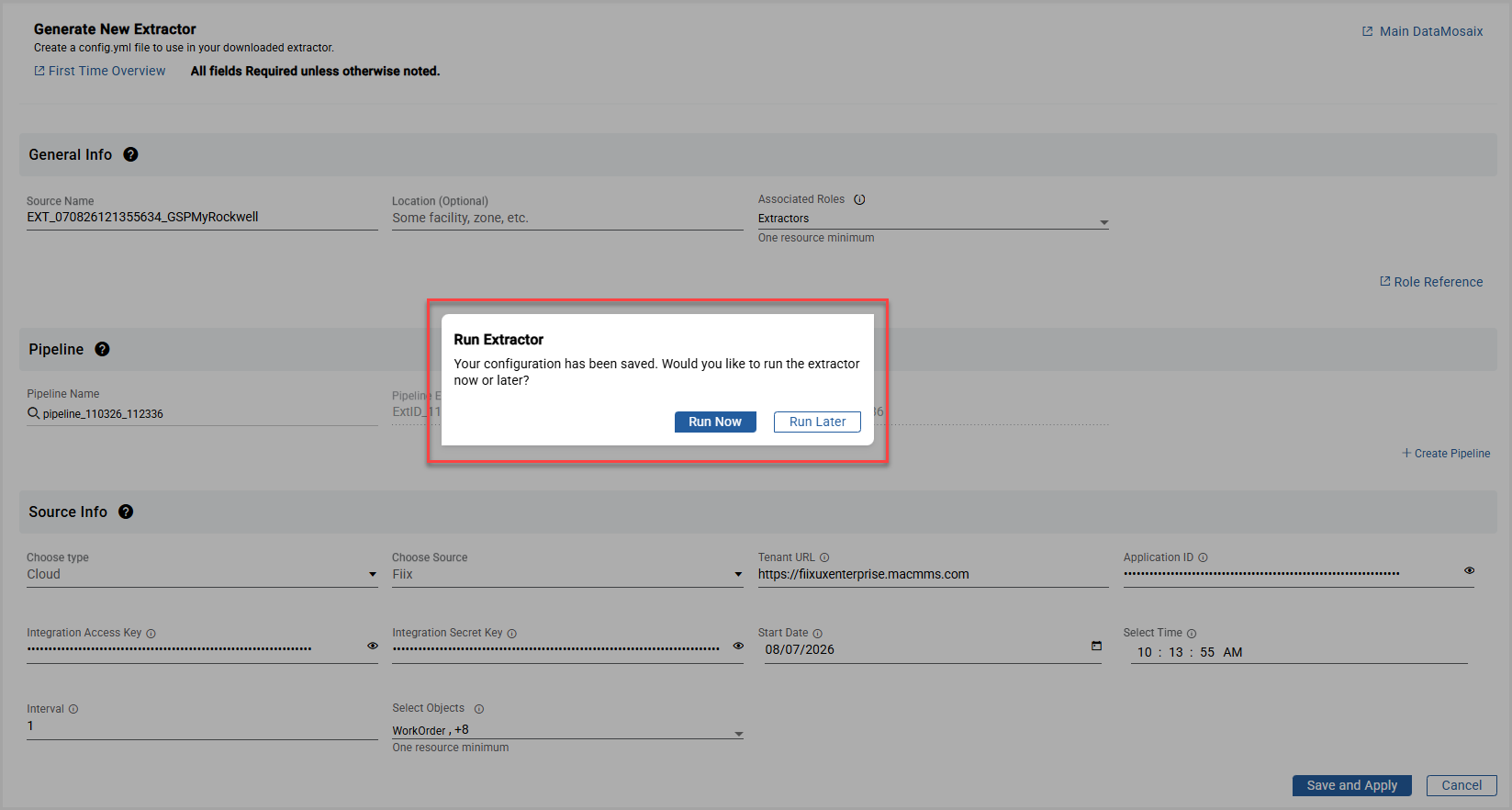
While registering a
Fiix
Extractor, click Save and Apply
. The Run Extractor
dialog box is displayed with the options Run Now
and Run Later
.- If you selectRun Now, the extractor configuration is saved and the extractor starts immediately. You are then redirected to theExtractor File Configurationspage.
- If you selectRun Later, the extractor configuration is saved, but the extractor does not start. You are redirected to theExtractor File Configurationspage.
Run Extractor
To start or stop the extractor later, open the extractor in edit mode by clicking the
Edit
icon.Edit Fiix Extractor

In the
Source Info
section, enable the Extractor Status
toggle.Start or Stop Extractor

The
Start Extractor
confirmation dialog box is displayed. Click Yes
to start the extractor.Start or Stop Extractor - Confirmation
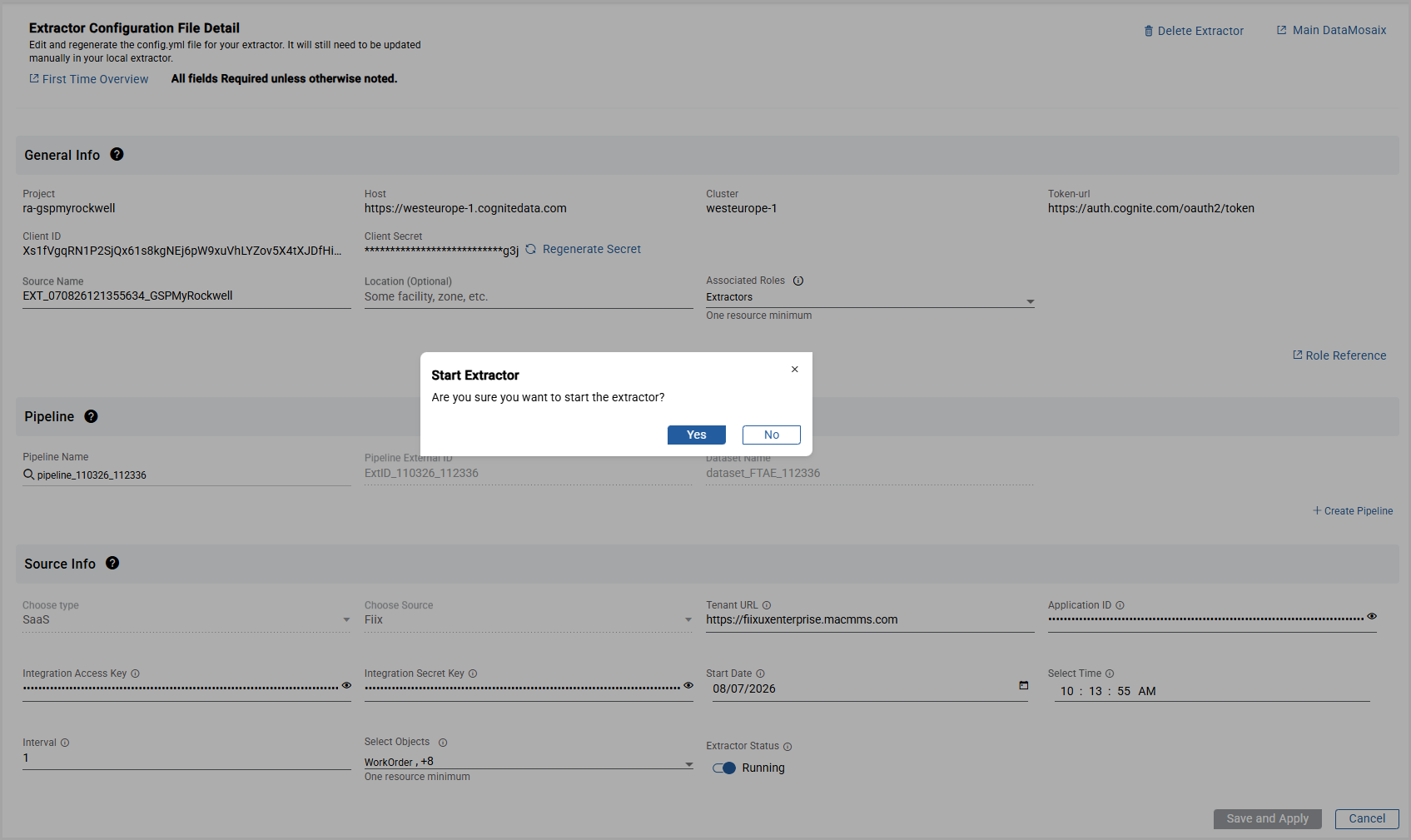
The extractor starts and you are redirected to the
Extractor File Configurations
page.
NOTE:
Verify that the extractor is running by checking for a
green dot
icon in the Source Name
column. A green indicator confirms that the extractor is active and running successfully. When the extractor is running, the Delete
and Export
buttons are disabled.Provide Feedback