
Configure the data transfer
To configure the data transfer
- Click theConfigure Historiantab, and then clickData Transfer.TheData Transfersection of the page displays the following information:ItemDescriptionHost ServerThe hostname or IP address of the FactoryTalk Historian SE or PI server.Current TimeThe FactoryTalk Historian SE or PI server time. It is read-only.Time OffsetThe time difference in seconds between the FactoryTalk Historian SE or PI server and the FactoryTalk Historian ME times.FactoryTalk Historian SE Licensed Points(FactoryTalk Historian SE) The number of points that have been assigned to the FTMS point source on FactoryTalk Historian SE. It is based on the currently active license for FactoryTalk Historian SE and is an indication of the number of FactoryTalk Historian ME points that can be transferred to FactoryTalk Historian SE."FTMS" Points AvailableThe total number of points assigned by the license minus the number of points that are already being transferred to the FactoryTalk Historian SE or PI server.
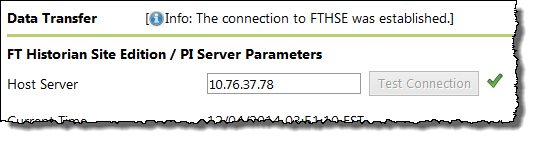
- UnderData Transfer, in theHost Servertext box, type the host name or IP address of the FactoryTalk Historian SE or PI server.TIP:FactoryTalk Historian SE server collectives are not supported.
- ClickTest Connection.A successful connection to the FactoryTalk Historian SE or PI server is indicated with a green check mark next to theTest Connectionbutton, and a message displayed at the top of the page.
- UnderData Transfer Parameters, in theMaximum Events Per Transfertext box, type the value for the maximum number of events that can be transferred to the FactoryTalk Historian SE or PI server per transfer session.The range is 5,000 to 150,000. The default setting is 50,000. The best number of events to transfer per session varies based on your network bandwidth and the volume of data being collected.TIP:If you change theMaximum Events Per Transfervalue, clickSave, and then stop and restart the data transfer.
- Select theEnable Auto Transfercheckbox.With this option selected, any point configured for the data collection will be automatically transferred to the FactoryTalk Historian SE or PI server.If you clear theEnable Auto Transfercheckbox, the points that were previously transferred will continue to be transferred, but you will have to manually add new points to the data transfer, and then restart the data transfer service.If you attempt to transfer points and the FactoryTalk Historian SE or PI server is not licensed to receive the points, a message will be sent to the system log:The new points number is greater than what is allowed by the SE license. Please change to NonAutoTransfer mode.
The configuration then switches to the non-auto transfer mode, and you must manually transfer the points by selecting them one by one.
TIP:
The status of the auto-transfer mode is also displayed on the
Data Transfer Points
page. For details, see View the data transfer information.Now you are ready to start the data transfer.
For details, see Start the data
transfer.
Provide Feedback