Loading
Innovation Center LOGO
Recent ActivityRecent Activity

Tank Sequences with Library Sequencer

Learn how to implement process sequencing strategies using PlantPAx and the Sequencer object, integrating control and visualization in a standardized, scalable manner that aligns with best practices. - [Implementation time: 90 minutes]
Innovation Center Home Page
Finger selecting connected workflow blocks on a digital diagram representing process automation and system orchestration.
Innovation Center LOGO
  • Overview
  • Installation Guide
  • Downloads
  • Contact us
  • I want to subscribe.
Innovation Center Home Page

What is this for?

This document describes the implementation of a process strategy using the Sequencer library for industrial processes using PlantPAx technologies, in conjunction with Studio 5000 Logix Designer and FactoryTalk View.

Its purpose is to serve as a practical reference guide for the development of sequence-based applications, enabling the construction of standardized, reusable, and scalable solutions, aligned with best practices in industrial automation.

Using this approach, it is possible to:

  • Reduce complexity during development
  • Improve system maintainability
  • Ensure consistent operation across different processes or plant units


Is this useful to me?

This solution is geared towards different profiles within the industrial environment: 

  • Automation engineers - It allows the implementation of control strategies in a structured way using standard PlantPAx libraries, facilitating the development of modular logic that is organized and aligned with modern distributed control architectures.
  • Plant operators - It provides intuitive and consistent graphical interfaces for monitoring and controlling sequences, improving process visibility, reducing operational errors, and facilitating interaction with the system.


AHIC Download ICON VF.png

Downloads

Please note: You will need to agree to the Terms & Conditions for each download.

Downloadable file ›
Legal Disclaimer Acceptance. ROCKWELL AUTOMATION WILL PROVIDE ACCESS TO ROCKWELL PRODUCTS (BEST PRACTICES, APPLICATIONS AND KNOWLEDGE) ON THE CONDITION THAT YOU ACCEPT AND COMPLY WITH THE FOLLOWING TERMS AND CONDITIONS. YOU ACCEPT AND AGREE TO BE BOUND BY THE TERMS OF THIS AGREEMENT BY DOWNLOADING, INSTALLING, COPYING, OR OTHERWISE USING PRODUCTS. IF YOU ARE ACCEPTING THESE TERMS ON BEHALF OF ANOTHER PERSON, COMPANY, OR OTHER LEGAL ENTITY, YOU REPRESENT AND WARRANT THAT YOU HAVE FULL AUTHORITY TO BIND THAT PERSON, COMPANY, OR LEGAL ENTITY TO THESE TERMS. IF YOU DO NOT AGREE TO THESE TERMS, DO NOT DOWNLOAD, INSTALL, COPY, ACCESS, OR USE THE PRODUCTS, SOFTWARE AND/OR CLOUD SERVICES. 1. Rockwell Automation retains full ownership and title to all Products and related documentation. No rights or licenses are granted other than those set forth in this Agreement. Company grants to Rockwell Automation a non-exclusive, worldwide, royalty-free, perpetual, non-revocable license to use any feedback Company provides regarding the Products, even if Company has designated the feedback as confidential. Rockwell Automation will be entitled to use the feedback without restriction or compensation to Company. 2. Company may not lease sub-lease, assign, license, sub-license or otherwise transfer any of the Products without the prior written consent of Rockwell Automation. Company may not assign or otherwise transfer access rights to the Products without the prior written consent of Rockwell Automation. Any reverse assembly, reverse engineering, decompilation, and creation of derivative works based on the Products by Company is prohibited. 3. Company acknowledges that Products provided under this Agreement are Rockwell Automation’s Confidential Information and are covered by effective or pending copyrights, patents, trademarks and/or trade secrets of Rockwell Automation, and Company agrees to maintain confidentiality by not disclosing Products or documentation to any third party without the prior written consent of Rockwell Automation and to protect the confidentiality of the Products as it would Company’s own confidential information. Company agrees that its obligation of confidentiality under this paragraph shall survive expiration or termination of this Agreement. 4. Company agrees that Products provided under this Agreement are prototypes and examples and its application and results may vary depending on each customer and project conditions. Rockwell Automation do not warranty the same results. This Agreement shall in no way be construed as a commitment by Rockwell Automation at any time to manufacture and/or offer Products for sale. There is no explicit or implicit service level agreement associated with using the Products. Rockwell Automation does not warrant that the functions contained in the Products will meet Company’s requirements. Company agrees to use all Products only in accordance with the instructions and only for the intended usages identified in the documentation. 5. EXCLUSION OF WARRANTIES AND LIMITATION OF LIABILITY. THE PRODUCTS ARE PROVIDED "AS IS". ROCKWELL AUTOMATION DISCLAIMS ANY AND ALL WARRANTIES, EXPRESS, IMPLIED OR STATUTORY, INCLUDING WITHOUT LIMITATION ANY WARRANTIES OF MERCHANTABILITY OR FITNESS FOR A PARTICULAR PURPOSE. ROCKWELL AUTOMATION EXPLICITLY DISCLAIMS ALL WARRANTIES OF NON- INFRINGEMENT AND EXPRESSLY DOES NOT WARRANT THAT THE PRODUCTS, IN WHOLE OR IN PART, WILL BE ERROR FREE OR FREE FROM SECURITY VULNERABILITIES. IN NO EVENT SHALL ROCKWELL AUTOMATION BE LIABLE FOR (i) LOST PROFITS, LOST SAVINGS, DOWNTIME, SPECIAL, INDIRECT OR CONSEQUENTIAL DAMAGES OF ANY KIND, OR (ii) ANY PERSONAL INJURY, PROPERTY DAMAGE OR ENVIRONMENTAL DAMAGE ARISING OUT OF OR IN CONNECTION WITH THIS AGREEMENT, WHETHER IN AN ACTION IN CONTRACT, STRICT LIABILITY OR IN TORT INCLUDING NEGLIGENCE. 6. COMPANY AGREES TO INDEMNIFY AND HOLD ROCKWELL AUTOMATION HARMLESS FROM ALL COSTS, AWARDS, DAMAGES, EXPENSES AND FEES (INCLUDING ATTORNEYS FEES) RESULTING FROM OR RELATED TO ANY THIRD-PARTY CLAIMS (INCLUDING EMPLOYEES AND AGENTS OF COMPANY) AGAINST ROCKWELL AUTOMATION, ITS DISTRIBUTORS, AGENTS, OFFICERS, DIRECTORS OR EMPLOYEES FOR PERSONAL INJURY (INCLUDING DEATH), PROPERTY DAMAGE OR ENVIRONMENTAL DAMAGE RELATED TO OR RESULTING FROM THE USE OF THE PRODUCTS. 7. In the event a Product is exported, Company agrees to comply with all applicable United States Export Control Law and Regulations, and the applicable export control laws of other countries. This Agreement shall be governed by the laws of the state of Wisconsin. This Agreement is the complete and exclusive Agreement between Rockwell Automation and the Company, and supersedes all prior agreements, whether written or oral, relating to the Products.
AHIC NEED HELP ICON VF.png

Need Help?

If you need help with an application or have feedback from the Innovation Center, please contact us.


How can I make it work?

Requirements: products, tools, prior knowledge.

To implement this solution, the following environment is required:

  • Hardware: 
    • ControlLogix/CompactLogix Controller
    • HMI Station
  • Software:
    • Studio 5000 Logix Designer
    • FactoryTalk View
    • PlantPAx Process Library


AHIC STEP ICON.png

Implementation Guide

 
  1. Step 1
  2. Step 2
  3. Step 3
  4. Step 4
  5. Step 5
  6. Step 6
  7. Step 7
  8. Step 8
  9. Step 9
  10. Step 10
  11. Step 11
  12. Step 12
  13. Step 13
  14. Step 14
Open All Close All
Step 1
 

Definition of devices: valves, pumps and sensors.

Studio5000

It is assumed that the project already has the necessary equipment connected and created in the Studio5000 program, which in this case will be: 5 valves, 1 level sensor, and 2 pumps, and that these are already imported into the sequencer routine that is already within the PlantPAx libraries, named: CS_raP_Opr_Seq

 
tank-sequences-with-library-sequencer_Imagen2.png

tank-sequences-with-library-sequencer_Imagen2.png

Step 2
 

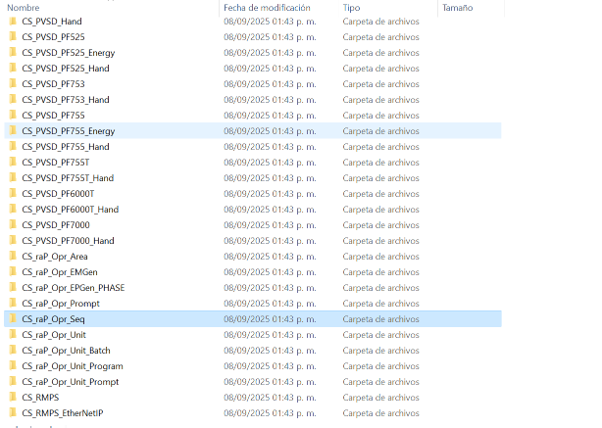
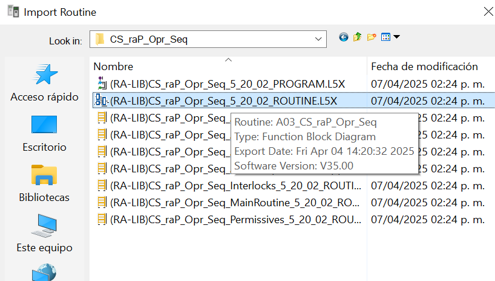
Import Sequencer routine from PlantPAx into Studio 5000.

In Studio 5000 Logix Designer:

  • Import from the PlantPAx libraries the routine: P_Seq (CS_raP_Opr_Seq)
  • Select the corresponding routine
 
tank-sequences-with-library-sequencer_Imagen3.png

tank-sequences-with-library-sequencer_Imagen3.png

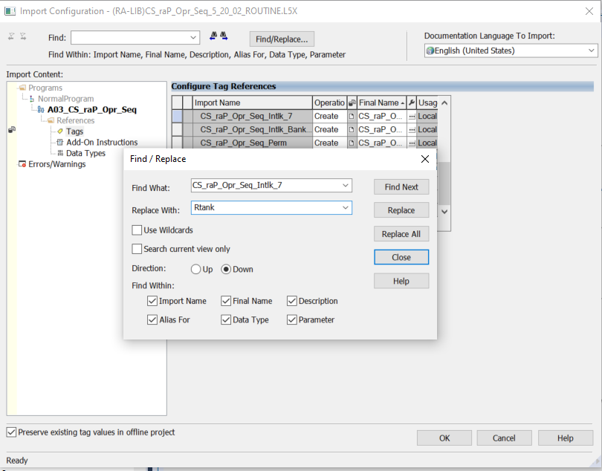
Assign a representative name according to the process (e.g., A03_RTANK).


tank-sequences-with-library-sequencer_Imagen4.png

tank-sequences-with-library-sequencer_Imagen4.png

Step 3
 

Configure digital and analog inputs and outputs.

Within the created routine, the main blocks are identified:

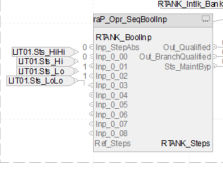
Input Block

  • Signals from sensors or process conditions.


tank-sequences-with-library-sequencer_Imagen5.png

tank-sequences-with-library-sequencer_Imagen5.png

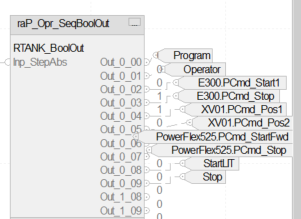
Digital output block

  • Valve and pump control


tank-sequences-with-library-sequencer_Imagen6.png

tank-sequences-with-library-sequencer_Imagen6.png

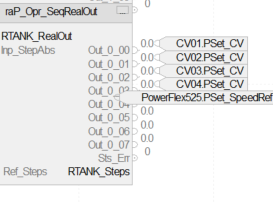
Analog output block
  • Continuous control signals


tank-sequences-with-library-sequencer_Imagen7.png

tank-sequences-with-library-sequencer_Imagen7.png

Step 4
 

Optimize Ladder logic for multiple devices.

For multi-device applications:

  • It is recommended to implement additional logic in Ladder Diagram
  • Group signals to optimize bit usage
  • Simplify integration with the sequencer

This improves scalability and facilitates maintenance.

 
tank-sequences-with-library-sequencer_Imagen8.png

tank-sequences-with-library-sequencer_Imagen8.png

Step 5
 

Develop HMI in FactoryTalk View using Global Objects.

In FactoryTalk View:

  • Open the HMI project
  • Verify that the PlantPAx libraries are available

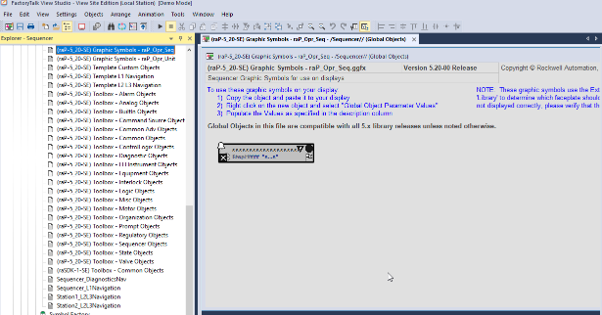
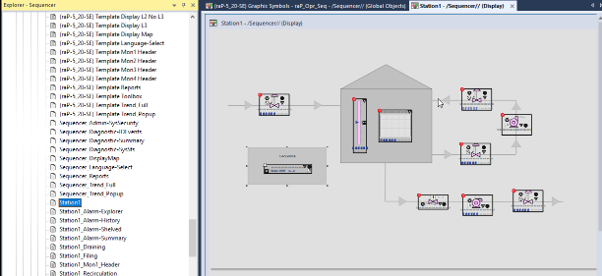
Once the PlantPAx libraries are inside our project in View, we go to the Global Objects section and locate the project with the name: (raP-5_20-SE) Graphic Symbols - raP_Opr_Seq

 
tank-sequences-with-library-sequencer_Imagen9.png

tank-sequences-with-library-sequencer_Imagen9.png

Insert the sequencer graphic object into the display.


tank-sequences-with-library-sequencer_Imagen10.png

tank-sequences-with-library-sequencer_Imagen10.png

Step 6
 

Associate parameters between HMI and logic.

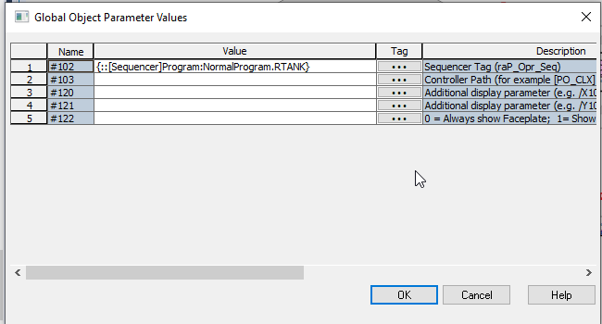
  • Access the option: Global Object Parameter Value.
  • Link the graphic object to the controller routine.

This enables interaction between HMI and control logic.

 
tank-sequences-with-library-sequencer_Imagen11.png

tank-sequences-with-library-sequencer_Imagen11.png


Load the project into Client.
 

Step 7
 

Check Sequencer blocks.

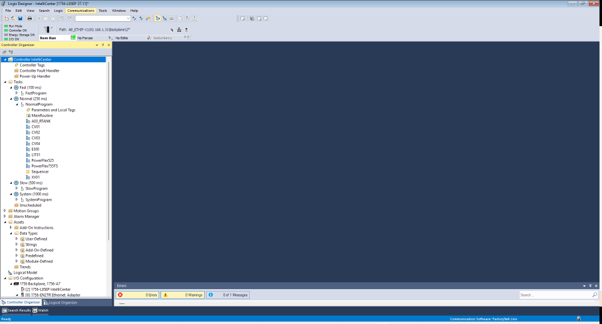
When we open the file for studio5000 we have the following:


tank-sequences-with-library-sequencer_Imagen12.png

tank-sequences-with-library-sequencer_Imagen12.png

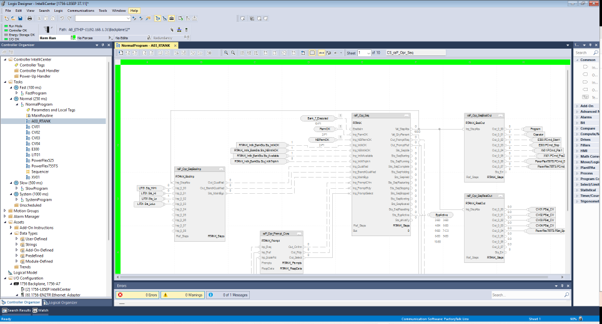
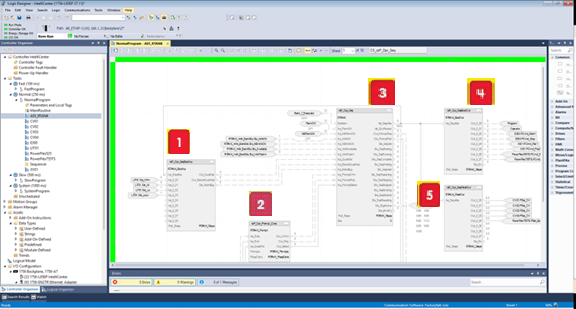
Then, when we open the Normal section in the tree, we find the routine where the sequence is created, which is named A03_RTANK:


tank-sequences-with-library-sequencer_Imagen13.png

tank-sequences-with-library-sequencer_Imagen13.png

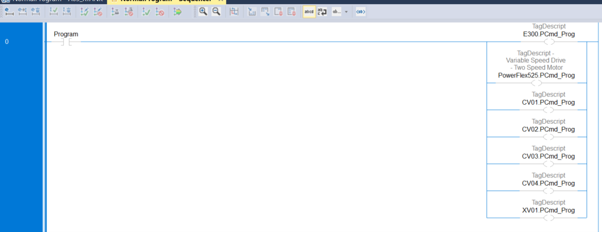
Within the program (e.g., A03_RTANK), the main blocks are found:

  1. Tickets
  2. Confirmation (Prompt)
  3. Sequence motor
  4. Digital outputs
  5. Analog outputs
tank-sequences-with-library-sequencer_Imagen14.png

tank-sequences-with-library-sequencer_Imagen14.png

Step 8
 

Accessing the HMI application.

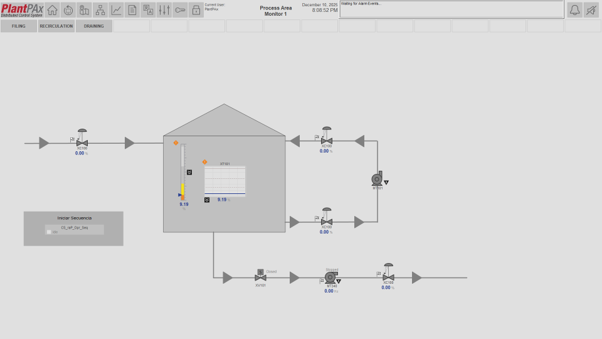
When you open the corresponding file (for example: “PlantPAx Sequencer.cli”), the main screen (Overview) appears, which displays:

  • General state of the system
  • Process indicators
  • Control button for executing the sequence


This screen serves as the central point of interaction for the operator.

Now, when we open the file “PlantPAx Sequencer.cli” we have the following:

tank-sequences-with-library-sequencer_Imagen15.png

tank-sequences-with-library-sequencer_Imagen15.png


In which we can see the Overview of the experience, as well as the button which we will use to start the sequence.

Step 9
 

Login.

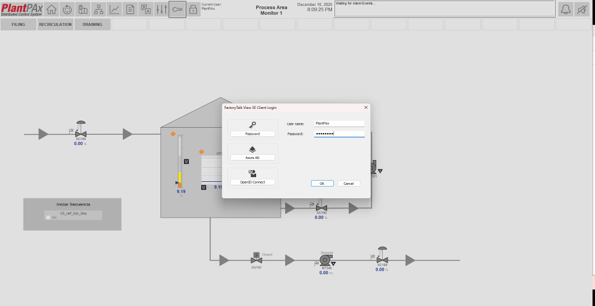
Before operating the system:

  • Select the security icon (key) located at the top of the interface
  • Log in with an authorized user


This step is important because many sequencer actions require operating permissions.


tank-sequences-with-library-sequencer_Imagen16.png

tank-sequences-with-library-sequencer_Imagen16.png

Step 10
 

Sequencer Initialization.

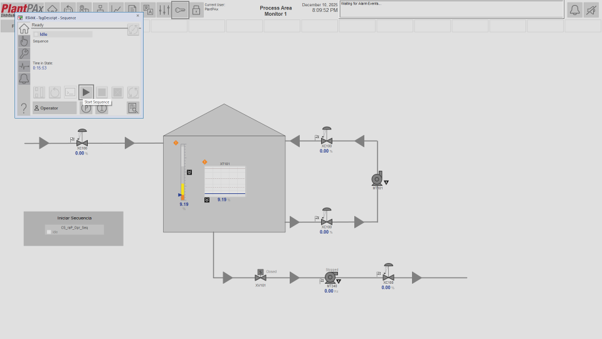
Once logged in:

  • Press the sequence start button available on the main screen


At this point, the system is ready to execute the logic defined in the controller.

 
tank-sequences-with-library-sequencer_Imagen17.png

tank-sequences-with-library-sequencer_Imagen17.png

Step 11
 

Sequence Inspection.

To analyze the sequencer's behavior:

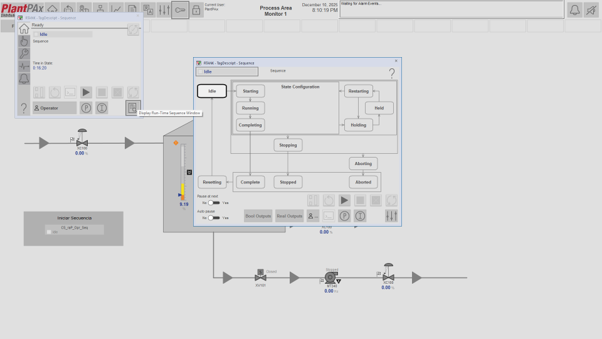
  • Select the inspection button (magnifying glass icon with document)


This allows access to the detailed view of the sequencer, where you can see:

  • Current states of the sequence
  • Configured steps
  • Active transitions.
     
 
tank-sequences-with-library-sequencer_Imagen18.png

tank-sequences-with-library-sequencer_Imagen18.png

Step 12
 

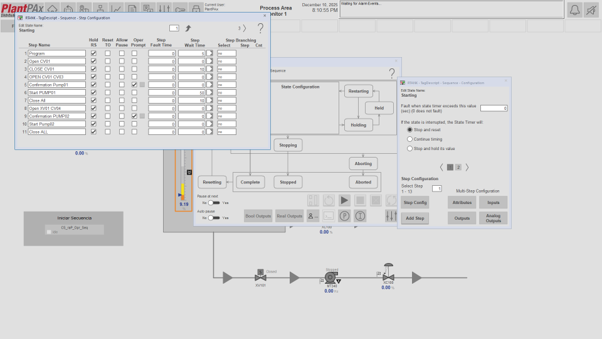
Review of sequence properties.

Within the detail view:

  • Access the “Starting” section (or corresponding initial stage)


  • Here you can review the properties of each step, including:
    • Related entries
    • Conditions necessary to advance to the next stage
    • Digital outputs
    • Actuation of valves, pumps or other devices
    • Analog outputs
    • Continuous control variables, if configured


This analysis allows validating the correct configuration and behavior of the process.


Step 13
 

Process Execution.

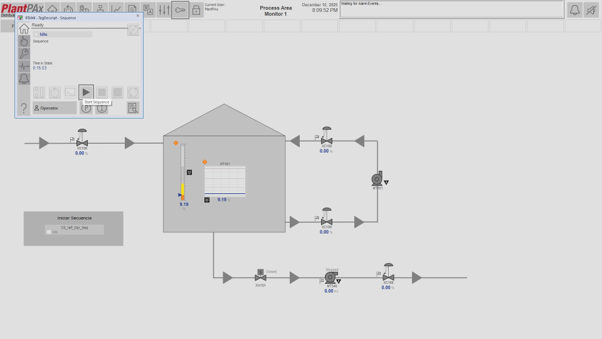
To execute the sequence:

  • Press the Start button within the sequencer interface


When running for the first time, it is recommended to validate that all initial conditions of the process are in a safe state.

Once started:

  • The sequencer will begin executing each step sequentially.
  • The transitions will depend on the conditions configured in the logic


tank-sequences-with-library-sequencer_Imagen19.png

tank-sequences-with-library-sequencer_Imagen19.png


To run the sequence, simply click the start button when opening the sequence for the first time.

Step 14
 

Monitoring of execution.

During the operation, it is recommended to:

  • Monitor progress between steps


  • Check for changes in:
    • Inputs (sensors)
    • Digital outputs (actuators)
    • Analog variables


  • Confirm that there are no alarms or failure conditions
 
tank-sequences-with-library-sequencer_Imagen20.png

tank-sequences-with-library-sequencer_Imagen20.png


tank-sequences-with-library-sequencer_Imagen2.png

tank-sequences-with-library-sequencer_Imagen2.png

tank-sequences-with-library-sequencer_Imagen3.png

tank-sequences-with-library-sequencer_Imagen3.png

tank-sequences-with-library-sequencer_Imagen4.png

tank-sequences-with-library-sequencer_Imagen4.png

tank-sequences-with-library-sequencer_Imagen5.png

tank-sequences-with-library-sequencer_Imagen5.png

tank-sequences-with-library-sequencer_Imagen6.png

tank-sequences-with-library-sequencer_Imagen6.png

tank-sequences-with-library-sequencer_Imagen6.png

tank-sequences-with-library-sequencer_Imagen6.png

tank-sequences-with-library-sequencer_Imagen8.png

tank-sequences-with-library-sequencer_Imagen8.png

tank-sequences-with-library-sequencer_Imagen9.png

tank-sequences-with-library-sequencer_Imagen9.png

tank-sequences-with-library-sequencer_Imagen10.png

tank-sequences-with-library-sequencer_Imagen10.png

tank-sequences-with-library-sequencer_Imagen11.png

tank-sequences-with-library-sequencer_Imagen11.png

tank-sequences-with-library-sequencer_Imagen12.png

tank-sequences-with-library-sequencer_Imagen12.png

emergency-stops-for-machinery-and-equipment-retrofit-with-programmable-safety-relays-img10.png

emergency-stops-for-machinery-and-equipment-retrofit-with-programmable-safety-relays-img10

emergency-stops-for-machinery-and-equipment-retrofit-with-programmable-safety-relays-img10.png

emergency-stops-for-machinery-and-equipment-retrofit-with-programmable-safety-relays-img10

tank-sequences-with-library-sequencer_Imagen15.png

tank-sequences-with-library-sequencer_Imagen15.png

tank-sequences-with-library-sequencer_Imagen16.png

tank-sequences-with-library-sequencer_Imagen16.png

tank-sequences-with-library-sequencer_Imagen17.png

tank-sequences-with-library-sequencer_Imagen17.png

tank-sequences-with-library-sequencer_Imagen18.png

tank-sequences-with-library-sequencer_Imagen18.png

tank-sequences-with-library-sequencer_Imagen19.png

tank-sequences-with-library-sequencer_Imagen19.png

tank-sequences-with-library-sequencer_Imagen20.png

tank-sequences-with-library-sequencer_Imagen20.png


Tank Sequences with Library Sequencer

Version 1.0 - July 2026


AHIC White Logo
Subscribe!

Receive new app releases and other updates from the Innovation Center directly in your inbox.

I want to subscribe.
 
  1. Chevron LeftChevron Left Rockwell Automation Home
  2. Chevron LeftChevron Left Sup...
  3. Chevron LeftChevron Left Pro...
  4. Chevron LeftChevron Left Downloads
  5. Chevron LeftChevron Left Innovation Center
  6. Chevron LeftChevron Left Tank Sequences with Library Sequencer
Please update your cookie preferences to continue.
This feature requires cookies to enhance your experience. Please update your preferences to allow for these cookies:
  • Social Media Cookies
  • Functional Cookies
  • Performance Cookies
  • Marketing Cookies
  • All Cookies
You can update your preferences at any time. For more information please see our {0} Privacy Policy
CloseClose