
Manage
FactoryTalk® Optix™
Runtime Entitlement on Online Target Devices with
Optix Embedded
FactoryTalk® Optix™
Runtime Entitlement on Online Target Devices with
Optix EmbeddedTo activate or upgrade an entitlement on an online device, use an online computer to
retrieve entitlement key information, then install the entitlement on the device. The
computer and device must both be online and connected to the same network as the
FactoryTalk® Hub™
. You must also have access to the System Manager of the
target device.Complete the following steps when using Target Devices which includes a starting license, such as
OptixPanel™
,
OptixEdge
, or EECM.
IMPORTANT:
The steps are the same regardless of the target
device. For example purposes, the following steps show the
OptixPanel™
.- Purchase the entitlement or upgrade and allocate it to your organization as described in Allocate a FactoryTalk Optix Studio Pro entitlement to your organization.
- Sign in to theFactoryTalk® Hub™, select the appropriate organization, and select theFactoryTalk® Optix™tile.

- Navigate to Entitlements > Organization entitlements and confirm that the entitlement is allocated to the Organization.
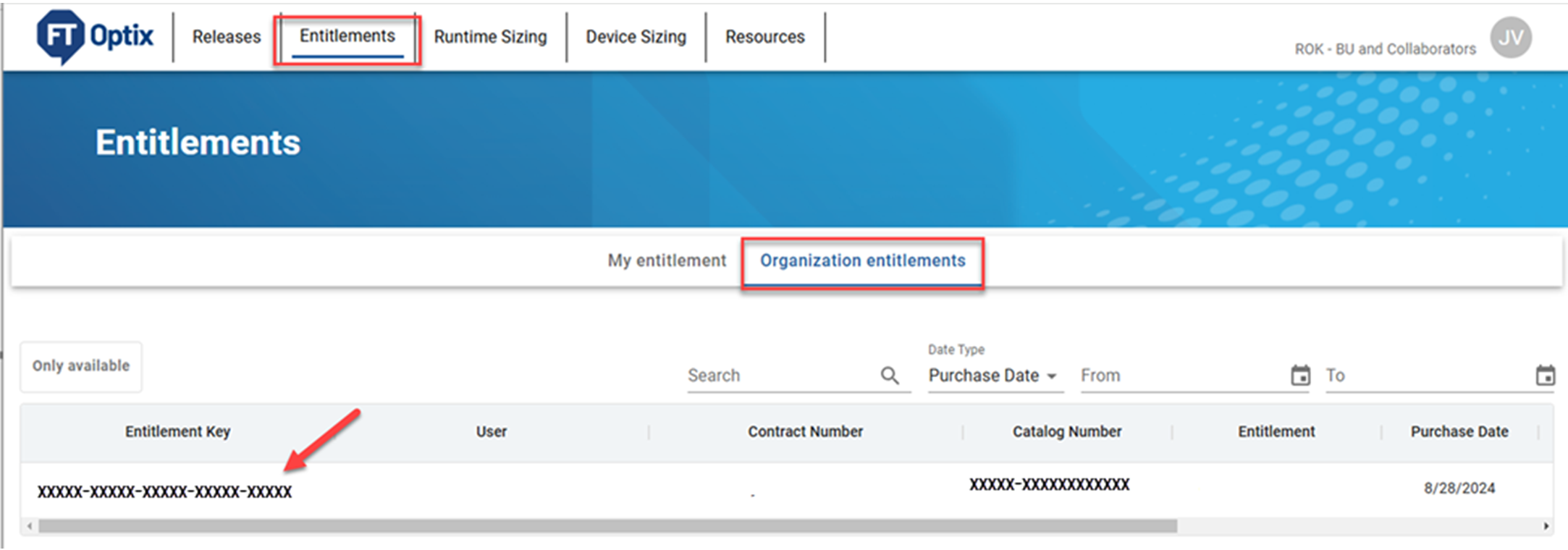
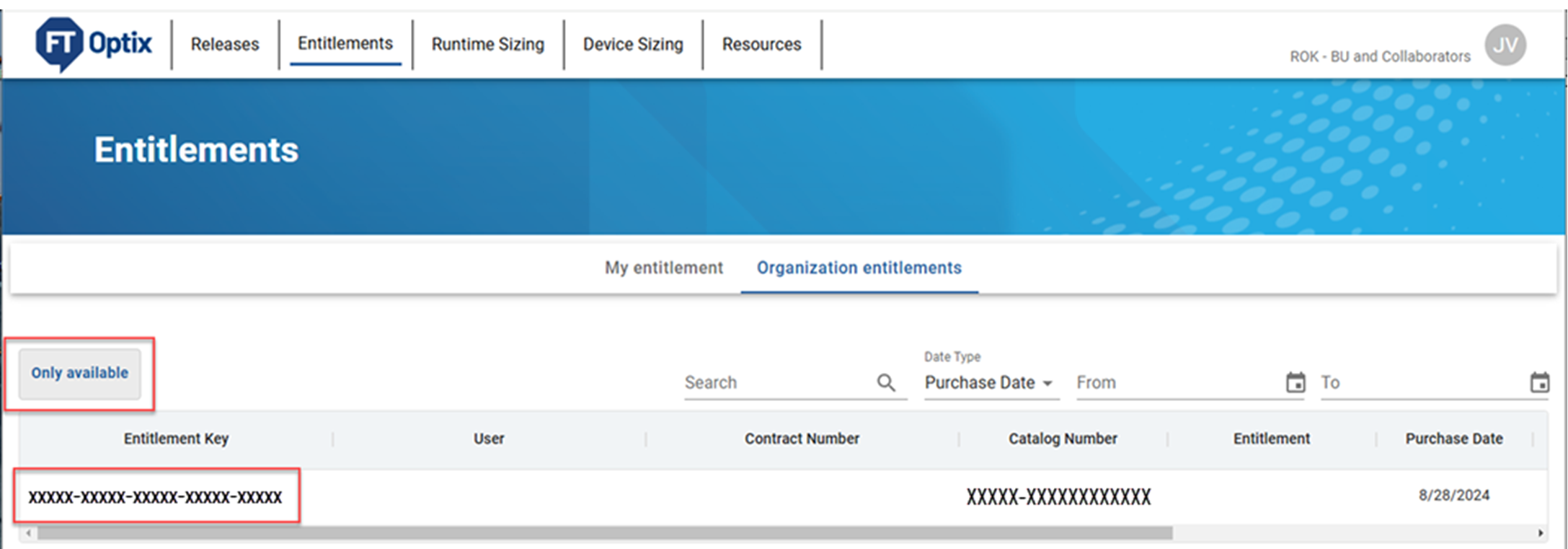
- Copy the 25-character entitlement key. The entitlement key is required to activate or upgrade the entitlement.
- On the runtime target device likeOptixPanel™,OptixEdge, or Embedded Edge Compute, access the System Manager.To access the System Manager, enter the runtime target device IP address in the web browser.
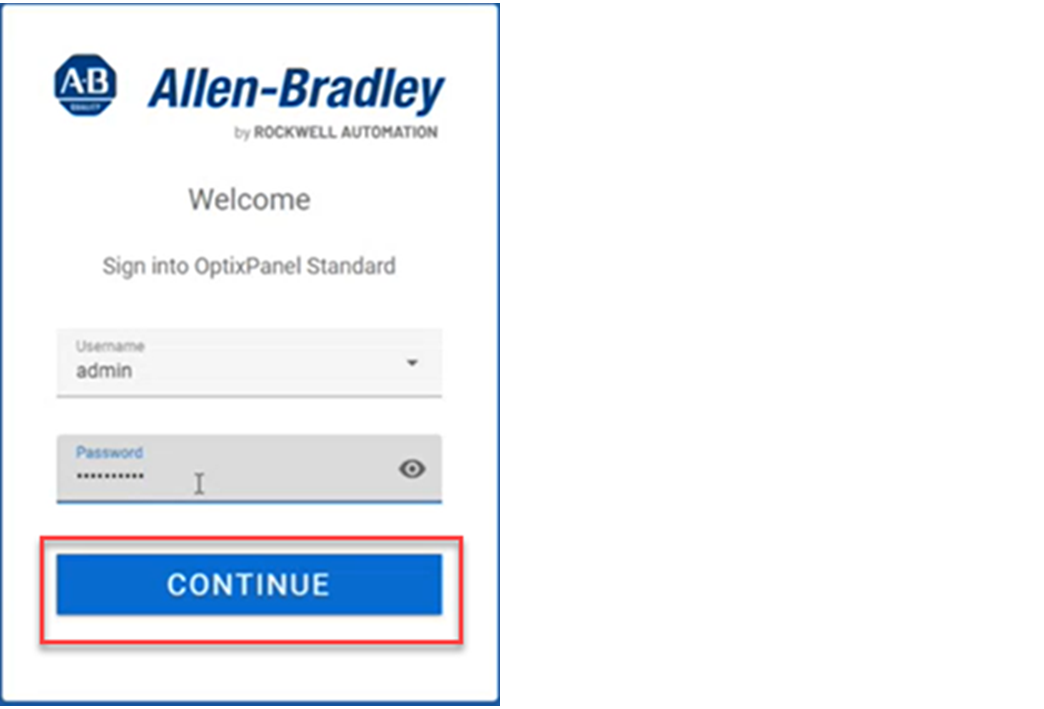
- On the Welcome dialog box, enter the username and password, and select Continue.IMPORTANT: The username and password are admin by default. The first time that you sign in to the System Manager, use admin. You are then prompted to create a unique password and a device reset. Use the unique password when you sign in to the System Manager in the future.
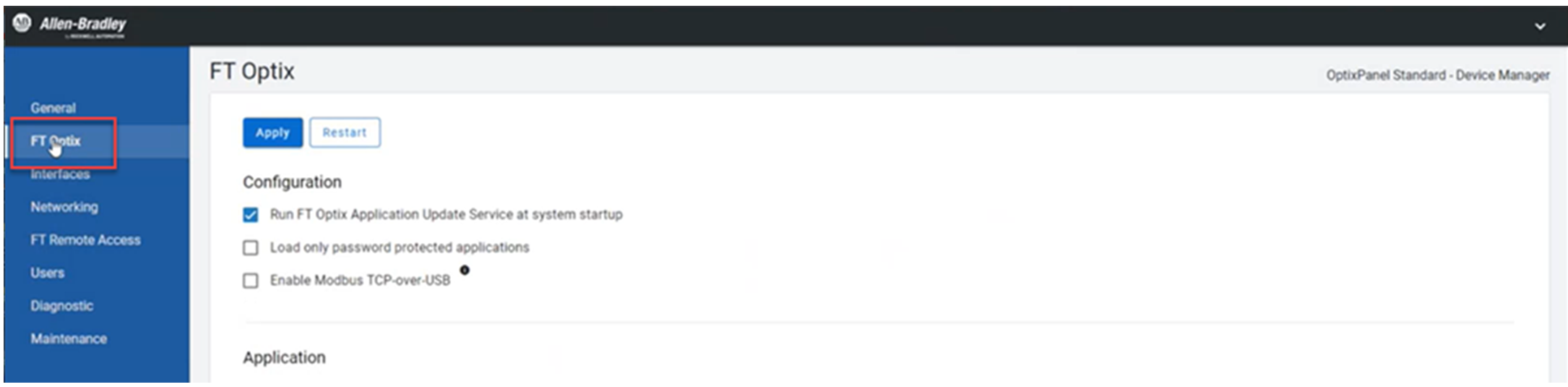
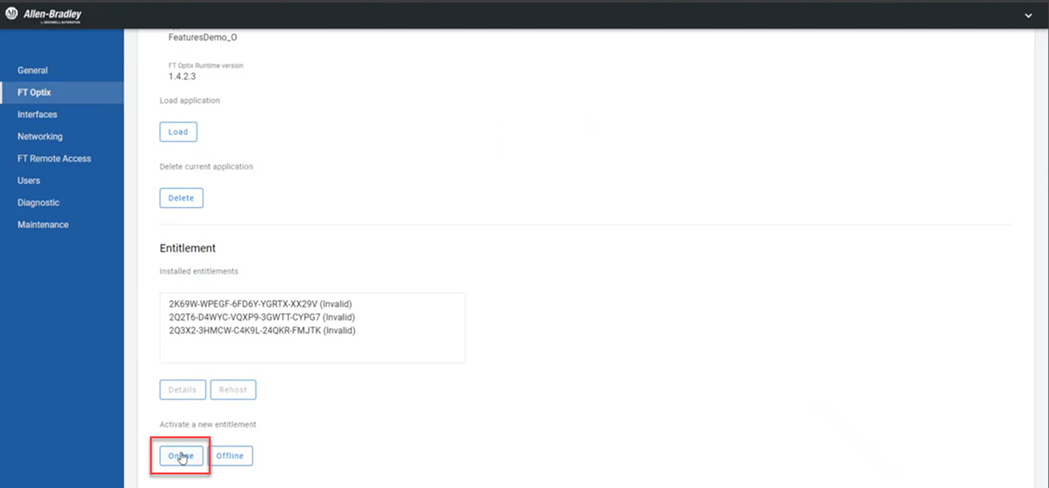
- When the System Manager appears, select FT Optix on the left side of the screen.
- Scroll to the Entitlement section, and select Online.
- Enter the entitlement key, and select Activate.
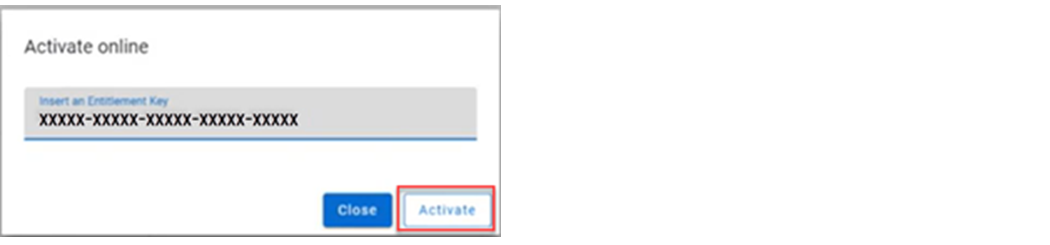
- Select Close. TheOptixPanel™recognizes the entitlement, and applications that require the entitlement can now run.

TIP:
To rehost an installed entitlement, in the Entitlement
Manager under Installed Entitlements, select the entitlement, then select Rehost.
Provide Feedback