
Manage
FactoryTalk® Optix™
Runtime Entitlements for High
Availability on Online Computers
FactoryTalk® Optix™
Runtime Entitlements for High
Availability on Online ComputersTo activate or upgrade an entitlement for high availability, you must
download and install the
FactoryTalk® Optix™
High
Availability Manager at https://rok.auto/pcdc.
You must also use the
FactoryTalk® Optix™
High
Availability Manager to install your high availability cluster before you activate or
upgrade your entitlement. Complete the following steps when using a personal computer
or
ASEM™
6300 industrial computer running Windows®
that is connected to the network.- Purchase the entitlement or entitlement upgrade and allocate it to your organization as described in Allocate a FactoryTalk Optix Studio Pro entitlement to your organization.
- Sign in to theFactoryTalk® Hub™, and select theFactoryTalk® Optix™tile.

- Navigate to Entitlements > Organization entitlements and confirm that the entitlement is allocated to the Organization.
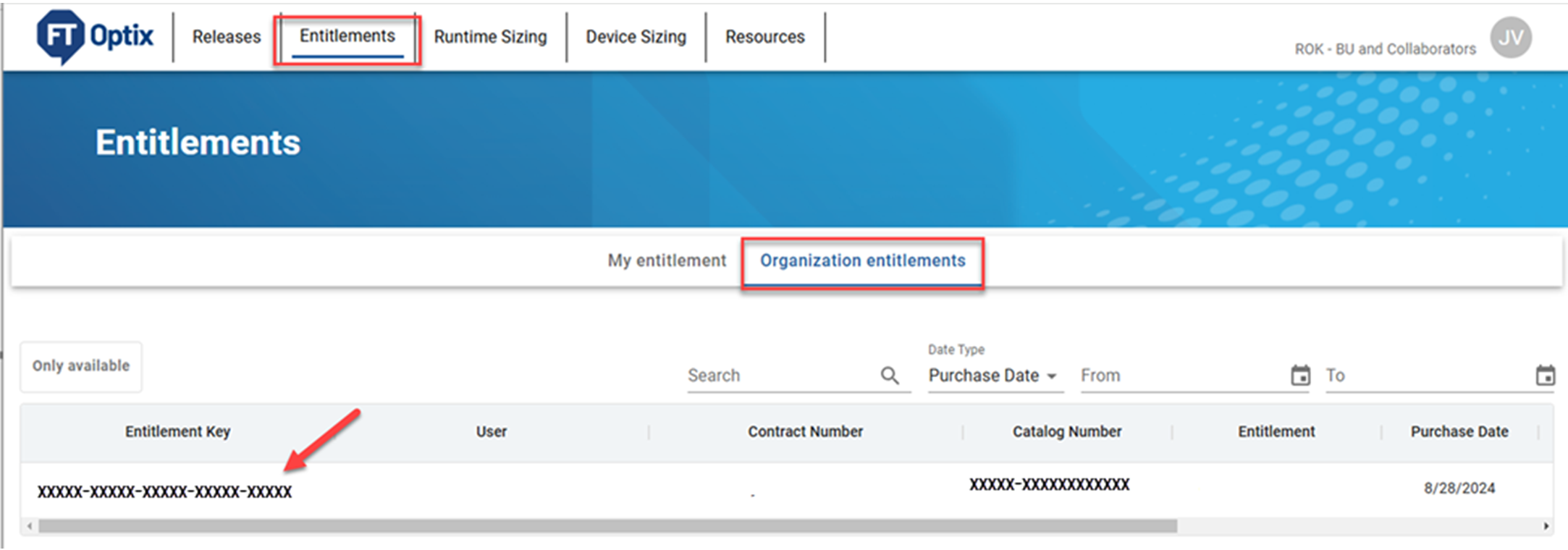
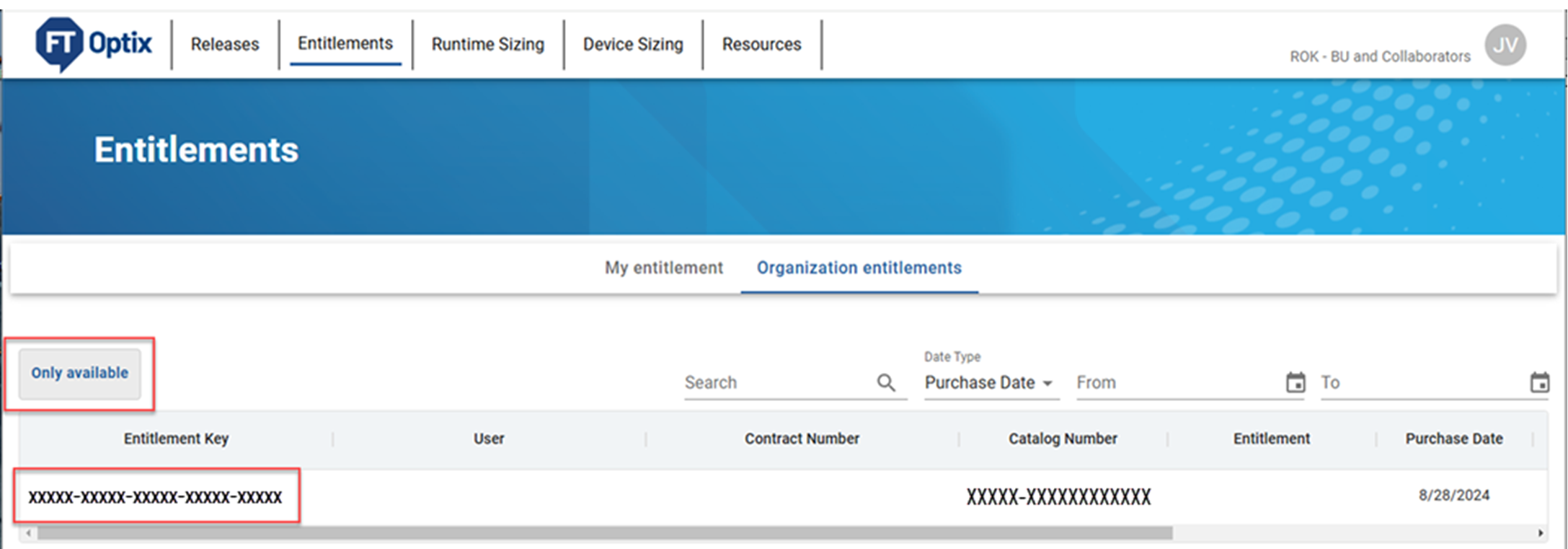
- Copy the 25-character entitlement key. The entitlement key is required to activate or upgrade the entitlement.
- On the runtime target computer, open the High Availability Manager and select Manage Entitlements.
- Select Online, then Next.

- Enter your base and/or extended entitlement keys, select Activate, then Save.

The installed entitlements show in Manage Entitlements.
TIP:
To rehost an installed entitlement, select the
entitlement from Manage Entitlements in the High Availability Manager, and select
Rehost.
Provide Feedback