
Manage
FactoryTalk® Optix™
Runtime Entitlements for High
Availability on Offline Computers
FactoryTalk® Optix™
Runtime Entitlements for High
Availability on Offline ComputersTo activate or upgrade an entitlement for high availability on an offline computer, use an
online computer to retrieve entitlement key information and then install the entitlement on
the offline computer.
Complete the following steps when using a personal computer or
ASEM™
6300 industrial computer running Windows®
that is not connected to
the network.Before you start:
- Download theFactoryTalk® Optix™High Availability Manager from https://rok.auto/pcdc.
- Install theFactoryTalk® Optix™High Availability Manager to the offline computer.
- Download the Runtime Tools from theFactoryTalk® Optix™landing page onFactoryTalk® Hub™(sign in required).
- Install the Entitlement Manager on the online computer as part of the Runtime Tools installation.
- Use theFactoryTalk® Optix™High Availability Manager to install your high availability cluster before you activate or upgrade your entitlement.
- Purchase the entitlement or upgrade and allocate it to your organization as described in Allocate a FactoryTalk Optix Studio Pro entitlement to your organization.
- If not already done, use a USB drive to copy the High Availability Manager installation package to the offline target device and run the .exe file.
- Sign in to theFactoryTalk® Hub™, and select theFactoryTalk® Optix™tile.

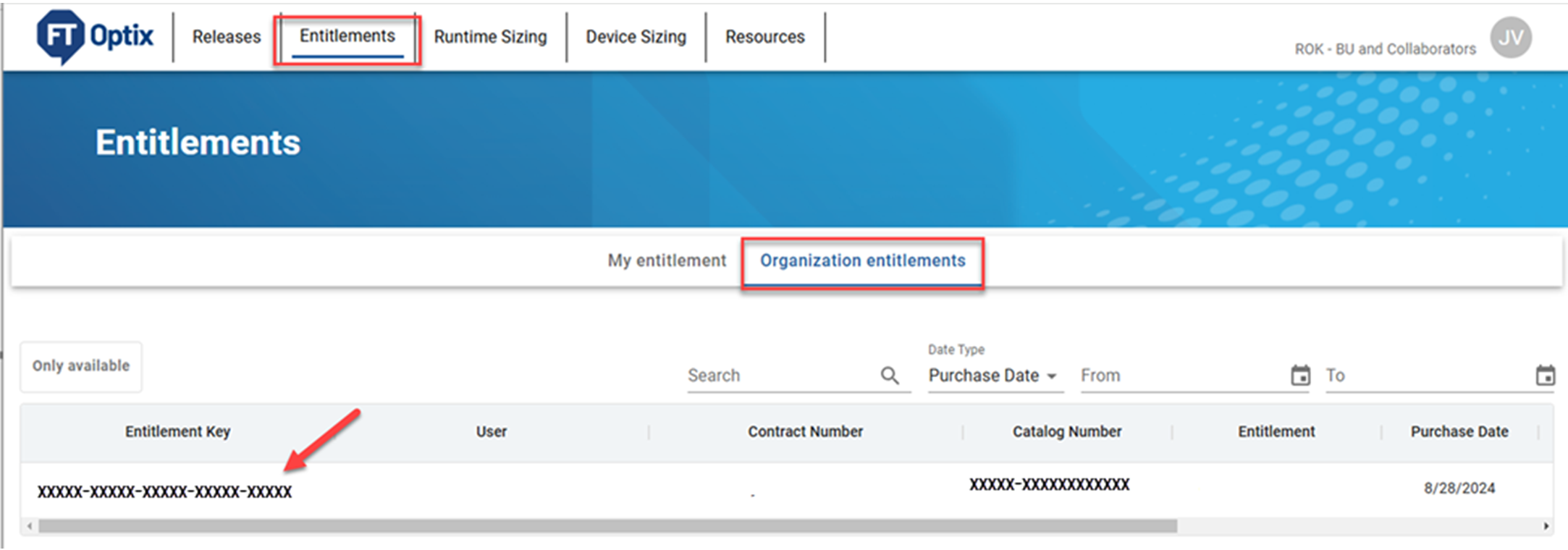
- Navigate to Entitlements > Organization entitlements and confirm that the entitlement is allocated to the Organization.
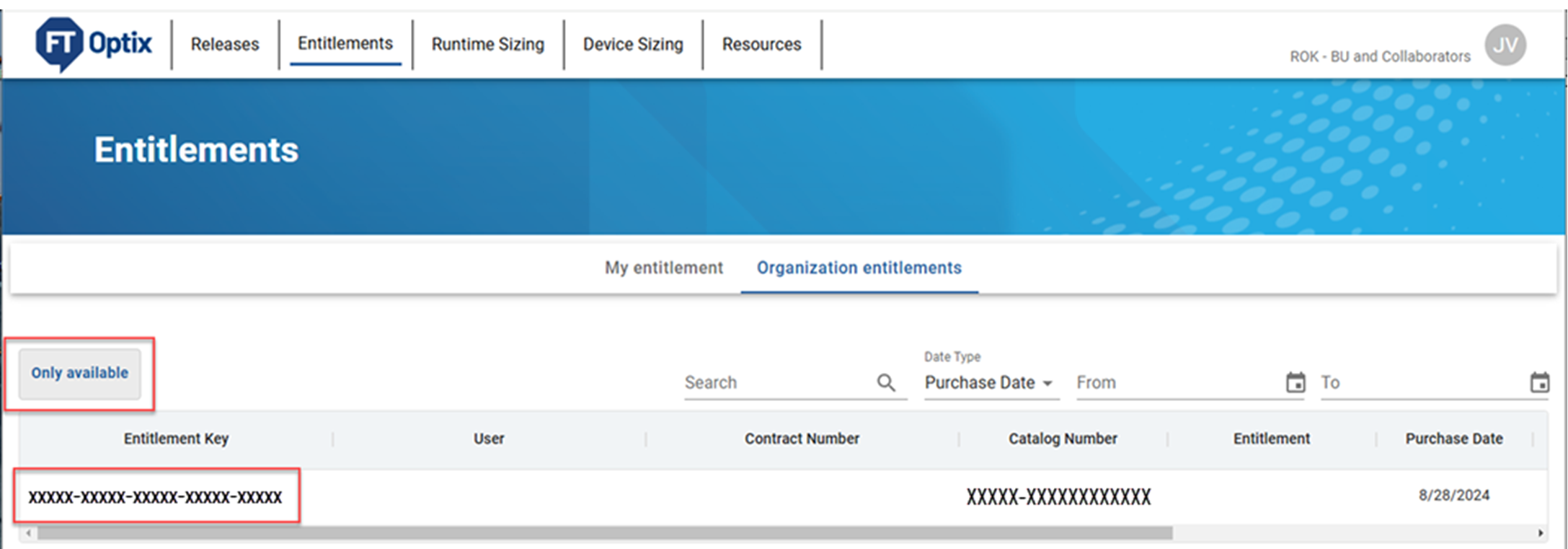
- Copy the 25-character entitlement key. The entitlement key is required to activate or upgrade the entitlement.
- On the offline runtime target computer, open the High Availability Manager and select Manage Entitlements.
- Select Offline, then Next.

- Select Step 1, then Next.

- Enter your base or extended entitlement key, and select Export.
 An Activation Request (.req) file appears in your target path location. The entitlement key is the name of the file.
 - Copy the Activation Request file from the offline computer to the online computer.
- On the online computer, open the Entitlement Manager, and select Online.

- Select Activate using Activation Request, then Next.

- Browse to the Activation Request file (.req) that you copied to the online computer. Select Open, then Activate.
 An Explorer window opens to save the new Activated Entitlement file (.ent).
 - Accept the file name and select Save, then OK.TIP: Save the file in a location that is easy to remember, such as the Desktop.
- Copy the new entitlement file back to the offline computer.
- In the High Availability Manager on the offline computer, select Step 3, then Next.

- Browse to the Activated Entitlement file (.ent) file that you copied to the offline computer, select Open, then Import.

The installed entitlements show the Entitlement Manager on the
online computer and in Manage Entitlements on the offline computer.
TIP:
To rehost an installed entitlement, select the
entitlement from Manage Entitlements in the High Availability Manager, and select
Rehost.
Provide Feedback