
Add a Preconfigured Device with Used IO-Link Master
If you use an IO-Link master module that is used, follow these steps to add your
preconfigured device.
- Go online with your project.
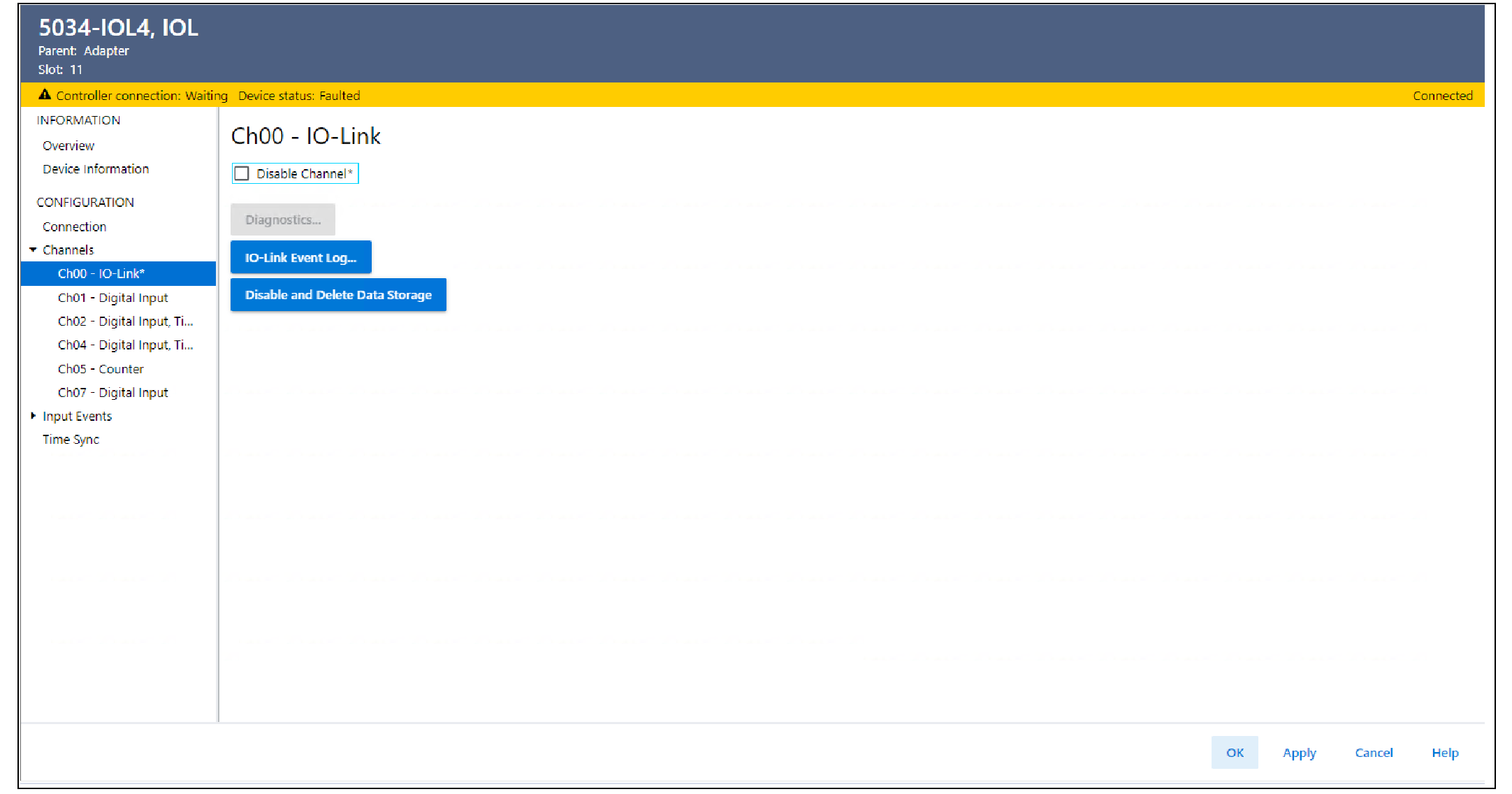
- In the IO-Link master Module Properties, complete these steps to disable Data Storage on the IO-Link port.
- In the IO-Link channel view, select the Disable Channel checkbox.
- In the Connection view, clear the Inhibit Module checkbox.
- Select Apply.
- Attach your preconfigured device to the IO-Link port that was disabled in Step 2.
- In the IO-Link master Module Properties → Chxx - IO-Link view, clear the Disable Channel checkbox and select Apply.
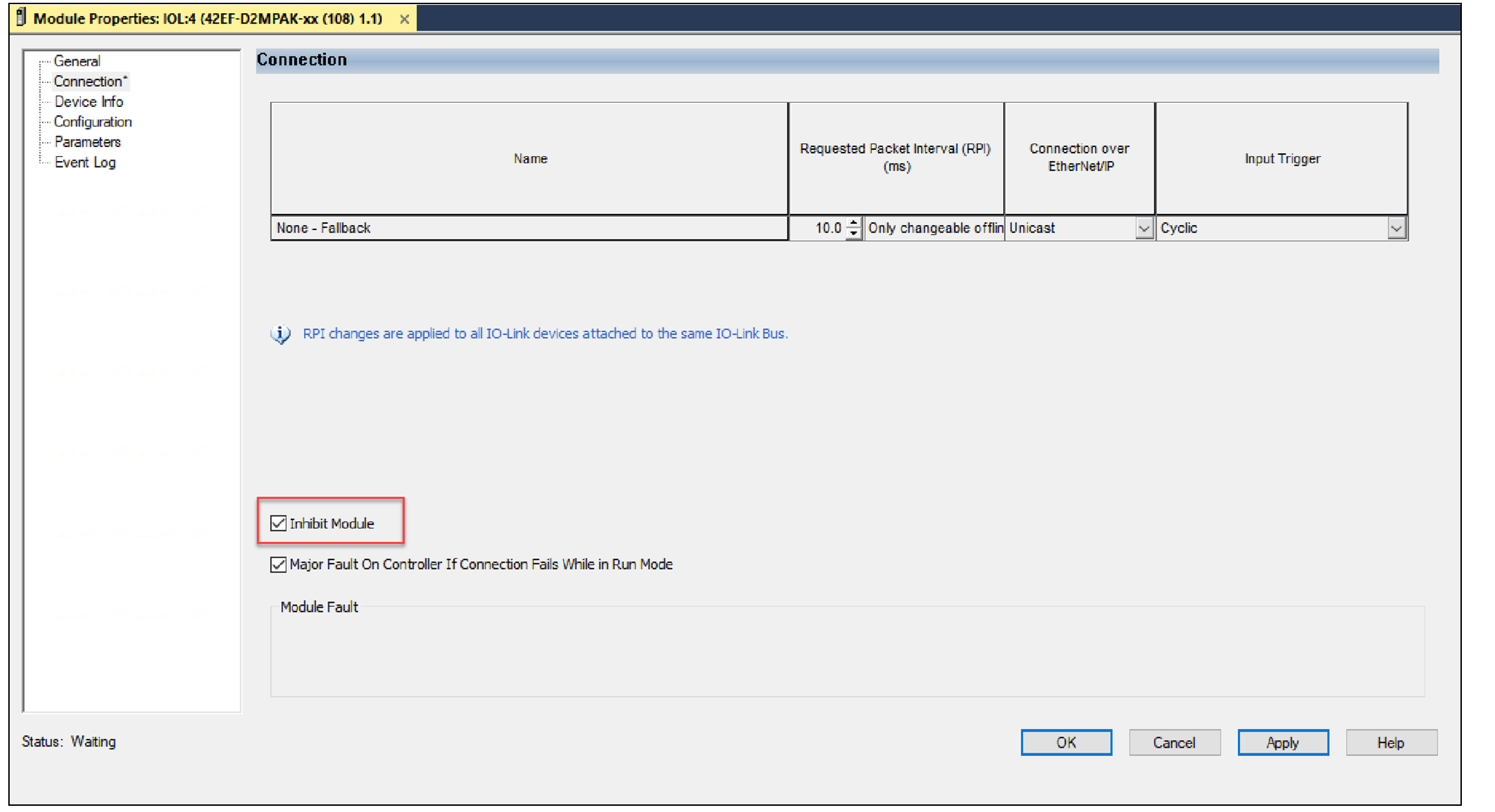
- Follow the steps as described in Discover Modules to add the device.Before you select OK, select Inhibit Module in the IO-Link device Module Properties → Connection view.
- In the IO-Link device Module Properties → Configuration view, perform Device Correlation Check, select “Use Device Values”, and select Apply. The preconfigured device configuration is backed up to the project.
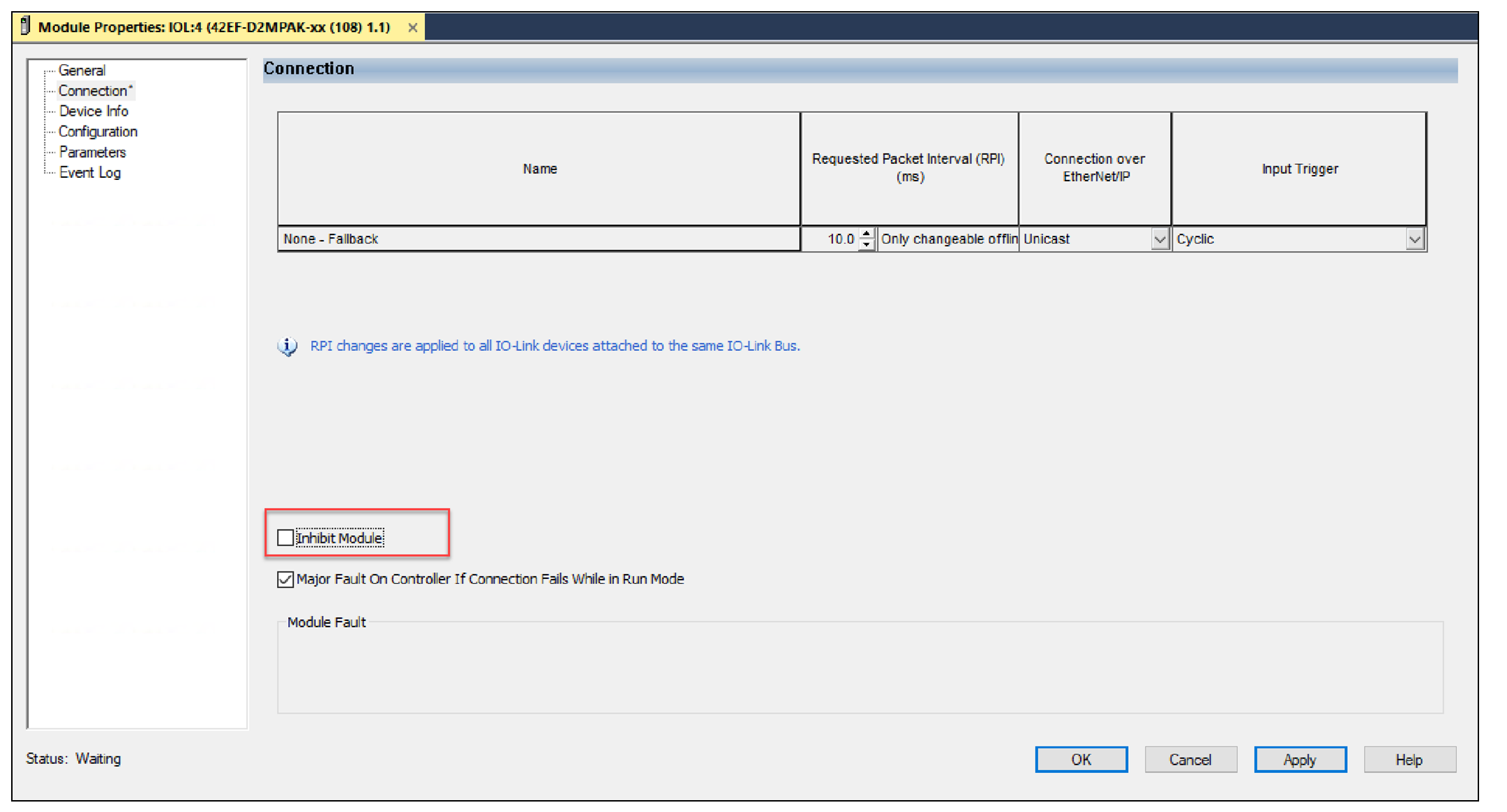
- In the IO-Link device Module Properties → Connection view, clear the Inhibit Module checkbox and select Apply. Data Storage is enabled on the IO-Link port.
- When the connection is running, perform a Device Correlation Check. If there are differences, it means that the Data Storage copy in the IO-Link master module has overwritten the configuration in the device. Inhibit the device, perform Device Correlation Check again, select “Use Project Values”, and select Apply to restore the preconfigured device configuration to the device. After successfully restoring the device configuration, the preconfigured device configuration is automatically backed up to the IO-Link master module.
Provide Feedback