
System explorer
Use the
System
explorer to focus on the logical design of your project. Create FactoryTalk System Object
elements to create tags, programs, and routines. The logic in
the FactoryTalk System Object
s defines the behavior of an item in a system or a
plant. Reuse
FactoryTalk System Object
s by adding them to the Library
explorer for
modeling a system or plant. For example, create a FactoryTalk System Object
for a
tank in a large plant. You can then reuse the same FactoryTalk System Object
s for all
tanks in the system instead of creating logic for each tank. Complete the design of the
system and then allocate the FactoryTalk System Object
s to a controller in the
Execution
explorer. Online, offline, and mixed state indicators
When you go online with a controller, additional status indicators appear in the
System
explorer. These indicators can appear next to a FactoryTalk System Object
or any
of its elements. - Green rails appear next to the programs that are allocated and deployed to the online controller. Green rails also appear next to anySystem Objectthat is related to the program.
- The offline only indicator
 appears if an element is allocated to the online controller but has not been deployed.
- The online only indicator
 appears if an element is deployed to the online controller but is not present in the offline project.
- If no green rail illuminates and there are no online only or offline only indicators, then either:
- The element is not allocated.
- The element is allocated to a controller that is different than the online controller.
- A mixed state icon
 appears next to the parent components when the child components have differences in
online-only, offline-only, or green rail allocation states. See Mixed state scenariofor a sample user mixed state
user scenario. Expand the child nodes to see differences in states and allocations.
- In this example, a green rail appears next toFactoryTalk System ObjectSO1 and its child programs Prg1_AllocatedC1 and Prg2_AllocatedC1 to indicate they are online and executing. The green rail does not appear next to Prg3_AllocatedC2 and Prg4_unallocated because they are not online and not executing with the current online controller.
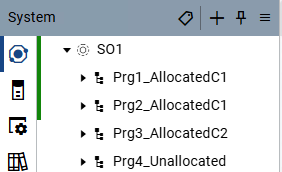
System Object
is collapsed in the System Explorer, any child
programs that are not online and are not executing are hidden. Make sure you expand a System Object
to see the status of child programs.
TIP:
Online and offline only indicators appear based on how elements are named. When a green rail is present but no icon appears, a component with this name exists offline and has been deployed to the controller. There may be differences between the online and offline components, such as different tags or ladder logic.
TIP:
Some menu commands are not available for elements that are online only. These commands are disabled.
TIP:
When moving elements that exist online and offline, the old location displays the online-only icon and the new location displays the offline-only icon.
TIP:
Renaming an element that exists online and offline causes the component to appear twice in the tree. The old name appears next to the online-only icon. The new appears next to an offline-only icon.
Overview of status icons
The System explorer displays status icons in the tree that represent when a task or program is inhibited and when a component has multiple conditions online or offline.
- The icons are displayed in priority order:
- Online
- Major Fault
- Minor Fault
- Inhibit Status
- Validation Errors
- Warnings
- Information Messages
- Offline
- Inhibit Status
- Validation Errors
- Warnings
- Information Messages
- Each icon has a tooltip that provides details of the status of the component, task or program. If the inhibit state is cleared, the icon will be replaced by the next icon in the priority order.
- When a component has multiple conditions online or offline, an icon tooltip provides details with each status showing first online status and then offline status in priority order. If the status changes, the icon will be replaced by the next status in priority order and the tooltip will update.
Provide Feedback