
Substitution Builder window
How do I open the Substitution Builder window?
- In theLibrary Objectspane, expand the library object folder.
- Click an element, the decorator pane displays the element attributes.
- Next to an attribute for which to substitute a different value (such as Name, Description, or ParentModule) click the ellipsis (...) button to open theSubstitution Builderwindow.
Use the
Substitution Builder
to create substitutions that are specific to the current library element. Create one or many substitutions based on the text strings contained in the original field value. The
Substitution Builder
has two functional areas: the Element Substitutions
panel and the Create New Substitutions
panel.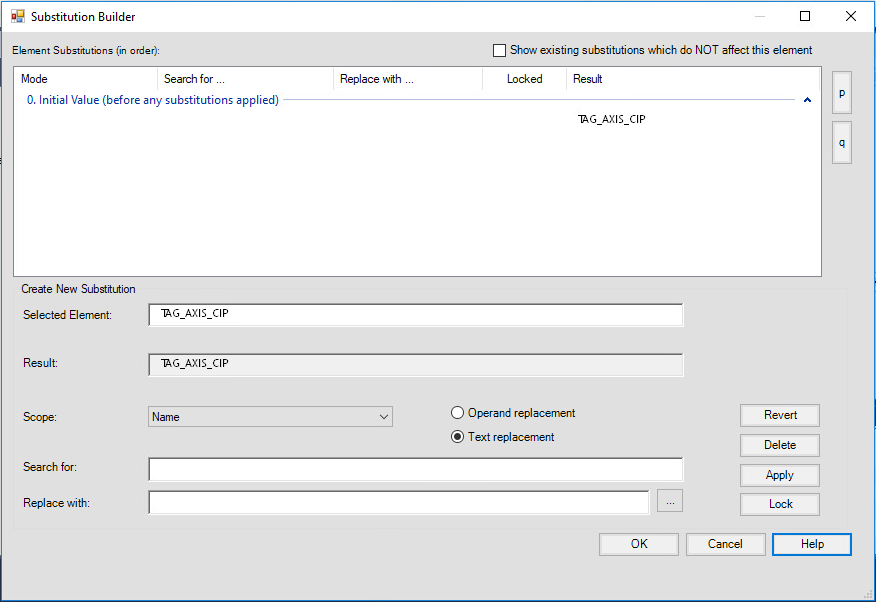
Element Substitutions
Displays a list of substitutions and their effect on the value of the current field:
- If theShow existing substitutions which do NOT affect this elementcheckbox is not selected, the window limits the display to substitutions that include text strings that are part of the original value of the current field.
- If theShow existing substitutions which do NOT affect this elementcheckbox is selected, the window displays all substitutions that have been added to the current library object and to library objects that are higher in the project hierarchy.TIP:Displaying all substitutions shows potential conflicts and unexpected replacements for substitutions added to the element.
The display traces the field value from its initial value through any Substitutions that have been applied. The display is grouped as follows:
- 0. Initial Valuedisplays the original value of the field.
- 1. Library substitution for [Base library object Name]displays the Substitution applied from the Base library object, if one exists.
- 2. Library substitution for {library object Name]displays the Substitution applied from the library object, if one exists.
- 3. [Field Name] substitutiondisplays Substitutions created for the current field.TIP:Depending on where in the hierarchy substitutions are added,Groups 1, 2, or 3may not appear.
Substitutions appear highlighted in yellow.
Create New Substitution
The
Create New Substitution
area displays the fields and commands for creating a substitution. Name | Field Type | Description |
|---|---|---|
Selected Element | Read-only | The original text string entered in the Search For field. |
Result | Read-only | The result generated when the Apply button is clicked to test the Substitution. |
Scope | Dropdown menu | The scope for the new substitution. There are three options:
If a library object or base library object is selected, the new substitution will replace previous substitutions added to that library object for the same text string. |
Search For | Text entry | The text string to replace. |
Replace With | Text entry | The replacement text. This can be entered manually or generated by an expression. |
Operand replacement/ Text replacement | Radio buttons | Sets the condition under which the current tag is instantiated. The default setting is Always. A condition can be entered manually or generated by an expression. |
Revert | Button | Reverts to the current substitution for the field. |
Delete | Button | Deletes the currently selected line in the Element Substitutions window. Important : Deleting a Substitution removes it from the library object. |
Apply | Button | Tests the current substitution and adds it to the Element Substitution section. |
Unlock/Lock | Button | Unlocks an existing substitution, allowing it to be edited, or locks a substitution, helping prevent it from being edited. |
TIP:
To use a calculated value for this field, click the ellipsis (...) button next to the field to open the
Expression Builder
.Provide Feedback