
Parameter List
Parameter List Summary
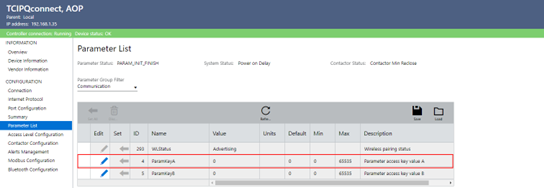
:The Parameter List Window allows the user to view feedback and setpoints reported by the Filter’s PQconnect device. The window features three primary parameter Status: Parameter, Contactor, and System Status. Select an option through the combo box to view the Parameter Group Filter. All parameters get updated once entering the Parameter Group but can be refreshed anytime by clicking the “Refresh” button.
Parameter Structure
:- Instance ID:Each parameter has an unchangeable, unique EtherNet/IP Instance ID.
- Name:EtherNet/IP Parameter Name. EtherNet/IP Parameter name is different from the Modbus Name.
- Value:This is the value the parameter is currently being read or set to.
- Units:Unit value of parameter. It can be a percentage (%), A/10, V/10, or Celsius.
- Default:Default value for the parameter from the Filter's PQconnect Device.
- Min:The parameter’s Minimum value can be set via the Parameter List Table.
- Max:The parameter’s Maximum value can be set via the Parameter List Table.
- Description:Describes the overall use of the EtherNet/IP Parameter Instance.
Reading A Parameters
:Feedback displays are read-only output values you can visually read based on your access level. All parameters are refreshed by clicking the “Refresh” button but can be read automatically by selecting the "Read" button.
Setting A Parameters
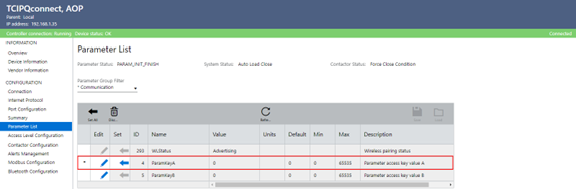
:Setpoint parameters can also be written as values will have the “Edit” columns enabled if the proper access level has been provided. Parameters are only allowed to be modified if the Filter is set to Tech or Factory Access Level. By selecting the “Edit” button, the user can go ahead and write a new value to the parameter that exists within its min and max values. After editing a parameter, the “Set” arrow icon will be enabled. The user can then write the request value to the Filter after being set to.

Saving & Loading Parameter List
:Pressing the Saving Parameter List button will open a window asking where you want to save the parameter list on your computer. The parameter list will be saved as a .csv spreadsheet. Upon clicking this, a file dialog browser will appear, prompting the user to select a file location for the .csv file to be saved. Technicians can also load a stored file's parameters to the Filters. This feature is useful when a user corrupts the Filter's parameter table and saves its settings afterward.
Provide Feedback