
Develop a user-specific interface
Provide personalized user experience and make certain interface areas accessible only for particular user groups.
Application example
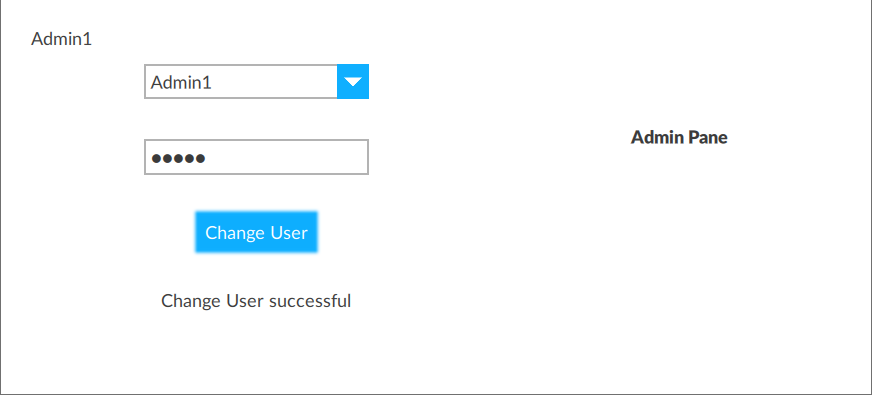
The
Admin Pane
is only visible for logged-in administrators.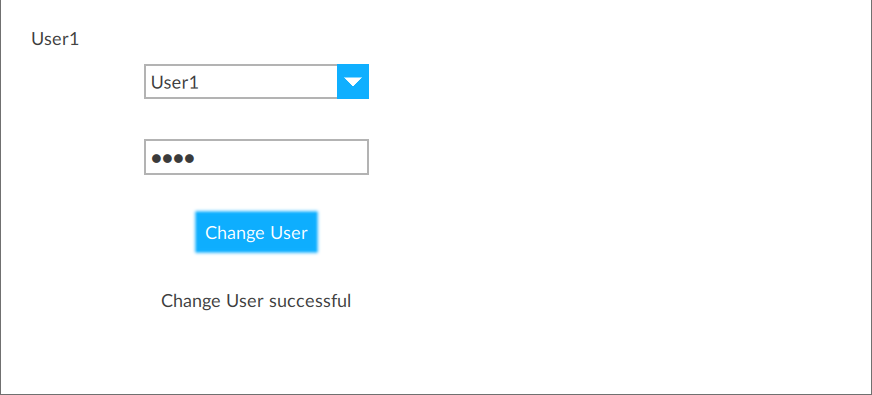
NOTE:
Download a sample project:
UserSpecificInterface.zipPrerequisites
- Configure users and groups in the following way:User namePasswordGroupsAdmin1adminAdminsUser1userUsers
- To develop the project
- Arrange the interface elements.
- Save the project.

Select  to run the project using the client
emulator to test your project. To run the project on a remote client, see Add a target device.
to run the project using the client
emulator to test your project. To run the project on a remote client, see Add a target device.
Run
Provide Feedback