
Develop a confirmation dialog
Create a confirmation dialog that displays when you select a button. This project involves the creation of a custom method invocation.
Application example - save dialog

Application example - apply value dialog

NOTE:
Download a sample project:
DialogConfirmation.zipPrerequisites
- To develop the project
- Arrange the interface elements.
- Save the project.
Application design example - confirmation dialog

Application design example - save panel

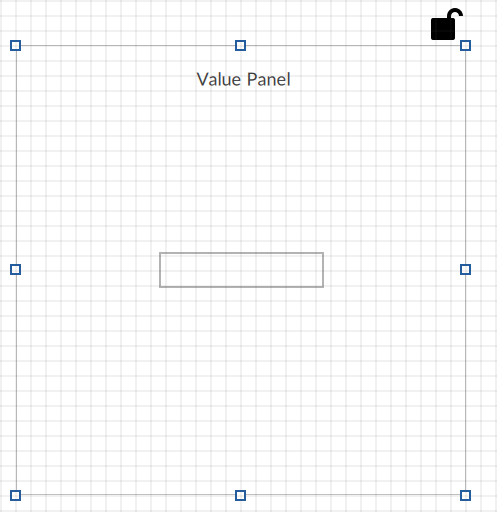
Application design example - value panel
Select  to run the project using the client
emulator to test your project. To run the project on a remote client, see Add a target device.
to run the project using the client
emulator to test your project. To run the project on a remote client, see Add a target device.
Run
Provide Feedback