
Install and Run FactoryTalk View SE - FactoryTalk DataMosaix Connector (Automatic‑Service)
Follow the steps to install
FactoryTalk View SE - FactoryTalk DataMosaix
connector as a background Windows service:- Download the InstallerDownload theFT View SE DataMosaix Connectorinstaller (FTDataMosaix_ViewSE_Connector.exe) from the Product Compatibility and Download Center (PCDC).
- Prepare the FilesPlace the following files in the same directory:
- FTDataMosaix_ViewSE_Connector.exe
- config.yml
- Create the Windows ServiceOpenCommand Prompt (cmd)and execute the following command:<path-to-your-folder> sc.exe create <windows-service-name> binpath = <path-of-the-exe-file>Example: <path-to-your-folder> sc.exe create FTViewSEWindowsService binpath = "C:\Workspace\FTDataMosaix\FTViewSEExtractor\FTViewSEWindowsService.exe"After executing the command, theFT View SE Extractoris installed and registered as a Windows serviceFT View SE - Windows Service Creation

- Windows Service InitializationAfter creating the Windows service, follow these steps to start and verify the extractor:
- OpenWindows Servicesto start the FT View SE Extractor.FT View SE - Windows Service - Initialization
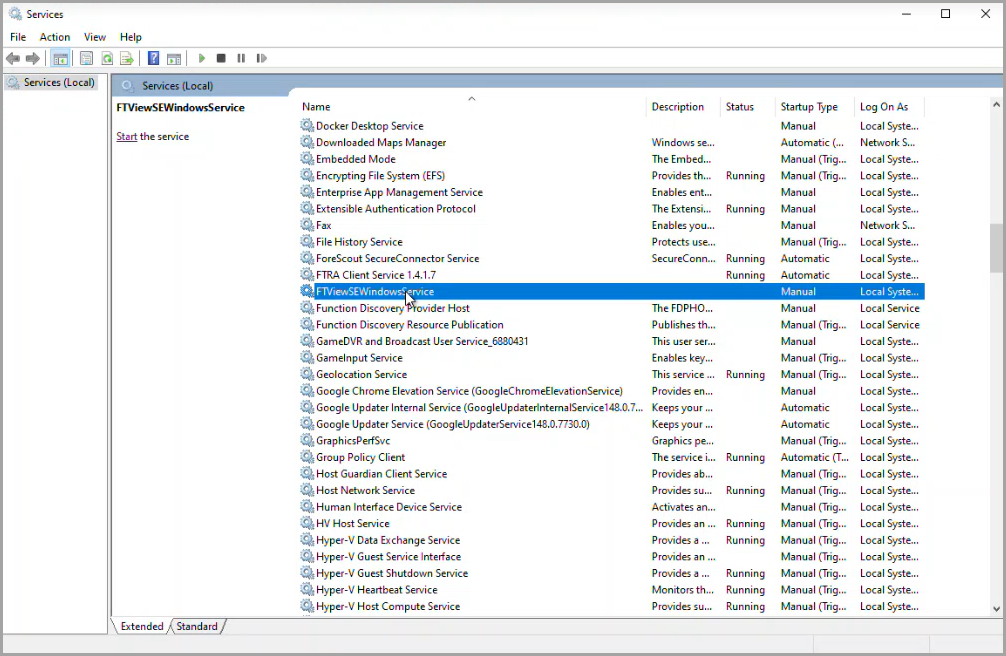
- FT View SE Extractorruns continuously in the background and begins fetching data automatically.
- Log files are generated in the same directory as the executable (.exe), following the naming patternlog_<YYYY-MM-DD>.txt(for example,log_2026-04-14.txt), with a new log file created each day using the current date.
Provide Feedback