
Configuring FactoryTalk Optix to connect to FactoryTalk DataMosaix SaaS- Continuation
- Open the project inFactoryTalk Optix.
- If you have installed the connector file in the exact location of yourFactoryTalk Optixproject, anFactoryTalk DataMosaix SaaSStore will be created in theFactoryTalk OptixDataStore. To view it, navigate to theProject view>DataStoresand click on it to view all the stores created within.FactoryTalk Optix DataStores
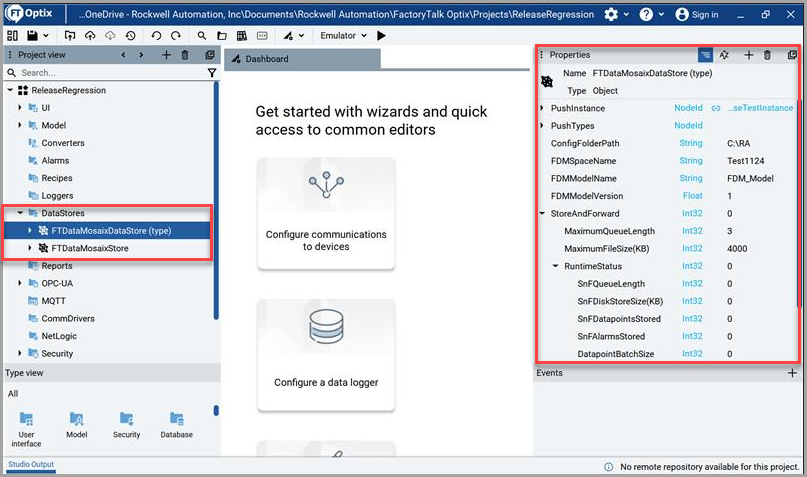
- Select theFTDataMosaixStoreto view the Properties pane.
- In thePropertiespane, provide the following information:
- PushInstance- Provide the instance which needs to be pushed to the Cognite.Push Instance
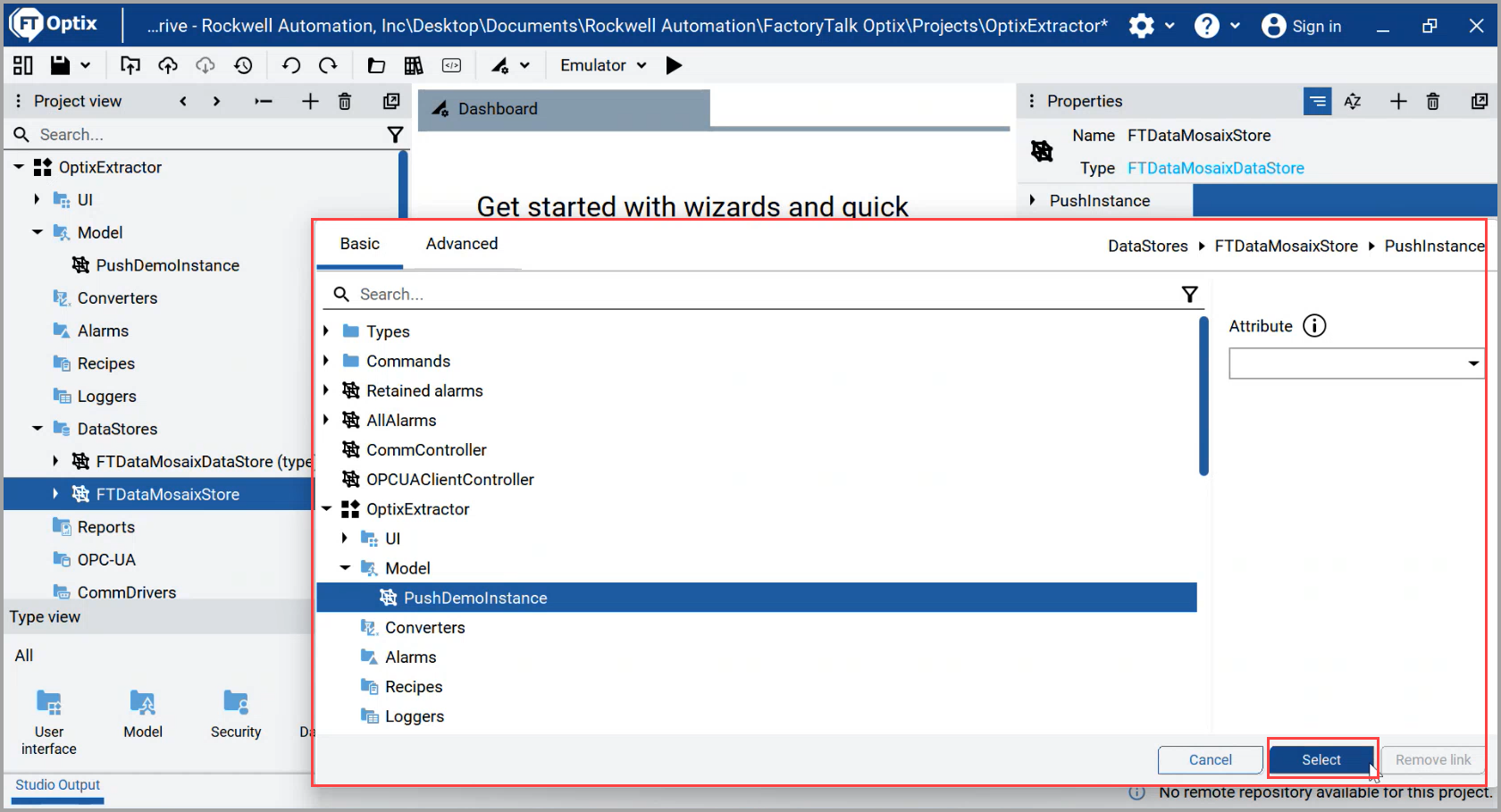
- ConfigFolderPath- Provide the exact path to the downloaded config.yml file.NOTE:Ensure that the file name 'config.yml' remains unchanged, as altering it may result in failure.
- Deadband- Provide the time interval for emitting data.
- To run the emulator, in the main toolbar, click Run on Emulator [
 ].TheNetLogic security warningdialog box is displayed.
 - ClickProceed.The project will get saved, and the application will initiate deployment and run the project. The following actions will take place automatically:
- Asset creation.
- Subscribe to tags.
- Creation of flexible data model.
TIP:In the bottom left corner, navigate toEmulator Output>Messagesto view the status of actions with the timestamp details.View Messages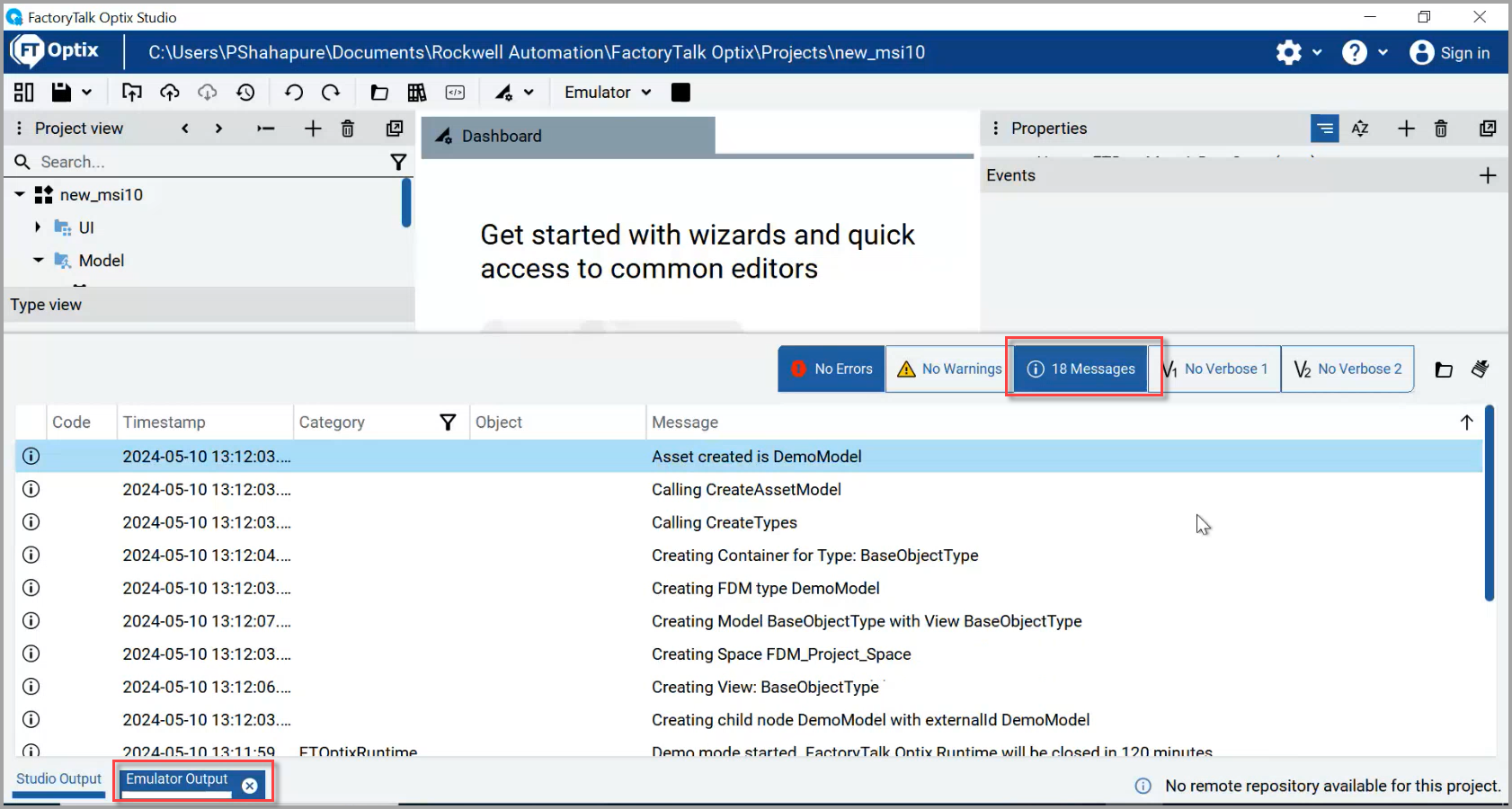
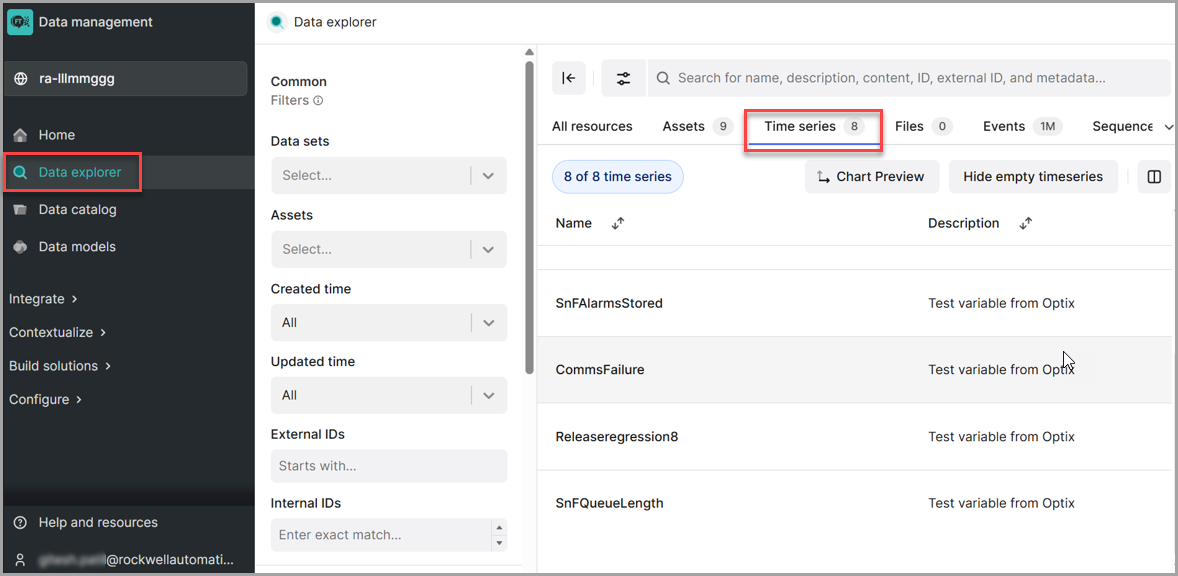
- To view the time series data ingested using the extractor, clickData explorerand selectTime series. You will be able to see all the time series data points that were pushed using the extractor.Cognite Data Fusion - Time Series
Provide Feedback