
Register a Fiix Extractor
Perform the following steps to register a
Fiix
Extractor:- On the Management Console, select theExtractor Configurationstab.TheExtractor File Configurationspage will open, displaying a list of all available extractors.Extractor Configurations
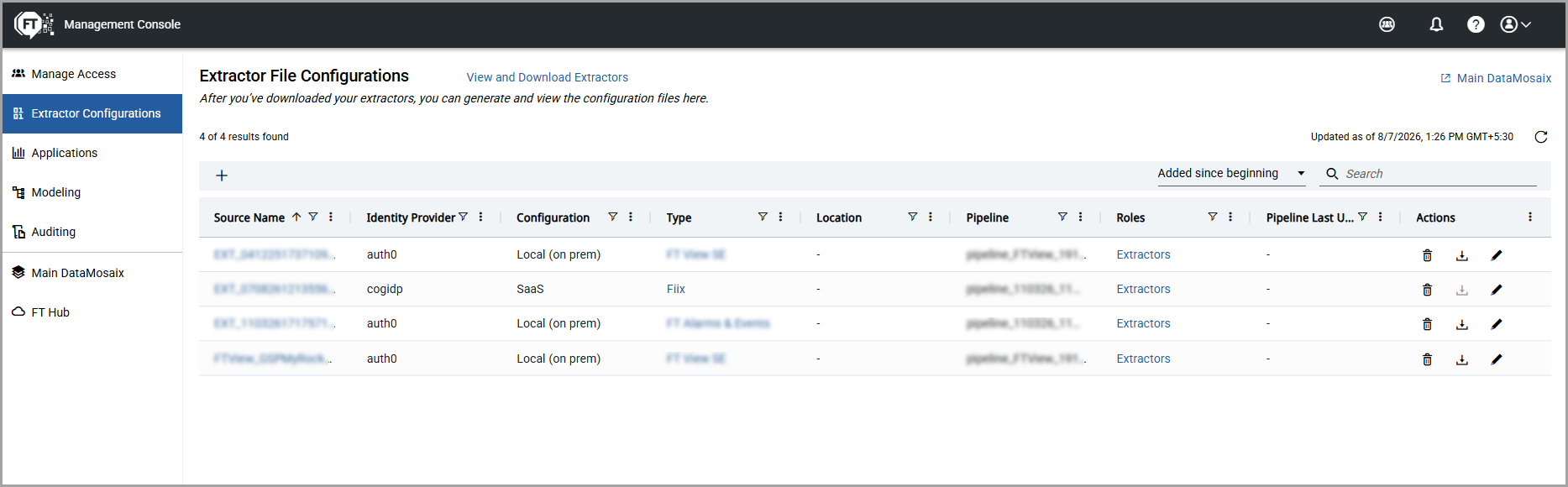
- Click the Add [
 ] icon.TheGenerate New Extractorpage is displayed.Generate New Extractor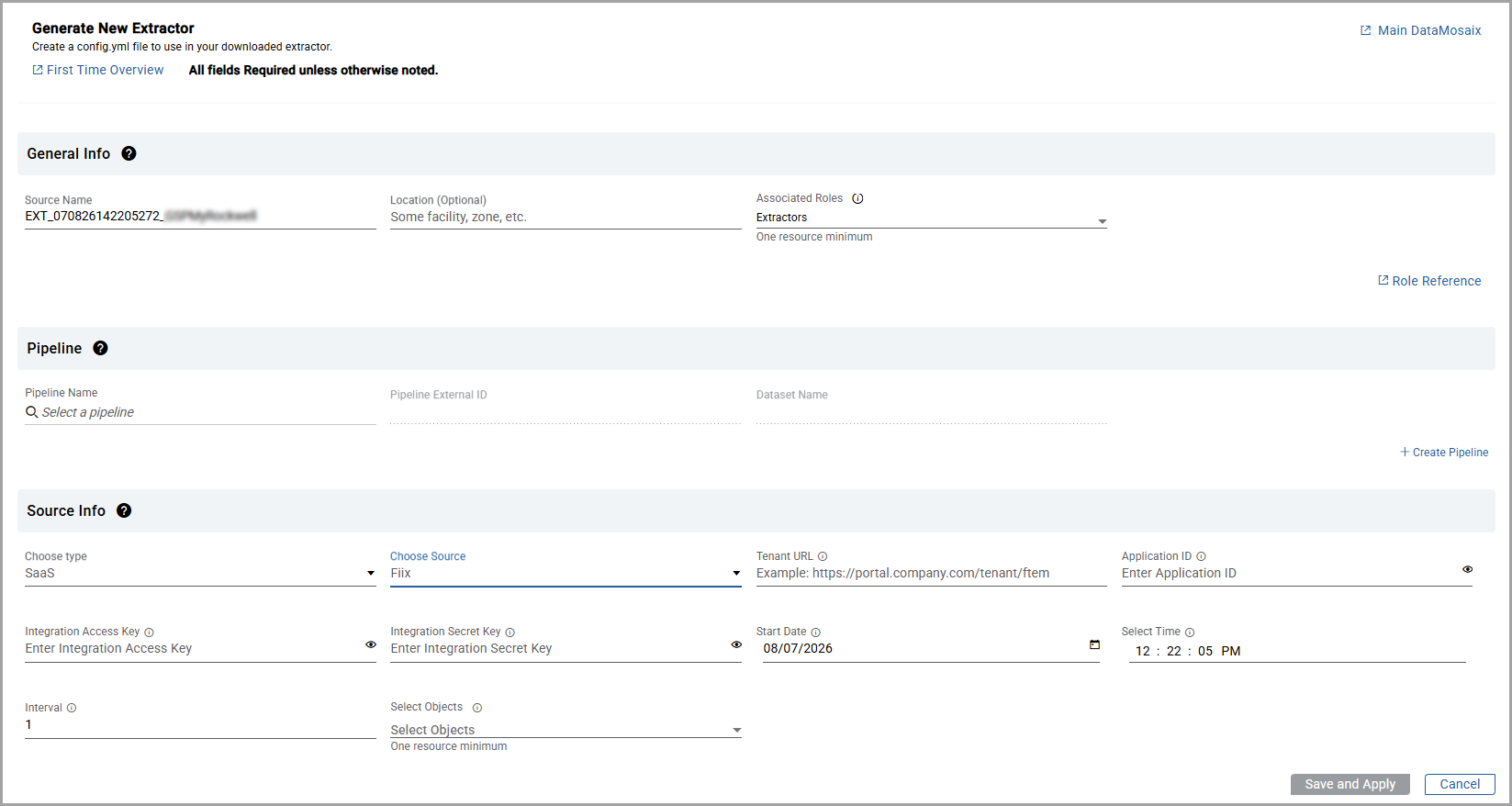
- In theGeneral Infosection, provide a unique name for your extractor in theSource Namefield. The source name works as the identifier for your extractor. You can search for an extractor using the source name. By default,FactoryTalk DataMosaix SaaSpopulates a source name.Source Name example: EXT_1406230728_createproject_v1.Here, EXT stands for the extractor, 140623 is the date in ddmmyy format, 0728 is the timestamp in hhmm format, and createproject_v1 is the project in which you are currently working. You can use the default source name or create your own.
- (Optional) Provide the location details. It can help you identify an extractor when you have many extractors for different plants/sites/locations.
- From theAssociated Rolesdrop-down list, select at least one role. You can refer to various roles and capabilities by clickingRole Reference.NOTE:The Associated Roles drop-down is visible and available only for Project Admin users or users within the Organization with a Project Admin Role assigned.You can select multiple roles from the Associated Roles drop-down list. In the search bar, you can search for any specific role from the list. If you want to apply all the roles to the application, select theSelect Allcheckbox.Next, you can select a pipeline or create a new pipeline. When you create a new pipeline, you have the option of selecting from an existing dataset or creating a new dataset.
- In thePipeline Namefield, search for a specific pipeline by entering the first characters and select a pipeline. On selecting a pipeline, thePipeline External IDandDataset Namefields are generated.To create a new pipeline, select the+ Create Pipelineoption.TheCreate Pipelinedialog box is displayed.Create Pipeline
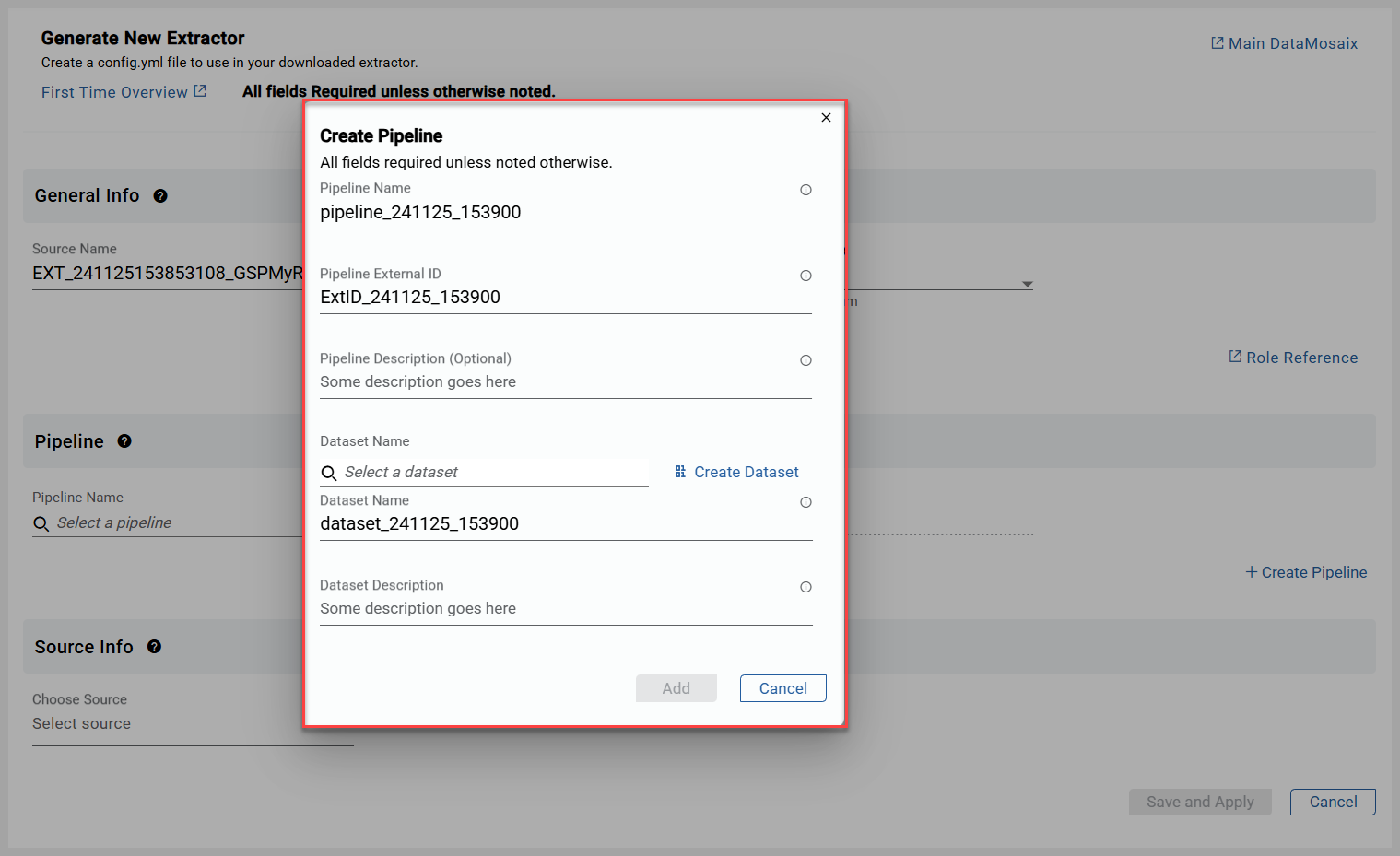
- Provide the following Pipeline information to create a new pipeline:
- Pipeline Name
- Pipeline External ID
- Pipeline Description (Optional)
- When you create a pipeline, you can either select an existing dataset or create a new dataset. Select a Dataset from theDataset Namesearch field, if you want to use an existing Dataset.If you choose to create a new Dataset, the Dataset-related fields will be displayed. Provide the following dataset information:
- Dataset Name
- Dataset Description
- ClickAdd. Based on the options you choose (select or create), the Pipeline and Dataset information is either populated or created and displayed on theExtractor Info Detailpage.
- In theSource Infosection, selectSaaSas the source type andFiixas the extractor source. After making your selections, the system displays the required configuration fields, such asTenant URL,Application ID,Integration Access Key,Integration Secret Key, and other relevant parameters. Provide the necessary information to complete the configuration.Generate New Extractor - Source Info

- Provide the following information to connect with source.
- SelectSaaStype from dropdown.
- Select sourceFiixfrom dropdown.
- EnterTenant URL.
- EnterApplication ID.
- Provide theIntegration Access KeyandSecret Key.
- Specify theStart dateandtimefrom which data should be fetched. If not provided, the default is thecurrent dateandcurrent time minus 2 hoursNOTE:Set the start date and time for the Fiix extractor carefully. Once configured, it cannot be changed, as data ingestion uses incremental refresh. Ensure you select the correct starting point from which you want data to begin being pushed.
- Enter theIntervalin hours.
- Select anobjector multipleobjectsfrom the list of available objects.
- ClickSave and Apply.The configuration is saved, and theRun Extractordialog box is displayed with the following options:
- Run Now: Saves the configuration and starts the extractor immediately.
- Run Later: Saves the configuration without starting the extractor. You can start the extractor at a later time when needed.
Run Extractor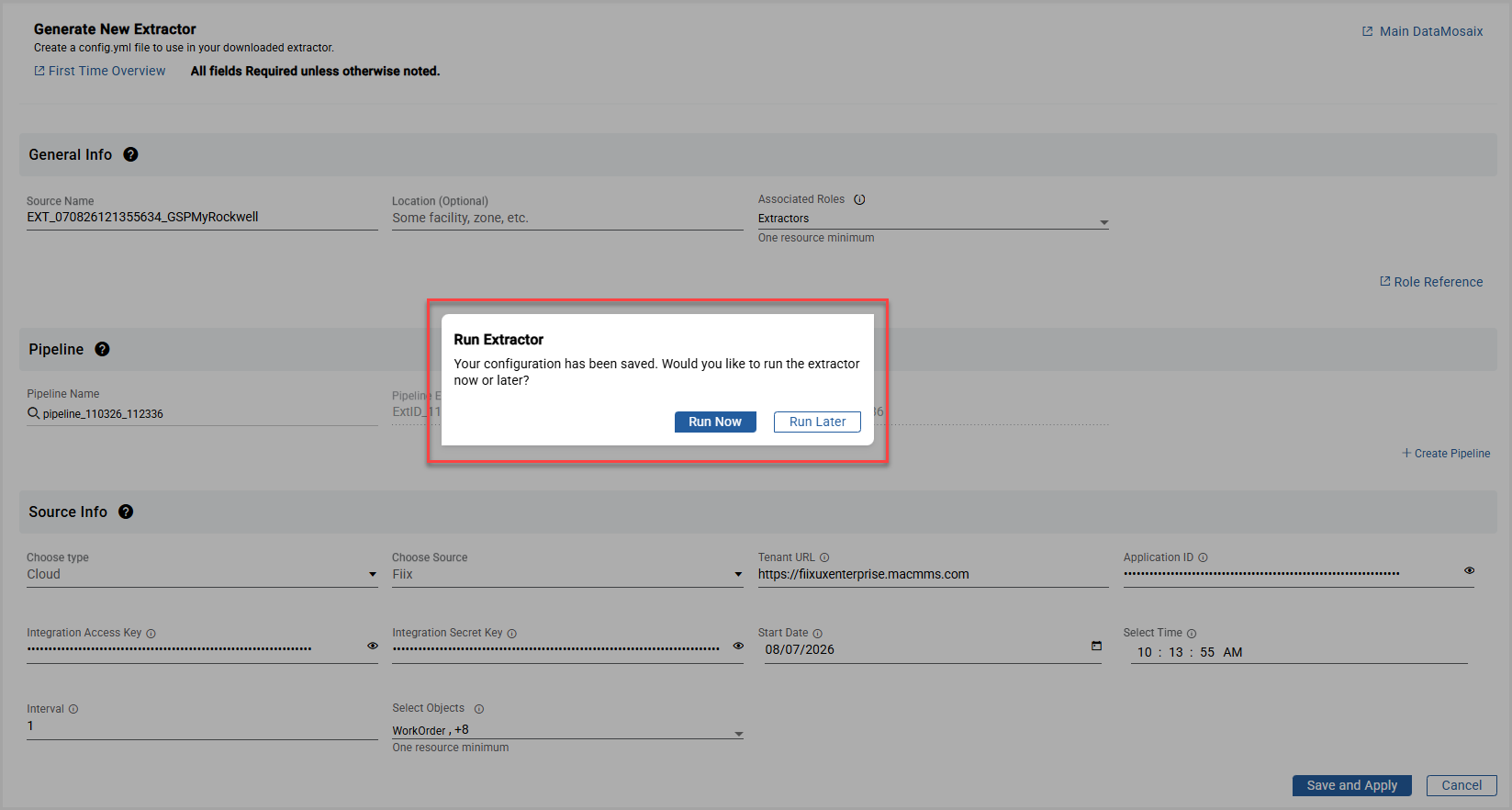
- ClickRun NoworRun Laterto close the pop-up window.The new extractor is displayed underExtractor File Configurations.
Provide Feedback