
Register Single Page Application
Perform the following steps to register a Single Page Application:
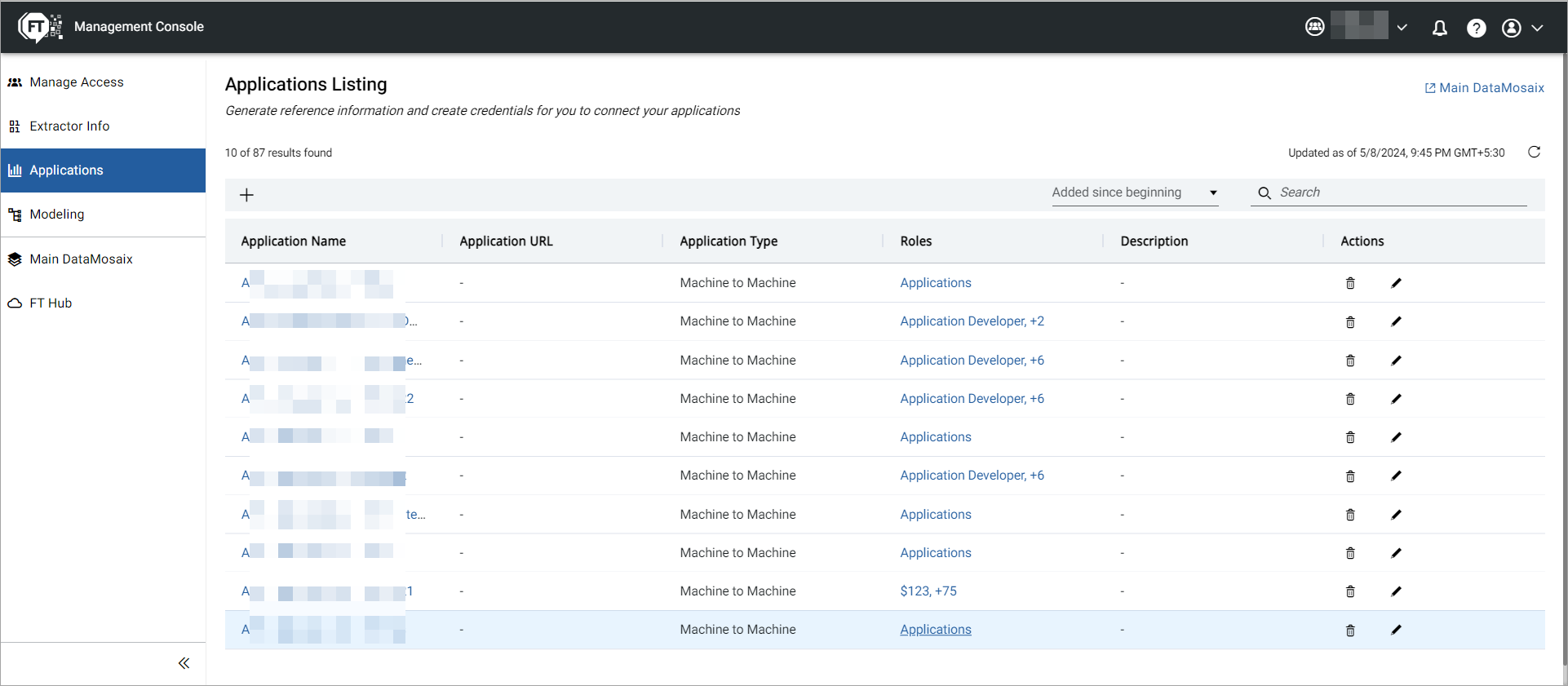
- On the Management Console, select theApplicationstab.TheApplications Listingpage is displayed.Applications Tab
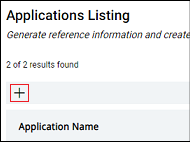
- Click the Add icon.Add Icon
 TheApplications Detailpage is displayed.Applications Detail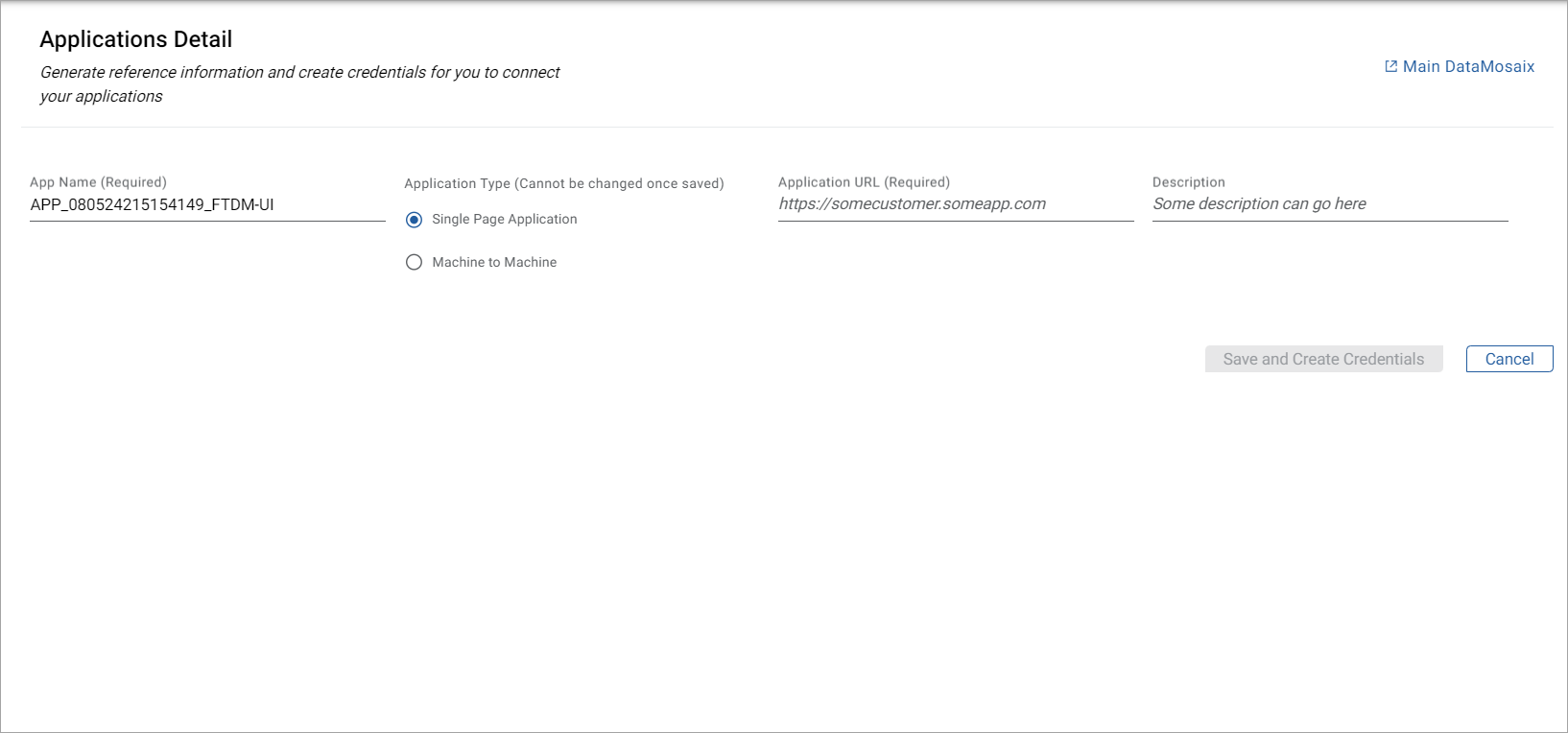
- Provide a unique name for your application. The Application Name works as the identifier for your application. You can search for an application with the Application Name. By default,FactoryTalk DataMosaix SaaSgenerates an application name.Application Name example: APP_1206230756_createproject_v1.Here, APP stands for application, 120623 is the date in ddmmyy format, 0756 is the timestamp in hhmm format, and createproject_v1 is the project in which you are currently working. You can use the default App Name or create your own.
- Select Single Page Application type, and provide the application URL (callback URL).NOTE: For registering Power BI-based Single Page Applications use https://oauth.powerbi.com/views/oauthredirect.html as the application URL (callback URL).
- Provide a description for the application.
- ClickSave and Create Credentialsto register the application.TheCredentials and other infodialog box displays the client secret information.Single Page Application Credentials
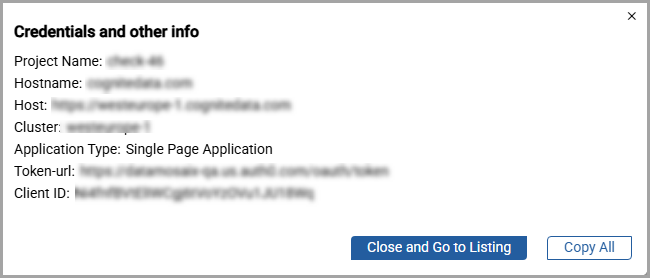 Credentials Dialog Box ParametersProject NameUnique identifier for the projectHostnameDomain name of the server hosting the applicationHostBase location where the application is deployedClusterGroup of servers where the application is managedApplication TypeSpecifies whether the application is a Single Page Application (SPA) or Machine-to-Machine (M2M) integrationToken-urlEndpoint URL used to obtain OAuth authentication tokensClient IDUnique identifier for the application registered with OAuthCopy the credentials and insert them in the application for it to connect toFactoryTalk DataMosaix SaaS.
 - ClickCopy All.
- Open a text file, paste the client secret, and save the file.
- ClickClose and Go to Listing.The new application displays underApplication Listing.
Provide Feedback