
Disable form validation example
This example shows how to disable all form validation for these HTML tags <input>, <textarea>, and <select>. Add the rabvdisablevalidation_all value to the class attribute of the html tag to disable all validation for each of the HTML tags .
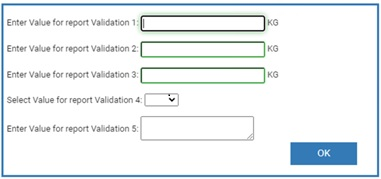
The html code to disable all form validation and always enable the
OK
button may look like this: <form>Enter Value for report Validation 1: <input type="text" name="VALIDATION01" class="rabvdisablevalidation_all"> <sop>VALIDATION01.eu</sop><BR><BR>Enter Value for report Validation 2: <input type="text" name="VALIDATION02" class="rabvdisablevalidation_all"> <sop>VALIDATION02.eu</sop><BR><BR>Enter Value for report Validation 3: <input type="text" name="VALIDATION03" class="rabvdisablevalidation_all"> <sop>VALIDATION03.eu</sop><BR><BR>Select Value for report Validation 4: <select size="27" name="VALIDATION04" class="rabvdisablevalidation_all"></select><BR><BR>Enter Value for report Validation 5: <textarea name="VALIDATION05" class="rabvdisablevalidation_all"> <sop>VALIDATION05.eu</sop><BR><BR></form>
The example shows disabling all the validations for a specific field. The field validations can also be selectively disabled when designing the control step.
IMPORTANT:
Disabling field validations must be set on a tag's class attribute in the manual instruction control step and cannot be dynamically updating during runtime.
For an <input> tag that references a datatype REAL report, the following validations are used:
- Value required
- Value contains real numbers
- Value is equal to or above min
- Value is equal to or below max
Each of the validations can be turned off individually by adding one or more of these classes respectively to the input tag’s class attribute:
- rabvDisableValidation_Required
- rabvDisableValidation_Pattern
- rabvDisableValidation_Min
- rabvDisableValidation_Max
For an <input> tag that references a datatype INTEGER report, the following validations are used:
- Value required
- Value contains integer numbers
- Value is equal to or above min
- Value is equal to or below max
Each of the validations can be turned off individually by adding one or more of these classes respectively to the input tag’s class attribute:
- rabvDisableValidation_Required
- rabvDisableValidation_Pattern
- rabvDisableValidation_Min
- rabvDisableValidation_Max
For an <input> tag that references a datatype STRING report the following validations are used:
- Value required
- Value contains string characters
Each of the validations can be turned off individually by adding one or more of these classes respectively to the input tag’s class attribute:
- rabvDisableValidation_Required
- rabvDisableValidation_Pattern
For a <textarea> tag that references a datatype STRING report, the following validations are used:
- Value required
- Value contains string characters
Each of the validations can be turned off individually by adding one or more of these classes respectively to the textarea tag’s class attribute:
- rabvDisableValidation_Required
- rabvDisableValidation_Pattern
For a <select> tag that references a datatype ENUMERATION report, the following validations are used:
- Value required
Turn off the required validation by adding this class to the select tag’s class attribute:
- rabvDisableValidation_Required
If rabvDisableValidaiton_All is specified in the tag’s (input, textarea, or select) class attribute then the tag is treated as if all the class attributes were specified, without having to specify all of them individually.
The
OK
button for a manual instruction control step is only be enabled if all the validations were disabled, or all the enabled field validations were satisfied.At the time the OK button is selected the report values will be validated to make sure the entered value follows the configuration of the report in the area model. If the report value is found to not conform to the configuration in the area model an error message will be displayed to the user. This the behavior that was seen in the legacy eProcedure client.
Provide Feedback