Loading
Innovation Center LOGO
Recent ActivityRecent Activity

Warehouse Sorting with Optix

Automatically route packages to the correct destination chute using FactoryTalk Optix and Regex. - [Implementation time: 30 minutes]
Innovation Center Home Page
Parcel with digital data network visualization floating above moving conveyor belt in warehouse facility.
Innovation Center LOGO
  • Overview
  • Implementation Guide
  • Download
  • Contact us
  • Subscribe
Innovation Center Home Page


What does this application do?

Warehouse Sorting sample application demonstrates the use of a NetLogix C# Script to sort packages to their required destination based on a barcode destination label on the box.  The script uses a Regex (Regular Expression) pattern to search, match, validate, or manipulate text strings.  The app receives three codes once the box goes through a barcode scanning tunnel.  It identifies the code that matches a pattern from a database and returns the matching route.  The database can be modified by the user to add or edit patterns and routes.  There's also a log that stores the matched codes and their corresponding route.

Is this application relevant to me?

Quickly sort packages to the correct destination chute using FactoryTalk Optix’s NetLogix C# scripting and Regex.

Success stories:

  • Warehouse package distribution center for faster delivery service.
  • 360° scanning tunnels can be implemented by adding more scanners.

Advantages:

  • Identify patterns in data strings using Regex.
  • Shows the use of methods of C# scripts using Netlogic.
  • Shows the use of database methods included in the datastore object.
  • Shows the use of the data logger object.

Limitations: This is a simulation file, for full applications test a PLC and Barcode Scanner is needed and properly configured. (not covered in this sample)



AHIC Download ICON VF.png

Download

Please note: You will need to agree to the Terms & Conditions for each download.

Downloadable file ›
Legal Disclaimer Acceptance. ROCKWELL AUTOMATION WILL PROVIDE ACCESS TO ROCKWELL PRODUCTS (BEST PRACTICES, APPLICATIONS AND KNOWLEDGE) ON THE CONDITION THAT YOU ACCEPT AND COMPLY WITH THE FOLLOWING TERMS AND CONDITIONS. YOU ACCEPT AND AGREE TO BE BOUND BY THE TERMS OF THIS AGREEMENT BY DOWNLOADING, INSTALLING, COPYING, OR OTHERWISE USING PRODUCTS. IF YOU ARE ACCEPTING THESE TERMS ON BEHALF OF ANOTHER PERSON, COMPANY, OR OTHER LEGAL ENTITY, YOU REPRESENT AND WARRANT THAT YOU HAVE FULL AUTHORITY TO BIND THAT PERSON, COMPANY, OR LEGAL ENTITY TO THESE TERMS. IF YOU DO NOT AGREE TO THESE TERMS, DO NOT DOWNLOAD, INSTALL, COPY, ACCESS, OR USE THE PRODUCTS, SOFTWARE AND/OR CLOUD SERVICES. 1. Rockwell Automation retains full ownership and title to all Products and related documentation. No rights or licenses are granted other than those set forth in this Agreement. Company grants to Rockwell Automation a non-exclusive, worldwide, royalty-free, perpetual, non-revocable license to use any feedback Company provides regarding the Products, even if Company has designated the feedback as confidential. Rockwell Automation will be entitled to use the feedback without restriction or compensation to Company. 2. Company may not lease sub-lease, assign, license, sub-license or otherwise transfer any of the Products without the prior written consent of Rockwell Automation. Company may not assign or otherwise transfer access rights to the Products without the prior written consent of Rockwell Automation. Any reverse assembly, reverse engineering, decompilation, and creation of derivative works based on the Products by Company is prohibited. 3. Company acknowledges that Products provided under this Agreement are Rockwell Automation’s Confidential Information and are covered by effective or pending copyrights, patents, trademarks and/or trade secrets of Rockwell Automation, and Company agrees to maintain confidentiality by not disclosing Products or documentation to any third party without the prior written consent of Rockwell Automation and to protect the confidentiality of the Products as it would Company’s own confidential information. Company agrees that its obligation of confidentiality under this paragraph shall survive expiration or termination of this Agreement. 4. Company agrees that Products provided under this Agreement are prototypes and examples and its application and results may vary depending on each customer and project conditions. Rockwell Automation do not warranty the same results. This Agreement shall in no way be construed as a commitment by Rockwell Automation at any time to manufacture and/or offer Products for sale. There is no explicit or implicit service level agreement associated with using the Products. Rockwell Automation does not warrant that the functions contained in the Products will meet Company’s requirements. Company agrees to use all Products only in accordance with the instructions and only for the intended usages identified in the documentation. 5. EXCLUSION OF WARRANTIES AND LIMITATION OF LIABILITY. THE PRODUCTS ARE PROVIDED "AS IS". ROCKWELL AUTOMATION DISCLAIMS ANY AND ALL WARRANTIES, EXPRESS, IMPLIED OR STATUTORY, INCLUDING WITHOUT LIMITATION ANY WARRANTIES OF MERCHANTABILITY OR FITNESS FOR A PARTICULAR PURPOSE. ROCKWELL AUTOMATION EXPLICITLY DISCLAIMS ALL WARRANTIES OF NON- INFRINGEMENT AND EXPRESSLY DOES NOT WARRANT THAT THE PRODUCTS, IN WHOLE OR IN PART, WILL BE ERROR FREE OR FREE FROM SECURITY VULNERABILITIES. IN NO EVENT SHALL ROCKWELL AUTOMATION BE LIABLE FOR (i) LOST PROFITS, LOST SAVINGS, DOWNTIME, SPECIAL, INDIRECT OR CONSEQUENTIAL DAMAGES OF ANY KIND, OR (ii) ANY PERSONAL INJURY, PROPERTY DAMAGE OR ENVIRONMENTAL DAMAGE ARISING OUT OF OR IN CONNECTION WITH THIS AGREEMENT, WHETHER IN AN ACTION IN CONTRACT, STRICT LIABILITY OR IN TORT INCLUDING NEGLIGENCE. 6. COMPANY AGREES TO INDEMNIFY AND HOLD ROCKWELL AUTOMATION HARMLESS FROM ALL COSTS, AWARDS, DAMAGES, EXPENSES AND FEES (INCLUDING ATTORNEYS FEES) RESULTING FROM OR RELATED TO ANY THIRD-PARTY CLAIMS (INCLUDING EMPLOYEES AND AGENTS OF COMPANY) AGAINST ROCKWELL AUTOMATION, ITS DISTRIBUTORS, AGENTS, OFFICERS, DIRECTORS OR EMPLOYEES FOR PERSONAL INJURY (INCLUDING DEATH), PROPERTY DAMAGE OR ENVIRONMENTAL DAMAGE RELATED TO OR RESULTING FROM THE USE OF THE PRODUCTS. 7. In the event a Product is exported, Company agrees to comply with all applicable United States Export Control Law and Regulations, and the applicable export control laws of other countries. This Agreement shall be governed by the laws of the state of Wisconsin. This Agreement is the complete and exclusive Agreement between Rockwell Automation and the Company, and supersedes all prior agreements, whether written or oral, relating to the Products.
 
AHIC NEED HELP ICON VF.png


Need Help?

If you need help with an application or have feedback from the Innovation Center, please contact us.


How can I make it work?

Requirements: products, tools, prior knowledge.

Hardware:

  • FT Optix Ready Device
    • Optix Panel
    • Optix Edge
    • Embedded Edge Compute
  • ASEM Industrial PC

(if testing with hardware, minimum one is needed)

Software:

  • FactoryTalk Optix Studio
    • FactoryTalk Optix Runtime Emulator
  • FactoryTalk Optix Runtime
    • If running application on an ASEM industrial computer (or 3rd party computer)

Previous Knowledge

  • Basic understanding of FactoryTalk Optix.
  • Optional: Knowledge of how Regex expressions work is needed to generate other Regex expressions.



AHIC STEP ICON.png

Implementation Guide


This demo is self-contained; it doesn't rely on any other information source other than FT Optix.

  1. Step 1
  2. Step 2
  3. Step 3
  4. Step 4
  5. Step 5
  6. Step 6
Open All Close All
Step 1


Download the project file and open the application using FactoryTalk Optix Studio.

This application was developed using version 1.7.0.804.

Make sure that the embedded Emulator is selected as the active deployment target:

warehouse-sorting-with-optix_Picture1.png

warehouse-sorting-with-optix_Picture1.png

Click the Run on Emulator “play”⯈ symbol to start the emulator.

Step 2


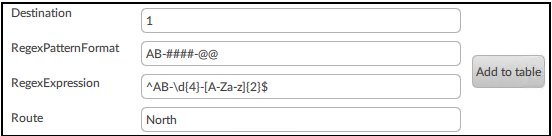
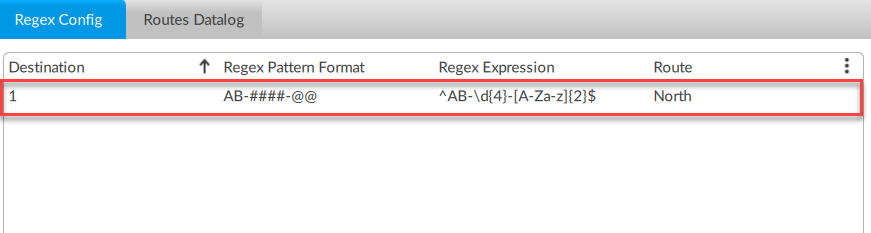
In the Regex Config tab, you will see an empty table. To populate the table with your 1st destination data, fill in all text boxes in the “Add to Table” section in the right side of the application screen with the Regex Expressions to compare.

See some Regex suggestions in Table No.1:

Destination
Regex Pattern Format
Regex Expression
Route
1

AB-####-@@

^AB-\d{4}-[A-Za-z]{2}$

North

2

Rock######

^Rock\d{6}$

South

3

##-ASEM01

^\d{2}-ASEM01$

East

4

9324-####ENE

^9324-\d{4}ENE$

West

5

##-Optix-##

^\d{2}-Optix-\d{2}$

North

Table No. 1 - suggestions

Step 3


For each desired destination, fill in the fields and click the “Add to table” button.

Example:

warehouse-sorting-with-optix_Picture2.png

warehouse-sorting-with-optix_Picture2.png

warehouse-sorting-with-optix_Picture3.png

warehouse-sorting-with-optix_Picture3.png

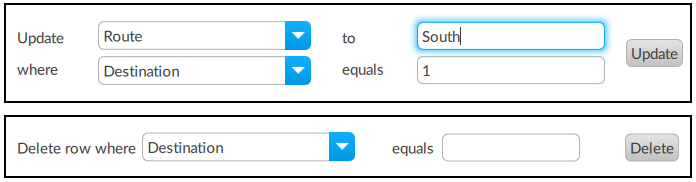
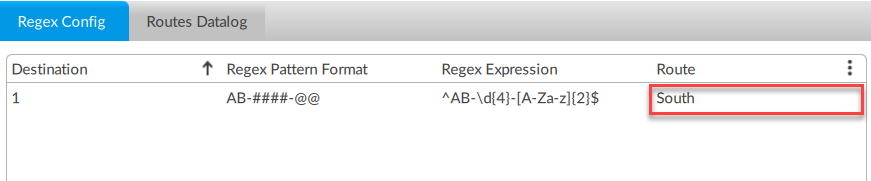
To make changes/updates or delete a row record use the “Update” and/or “Delete” buttons.

warehouse-sorting-with-optix_Picture4.png

warehouse-sorting-with-optix_Picture4.png

warehouse-sorting-with-optix_Picture5.png

warehouse-sorting-with-optix_Picture5.png

Step 4



There are several Regex sources online that explain how to build Regex Expressions.

Here’s a brief explanation of the expression of Destination 1: ^AB-\d{4}-[A-Za-z]{2}$


^

Start of the string

AB-

Starts with “AB-”

\d{4}

Four numerical digits

-[A-Za-z]{2}

Two alphabetic digits

$

End of string


The “Test Code” rectangle can be used to make sure that the Regex expressions worked as expected.

The result of this test doesn't affect the datalog.


Here's an example:

warehouse-sorting-with-optix_Picture6.png

warehouse-sorting-with-optix_Picture6.png

Step 5
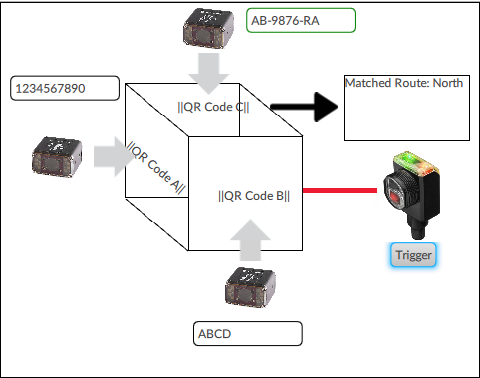


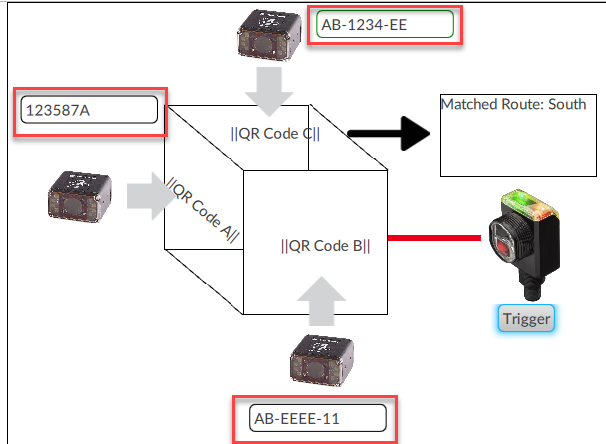
To simulate a trigger operation, manually input each of the 3 text input fields next to each barcode reader in the image below.

Then press the “Trigger” button.


Example:

warehouse-sorting-with-optix_Picture7.png

warehouse-sorting-with-optix_Picture7.png

From this result example we can see that out of the three codes “scanned”, only the one marked by the green outline is valid and that the Matched Route is North. The information on your screen may vary depending on the information provided.

The “Trigger” button executes a NetLogic C# script that uses Regex to compare each “Scanned Number” with each of the Regex expressions of the table, once a match is found, it returns the corresponding Route, if none is found, then a “Not Found” is returned.


As stated previously, this application is not intended to be used in a production environment; this script only has the necessary code to show the functionality of the Regex + NetLogic script within a FactoryTalk Optix application.

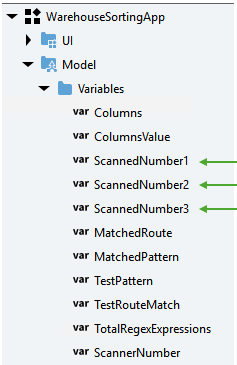
To test this application feeding this information automatically from a device such as a PLC, link these variables to the tag with the scanned codes:

warehouse-sorting-with-optix_Picture8.png

warehouse-sorting-with-optix_Picture8.png

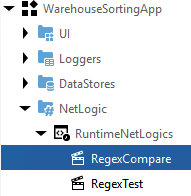
The script is executed with the method “RegexCompare”, it must be triggered by your preferred way, an option is a change of value of a tag from the PLC.

warehouse-sorting-with-optix_Picture9.png

warehouse-sorting-with-optix_Picture9.png

Step 6


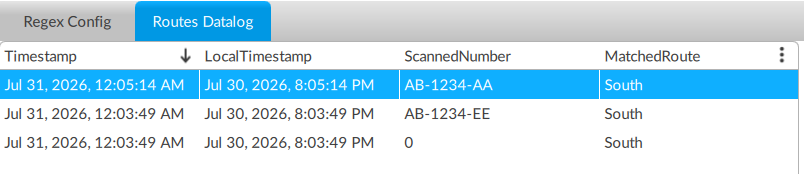
In the “Routes Datalog” tab there's a datagrid object that shows the log of the scanned routes.

Example:

warehouse-sorting-with-optix_Picture10.png

warehouse-sorting-with-optix_Picture10.png

warehouse-sorting-with-optix_Picture11.png

warehouse-sorting-with-optix_Picture11.png


warehouse-sorting-with-optix_Picture1.png

warehouse-sorting-with-optix_Picture1.png

warehouse-sorting-with-optix_Picture2.png

warehouse-sorting-with-optix_Picture2.png

warehouse-sorting-with-optix_Picture3.png

warehouse-sorting-with-optix_Picture3.png

warehouse-sorting-with-optix_Picture4.png

warehouse-sorting-with-optix_Picture4.png

warehouse-sorting-with-optix_Picture5.png

warehouse-sorting-with-optix_Picture5.png

warehouse-sorting-with-optix_Picture6.png

warehouse-sorting-with-optix_Picture6.png

warehouse-sorting-with-optix_Picture7.png

warehouse-sorting-with-optix_Picture7.png

warehouse-sorting-with-optix_Picture8.png

warehouse-sorting-with-optix_Picture8.png

warehouse-sorting-with-optix_Picture9.png

warehouse-sorting-with-optix_Picture9.png

warehouse-sorting-with-optix_Picture10.png

warehouse-sorting-with-optix_Picture10.png

warehouse-sorting-with-optix_Picture11.png

warehouse-sorting-with-optix_Picture11.png


Warehouse Sorting with Optix

Version 1.0 - August  2026


AHIC White Logo
Subscribe!

Receive new app releases and other updates from the Innovation Center directly in your inbox.

I want to subscribe.
 
  1. Chevron LeftChevron Left Rockwell Automation Home
  2. Chevron LeftChevron Left Sup...
  3. Chevron LeftChevron Left Pro...
  4. Chevron LeftChevron Left Downloads
  5. Chevron LeftChevron Left Innovation Center
  6. Chevron LeftChevron Left Warehouse Sorting with Optix
Please update your cookie preferences to continue.
This feature requires cookies to enhance your experience. Please update your preferences to allow for these cookies:
  • Social Media Cookies
  • Functional Cookies
  • Performance Cookies
  • Marketing Cookies
  • All Cookies
You can update your preferences at any time. For more information please see our {0} Privacy Policy
CloseClose