Download

PowerFlex 755 Drive Control with FactoryTalk Optix

What does this application do?
This application, based on the new supervisory system called FactoryTalk Optix, allows us to control a motor through a PowerFlex 755 Variable Frequency Drive using EtherNet/IP communication. Currently, the connection is not direct between the two products; instead, we use a virtual Controller called FactoryTalk Logix Echo, which resides on the same computer or Windows-based OptixPanel that contains the FactoryTalk Optix application.
Is this application relevant to me?
This development is useful in remote applications where we do not have a process controller, but we leverage the Drive's DeviceLogix to control the process through its analog and digital inputs, and we use FactoryTalk Logix Echo for Ethernet communication between the Drive and the FactoryTalk Optix supervisory system.

Please note: You will need to agree to the Terms & Conditions for each download.

Need Help?
If you need help with an application or have feedback from the Innovation Center, please contact us.
How can I make it work?
Requirements: products, tools, prior knowledge.
Hardware
- PowerFlex 755 or PowerFlex 755T
Software
- Connected Components Workbench™ (21.00 or higher)
- FactoryTalk Logix Echo (3.00.00)
- Studio 5000 (35.13.00)
- RSLinx Classic (4.31.00)
- FactoryTalk Optix (1.3.3.3)
Prior Knowledge
- Basic knowledge of programming and configuration in Connected Components Workbench™, FactoryTalk Logix Echo, FactoryTalk Optix software and knowledge of the functionality and parameterization of PowerFlex 755 drives.

Implementation Guide
- Step 1
- Step 2.1
- Step 2.2
- Step 3.1
- Step 3.2
- Step 3.3
- Step 4.1
- Step 4.2
- Step 4.3
- Step 5.1
- Step 5.2
- Step 5.3
- Step 5.4
Step 1
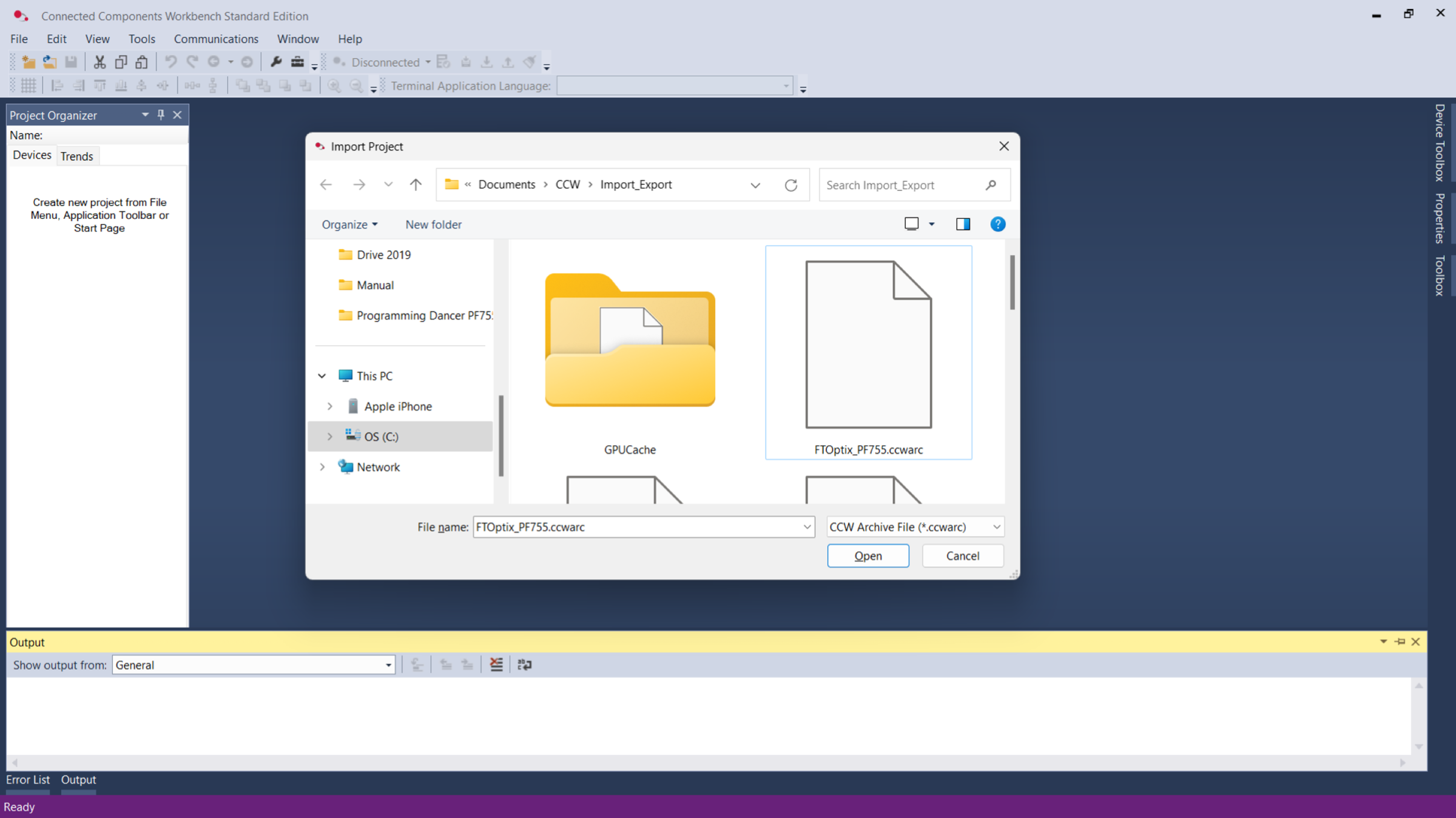
Download the file: FTOptix_PF755.ccwarc, open the CCW application, click File, Import Project, and import the project.
Powerflex 755 Drive Control with FactoryTalk Optix Step1_Image1
Step 2.1
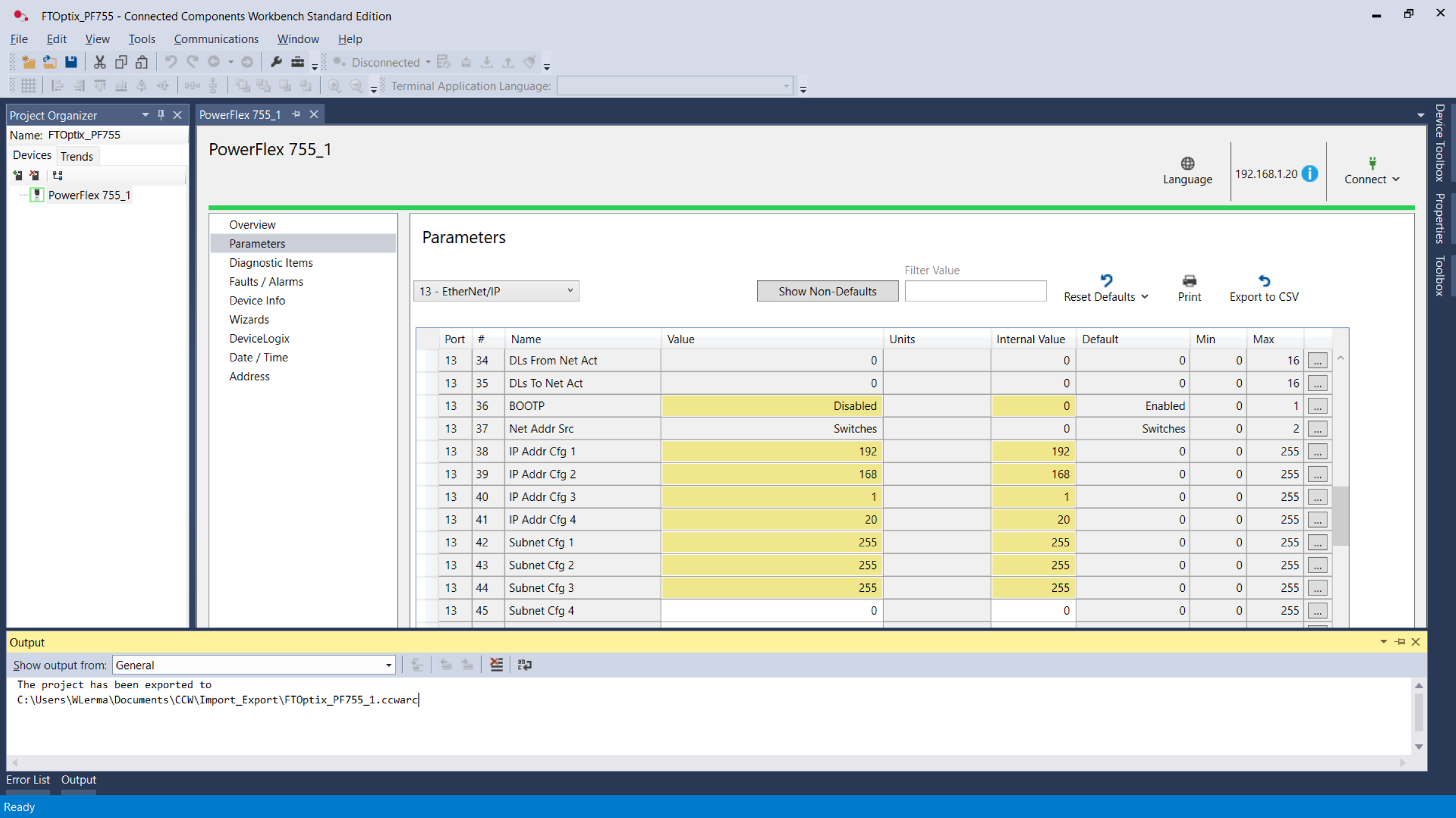
Explore the program, click on PowerFlex755_1, Parameters, Port 13, and verify the Drive’s IP address; for this case, we use 192.168.1.20.
In this application, the Drive can act as a controller by applying the Rockwell product feature called PREMIER INTEGRATION. An EtherNet cable will be used to communicate between the PC and the Drive. The Drive will be controlled by the FactoryTalk® Logix Echo controller. With this software, we can perform designs and development more quickly and efficiently thanks to the FactoryTalk® Logix Echo emulation software for ControlLogix® 5580 controllers.
Save time and money throughout all phases of the project: initial prototyping and design, testing and evaluation, and production and installation.
Powerflex 755 Drive Control with FactoryTalk Optix Step2_Image1
Step 2.2
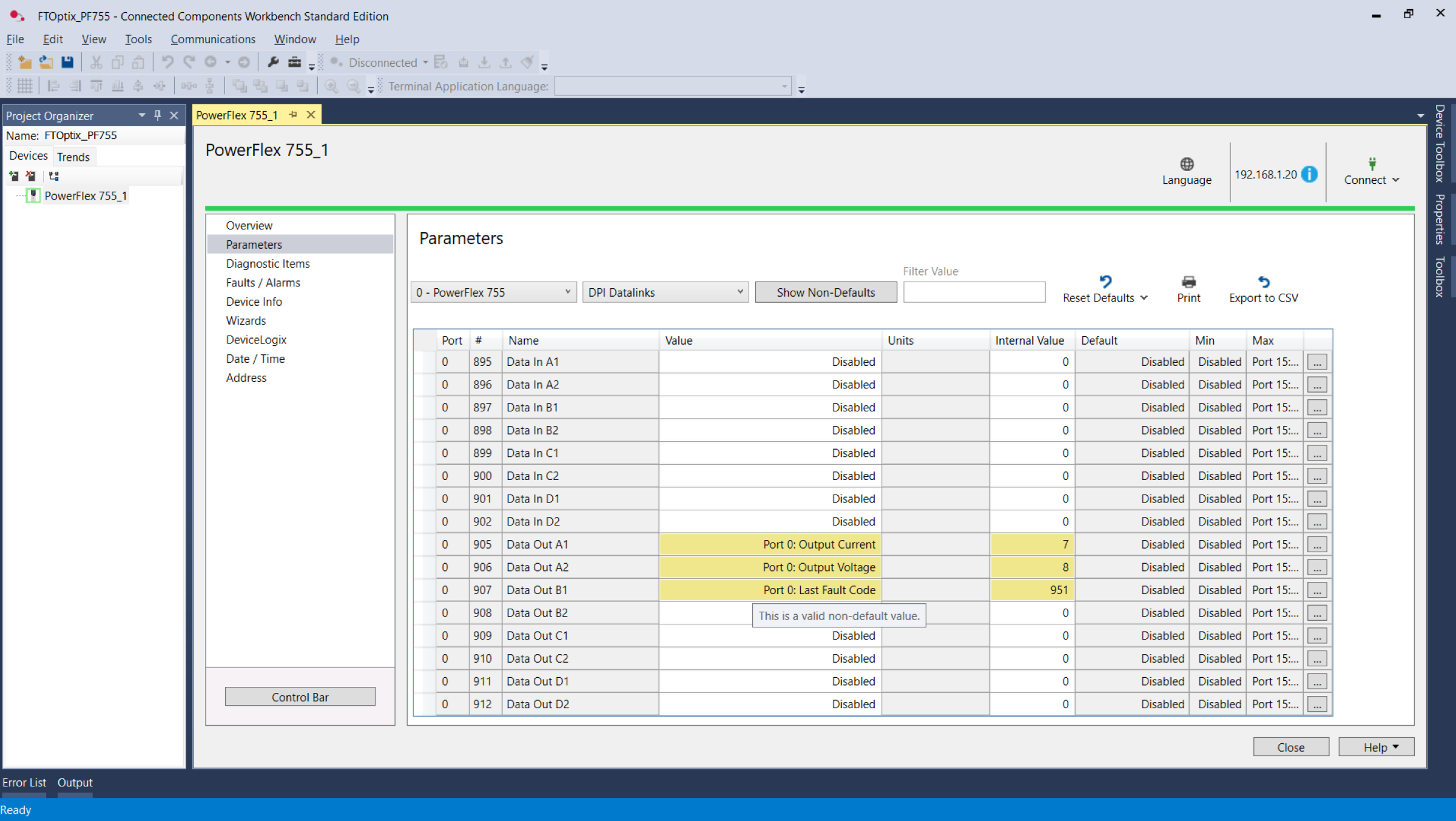
In Port 0, Communication, DPI Datalinks, verify that the following Datalinks are configured, as they will be used in this example. If you do not find the Datalinks, you can configure them.
Powerflex 755 Drive Control with FactoryTalk Optix Step2_Image2
Step 3.1
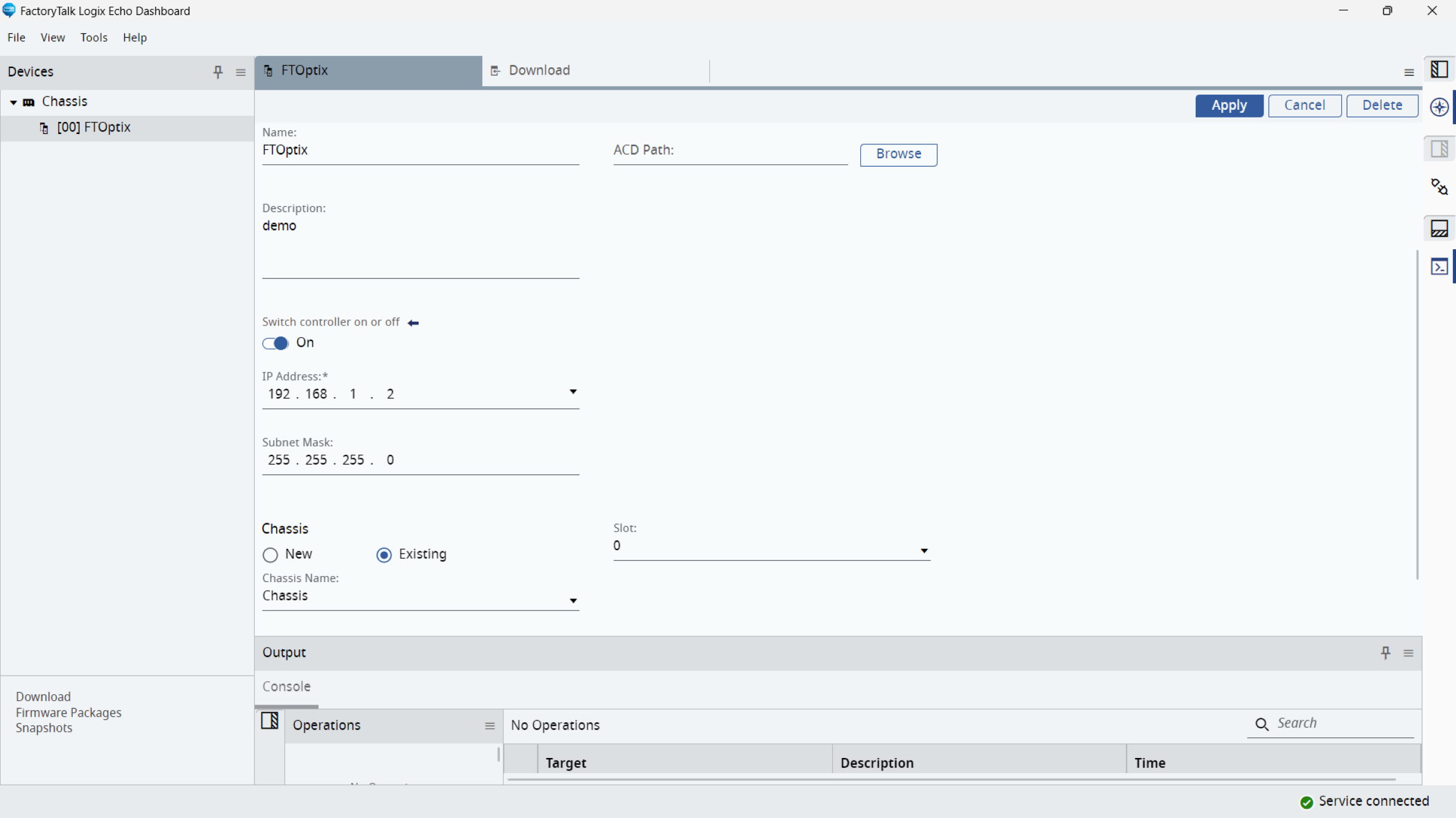
If you have FactoryTalk® Logix Echo installed, configure a chassis and a controller, and assign a name to each one. Configure an IP address taking into account the address assigned to the Drive; the first three octets must be the same.
Powerflex 755 Drive Control with FactoryTalk Optix Step3_Image1
Step 3.2
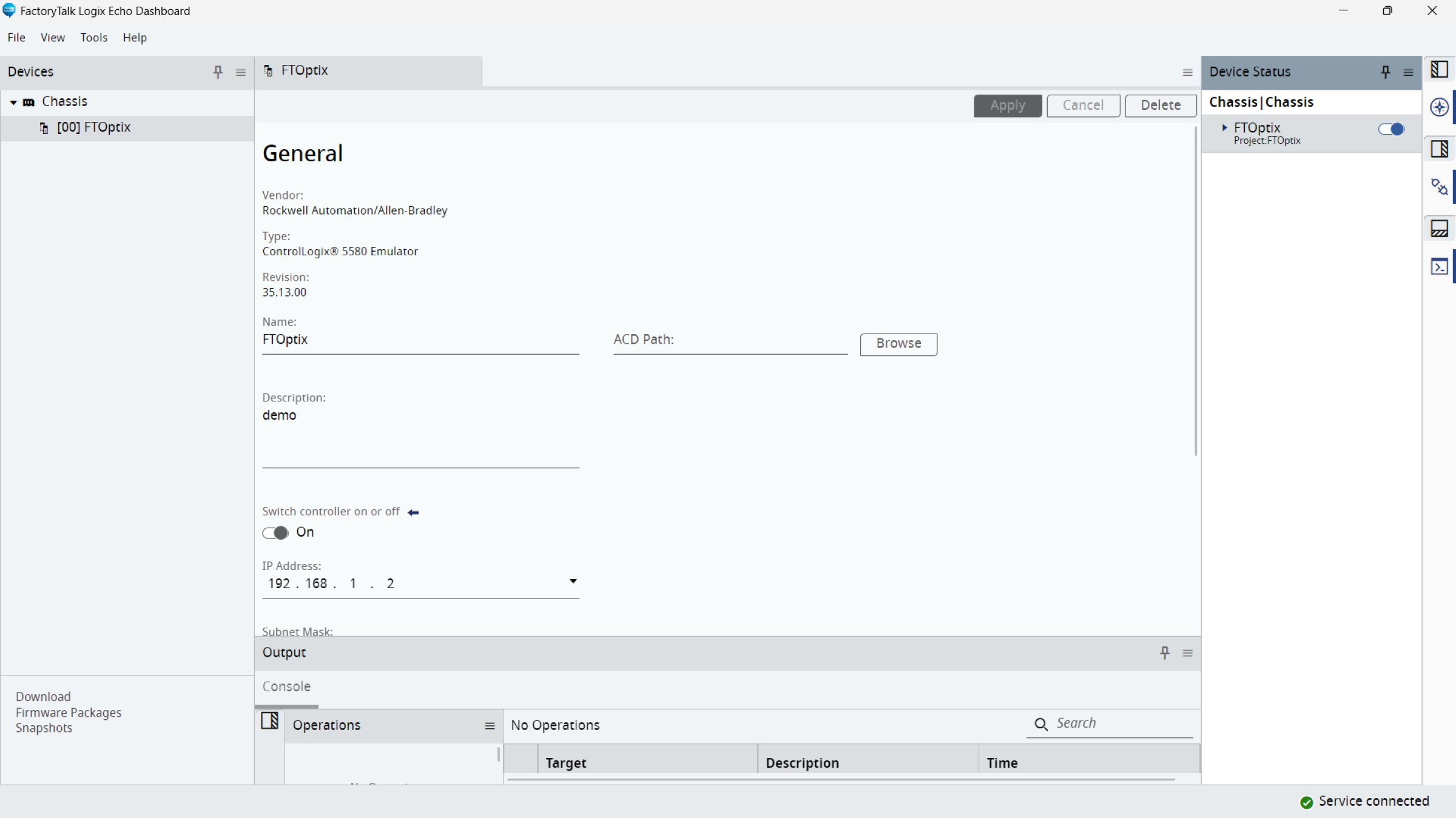
After configuring the chassis and controller using FactoryTalk® Logix Echo, verify the connection status in the upper-right corner (DEVICE STATUS) and place the controller in ON mode so that it can be found in RSLinx as an EtherNet/IP node.
Configure the chassis size according to the project scope; in our case, we use a 17-slot chassis and Studio 5000 version V35.13.00.
We will use RSLinx as the tool to connect the Drive and the FactoryTalk® Logix Echo controller. The EtherNet/IP Driver must be configured beforehand. If you have problems establishing this connection, you can use the technical note. https://rockwellautomation.custhelp.com/app/answers/answer_view/a_id/7480
Powerflex 755 Drive Control with FactoryTalk Optix Step3_Image2
Step 3.3
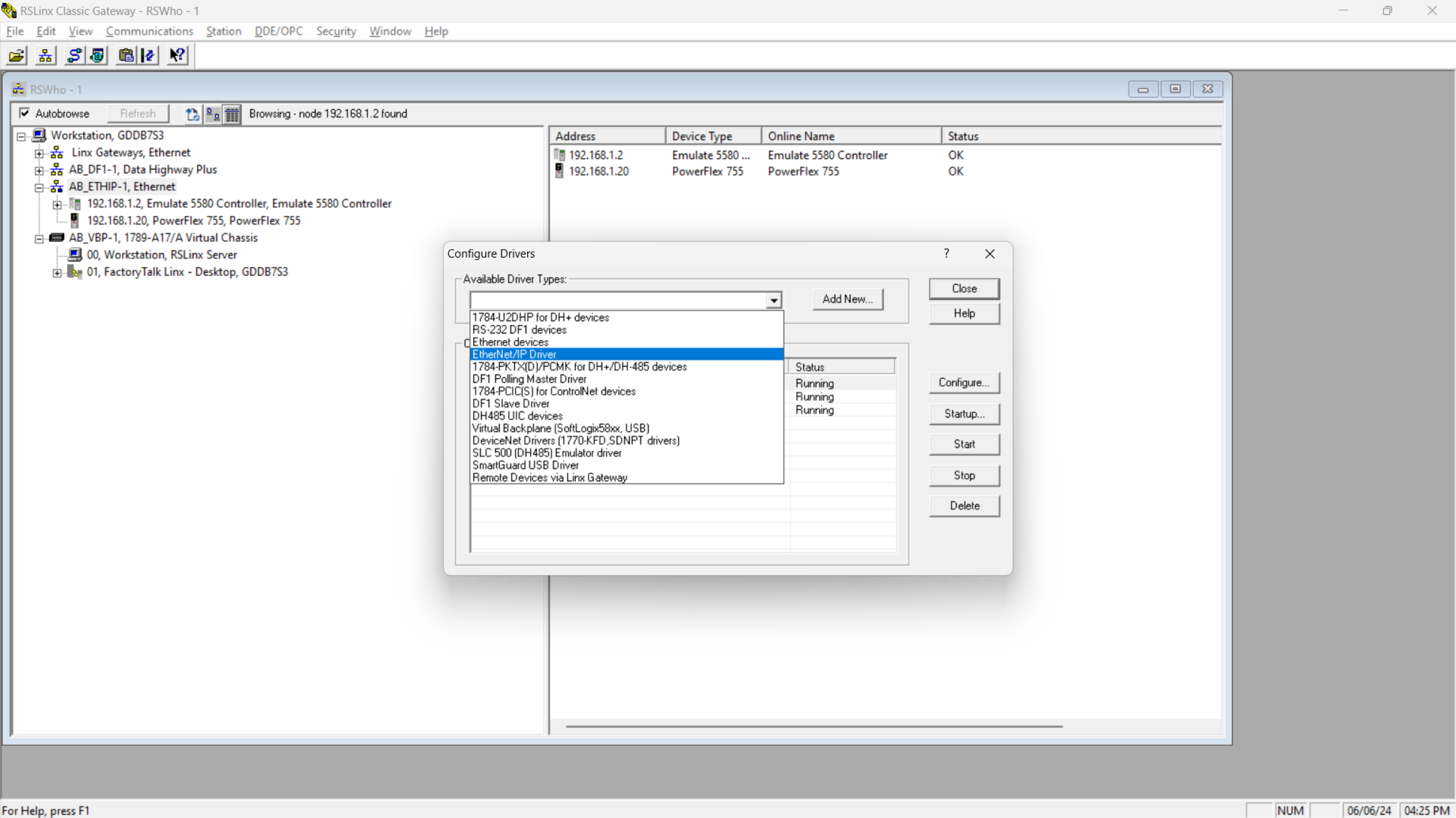
After configuring the Driver in RSLinx, we should see two nodes in RSWho corresponding to the FactoryTalk® Logix Echo controller and the PowerFlex 755 Drive. This means that we can now use the Premier Integration option in Studio 5000.
Powerflex 755 Drive Control with FactoryTalk Optix Step3_Image3
Step 4.1
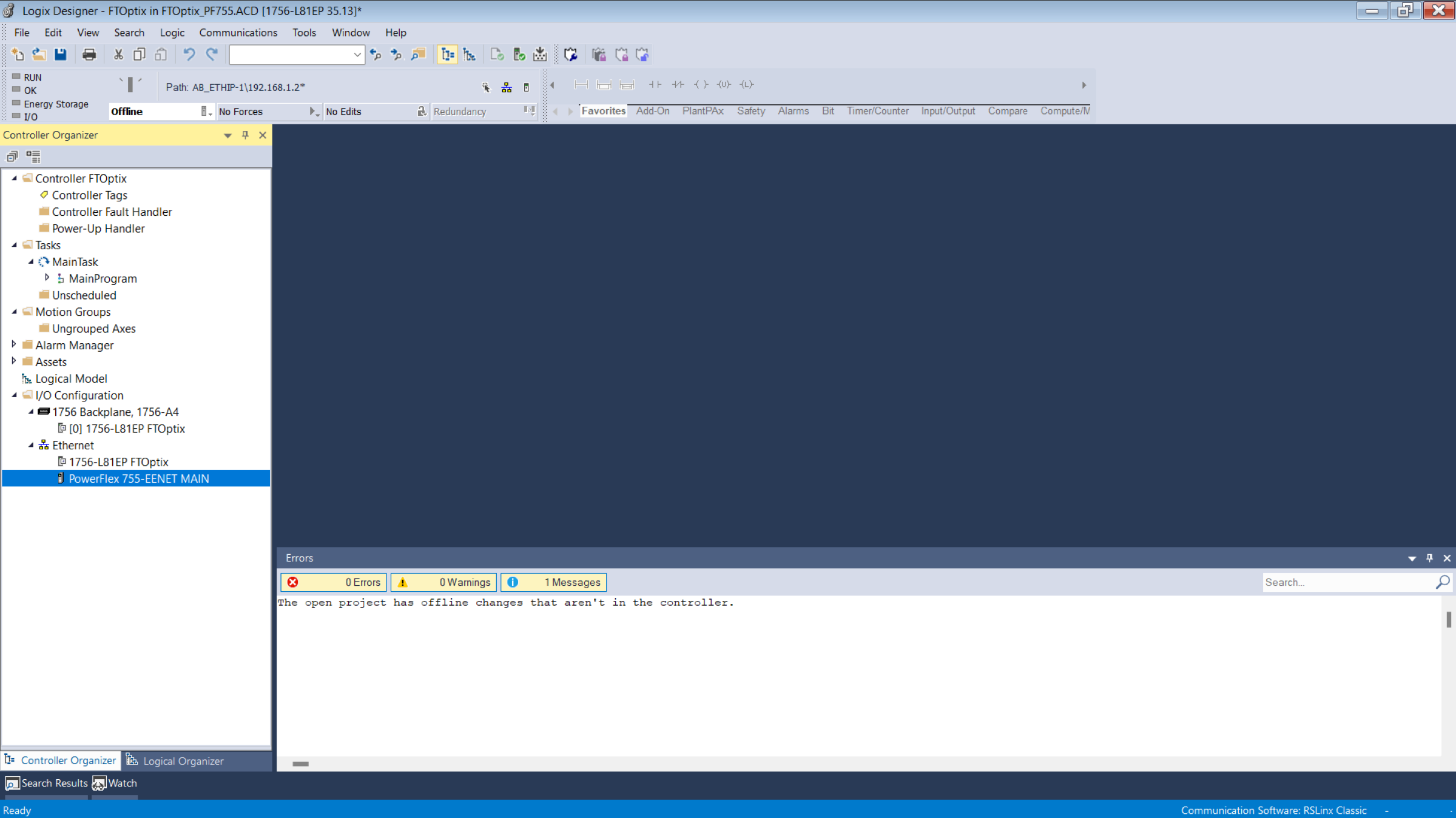
Open Studio 5000, in this case V35, but you can use a version that is supported by the FactoryTalk® Logix Echo version, download and open the FTOptix_PF755.ACD file to be downloaded to the controller.
Powerflex 755 Drive Control with FactoryTalk Optix Step4_Image1
Step 4.2
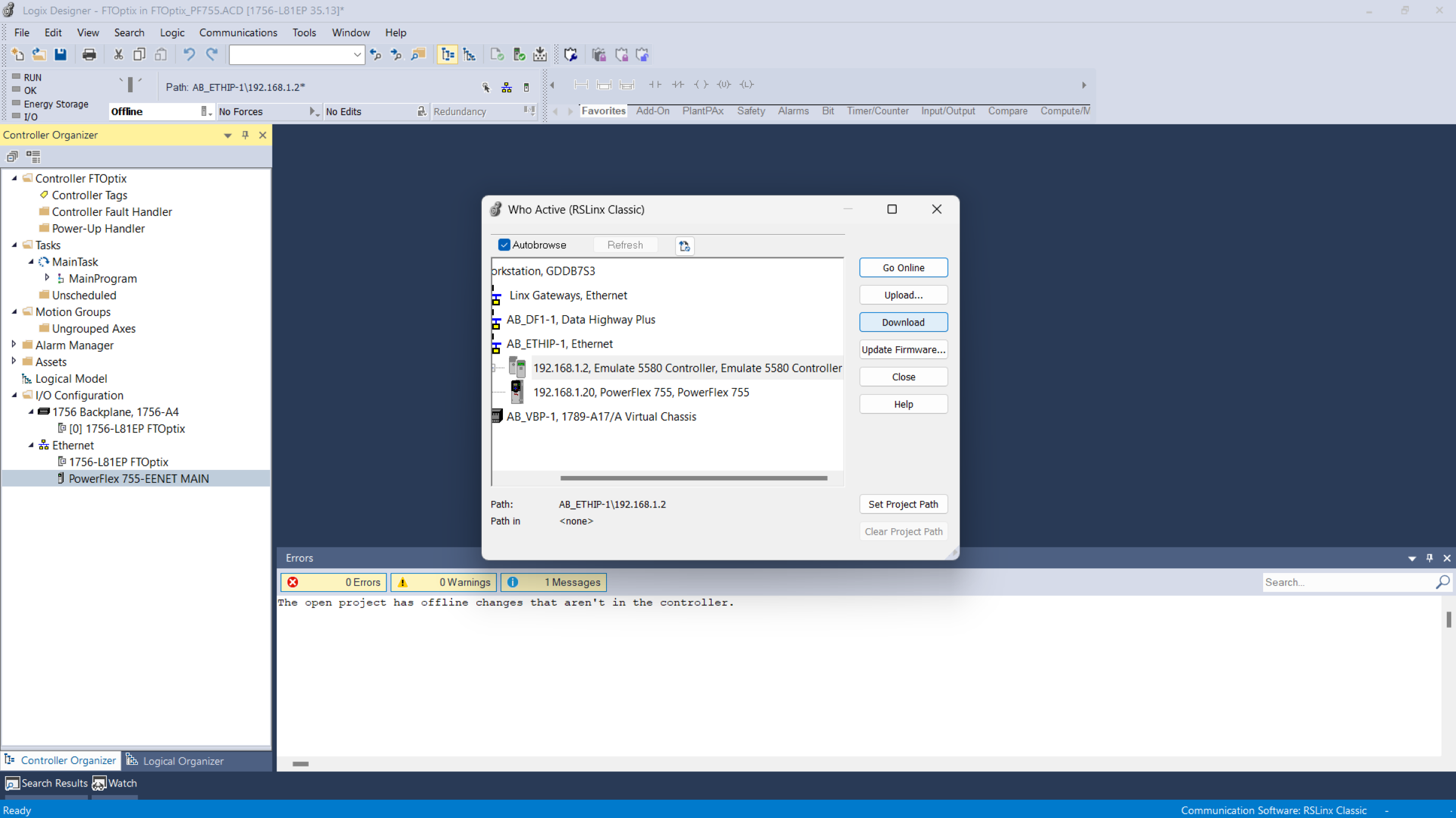
Locate the EtheNet/IP Driver and the Emulate 5580 Controller to select it and choose the DOWNLOAD option.
Powerflex 755 Drive Control with FactoryTalk Optix Step4_Image2
Step 4.3
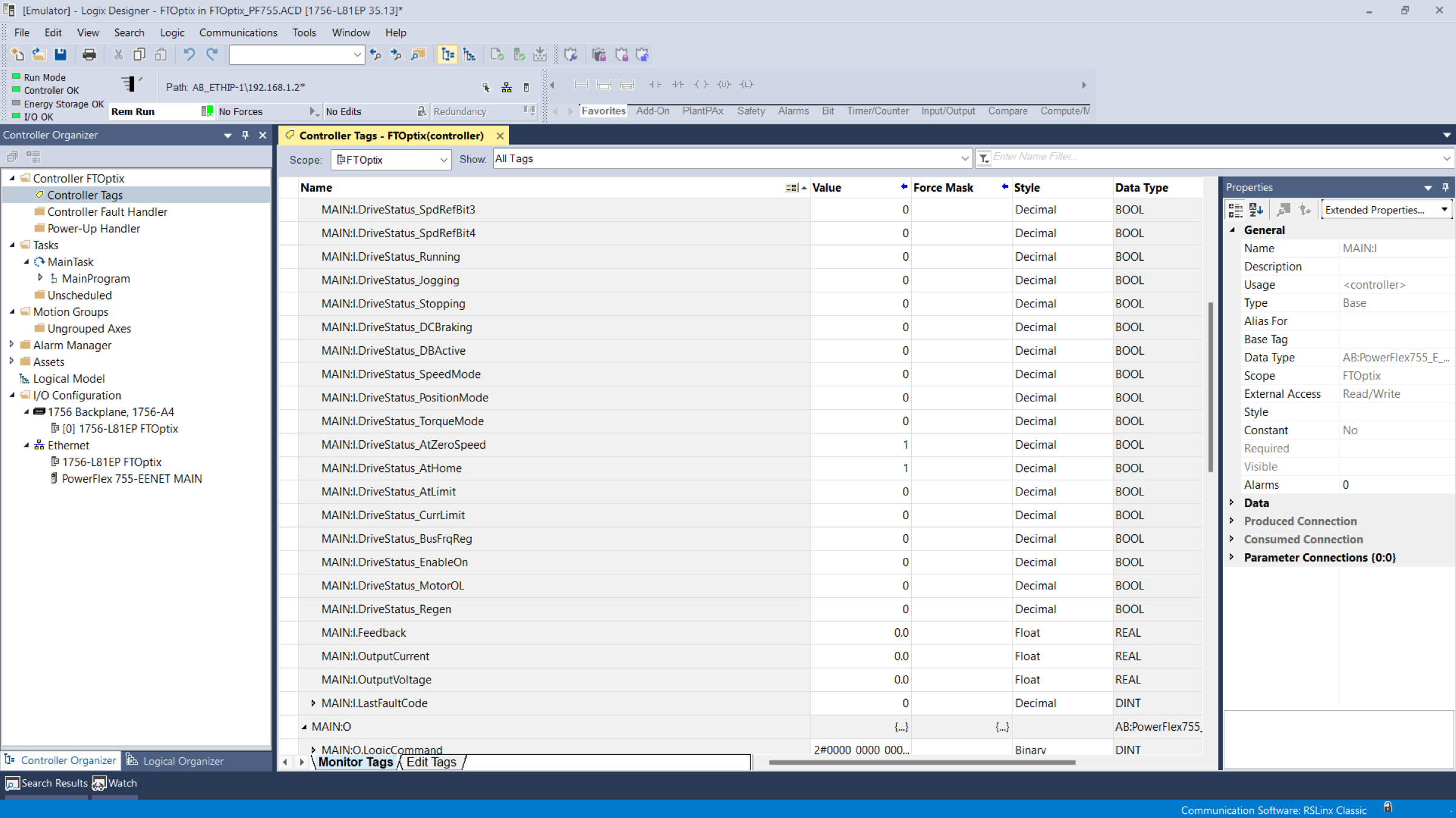
After downloading the file to the controller and going online with it, verify that the Drive is in the I/O Configurator and does not show alarms in the configuration. In the Controller configuration file, there is a preconfiguration of Datalink files that contain information about the current, voltage, and last fault code of the Drive.
Powerflex 755 Drive Control with FactoryTalk Optix Step4_Image3
Step 5.1
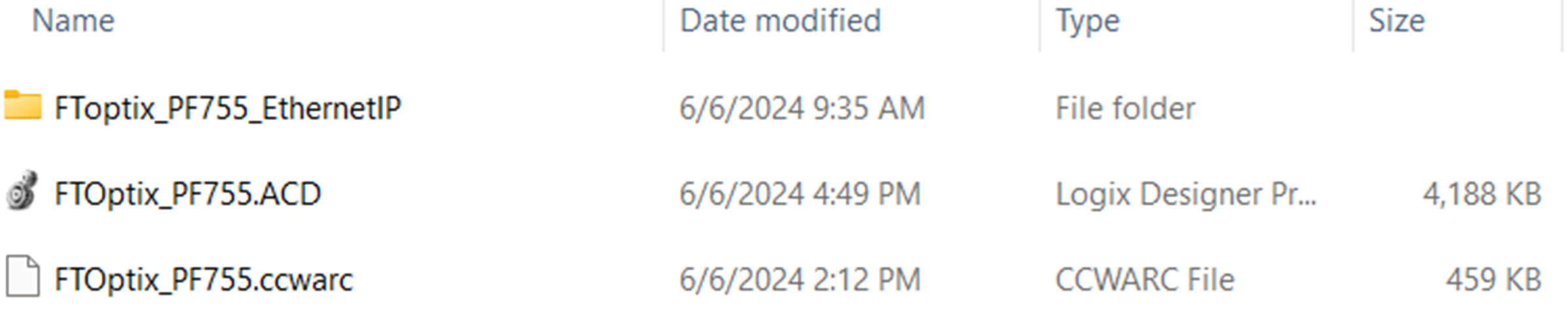
Next, we will work on the process of restoring the FactoryTalk Optix application on our PC and to continue we need to locate the folder called FToptix_PF755_EthernetIP that is inside the APP folder, this folder contains the application that we will use to send and receive information from the Drive through the controller, copy the folder to the computer that you will use to run the application and where we have FactoryTalk® Logix Echo installed.
Powerflex 755 Drive Control with FactoryTalk Optix Step5_Image1
Step 5.2
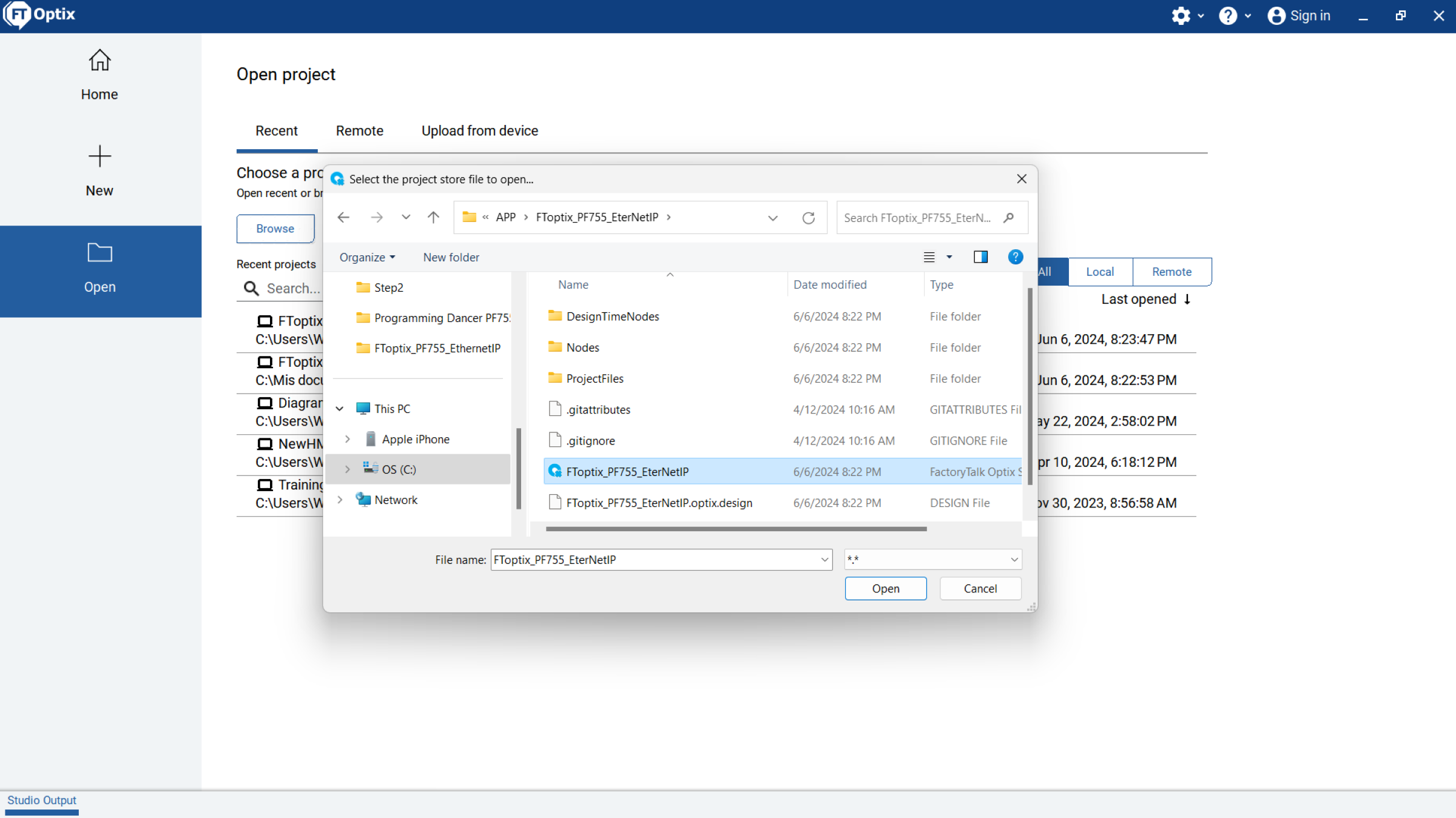
AOpen the FactoryTalk Optix Studio application, click OPEN and then Browse, select the folder that contains the visualization application and select the FToptix_PF755_EtherNet file, after that click OPEN in the lower right part.
Powerflex 755 Drive Control with FactoryTalk Optix Step5_Image2
Step 5.3
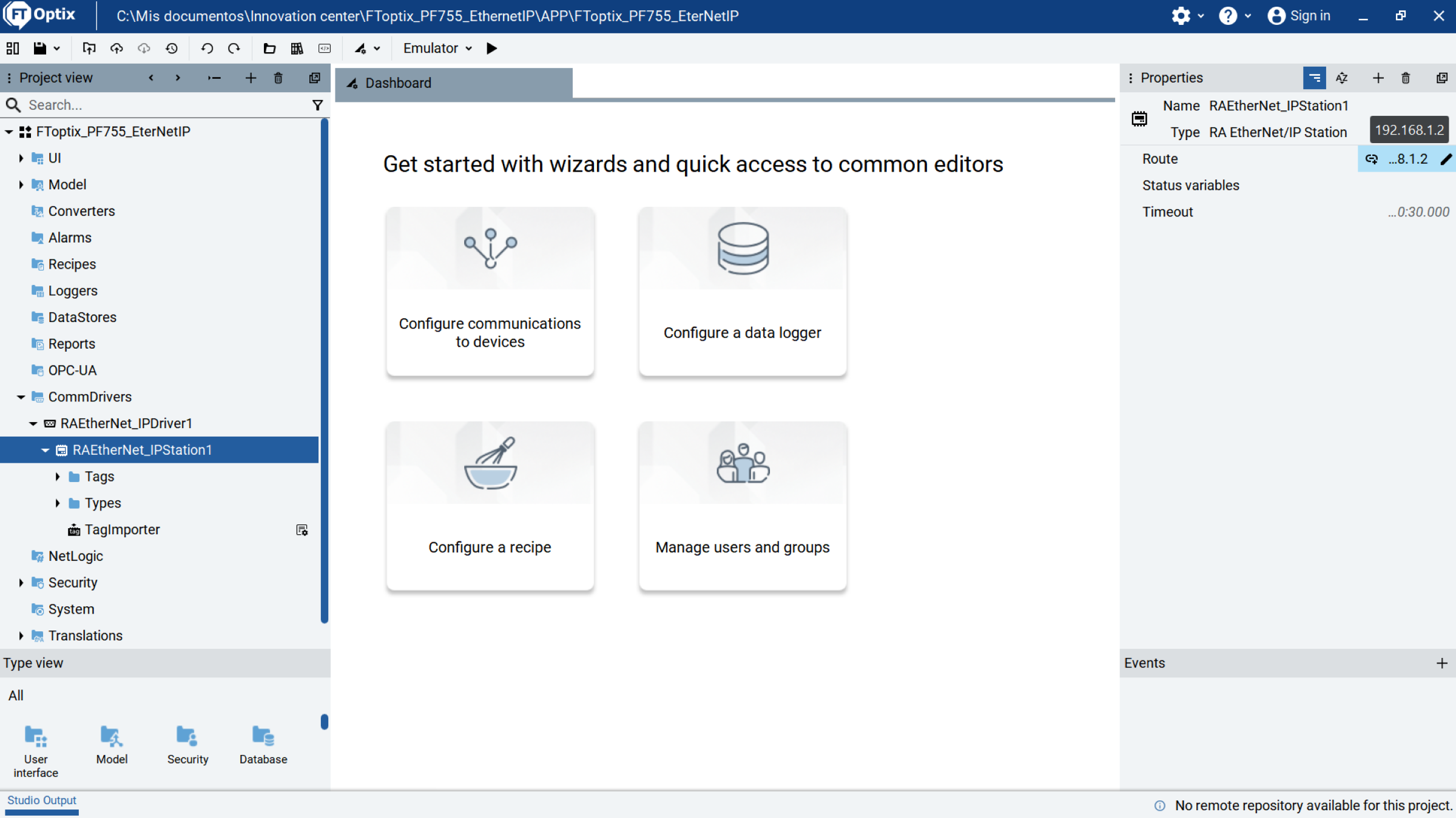
After opening the application using FactoryTalk Optix Studio, you will find a panel on the left with folders that contain the different tools and functions of Optix, locate CommDrives, RAEtheNet_IPDriver1, RAEtheNet_IPStation1, verify the Driver IP address, this IP address can be verified in the upper right part and can be modified.
Powerflex 755 Drive Control with FactoryTalk Optix Step5_Image3
Step 5.4
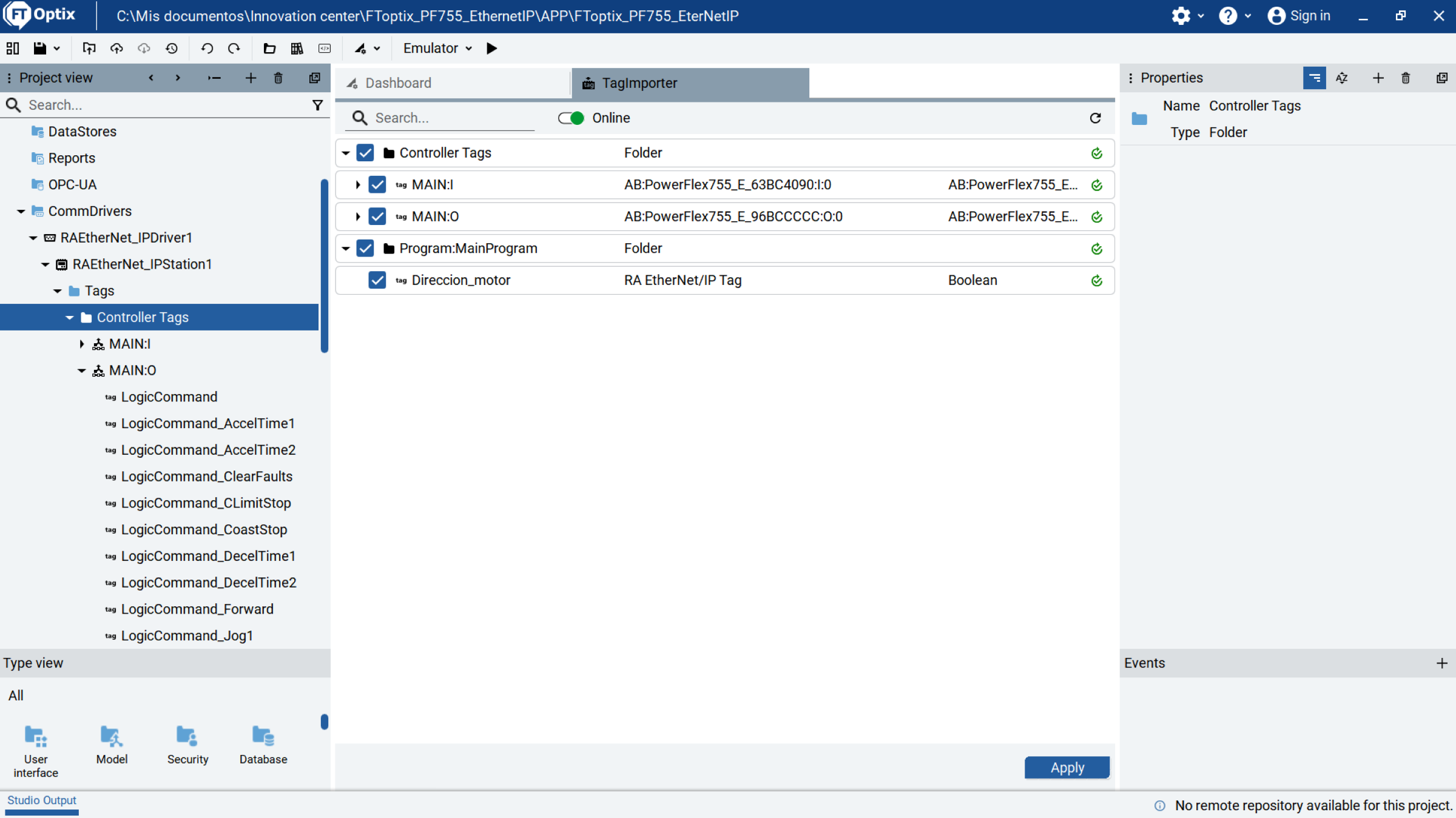
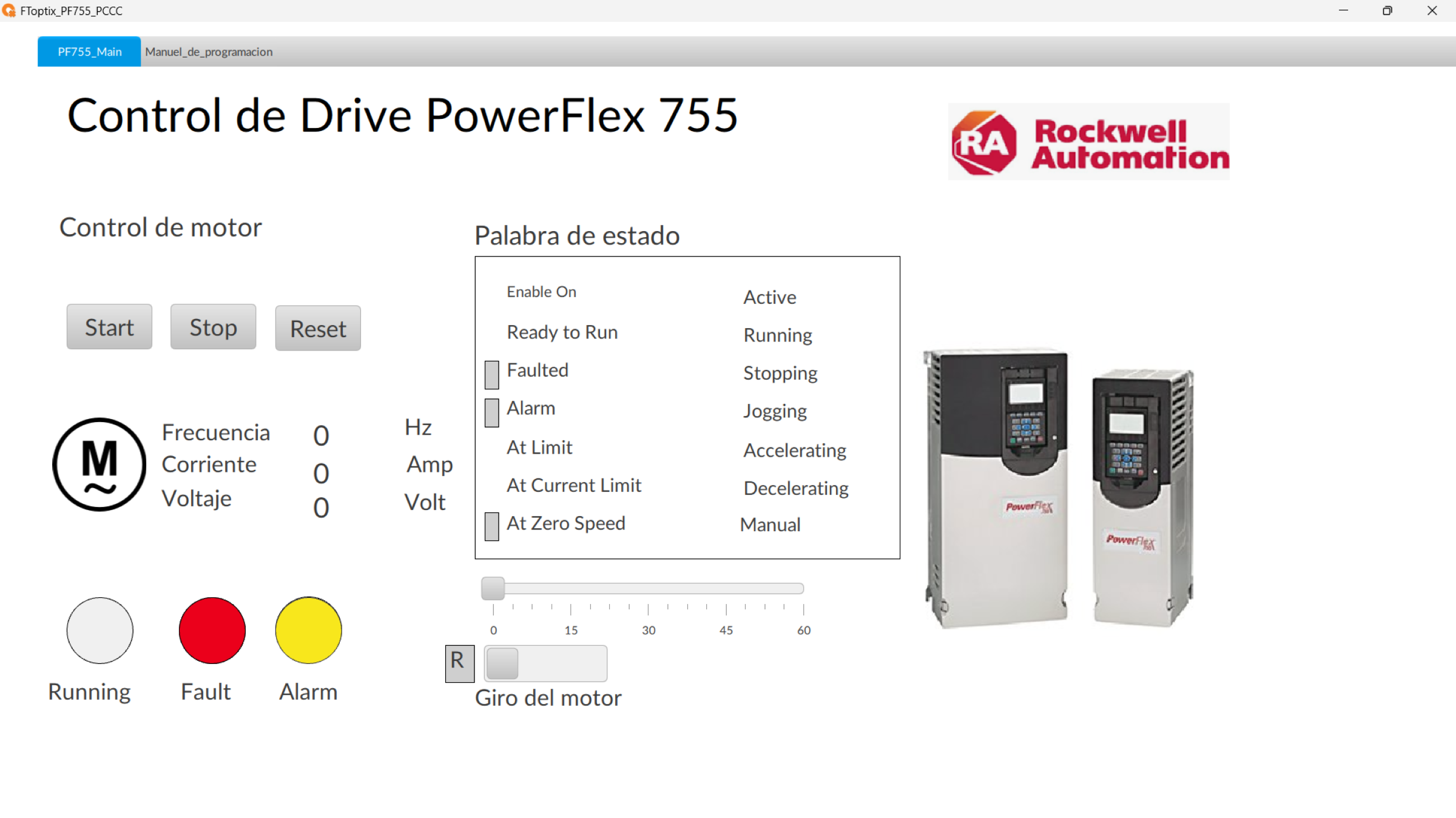
Verify that there is communication between the controller and the communication Driver by double clicking on RAEtheNet_IPStation1, there you can observe the synchronized Tags available to be used in the supervisory system, click the Play button to test the application.
Powerflex 755 Drive Control with FactoryTalk Optix Step5_Image4
Powerflex 755 Drive Control with FactoryTalk Optix Step5_Image5
PowerFlex 755 Drive Control with FactoryTalk Optix
Version 1.0 - August 2026
