
Access Management
Access management provides the ability to grant permissions to different user accounts to
resources in your environment. Resources are the organization, sub-organizations, and apps
that you can use. To use an application in FactoryTalk Hub, you need to be assigned a role
within an organization, sub-organization, or application. If you have a role assigned at
organization or sub-organization level, you are granted access to all applications in that
organization or sub-organization. If you have a role assigned only at a specific application,
it grants permissions to that application. To use an application in FactoryTalk Hub, a
resource role associated with the service is required. Roles control the functions in those
services that are visible when the specified user account signs in to FactoryTalk Hub. The
default access level without a resource-role is usually “no access” but some services do have
limited access without a resource-role.
TIP:
By having a role at the organization
level, users automatically have access to all the services in that organization and all its
sub-organizations and their services.
The access is editable for one user at a time and one user can be granted access to several
resources in the whole organizational hierarchy at once. New users are added through
invitations or request access links. When searching for a user, all users from a complete
organizational hierarchy (parent organization and all its sub-organizations) can be selected
to give additional permissions.
From the FactoryTalk menu, select
Manage User Access
. The Manage
User Access
screen appears. The owner or administrator can see all user and their roles
in the whole parent organization hierarchy, even when they act from the sub-organization
level. On this screen, the owner and administrators can manage the access for users in their
organization or sub-organization. If a user does not appear in the list, you can add them by
selecting the Invite Users
button on the top right of the Manage User
Access page.
TIP:
The FactoryTalk Hub manager menu is only visible after you have created or
joined an organization.
To grant access to a user accounts and manage their roles:
- In the search bar, enter the user name you want to add. If the user is not in the organization, they must be invited first by sending them invitations or responding to request access from the users.
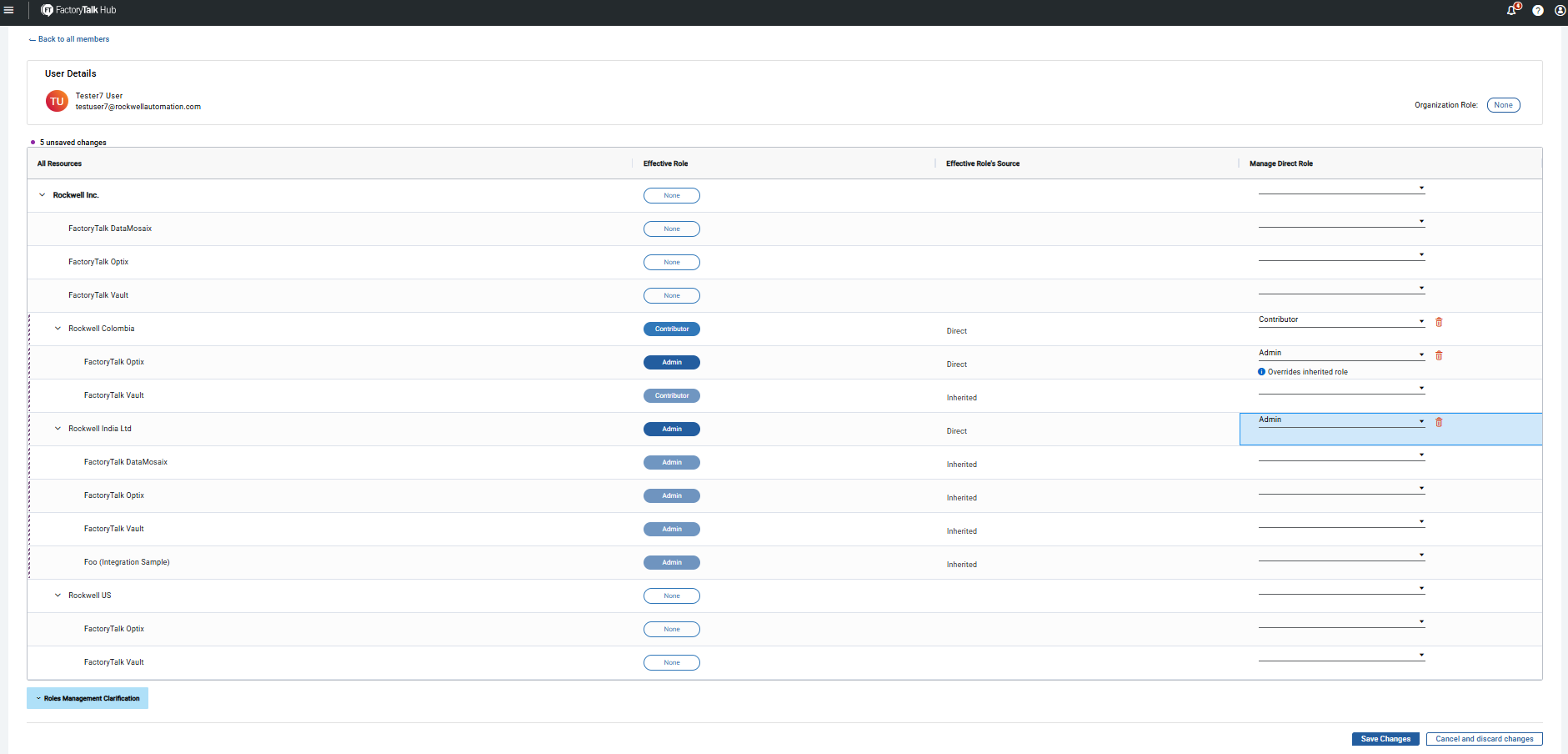
- Select the user you want to grant access to a organization or sub-organization and from theManage Direct Rolecolumn select the role you want to assign to the user.NOTE: The user's roles are inherited down in the hierarchy, which means that if you assign a role to a user in an organization, all the sub-organizations and services inherit the same role. You can assign a different role individually for specific sub-organizations or services. You can see in theEffective Role's Sourcecolumn if the role is assigned directly or inherited. The role with more privileges always overrides the role with less privileges.
- SelectSave Changes.
Manage User Access Screen
An administrator of a service who is not administrator of a specific organization or
sub-organization can still change the roles of a user in this organization but only for the
service. By toggling the
Show resources outside my admin access
, the
administrator can see all of the roles of a user in all organizations or sub-organizations but
they cannot edit them.To remove access from a user account:
Only administrators of a resource can remove access to it.
TIP:
Administrators of a resource cannot remove access to it if access is inherited
from a resource higher in the hierarchy which this administrator cannot manage.
- On theManage User Accessscreen, use the search bar or navigate through the users and select the user you want to manage access for.
- From the user resources list, find the resource you want to remove access to and select the delete icon.
To invite users to an organization:
- On theManage User Accessscreen, select theInvite Usersbutton. TheSend invitesscreen appears.
- Select the resource that you are inviting the new user to have access to from theResourcedrop-down list.
- Select theRolethat the new user will have.
- Enter the email address or addresses of the people that you want to invite to your organization. You can add multiple emails if they will have the same resource and role privileges.
For more information, see Send Invites.
Provide Feedback