Currently, automation projects and applications, whether for process industries or machine builders, are becoming increasingly connected to cloud computing, enabling these applications to send data for analysis and decision-making.
This getting-started guide describes the integration between FactoryTalk® Optix™ and Azure IoT Operations, tested on a fluid processing demonstration machine jointly developed by Rockwell Automation and Microsoft. This application concept can also be implemented by OEM machine builders.
The guide covers the architecture, installation, and configuration steps required for the integration. The architecture section includes a diagram illustrating the adaptive cloud approach, data plane, and management plane. The installation section provides detailed steps for setting up FactoryTalk Optix and Azure IoT Operations, including a shell script to automate the process. The configuration section explains how to configure FactoryTalk Optix and Azure IoT Operations, including creating applications, configuring OPC UA servers, and generating certificates.
General Characteristics
FactoryTalk Optix Studio is an integrated development environment (IDE) with a functional module framework for designing and building HMI (Human-Machine Interface) and Internet of Things (IoT) applications. FactoryTalk Optix Studio includes a library of predefined objects that support the modular design of graphical interfaces, features, and logical operations within an HMI application. Using C# language scripts, you can automate various actions during the design phase and add custom functionality to projects.
FactoryTalk Optix Studio is available as both a desktop- and web-based development environment used to build FactoryTalk Optix Applications and deploy them to client systems. The web-based FactoryTalk Optix Studio editor is accessed through FactoryTalk Hub.
You develop and build FactoryTalk Optix Applications in FactoryTalk Optix Studio. The compiled applications can be deployed to Windows® or Linux client systems, or to Rockwell Automation closed devices such as the OptixPanel or the Embedded Edge Compute Module.
Downloads
Please note: You will need to agree to the Terms & Conditions for each download.
If you need help with an application or have feedback from the Innovation Center, please contact us.
Architecture
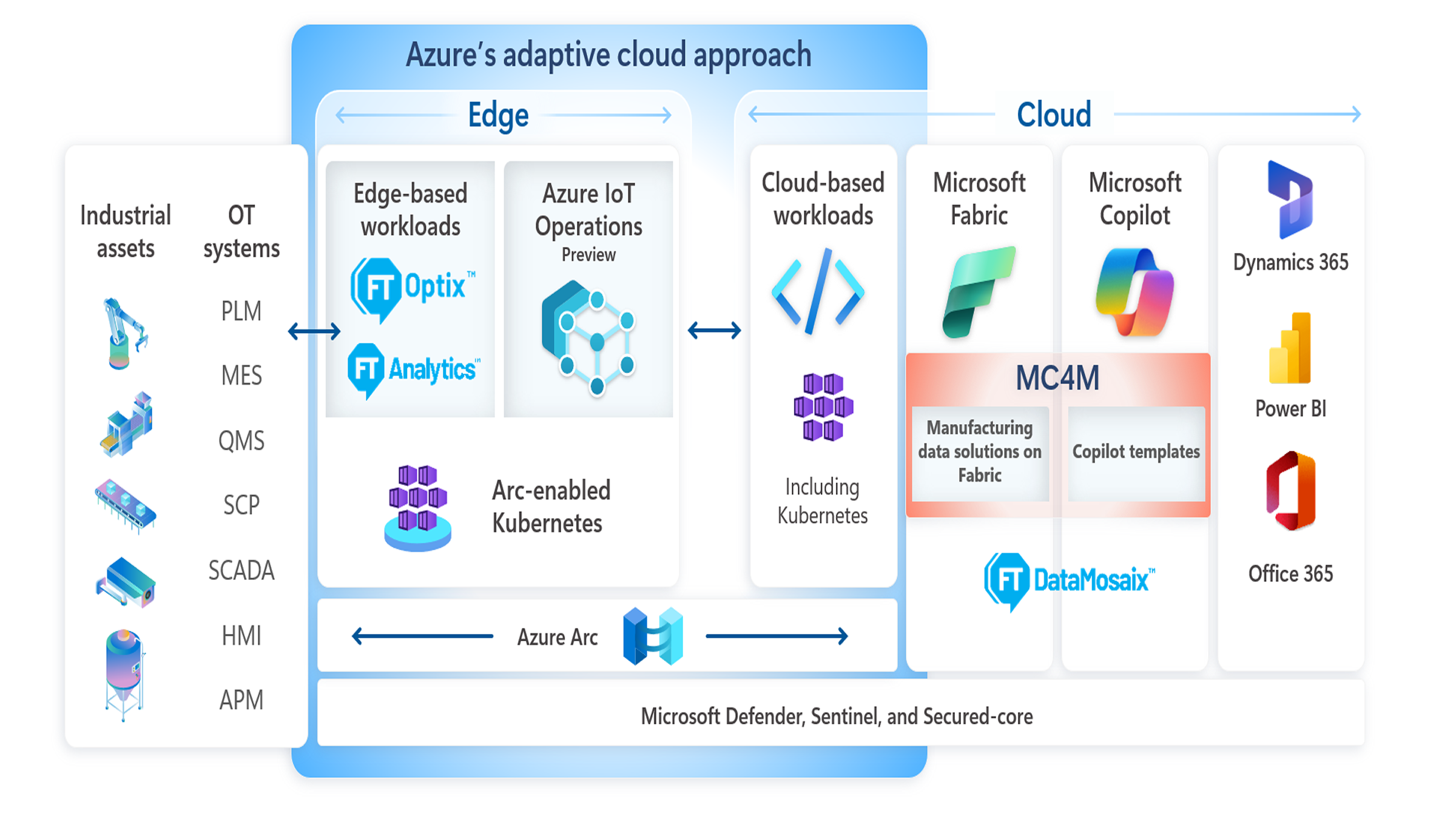
The adaptive cloud approach being adopted by Rockwell Automation and Microsoft is shown in the diagram below.
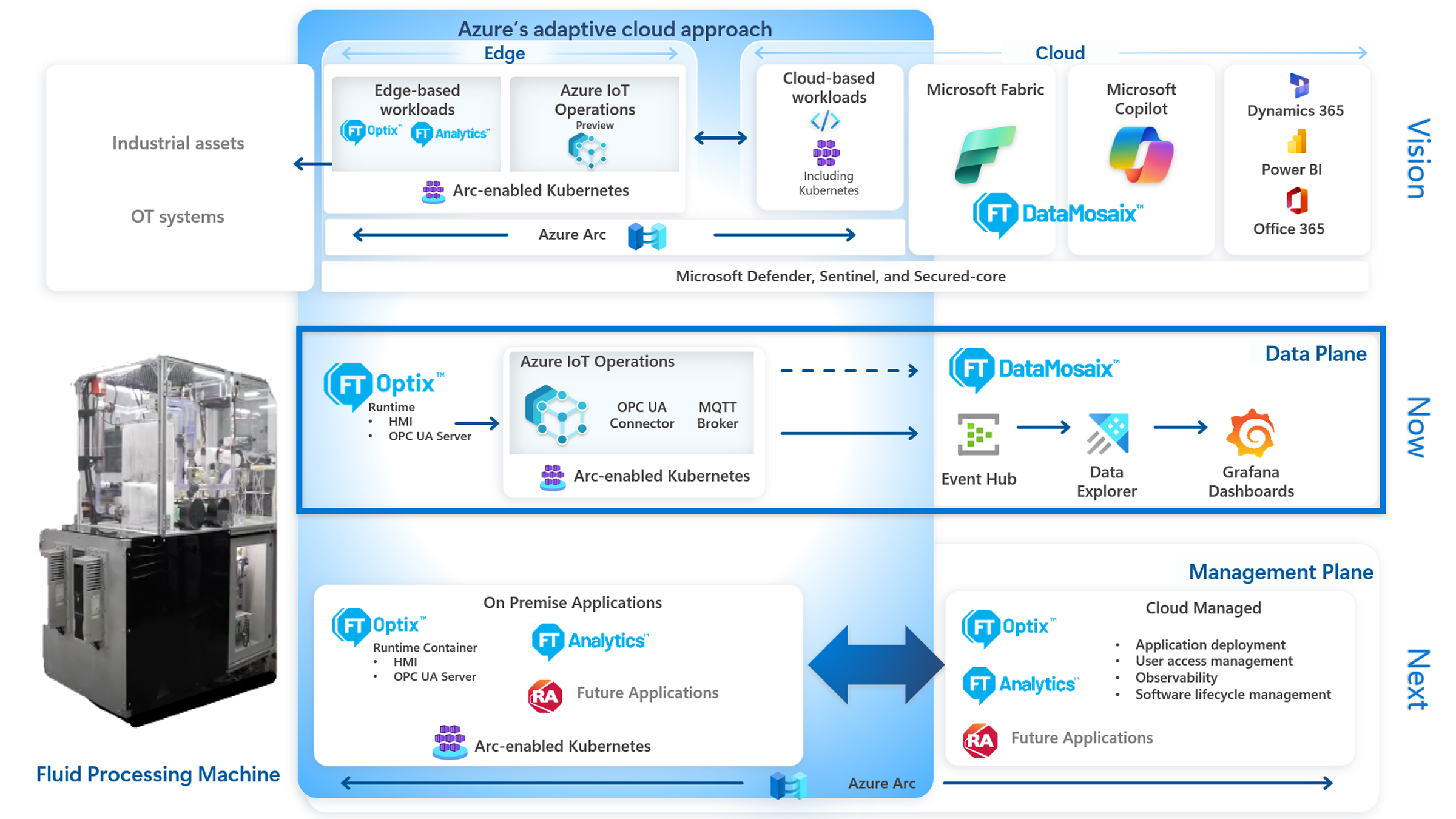
The diagram below illustrates how the integration between FactoryTalk Optix and Azure IoT Operations can be achieved based on the fluid processing demonstration machine jointly developed by Rockwell Automation and Microsoft. This integration can be applied to any other scenario that requires infrastructure for data transfer and edge management.
The diagram is divided into three sections: the top section shows the vision for the adaptive cloud approach, the second section shows what has been achieved in the data plane through a functional proof of concept, and the third section shows what can be achieved with the management plane.
Advantages - Direct connection to the cloud – Microsoft Azure
Limitations and Disadvantages - FT‑Optix-only application.
Is this application relevant to me?
A ready-to-use application for integration with FT Optix and Azure. It is open source and can be easily implemented or used as a foundation for your project.
For controller connectivity, FT Optix supports integration with Logix controllers (Rockwell Automation) as well as third-party controllers.
The hardware requirements for FactoryTalk Optix applications may vary depending on the application and the type of device running the application.
Software Requirements for FactoryTalk Optix Applications - Windows 10 (x64), Windows 11 (x64), Windows Server 2016, Windows Server 2019, Windows Server 2022, or Ubuntu 22 (x64)
Software
FactoryTalk Optix
Download and install FactoryTalk Optix Studio and Runtime.
Download our sample application from Download >> General_Files.zip
Optix_Sample_AzureIoTOperations-main
The sample FactoryTalk Optix application in this repository contains the key components required to publish data from a control system to Azure IoT Operations.
The sample application includes:
A sample PLC program for Allen Bradley L8 ControlLogix
EtherNet/IP communication driver
Application certificate
OPC UA Server
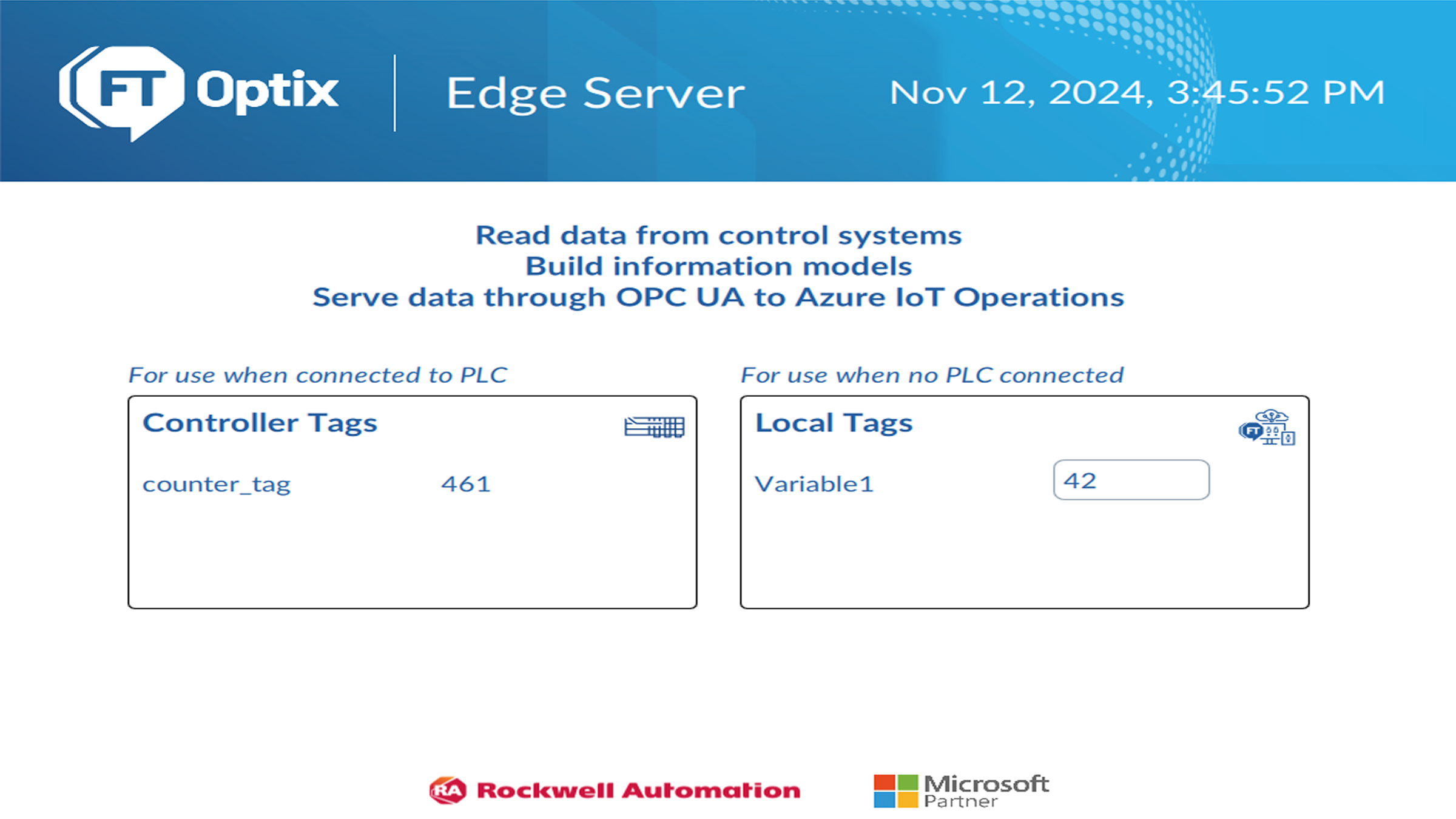
Graphical User Interface (GUI)
PLC data reading
Manual tag writing (for use when no PLC is connected)
NOTE: The application certificate used by the application must be regenerated to match your computer name.
Alternatively, follow the steps below to manually create a FactoryTalk Optix application containing OPC UA data and expose it as an OPC UA Server for use with Azure IoT Operations.
Use FactoryTalk Optix Studio to create a FactoryTalk Optix application.
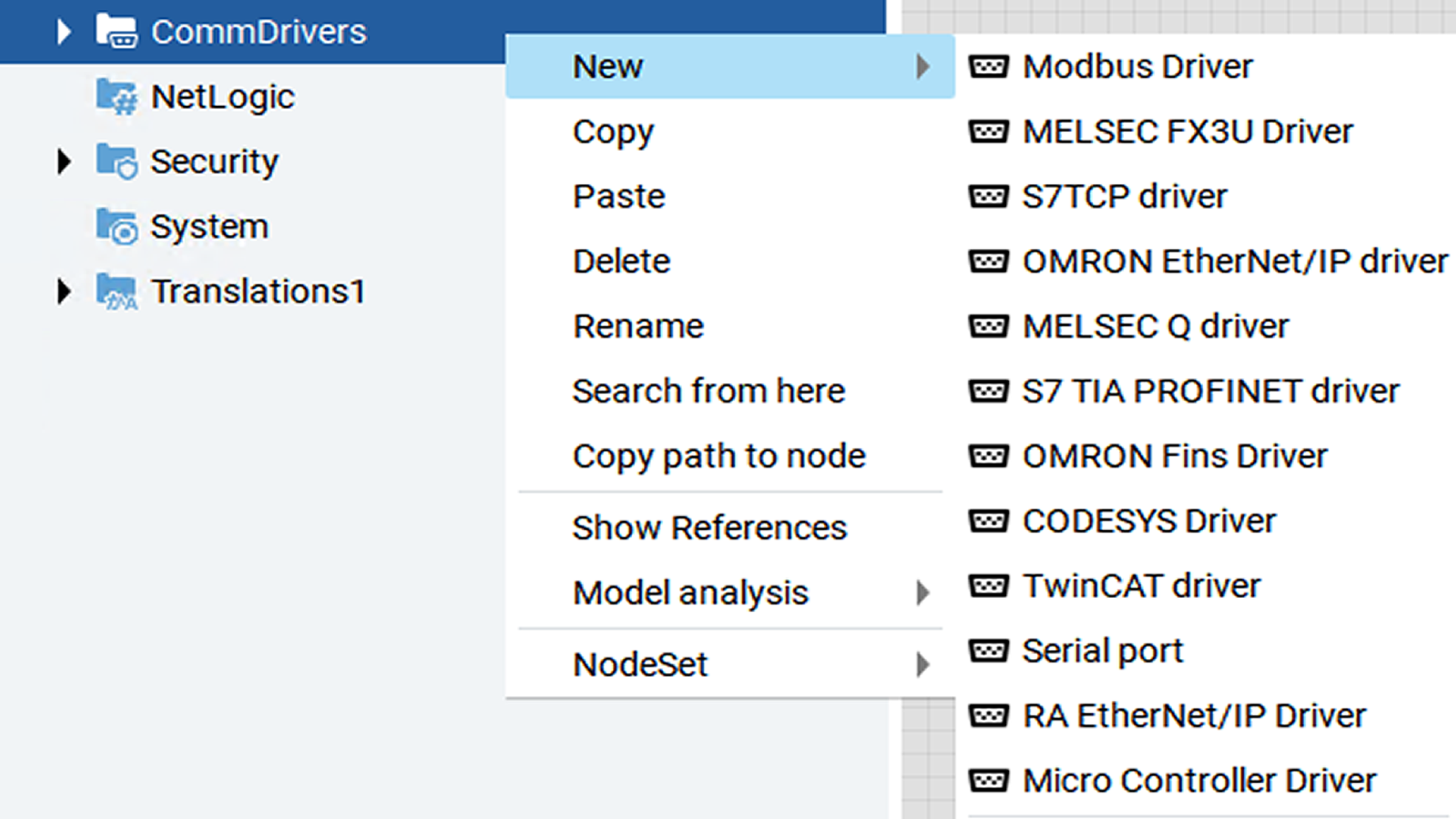
Add the communication driver(s) required to read data from the control system.
Use the RAEtherNet/IP driver to connect to a Rockwell Automation controller.
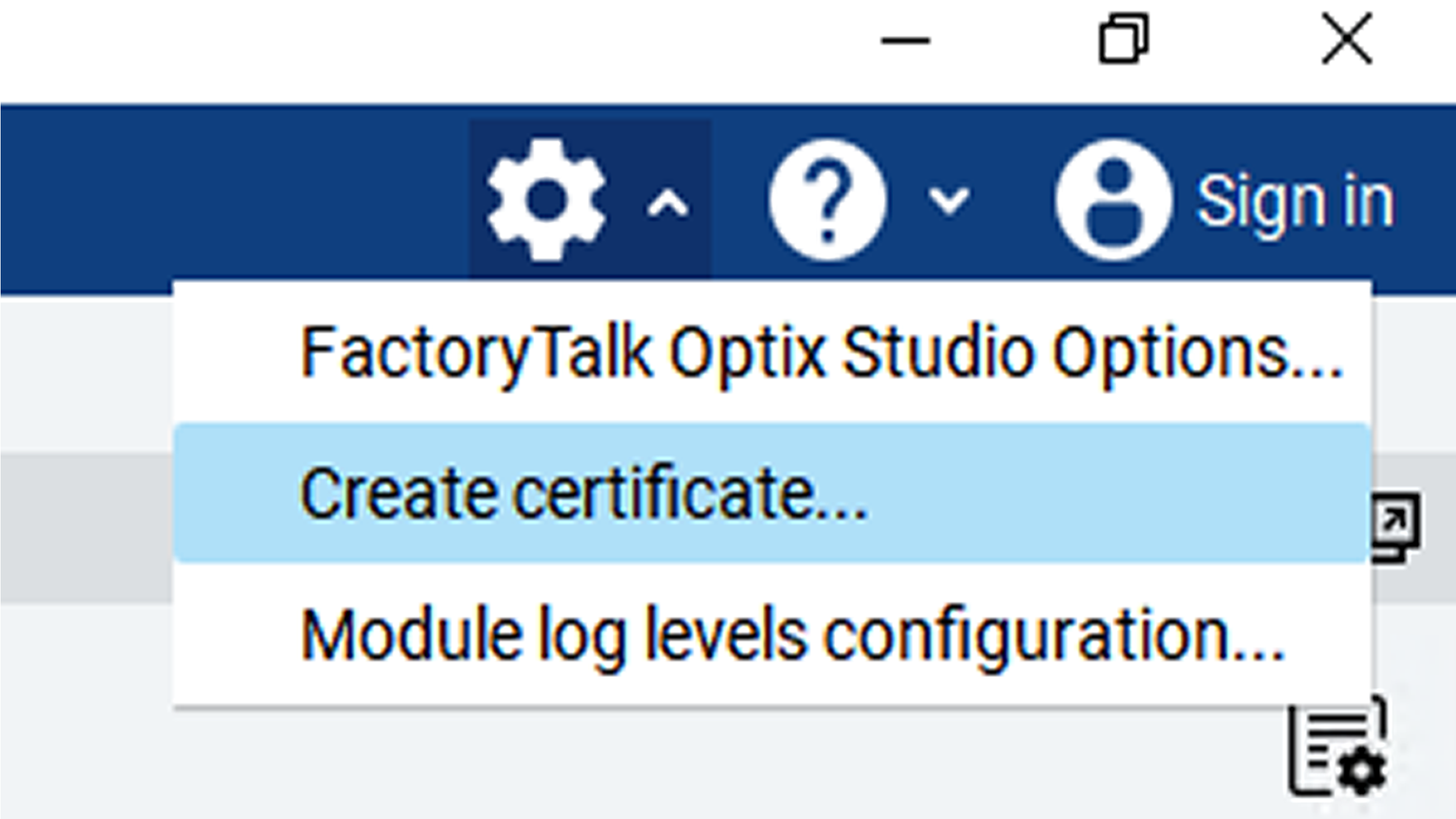
Use the Settings → Create Certificate menu to create an application certificate for the FactoryTalk Optix Server. This certificate will be used to authenticate the FactoryTalk Optix OPC UA Server with Azure IoT Operations.
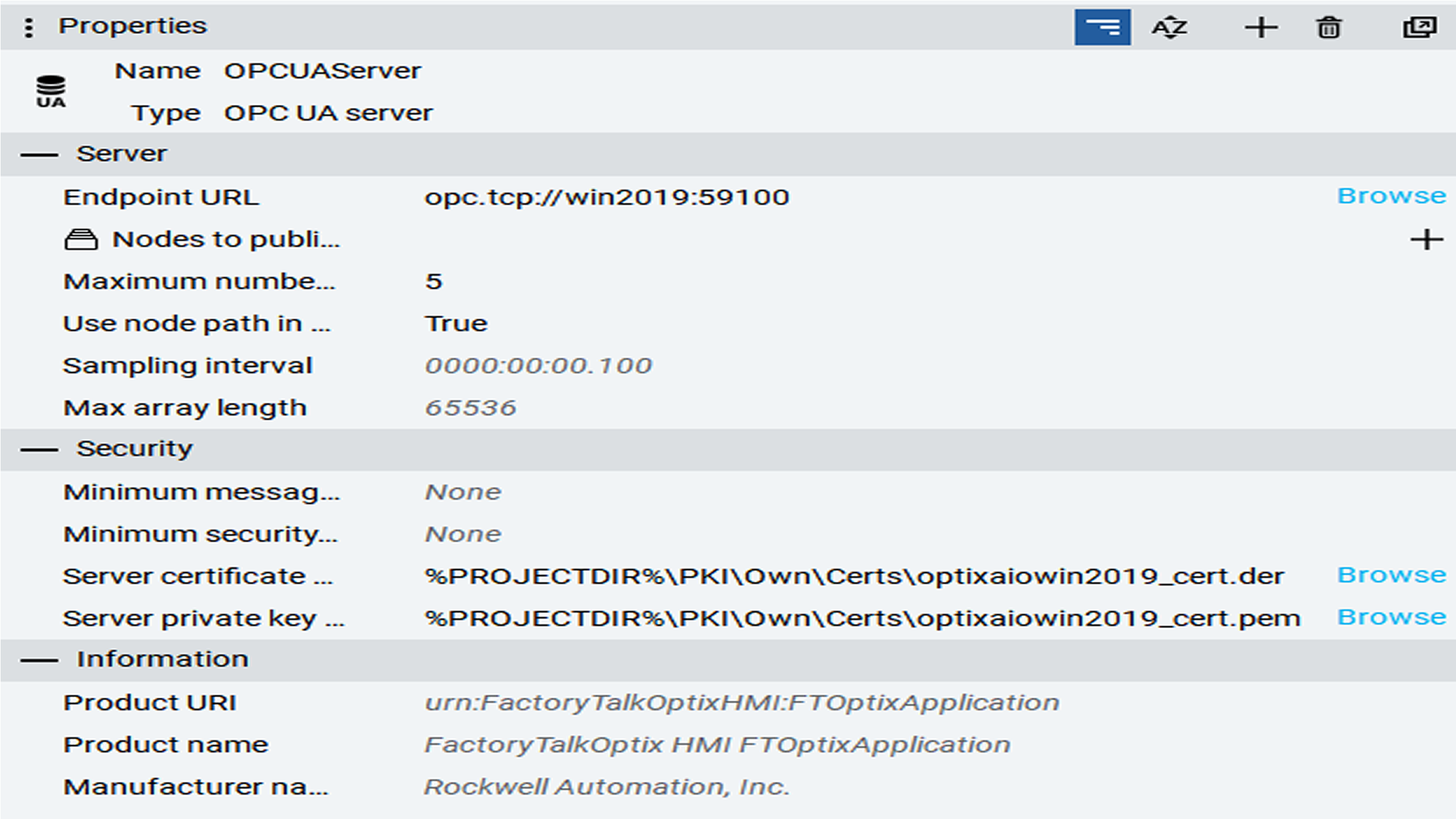
Set the Server certificate file and Server private key file properties to use the FactoryTalk Optix certificate.
Use the Nodes to publish property to create a configuration that publishes a subset of nodes, or leave it blank to publish all nodes.
Set the Endpoint URL property to use the computer name or IP address so that it is accessible from the AIO box.
Set the Use node path in NodeIds property to True to use fully qualified tag names when configuring tags in AIO. Setting this property to True ensures that OPC UA tag names use the friendly format ns=<namespace>;s=Path.To.Node rather than requiring the node ID GUID to be specified.
opcua_server.PNG
Import the AIO certificates into the project's trusted store using the instructions provided in the FactoryTalk Optix Studio Help.
Import the FactoryTalk Optix certificate into the trusted store using the instructions provided in Configure OPC UA Certificates - Azure IoT Operations Preview | Microsoft Learn.
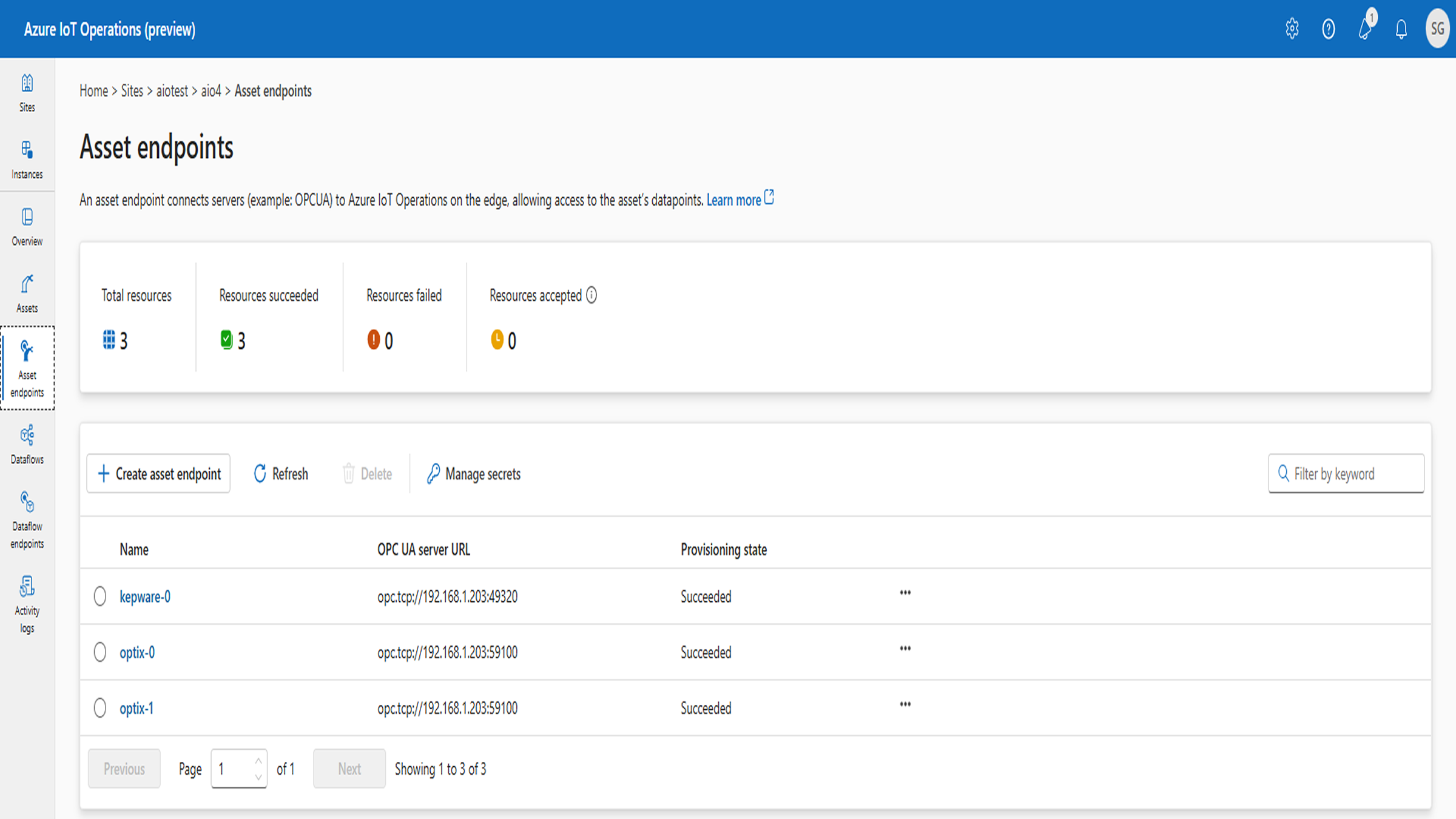
On the Asset Endpoints page, create an asset endpoint profile that points to the FactoryTalk Optix OPC UA Server.
aio_asset_endpoints.PNG
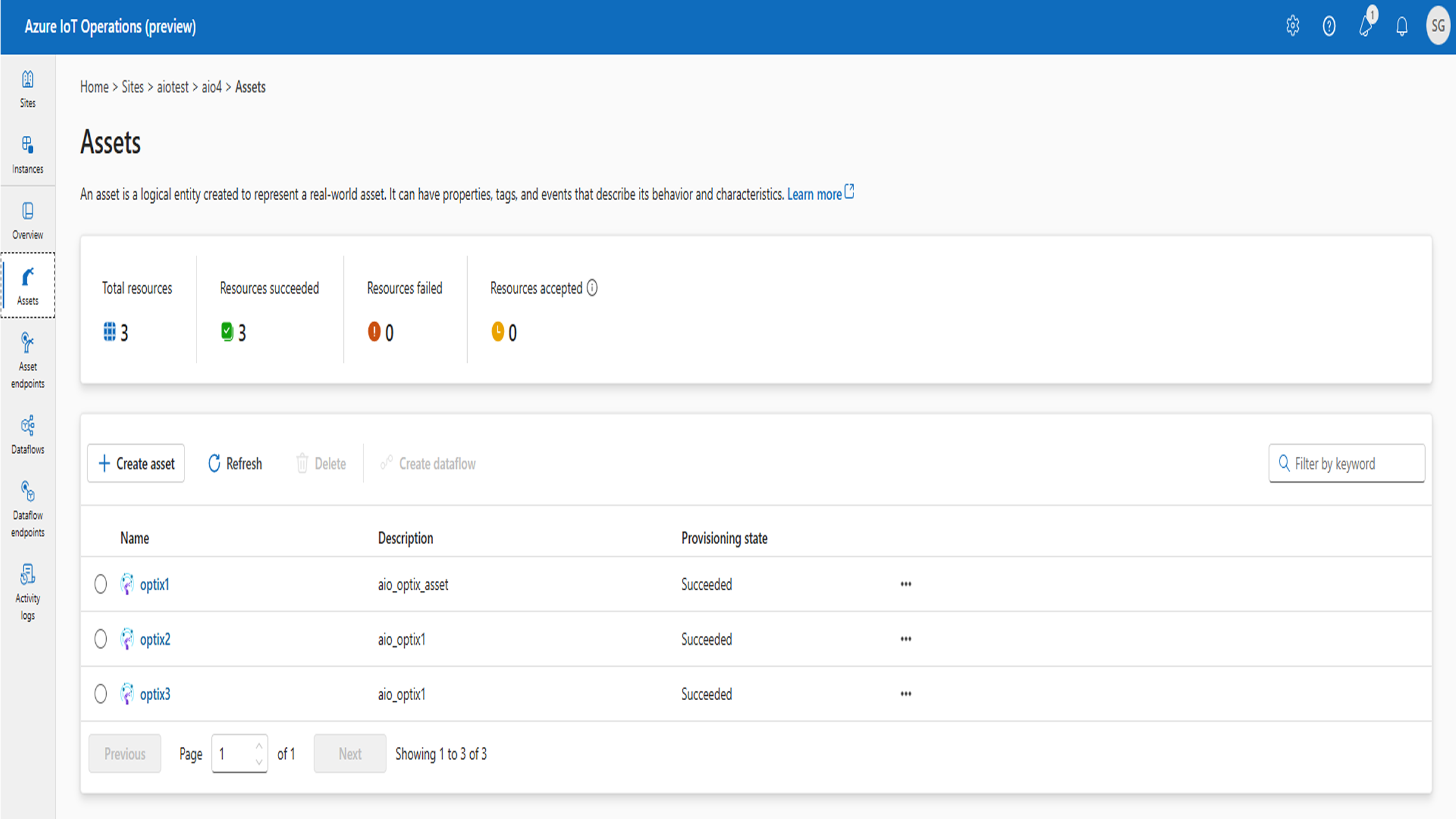
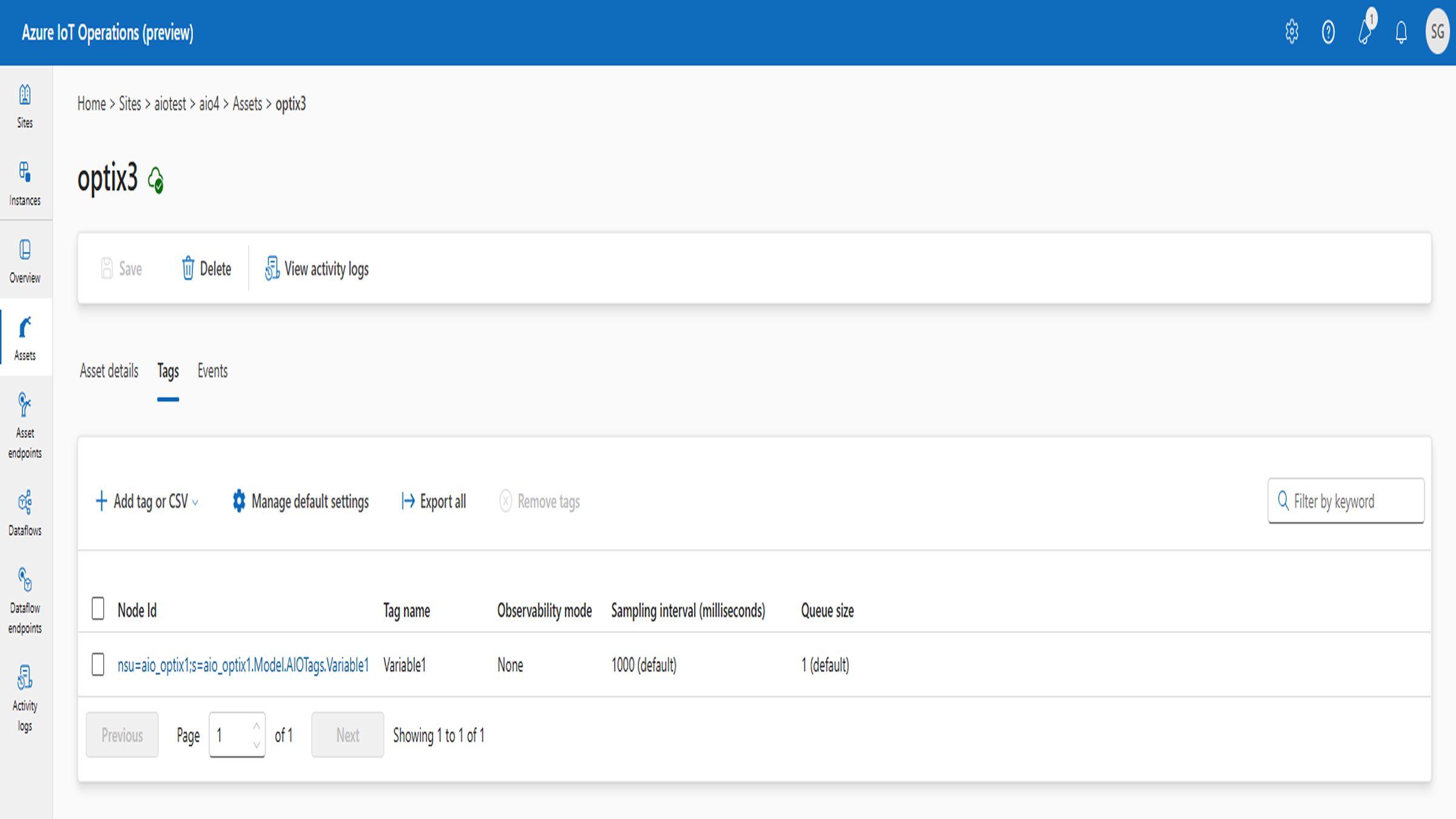
On the Assets page, create an asset that uses the endpoint profile and configure the tag list.
aio_assets.PNG
aio_asset_tags.PNG
TIP: The node address for OPC UA tags can be viewed in FactoryTalk Optix Studio. Alternatively, you can use an OPC UA client such as UAExpert to browse the FactoryTalk Optix OPC UA Server and obtain the address configuration for the tags. The node ID of a tag must use the following format:
nsu=<Optix_Application_Name>;s=Path.To.Node
For example, if the Optix application is named aio_optix1 and a tag called Variable1 was created in the folder AIOTags, which is a child of the Model folder:
Automate Azure IoT operations:
The setupaio.sh shell script automates the installation of a Kubernetes cluster and deploys an Azure IoT Operations instance on the cluster.
Assumptions:
The script will create a single-node cluster.
The script will use a specified user account for access.
Note - The script was created and tested with the Preview version and may require adaptation for later releases. This script is provided as-is, without warranty or support, and it is the user's responsibility to test and validate it before deploying it in a production environment. Copy the code into a file and name it setupaio.sh.
Caution - The file must be created directly in the Ubuntu environment to avoid formatting errors related to line-ending characters.
Use the following command to execute the script and pass in the mandatory parameters: bash setupaio.sh -l <your_location> -g <your_resource_group> -c <your_cluster_name> -u <your_user_email>
Run the script again if an error is encountered during execution. In some cases, an error may occur when an object is newly created and immediately referenced, so rerunning the script can resolve the issue. However, you should document any errors and address them with an appropriate resolution to ensure the environment is configured correctly.
How to Connect Your Plant or Machine to Azure Using FT‑Optix
Version 2.0 - September 2026
Receive new applications and Innovation Center updates directly in your inbox.